QR Code Generator
Generate a QR code image from text or a URL and download it as a PNG or as an SVG that stays sharp at any size. Enter a network name and password to make a QR code that joins Wi-Fi when scanned, or a name, phone number, and email address to make one that adds a contact (vCard).
How to use
- Choose "Free text", "Wi-Fi network", or "Contact (vCard)" under "QR code content"
- For "Free text", enter the text or URL you want to encode in "Text or URL". For "Wi-Fi network", enter the network name (SSID), the security, and the password (see "Making a Wi-Fi QR code"). For "Contact (vCard)", enter a name, phone numbers, an email address, and so on (see "Making a contact QR code")
- Choose an "Error correction level" (higher levels tolerate more smudging/damage but make the QR code more complex for the same content)
- Choose the size of the downloaded image under "Image size": 256, 512, or 1024 px (256 px by default)
- Press "Generate" to create the QR code, then use "Download PNG" or "Download SVG" to save it as an image
Changing what you entered, the kind of content, the error correction level, or the image size removes the displayed QR code and both download links. Press "Generate" again to rebuild it with the new settings.
Text entered under "Free text" is encoded exactly as entered, including leading and trailing spaces and line breaks. Pressing "Generate" with nothing entered shows nothing. The downloaded file is named qrcode.png or qrcode.svg; both hold the same black QR code on a white background.
Example
Entering https://example.com as text displays a QR code that, when scanned with a phone camera, opens that URL.
Generating this URL at error correction level L, M, or Q gives a QR code of 25 by 25 modules; level H gives 29 by 29 modules. The image adds a margin of 2 modules on every side, so in a 256 px image one module is about 8.8 px at 25 modules and about 7.8 px at 29 modules.
"Free text" accepts text other than URLs. It only turns your input into a QR code as it is, so what happens after scanning is decided by the app that reads it.
mailto:info@example.com: an email addresstel:0312345678: a phone number
Making a Wi-Fi QR code
Choosing "Wi-Fi network" under "QR code content" makes a QR code that joins a phone to a Wi-Fi network when it is scanned with the camera. It suits guest Wi-Fi and connection notices posted in shops and meeting rooms.
- Network name (SSID): enter the name set on the router exactly, including upper and lower case and spaces. A name longer than 32 bytes of UTF-8 (32 letters or digits, fewer with accented or Japanese characters) is not turned into a QR code, and an error is shown.
- Security: ordinary home and office routers use "WPA / WPA2 / WPA3". Choose "WEP" for old equipment that still uses WEP, and "None (no password)" for a network that can be joined without a password. Choosing "None" removes the password field, and no password goes into the QR code.
- Password: the password (network key) typed when joining the Wi-Fi network. It is shown as you type it, not hidden, so that you can check it.
- The network name is not broadcast (hidden network): tick this only when the router is set not to announce its name.
When the network name is empty, or the password is empty with a security other than "None", no QR code is made and a message points to the field to fix.
Pressing "Generate" shows "Text in the QR code" below the QR code. With the network name MyNetwork, the security "WPA / WPA2 / WPA3", and the password password123, the text is WIFI:T:WPA;S:MyNetwork;P:password123;;, which gives a QR code of 29 by 29 modules at error correction level L or M, 33 by 33 at Q, and 37 by 37 at H. Ticking the hidden network box adds ;H:true before the final ;;.
When the network name or the password contains \, ;, ,, :, or ", a \ is put before that character. For example, the network name Home;Net becomes S:Home\;Net. The reader removes that \, so the name and password used to connect are the ones you entered.
A WPA password is 8 to 63 letters, digits, and symbols, or 64 hexadecimal digits. A password outside that is still encoded exactly as entered, with a note below the result. Check that it matches the router's settings.
A network name made only of the digits 0 to 9 and the letters A to F, such as ABCD or 1234, is still written as it is, without quotation marks around it. Some scanning apps read such a name as hexadecimal data, look for a network with a different name, and fail to connect.
iPhones (iOS 11 and later) and most devices with Android 10 or later read this QR code from the built-in camera app or the Wi-Fi settings screen. What happens after scanning depends on the device, and some devices cannot join a router that is set to accept WPA3 only. Check with a real device that the connection works before you post the code. QR codes for WPA2 Enterprise, which signs in with a user name and a password, cannot be made.
Making a contact QR code
Choose "Contact (vCard)" under "QR code content" to make a QR code that adds a name, phone numbers, an email address, and other details to the address book of the phone that scans it. Use it on business cards, at an event reception desk, or on a shop notice.
- Fields: last name and first name, phonetic last name and phonetic first name, company, department, and job title, mobile phone and work phone, email, website, postal code, and address.
- Required: enter at least a last name, a first name, or a company. When all three are empty, no QR code is made and a message is shown instead. Any other field can stay blank, and blank fields are left out of the code.
- Spaces: spaces at the start and end of each field, including full-width spaces, are removed.
- Phonetic names: how the name is read, used mostly for Japanese names written in kanji. Contacts apps use it as the reading of the name, for example to sort it.
- Phone numbers: write them with half-width digits,
+,-,., parentheses, and spaces. A number with any other character (including full-width digits) still goes into the code as entered, with a note below the result. The same happens when the email address is not in the form name@domain. - Address: enter the whole address in one field. The postal code and the address are saved as the work address.
The code holds the contact in vCard version 3.0, the format widely used to exchange contacts. After "Generate", the text appears below the QR code under "Text in the QR code". With the last name Smith, first name Jane, company Example Inc., job title Sales Manager, mobile phone +1 555-123-4567, and email jane@example.com, the text is:
BEGIN:VCARD
VERSION:3.0
N:Smith;Jane;;;
FN:Jane Smith
ORG:Example Inc.
TITLE:Sales Manager
TEL;TYPE=CELL:+1 555-123-4567
EMAIL;TYPE=INTERNET:jane@example.com
END:VCARD
This QR code is 49 modules across at error correction level L, 53 at M, 61 at Q, and 69 at H. In a 256 px image at level M, each module is about 4.5 px. Each field you fill in makes the modules smaller, and Japanese characters take 3 bytes each. Enter only the fields you need, and use a PNG of 512 px or more, or the SVG, for printing.
- Name: the
Nline holds the last name and the first name separated by;. TheFN(display name) line joins them with a space, first name first on the English page and last name first on the Japanese page. When there is no name, it holds the company. iPhone and Android contacts show the name from theNparts, in the order the phone is set to use. - Company and department: both go on the
ORGline, separated by;. - Symbols: a
\,;, or,in a name, company, or other text is written with a\in front of it. For example, the companyExample, Inc.becomesORG:Example\, Inc.. The website URL goes in exactly as written. - Line ends and folding: lines end in CRLF. The vCard specification recommends folding long lines every 75 bytes, but this tool does not fold them, because some scanner apps cannot read a line that is folded in the middle of a Japanese character.
When an iPhone (iOS 11 or later) or many Android phones scan this QR code with the built-in camera or a similar app, they ask whether to add the contact. Which fields are imported, and how phonetic names are handled, depends on the phone and the app. Scan it with a real phone before you print it. Photos, birthdays, notes, and more than one email address cannot be included.
PNG and SVG
A PNG is an image made of pixels and is saved at the selected image size (256, 512, or 1024 px). It works almost anywhere an image can be placed, but stretching it beyond the saved size can blur its edges, depending on the app that displays it.
An SVG records where the modules are as numbers, so its edges stay sharp however far it is enlarged. It suits large prints such as posters and signs, and editing in tools such as Illustrator or Inkscape. The selected image size is written into the SVG as well, as the size it is first drawn at (width and height). That number does not affect how well the image scales.
The SVG is a text file that uses one unit per module and holds only a white background square and the lines of the black modules. It contains no scripts and no external references. Use the PNG where SVG files are not accepted, such as social media posts and messaging apps.
How much text fits
The amount one QR code can hold depends on the error correction level and the kind of characters. These are the longest strings of a single repeated character that this app could generate.
- L: 7,089 digits, 2,953 lowercase letters, 984 hiragana characters
- M: 5,596 digits, 2,331 lowercase letters, 777 hiragana characters
- Q: 3,993 digits, 1,663 lowercase letters, 554 hiragana characters
- H: 3,057 digits, 1,273 lowercase letters, 424 hiragana characters
Japanese is encoded as UTF-8, so hiragana, katakana, and common kanji take 3 bytes per character, and most emoji take 4 bytes. Text made only of digits, or only of uppercase letters and digits, is stored more compactly.
Beyond the limit, the error The amount of data is too big to be stored in a QR Code is shown instead of a QR code. Shorten the text or lower the error correction level.
Close to the limit the modules become very fine and hard to scan. For example, 300 lowercase letters at level M give 69 by 69 modules, so one module is about 3.5 px in a 256 px image and about 14 px in a 1024 px image. Encoding the URL of a page that holds the text scans more reliably than encoding the long text itself.
Printing and displaying the code
- For printing, use the SVG, which does not blur when enlarged, or choose 512 px or 1024 px for the PNG.
- In both the PNG and the SVG, the margin in the image is 2 modules wide. Do not put a border, text, or a photo right next to the QR code; leave blank space around it.
- Keep it black on white. Inverting the colors or reducing the contrast with the background can make it unreadable.
- Where dirt or creases are likely, set the error correction level to Q or H.
- Before printing in bulk, print one at the real size and scan it with several devices.
How your data is handled
The QR code is generated entirely in this browser. The text you enter and the image are not sent to a server and are not saved. The same goes for a Wi-Fi network name and password, and for the names and phone numbers of a contact. The input disappears when you reload the page.
FAQ
Which error correction level should I choose?
The default "M" is fine for most uses. Choose "Q" or "H" if the printed code may get dirty or damaged.
Which image size should I choose?
256 px is enough for showing a short URL on a screen. More content makes the modules of the QR code finer, so choose 512 px or 1024 px for long text or for printing. The preview on the page is always scaled down to fit within 256 px regardless of the image size; only the downloaded image has the selected size. An SVG does not blur when enlarged, so any size will do if you use the SVG.
Should I download the PNG or the SVG?
The PNG suits web pages, documents, and social media; the SVG suits large prints and editing in design software. Both files hold the same QR code, so they scan to the same result. See "PNG and SVG" for details.
Is there a limit on how much text can be encoded?
Yes. It depends on the error correction level and the kind of characters; at level M, for example, the limit is 2,331 lowercase letters or 777 hiragana characters. An error message appears beyond the limit. See "How much text fits" for details.
Can I encode Japanese text or emoji?
Yes, content is encoded as UTF-8, so Japanese text and emoji work. Longer content makes the QR code more complex.
Do the QR codes expire?
No. The text you entered is recorded in the image itself, and scanning it does not go through this site. A code holding a URL works for as long as the page at that URL exists. The content of a printed QR code cannot be changed afterward, so generate a new one if the destination changes.
Does showing a Wi-Fi QR code reveal the password?
Yes. The QR code holds the password as it is, and some apps display the password after scanning. Treat the image or a printout like a note with the password written on it, and show it only to people who may connect. When you change the router's password, make the QR code again.
Does scanning a contact QR code send the scanner's details to me?
No. The QR code holds only the contact that its maker entered. A phone that scans it only saves that contact on the phone itself. It does not tell the maker or this site that the code was scanned, or who scanned it.
Can I change the colors or put a logo in the middle?
No. The app only outputs a black-on-white PNG image and SVG image. It has no scan counting and no other output formats such as JPEG, PDF, or EPS. To add colors or a logo, download the SVG, edit it in design software, and check that it still scans before using it.
Is my data stored anywhere?
No. QR code generation runs entirely in your browser with no data sent anywhere. The input disappears when you reload the page.
- Type
- Utility
- Category
- Converters
- Tags
- qr
- qrcode
- generator
- converter
- png
- svg
- wifi
- vcard
- contact
Related apps
Barcode Generator
Create EAN-13/JAN, EAN-8, UPC-A, ITF-14, Code 128, Code 39, and Codabar (NW-7) barcodes and save them as PNG or SVG. Check digits are calculated or verified automatically, and you can set the narrow bar width and bar height in millimetres for print. You can also lay out many barcodes, one per line or as a numbered series, on a printable A4 or Letter PDF.
Japanese Address to English Converter
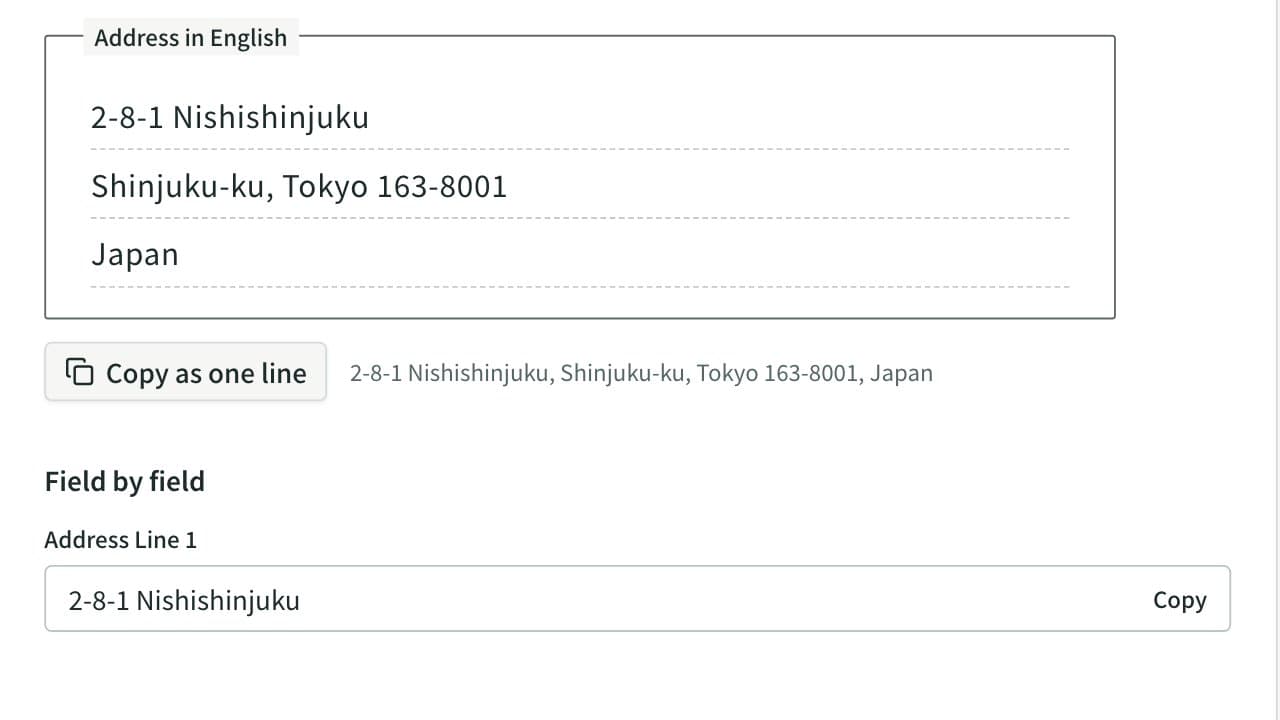
Convert a Japanese address to English. Prefectures and municipalities are romanized automatically, and the block, building and room are put in English order, with a field-by-field view for overseas forms and the phone number written from +81.
Unit Converter
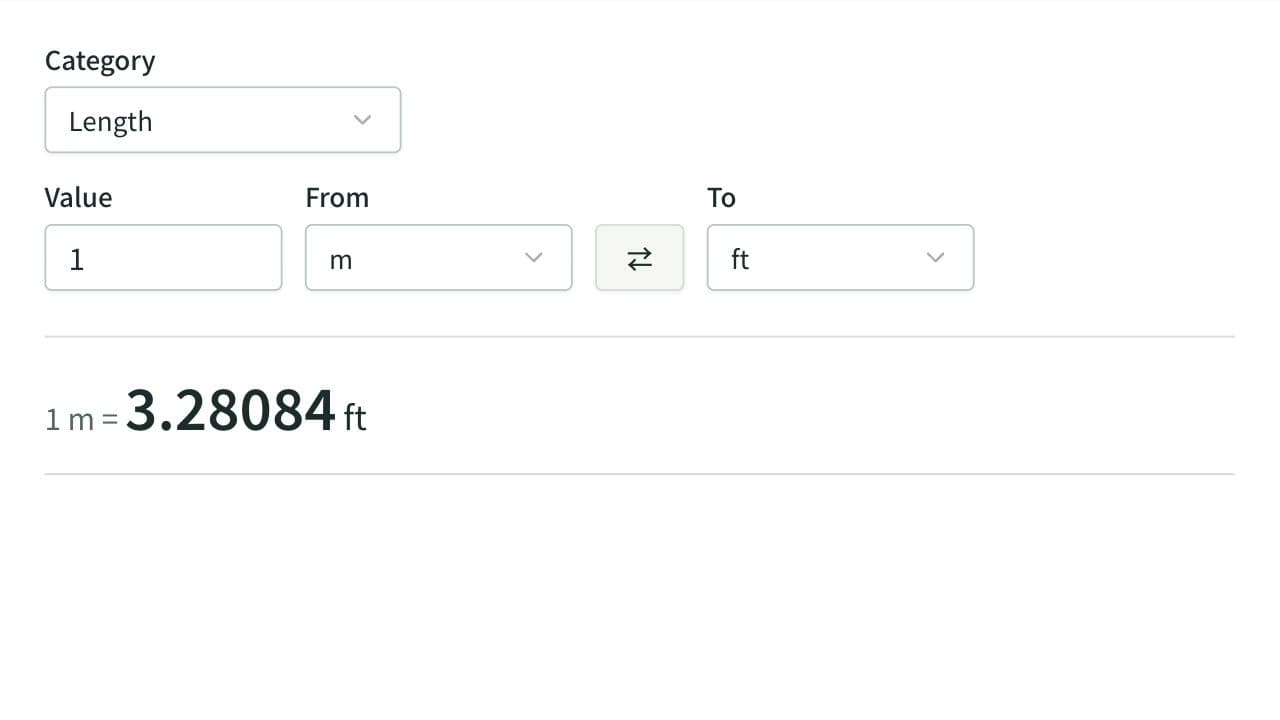
Convert length, weight, volume, area, and speed between metric and imperial units, and temperature between Celsius, Fahrenheit, and kelvin. Data sizes such as GB and GiB are covered too. Lists the value in every unit of the category, each ready to copy as a number.