Barcode Generator
Create EAN-13/JAN, EAN-8, UPC-A, ITF-14, Code 128, Code 39, and Codabar (NW-7) barcodes and save them as PNG or SVG. Check digits are calculated or verified automatically, and you can set the narrow bar width and bar height in millimetres for print. You can also lay out many barcodes, one per line or as a numbered series, on a printable A4 or Letter PDF.
Make
Enter 12 digits and the 13th, the check digit, is calculated and added. With 13 digits, the last one is checked.
How to use
- Choose a "Barcode type". If you are unsure, see "Choosing a type" below
- Enter the number or text under "Data". The barcode appears right below as you type
- If needed, change the narrow bar width, the bar height (mm), and the PNG resolution under "Size"
- Save the image with "Save PNG" or "Save SVG"
For EAN, UPC, and ITF-14, entering every digit except the last adds the check digit for you. If you enter the last digit too, it is checked against the calculation; when it does not match, the correct value is shown together with a "Change the last digit to …" button. Full-width digits and letters are converted to half-width, and for EAN, UPC, and ITF-14 spaces and hyphens inside the number are ignored.
To put many barcodes on a printable PDF, see "Making many at once (printable PDF)" below.
The number you enter is processed only inside your browser. It is never sent or stored anywhere and disappears when you close the page.
Making many at once (printable PDF)
To print many barcodes on paper, such as stock labels or library cards, choose "Many at once (PDF)" under "Make".
- Under "Data (one per line)", enter the numbers or text one per line, up to 300 lines. You can paste a column straight from a spreadsheet
- Under "Paper", choose A4 (210 × 297 mm) or Letter (8.5 × 11 in)
- Check the preview of page 1 below, then press "Save PDF"
Blank lines are skipped and spaces around each line are removed. Enter the same value on three lines to get three copies of that barcode. The type, size, text, and other settings apply to every line.
No PDF is made while any line has a problem. Problem lines are listed with their line numbers, such as "Line 3: The check digit does not match. …"; past the first 20, only the number of further lines is shown. For an EAN, UPC, or ITF-14 line whose check digit does not match, type the correct digit shown or delete the last digit so it is calculated for you (there is no per-line fix button when making many at once).
The barcodes are placed inside a 10 mm margin on every side of the paper, 2 mm apart, from the top left across and then down to the next row. Each sits in the middle of a cell the size of the largest barcode, the grid is centred across the page, and whatever does not fit continues on the next page. At the standard EAN-13 size (37.29 × 27.19 mm with margins), for example, an A4 page holds 4 across × 9 down = 36. Tick "Draw cut lines" to draw thin grey lines down the middle of the gaps.
The PDF draws the barcodes as shapes at the size you set, so choose "Actual size" (100%) in the print settings to print them without scaling. "Fit to page" can shrink them until they no longer scan. The text under the bars uses Courier, a standard PDF font.
There is no option to match the positions of commercial label sheets. To fit a label template, save single barcodes as SVG and place them in your label software.
Filling in a numbered series
Open "Fill in a numbered series" to fill in data that counts up by one. Enter "Text before the number", "First number", and "How many", then press "Fill in the series"; the data above is replaced by the series.
- The number has as many digits as the first number you type: from
001, ten values run001to010. When it runs past them (after999), it grows to1000 - For EAN-13, put the first seven digits, such as a company prefix (
4901234), before the number and start at00001: each 12-digit number gets its check digit added - For Code 128,
BOX-and0001give stock numbers likeBOX-0001,BOX-0002, …
Choosing a type
- EAN-13 / JAN-13: The standard barcode on retail products. In Japan it is called a JAN code and is identical to the international EAN. It holds 13 digits, and book ISBNs (13 digits starting with 978 or 979; those starting with 9790 are ISMNs for printed music) use this form too
- EAN-8 / JAN-8: A shortened version for small products. It holds 8 digits
- UPC-A: The 12-digit barcode used on products in the United States and Canada. Its bars are the same as an EAN-13 with a leading 0, so most EAN scanners read it as well
- ITF-14: A 14-digit logistics barcode for shipping cartons that hold several products. The thick border around it (the bearer bars) protects against faint printing and misreads
- Code 128: Holds ASCII letters, digits, symbols, and spaces. It is common for internal IDs and inventory labels. Runs of digits are packed two per symbol, so the barcode stays shorter for the same number of characters
- Code 39: An older industrial barcode for digits, capital letters, and a few symbols. If you type lowercase letters, a "Make it uppercase" button appears
- Codabar (NW-7): Holds digits and - $ : / . +. It appears on delivery slips, library books, and membership cards. The start and stop characters (A to D) are chosen from menus; if you type them around the data, those are used instead
Check digit calculation (EAN, UPC, ITF-14)
The check digit is the last digit, used to catch reading errors. It is calculated as follows.
- Starting from the rightmost digit before the check digit, multiply the digits by 3, 1, 3, 1, … and add them up
- Subtract the last digit of the sum from 10. The last digit of the answer is the check digit (0 when the sum ends in 0)
For example, entering 490123456789 as EAN-13 gives a weighted sum of 126, so the check digit is 10 − 6 = 4 and the barcode holds 4901234567894. If you enter 4901234567890 with 13 digits, the tool reports that the last digit does not match the calculated 4.
Under the result you see the check digit that was added or verified and the weighted sum. For EAN numbers starting with 45 or 49 it also notes that they are Japanese company numbers, for 02 and 20 to 29 that they are in-store codes used only inside a shop, and for 978 and 979 that they are book numbers (9790 is printed music).
For Code 39, ticking "Add a check character (modulo 43)" appends the character whose value is the remainder of the sum of the character values (0–9 are 0–9, A–Z are 10–35, the symbols are 36–42) divided by 43. Code 128 always contains a check symbol with a fixed calculation, so there is nothing to choose (it is part of the bars only and is not printed in the text). Codabar check digits differ by application, so this tool does not add one.
Size and printing
Set the size with the narrow bar width and the bar height in millimetres. Switching the type resets them to that type's standard size.
- EAN and UPC: A 0.33 mm narrow bar is 100% magnification, and the width including margins is 37.29 mm for EAN-13 and UPC-A and 26.73 mm for EAN-8. Keep the magnification between 80% and 200% (a narrow bar of 0.264 to 0.66 mm). The current magnification is shown under the result, with a warning when it is outside that range or when the bars are shorter than the standard height for the magnification (22.85 mm × magnification for EAN-13 and UPC-A)
- ITF-14: The standard is a 0.635 mm narrow bar (62.5% magnification) and 31.75 mm bars. The bearer bars are about 4.8 mm thick; choose "Full frame", "Top and bottom", or "None"
- Code 128, Code 39, and Codabar: The standard is a 0.25 mm narrow bar and 12 mm bars. Adjust them to suit your scanner
Wide bars are drawn three times as wide as narrow bars. The white margins (quiet zones) that scanners need are added on both sides: 11 narrow bars on the left and 7 on the right for EAN-13, 7 on each side for EAN-8, 9 on each side for UPC-A, and 10 on each side for the others. Do not place text or lines over these margins.
PNG or SVG
The SVG records the size you set in millimetres and stays sharp at any size. Use it for Illustrator, Inkscape, files for a print shop, or whenever the exact printed size matters.
The PNG is drawn at the chosen resolution (96, 150, 300, or 600 dpi) with every narrow bar a whole number of pixels wide. That changes the printed narrow bar width slightly. The "PNG" line of the result shows the printed narrow bar width, with a note when it differs from your setting by more than 5%. For example, a 0.33 mm narrow bar becomes 4 pixels (0.339 mm) at 300 dpi and 1 pixel (0.265 mm) at 96 dpi. The PNG also carries its resolution, so Word and Excel place it at the matching size.
If it does not scan
- Check that the margins on both sides of the bars are not cut off by other text, lines, or the edge of the paper
- Check that it is not too small. On a low-resolution printer, narrow bars can blur together. Use a wider narrow bar, a higher-resolution PNG, or the SVG
- Check the print density and paper colour. Print black bars on a white background; coloured paper or red bars may not scan
- When resizing the image, keep its aspect ratio
FAQ
Can I make up my own EAN/JAN number?
EAN numbers for products sold in shops are built from a GS1 company prefix that you obtain from your national GS1 organisation (GS1 Japan in Japan). This tool only turns a number into a barcode image; it does not register or issue numbers. For numbers used only inside your own shop, you can use in-store codes starting with 02 or 20 to 29.
Is the number I enter sent anywhere?
No. The calculation and the image are made entirely in your browser, with nothing sent to a server or saved.
Can a barcode hold Japanese text?
No. The one-dimensional barcodes made here can hold only digits or ASCII letters and symbols. Use a QR code for Japanese text.
How do I hide the text under the bars?
Untick "Show the text under the bars". For EAN and UPC, the guard bars (the long bars at both ends and in the middle) then become the same length as the others.
Does it support GS1-128, UPC-E, or 2D codes?
No. This tool makes the seven types above. You can make 2D codes with the QR Code Generator.
How can I check that a printed barcode scans?
Scan the barcode on the screen or on paper with a barcode reader app on your phone. If it reads the same number or text as "Value" in the result, the barcode is correct.
- Type
- Utility
- Category
- Converters
- Tags
- barcode
- jan
- ean
- upc
- itf
- code128
- code39
- nw-7
- codabar
- check-digit
- generator
- png
- svg
- label
Related apps
Favicon Generator
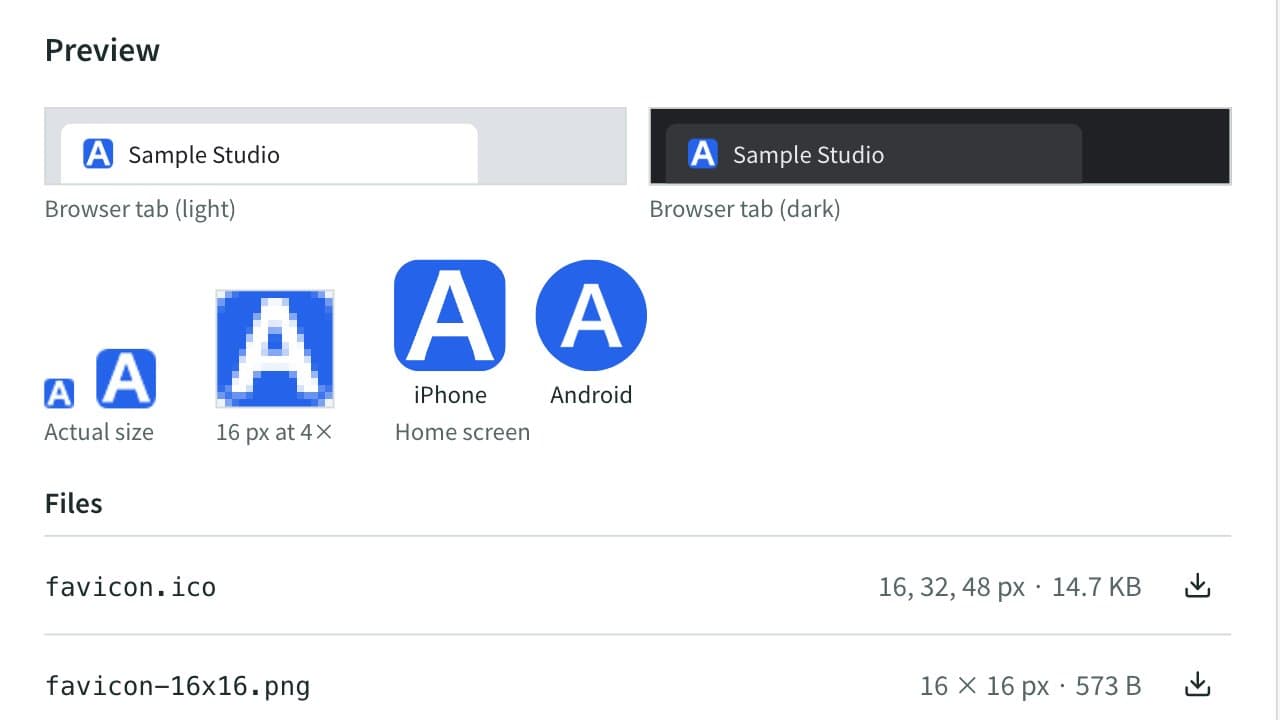
Create favicon.ico (16, 32, 48 px), apple-touch-icon, 192 and 512 px Android/PWA icons, a maskable icon, and site.webmanifest from a logo image or text and emoji, then save them all as a ZIP. Copy the HTML tags or the Next.js file layout too. Everything runs in your browser.
Japanese Address to English Converter
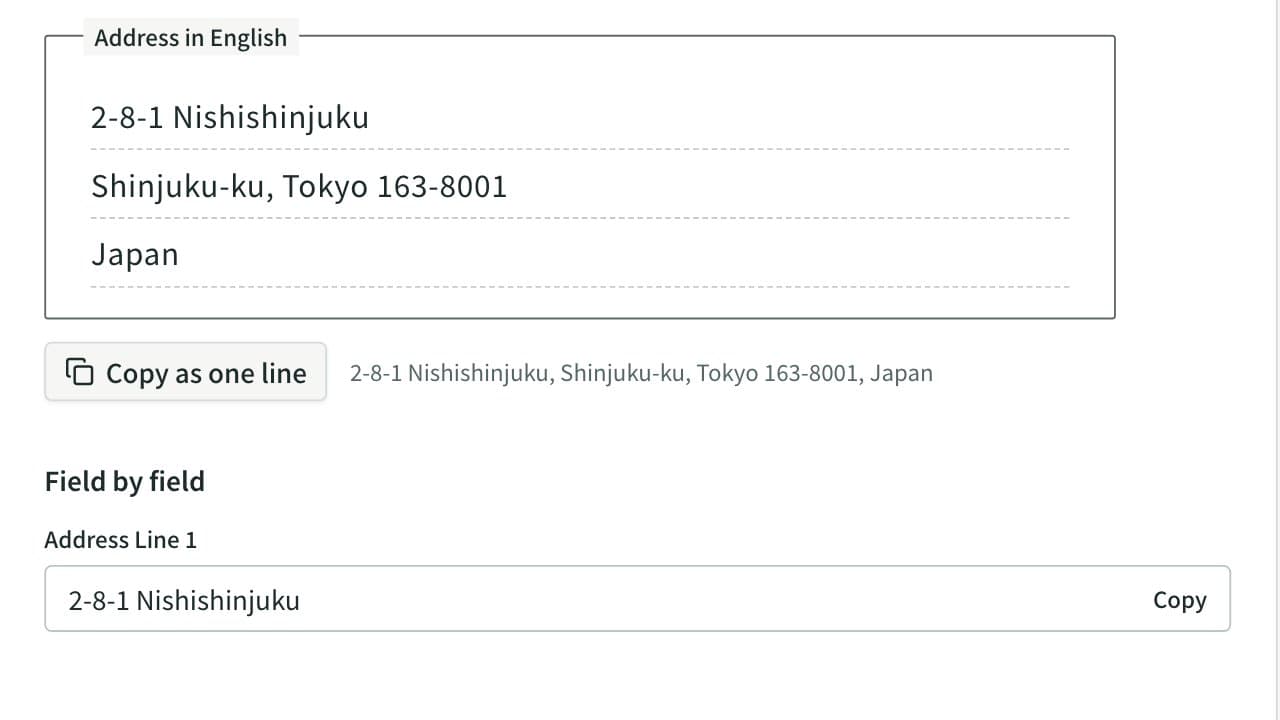
Convert a Japanese address to English. Prefectures and municipalities are romanized automatically, and the block, building and room are put in English order, with a field-by-field view for overseas forms and the phone number written from +81.
Unit Converter
Convert length, weight, volume, area, and speed between metric and imperial units, and temperature between Celsius, Fahrenheit, and kelvin. Data sizes such as GB and GiB are covered too. Lists the value in every unit of the category, each ready to copy as a number.