Favicon Generator
Create favicon.ico (16, 32, 48 px), apple-touch-icon, 192 and 512 px Android/PWA icons, a maskable icon, and site.webmanifest from a logo image or text and emoji, then save them all as a ZIP. Copy the HTML tags or the Next.js file layout too. Everything runs in your browser.
Preview
Site details (for site.webmanifest and HTML)
Shown under the home-screen icon. The site name is used when empty.
Theme color (theme-color)
#2563eb
Keep / for the site root. Example: /icons/
Images and text are processed on your device and never sent to a server.
How to use
- Choose "An image" or "Text or emoji"
- For an image, drop a logo or other image, or click to choose one. For text, enter one or two characters or an emoji, then pick the text color, typeface, and weight
- Under "Design", choose the shape (square, rounded, or circle), the background color, and the padding. The background can also be transparent. For a non-square image, choose "Fit the whole image" or "Crop the center"
- In "Preview", check the browser tab (light and dark), the actual size, and the iPhone and Android home screens
- Fill in "Site details": the site name, theme color, and where the files will live. They go into site.webmanifest and the HTML tags
- Click "Save all as ZIP", or save the files one by one. Save again after changing the site details
- Copy the HTML tags (or the Next.js file layout) into your project
Every file is recreated as soon as you change a setting. Images and text never leave your browser and are not saved.
Files created
- favicon.ico: one icon holding three sizes, 16, 32, and 48 px. Browser tabs, bookmarks, and Windows shortcuts use it. The entries are 32-bit bitmaps with transparency, so older browsers and tools can read them too
- favicon-16x16.png and favicon-32x32.png: PNGs for tabs. High-resolution screens use the 32 px one
- apple-touch-icon.png (180×180 px): the icon used when someone adds your site to the home screen on an iPhone or iPad. iOS rounds the corners itself, so it is made as a filled square
- android-chrome-192x192.png and android-chrome-512x512.png: icons for the Android home screen and for installed PWAs
- maskable-icon-512x512.png: an icon whose content sits inside the central safe zone (a circle 80% wide), so it is never cut when Android crops it to a circle or rounded square
- site.webmanifest: the file listing your site's name, icons, and theme color
- favicon.svg: created only when you start from an SVG image. It stays sharp at any size
Example
With the files at the site root (/), the site name "Sample Studio", and the background color #2563eb, the tags for your HTML <head> are:
<link rel="icon" href="/favicon.ico" sizes="48x48" />
<link rel="icon" href="/favicon-32x32.png" type="image/png" sizes="32x32" />
<link rel="icon" href="/favicon-16x16.png" type="image/png" sizes="16x16" />
<link rel="apple-touch-icon" href="/apple-touch-icon.png" sizes="180x180" />
<link rel="manifest" href="/site.webmanifest" />
<meta name="theme-color" content="#2563eb" />
Enter /icons/ in "Where the files will live" and the paths in the tags and in site.webmanifest change to /icons/favicon.ico and so on.
Tips for a clean result
- Source image: a square image of 512 px or larger works best. A smaller image makes the 180, 192, and 512 px icons enlarged and soft, and the app warns you. An SVG is sharp at every size
- Legible at 16 px: check "16 px at 4×". Thin lines and small letters vanish, so use just part of the logo (an initial or the mark) or reduce the padding
- Transparent backgrounds: dark logos are hard to see on a dark-mode tab. Check "Browser tab (dark)" and add a background color if needed
- How images are shrunk: large images are halved step by step before the final resize, which keeps thin lines better than shrinking in one jump
Using it with Next.js
Choose "Next.js (App Router)" under "Install for" to see where each file goes. Files with reserved names in app/, such as app/favicon.ico, app/icon.svg, and app/apple-icon.png, make Next.js output the <link> tags for you. Place site.webmanifest as app/manifest.webmanifest and the Android PNGs in public/. Set the theme color with viewport in app/layout.tsx.
FAQ
Do I need favicon.ico or the PNGs?
Current browsers read both, but having both is the safe choice. Browsers request /favicon.ico at the site root even without a <link> tag, and PDF viewers and feed readers use it too. PNGs come in separate sizes, so tabs show the 32 px PNG sharply.
I changed my favicon but still see the old one.
Browsers cache favicons for a long time. If reloading does not help, clear the browser cache or add ?v=2 to the file path to force a reload. The favicon in Google Search results changes only after Google recrawls your site, which can take days or weeks.
How do I get a favicon in Google Search results?
Put a rel="icon" or rel="apple-touch-icon" tag in the <head> of your home page and use a square image. Google requires at least 8×8 px and recommends larger than 48×48 px. The favicon.ico (which includes 48 px) and apple-touch-icon (180 px) created here meet that. Google does not list SVG among its supported formats, so do not rely on SVG alone; keep the PNG or ICO as well.
What is a maskable icon?
Depending on the device, Android crops app icons into circles, rounded squares, teardrops, and other shapes. A maskable icon keeps its important part inside a central circle 80% wide and fills the rest with the background color, so no shape cuts it off. site.webmanifest lists it with "purpose": "maskable".
I chose a transparent background, but the iPhone icon has a color.
iPhone home-screen icons cannot be transparent; transparent parts show as black. So only apple-touch-icon and the maskable icon are filled with "Background for Apple and Android". The favicon.ico and PNGs for tabs stay transparent.
Can I choose the typeface for a text icon?
Choose sans-serif, serif, or monospace. Text is drawn with the fonts on this device, so its shape differs slightly between Mac and Windows. The PNG and ICO files are images, so they look the same on your visitors' devices.
Can I rename the files?
Yes, but update the paths in the <link> tags and site.webmanifest to match. Keep favicon.ico under that name at the site root, though, because browsers sometimes request it without looking at the tags.
- Type
- Utility
- Category
- Images
- Tags
- favicon
- ico
- icon
- apple-touch-icon
- webmanifest
- pwa
- png
- svg
- image
- html
- generator
Related apps
Image to PDF Converter
Combine JPG, PNG, WebP, and other images or photos into one PDF. Set the page order and rotation, the page size (A4, Letter, and more), orientation, margins, and how each image sits on its page, or make one PDF per image. JPEGs go in without re-encoding, and Exif data such as the location stays out of the PDF. Everything runs in your browser.
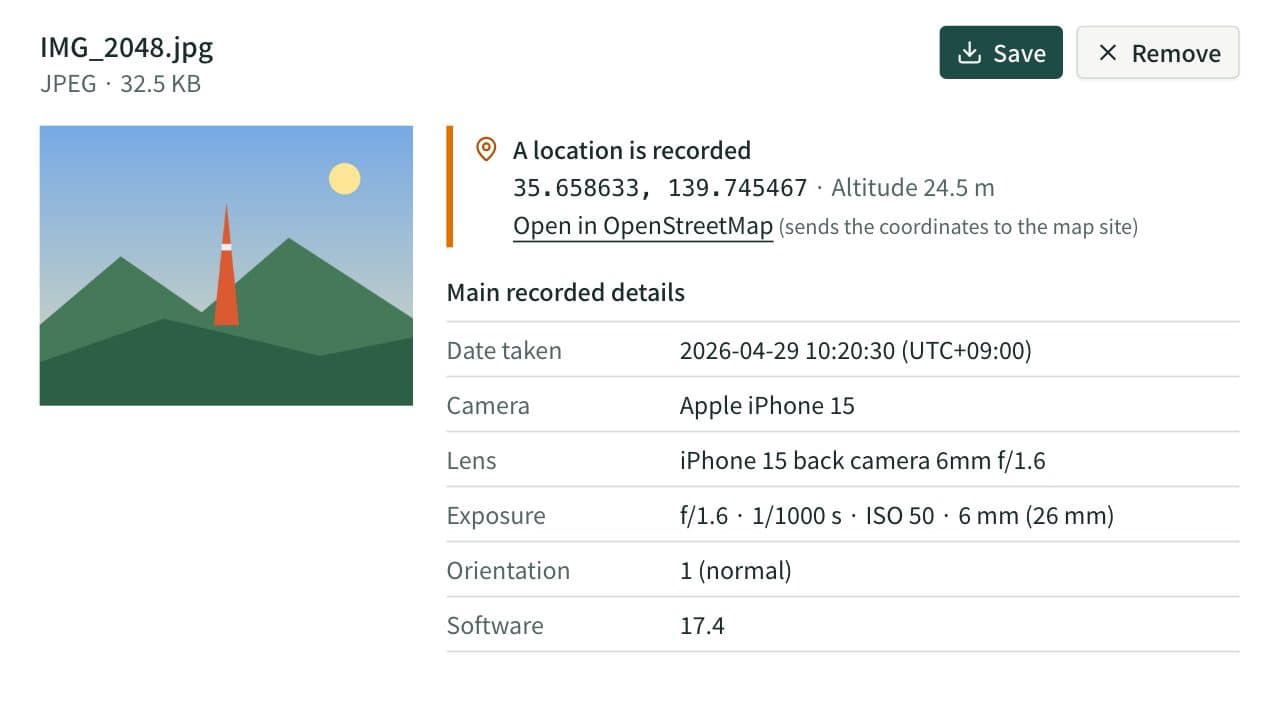
EXIF Viewer & Remover
View the EXIF data in photos, such as location, date taken, and camera, then remove it without changing image quality. Works with JPEG, PNG, and WebP, including several images at once.
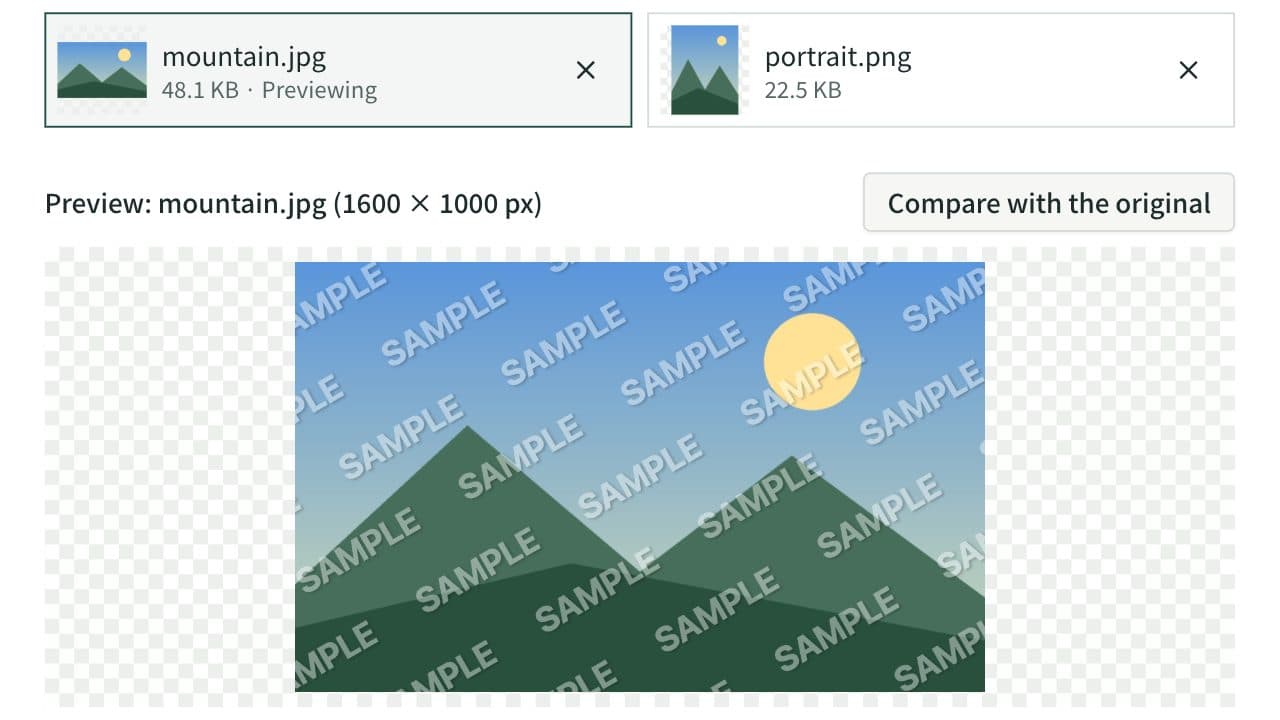
Image Watermark
Add a text or logo watermark such as “© name”, “SAMPLE”, or “CONFIDENTIAL” to photos and images. Place it in a corner or the center, or tile it over the whole image, and adjust the angle, opacity, outline, and shadow. Watermark up to 20 images at once and save them as a ZIP. Everything runs in your browser.