Image to PDF Converter
Combine JPG, PNG, WebP, and other images or photos into one PDF. Set the page order and rotation, the page size (A4, Letter, and more), orientation, margins, and how each image sits on its page, or make one PDF per image. JPEGs go in without re-encoding, and Exif data such as the location stays out of the PDF. Everything runs in your browser.
You can also paste a copied image with Ctrl+V (⌘+V on a Mac).
Nothing is uploaded: the PDF is made in your browser. Exif data such as a photo's location (GPS) does not go into the PDF.
How to use
- Drop images onto the box, or click it to choose files. You can choose several at once (up to 100 images, 50 MB each). You can also paste a copied image with Ctrl+V (⌘+V on a Mac)
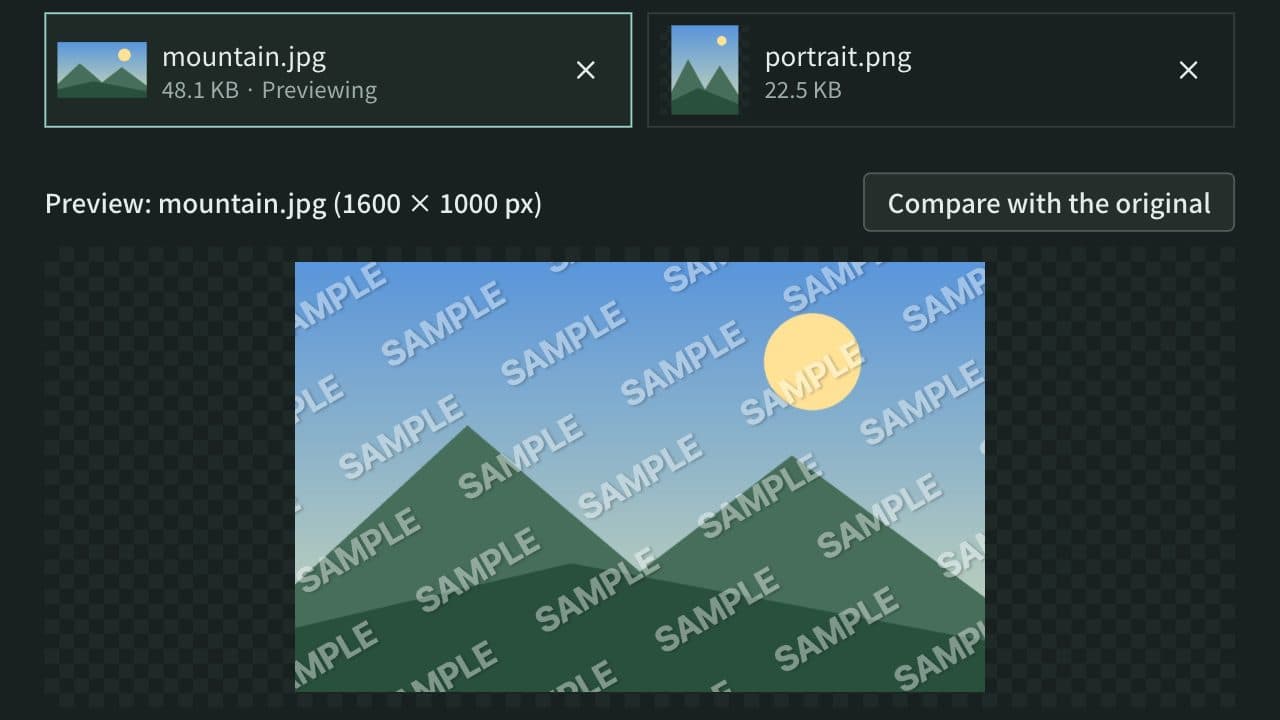
- The images become page 1, page 2, and so on, in the order shown. Move one earlier or later with the arrow buttons, or reorder them all with "Sort by file name" or "Reverse order". Turn a sideways scan with the rotate buttons, 90° at a time
- Choose the page size, orientation, margin, and image placement. The small pages in the list show the settings as you choose them
- Press "Make PDF", then "Download" to save it. "Open in a new tab" lets you check it before saving
If you change the images or settings after making the PDF, press "Make PDF" again. Changing only the file name does not need a new PDF.
Page size and placement
- Page size: A4, A3, A5, B4, B5, Letter, Legal, or "Same size as the image". B4 and B5 are the JIS B sizes used in Japan (B5 is 182 × 257 mm)
- Orientation: "Match the image" gives a wide image a landscape page, and a tall or square image a portrait page. "Portrait" or "Landscape" puts every page that way
- Margin: None, Small (5 mm), Normal (10 mm), or Large (20 mm), the same white margin on all four sides
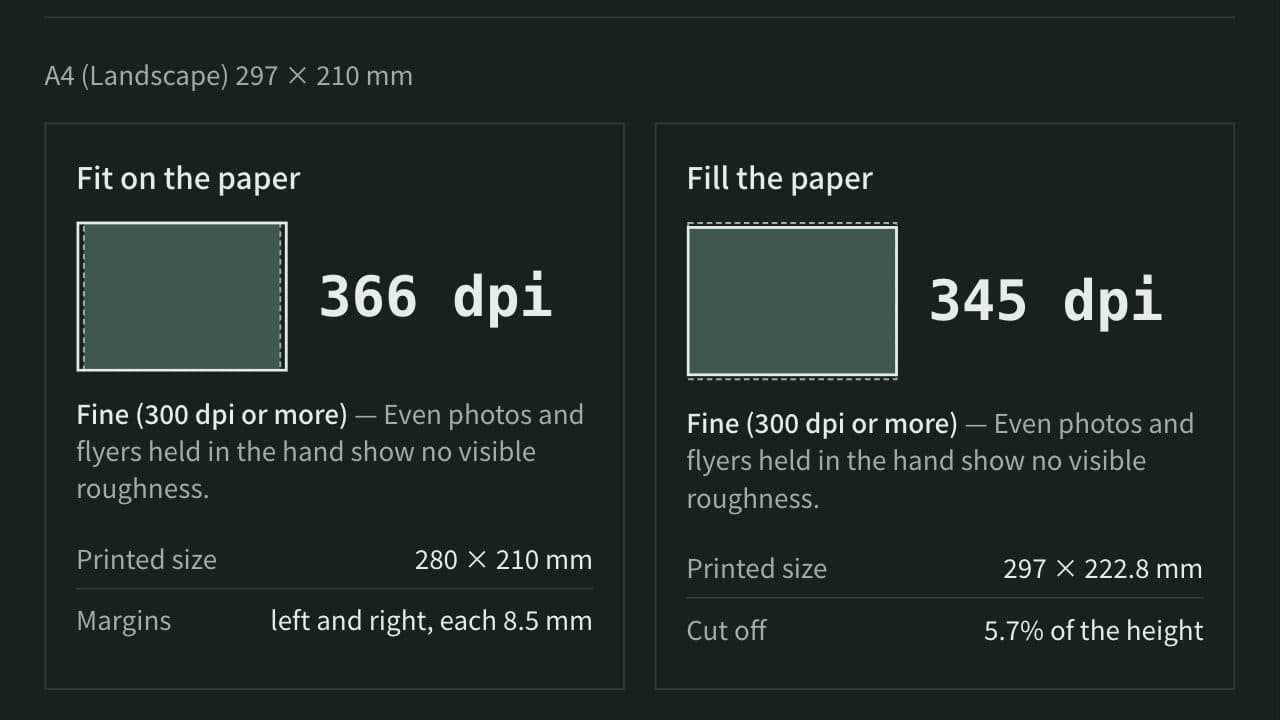
- Fit on the page: The image is scaled up or down, without changing its shape, until it just fits inside the margins, and centered. When the page and the image have different shapes, white space is left above and below or at the sides
- Fill the page: The image is scaled to cover the area inside the margins with no gaps, and centered. What sticks out is cut off and does not appear in the PDF
- Actual size: The image is centered at the size its resolution (dpi) gives. Only an image too large for the page is shrunk to fit
- Same size as the image: Each page takes the size of its image, set by the "Image resolution", plus the margin if you choose one
The "Image resolution" starts at the dpi saved in the image (JFIF or Exif in a JPEG, pHYs in a PNG), and 96 dpi for an image that saves none. Phone photos usually say 72 dpi, so "Same size as the image" makes large pages from them. To make pages at a print size, choose a page size such as A4, or a resolution such as 300 dpi. A page side is between 3 pt (about 1 mm) and 200 inches (5080 mm): a larger page is scaled down, keeping its shape, and a smaller one is scaled up.
Quality and file size
With "Original quality", JPEG images go into the PDF as they are, without being re-encoded. They lose nothing, and the PDF is about the size of the JPEGs. PNG, WebP, GIF, and other images go in as the browser reads them, compressed without further loss. The browser reads 8 bits per channel in sRGB, so a 16-bit PNG becomes 8-bit and a wide-gamut image such as Display P3 is limited to sRGB. Transparent areas are filled with white.
To make the PDF lighter, choose one of the three others. Each scales down only the images whose long side is over its limit, and saves them as JPEG. Small images are never enlarged.
- High: long side up to 3000 px, JPEG quality 90%
- Standard: long side up to 2000 px, JPEG quality 80%
- Small: long side up to 1200 px, JPEG quality 70%
A JPEG stays as it was whenever re-encoding would make it larger (a photo that is already well compressed, for example), even when it would be scaled down. Scaling an image down does not change the size of its page. Screenshots and drawings with small text can blur around the letters as JPEG, so "Original quality" suits them better.
Example
Five phone photos of 4032 × 3024 px (about 3 MB each), with the default settings (A4, match the image, no margin, fit on the page, original quality), make five landscape A4 pages, since the photos are wide. Each photo is 280 × 210 mm, the full 210 mm height of the page, leaving 8.5 mm of white at each side. The JPEGs go in as they are, so the PDF is about 15 MB.
With "Standard", the same five photos are scaled down to 2000 × 1500 px and the PDF is about 1–2 MB, which suits an email attachment.
A scanned A4 document of 2480 × 3508 px (300 dpi), with A4, no margin and fit on the page, makes a portrait A4 PDF at the document's own size.
Photo orientation and location
Phones and digital cameras record in Exif which way up a photo was taken. This tool reads it and puts the photo on the page the way your browser shows it. Turns you add with the rotate buttons come on top of that.
Even when a JPEG goes in as it is, its Exif (date taken, camera model, location (GPS)), XMP, IPTC, comments, and any video or thumbnail attached after the picture are removed first. Only Adobe's marker, which says how the colors are coded, and the ICC profile, which gives the image's color range (such as the iPhone's Display P3), are kept. The ICC profile becomes the PDF's color space, so with "Original quality" vivid photos keep the colors you see. Images scaled down and redrawn are converted to sRGB.
The PDF names "App Museum" as the tool that made it. It does not record when it was made or the images' original file names (one PDF per image uses each image's file name for the PDF's name and title).
Everything stays in your browser
Reading the images and making the PDF and the ZIP all happen in your browser on your device. The images are not uploaded to a server, and nothing you enter or make is stored. Reloading the page clears the images and the PDF.
FAQ
Can I use HEIC photos from an iPhone?
Yes, in Safari. In browsers that cannot show HEIC, such as Chrome and Edge, the image says "This browser cannot read this image" and is left out of the PDF. On an iPhone, Settings → Camera → Formats → Most Compatible takes photos as JPEG. HEIC images are redrawn, so with "Original quality" the PDF is large.
Can I make a separate PDF for each image?
Choose "One PDF per image (ZIP)" under "Save as". Each image becomes a one-page PDF, and they are saved together as a ZIP. Each PDF is named after its image (photo.jpg becomes photo.pdf), with a number such as " (2)" added when names repeat.
Does the PDF lose quality?
Not for JPEGs with "Original quality": they go in as they are. PNG and other images go in as the browser reads them, 8-bit sRGB pixels, without further loss. A PDF viewer scales the page to your screen, so zooming in shows the full detail of the original.
What happens to an animated GIF?
Only its first frame goes in, as one page.
Can I use CMYK JPEGs?
Yes. A CMYK JPEG made for print is converted to RGB by the browser and redrawn before it goes in. Other JPEGs a PDF cannot hold as they are, such as arithmetic-coded or 12-bit ones, are redrawn the same way if your browser can read them.
How many images, and how large, can go into a PDF?
Up to 100 images at a time, 50 MB each. Images that are redrawn (PNG, HEIC, CMYK JPEG, and so on) can have up to 50 megapixels. The PDF is made in your device's memory, so many large photos may be too much for a phone, and so may a single large image that has to be redrawn (such as a HEIC photo). In that case, "Standard" or similar can help, since it scales images down before redrawing them, or make the PDF in parts.
What happens to transparent areas?
They are filled with white, like the page itself.
Can I merge, split, or edit PDFs?
This tool only makes new PDFs from images; it cannot open existing PDFs. Set the page order and rotation in the list before making the PDF.
- Type
- Utility
- Category
- Images
- Tags
- image
- photo
- jpeg
- jpg
- png
- webp
- convert
- merge
- scan
- document
- a4
Related apps
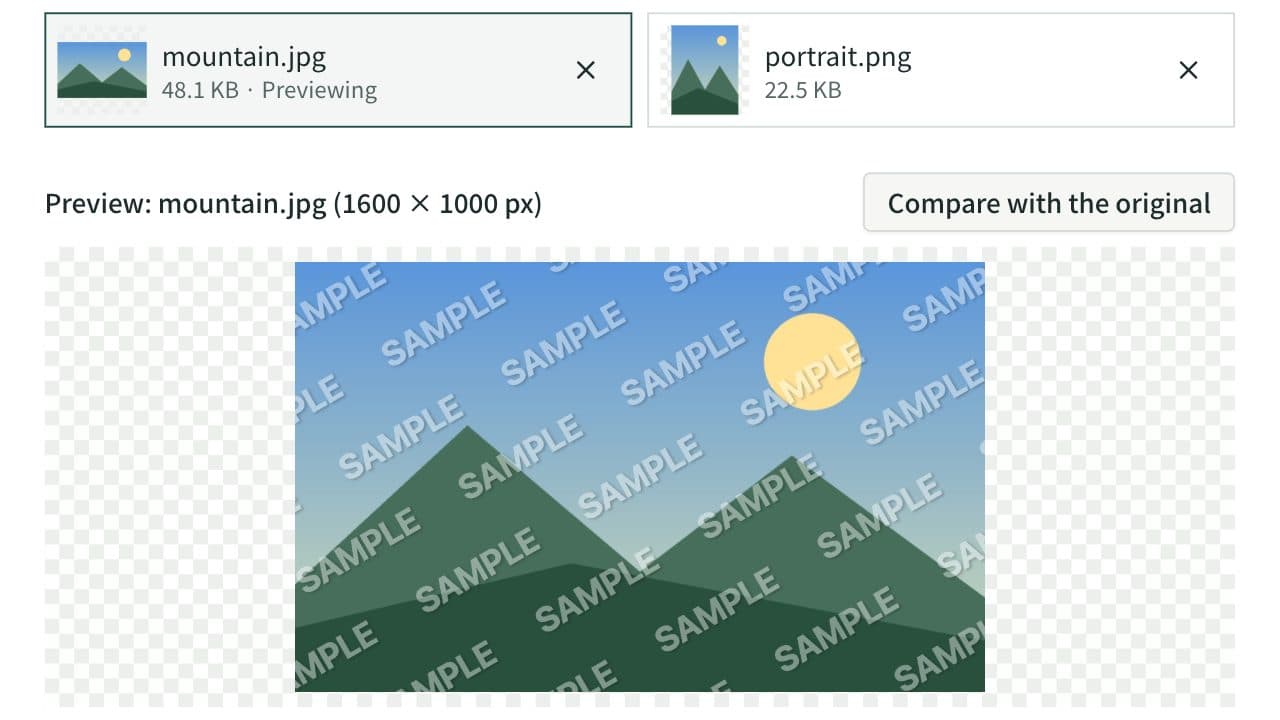
Image Watermark
Add a text or logo watermark such as “© name”, “SAMPLE”, or “CONFIDENTIAL” to photos and images. Place it in a corner or the center, or tile it over the whole image, and adjust the angle, opacity, outline, and shadow. Watermark up to 20 images at once and save them as a ZIP. Everything runs in your browser.
Print Size & DPI Calculator
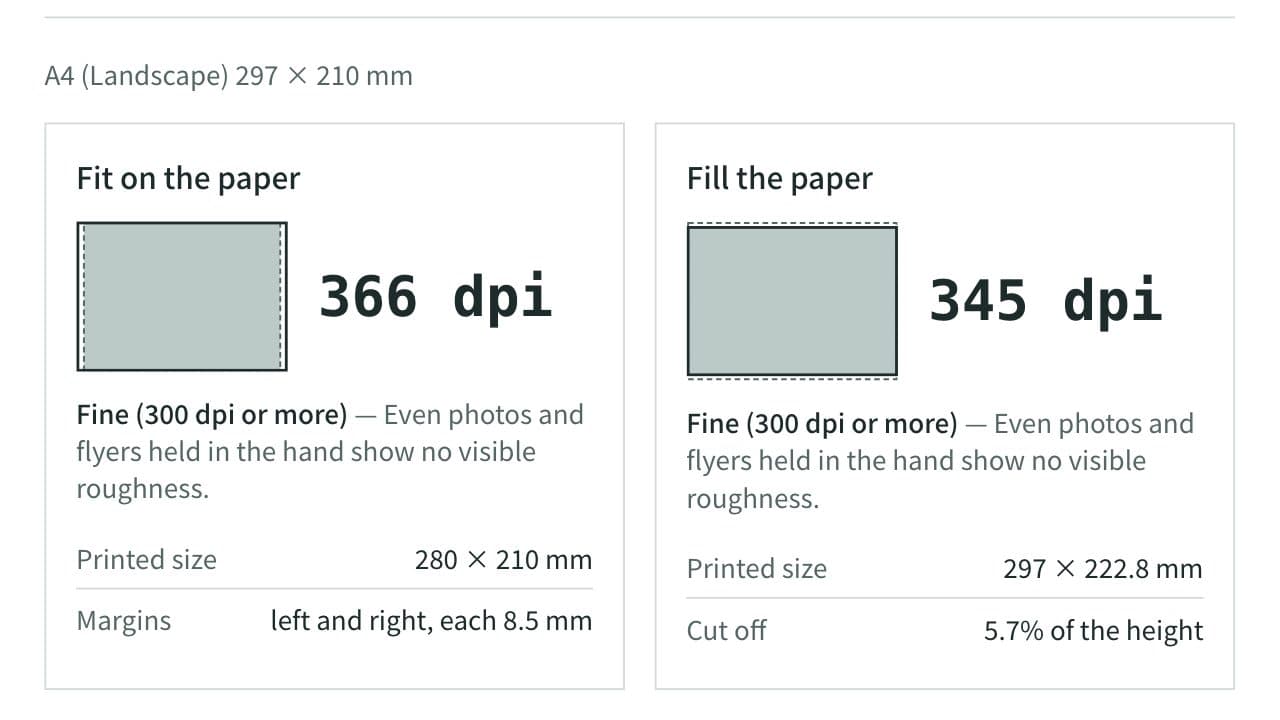
Work out the pixels needed to print A4 at 300 dpi, how large an image can be printed, and the resolution (dpi) a photo prints at on a given paper. Includes A and B paper sizes, photo print sizes, postcards, ID photos, and bleed for print shops.
Favicon Generator
Create favicon.ico (16, 32, 48 px), apple-touch-icon, 192 and 512 px Android/PWA icons, a maskable icon, and site.webmanifest from a logo image or text and emoji, then save them all as a ZIP. Copy the HTML tags or the Next.js file layout too. Everything runs in your browser.