Image Watermark
Add a text or logo watermark such as “© name”, “SAMPLE”, or “CONFIDENTIAL” to photos and images. Place it in a corner or the center, or tile it over the whole image, and adjust the angle, opacity, outline, and shadow. Watermark up to 20 images at once and save them as a ZIP. Everything runs in your browser.
You can also paste a copied image with Ctrl+V (⌘+V on a Mac).
Images are processed only in this browser and never sent anywhere. Saved images carry no EXIF data such as the date taken or location.
How to use
- Drop images here, or click the box to choose files. You can choose several at once (up to 20). You can also paste a copied image with Ctrl+V (⌘+V on a Mac)
- Under "Watermark type", choose "Text" or "Image (logo)". For text, enter the watermark text; for a logo, choose the logo image
- Set the size, opacity, angle, and position. The preview above updates right away. Press "Compare with the original" to switch to the image without the watermark, and press it again to switch back
- Press "Add the watermark" to watermark every loaded image with the same settings. The results appear below
- Save each image with "Save", or, with two or more, save them all at once with the ZIP button ("Save both as a ZIP" or "Save all … as a ZIP")
If you change the settings or the images after watermarking, press "Add the watermark" again before saving. Press an image in the list to preview it.
Watermark text
- Common text: "© year name" enters "© 2026 Name" with the current year, so replace "Name" with your name or site name. "SAMPLE", "DRAFT", "CONFIDENTIAL", "PREVIEW", "DO NOT COPY", and "見本" can each be entered with one press too
- Several lines: Press Enter for another line. Lines align left when the mark is on the left, right when it is on the right, and center when it is at the top, center, or bottom, or tiled
- Typeface: Sans-serif, serif, or monospace. The fonts installed on your device are used, so the letter shapes differ a little between Windows, Mac, and phones
- Bold, italic, and text color
- Outline: Draws a line around the letters. Its width, the part that shows outside the letters, is a percentage of the text size. White text with a black outline stays readable on both light and dark photos
- Shadow: Adds a soft shadow to the lower right. Light text gets a dark shadow and dark text gets a light one
Logo watermarks
Choose "Image (logo)", then use "Choose a logo image" to load a company or site logo, or an image of your signature. With a PNG that has a transparent background, only the shape of the logo is laid over the image. A JPEG with a white background is laid over as a whole rectangle, background included. The logo keeps its aspect ratio.
Size and position
The text size, logo width, margin, and spacing are all percentages of the image's shorter side. When you process images of different sizes together, the watermark looks the same on each. The scaled-down preview is drawn with the same percentages as the saved image. Margins and spacing are measured from the visible top and bottom of the letters, and from the ends of the text’s advance width on the left and right.
- Place once: Choose one of nine spots: top left, top, top right, left, center, right, bottom left, bottom, or bottom right. "Margin from the edge" is the distance between the image edge and the watermark. A tilted watermark is placed so that its tilted outline stays inside the margin. The outline and shadow reach outside the letters, so with a 0% margin they can be cut off at the image edge
- Repeat over the whole image (tile): The watermark is repeated in a grid that covers the whole image, and the grid tilts with the watermark. Widen the gaps with "Horizontal spacing" and "Vertical spacing", and stagger the rows like bricks with "Shift every other row by half". A tiled watermark is harder to crop away
- Angle: From −90° to +90°, with clockwise as +. Tiled watermarks are often tilted −30° or −45°
- Opacity: From 5% to 100%. At 100% the watermark shows in its own colors; lower values let the image show through. Where the letters overlap their outline or shadow, the watermark still has one even strength
Combinations that need more than 5,000 marks (such as very small text with very narrow spacing) cannot be drawn. Make the text larger or widen the spacing.
Example
A 4000 × 3000 px photo watermarked with the default settings ("SAMPLE", bold, white, with a shadow, size 8%, opacity 40%, angle −30°, tiled, spacing 12%, brick pattern) gets 240 px text, because 8% of the 3000 px shorter side is 240 px, with 360 px of space between the marks both across and down.
A 1080 × 1350 px image processed with the same settings gets 86.4 px text, 8% of its 1080 px shorter side, so it carries the watermark at the same proportion as the photo.
To put "© 2026 Taro" in the bottom right corner, press "© year name" and replace the name, choose "Bottom right", set the angle to 0°, and set the margin to 3%. On the 4000 × 3000 px photo, the right end of the watermark and the bottom of its letters sit about 90 px in from the right and bottom edges of the image.
Formats
By default, "Same as the original" keeps JPEG and WebP images in their own format and saves everything else (PNG, GIF, BMP, and so on) as PNG. You can also save them all as PNG, JPEG, or WebP.
- PNG: No quality loss, and transparent areas stay transparent
- JPEG: Good for keeping photos small. Transparent areas are filled with white
- WebP: Small files that keep transparency. If your browser cannot write WebP, you get an error
Quality applies only to JPEG and WebP, and starts at 92%. It cannot be set when every image will be saved as PNG. Saved images keep the original size in pixels. Each file is named after the original with _watermark added (photo.jpg becomes photo_watermark.jpg), and names that repeat inside the ZIP get a number such as " (2)".
Runs in your browser
Loading, drawing the watermark, saving, and building the ZIP all happen in your browser. Images are never uploaded to a server, and nothing you enter or create is stored. Reloading the page clears the loaded images and results.
Because saved images are redrawn, they carry no Exif data such as the date taken, camera model, or location (GPS).
FAQ
Can the watermark be removed later?
The watermark is drawn into the pixels of the saved image, so no file setting can turn it off. The original image is not changed, so use it whenever you need a copy without the watermark. Still, someone could paint over or crop out the watermark in an image editor, so it cannot fully stop misuse. To make it harder to remove, tile it over the whole image and raise the opacity.
Will photos from my phone turn sideways?
No. Images are loaded in the orientation recorded in the photo (the Exif Orientation), the way your browser shows them, and the watermark is added in that orientation.
Is there a size limit?
Yes. Up to 20 images at a time, up to 50 MB per file, and up to 50 megapixels (width × height) per image. Images are processed one at a time. Even within these limits, saving can fail when the device runs out of memory, which happens more easily on phones with large images. If it does, shrink the image first with Image Resizer & Compressor.
Can I add text and a logo together?
Each run adds either text or a logo. To add both, add the text watermark and save, then load the saved image again and add the logo watermark.
Can I use animated GIFs?
They load, but only the first frame is used, and it is saved as a single still image.
How do I remove location data before posting?
Images saved by this tool carry no Exif data, so no location data is left in them. To remove only the location data without a watermark, or to check that it is gone, use the EXIF Viewer & Remover.
- Type
- Utility
- Category
- Images
- Tags
- image
- watermark
- copyright
- logo
- stamp
- photo
- sample
- confidential
- batch
- jpeg
- png
- webp
Related apps
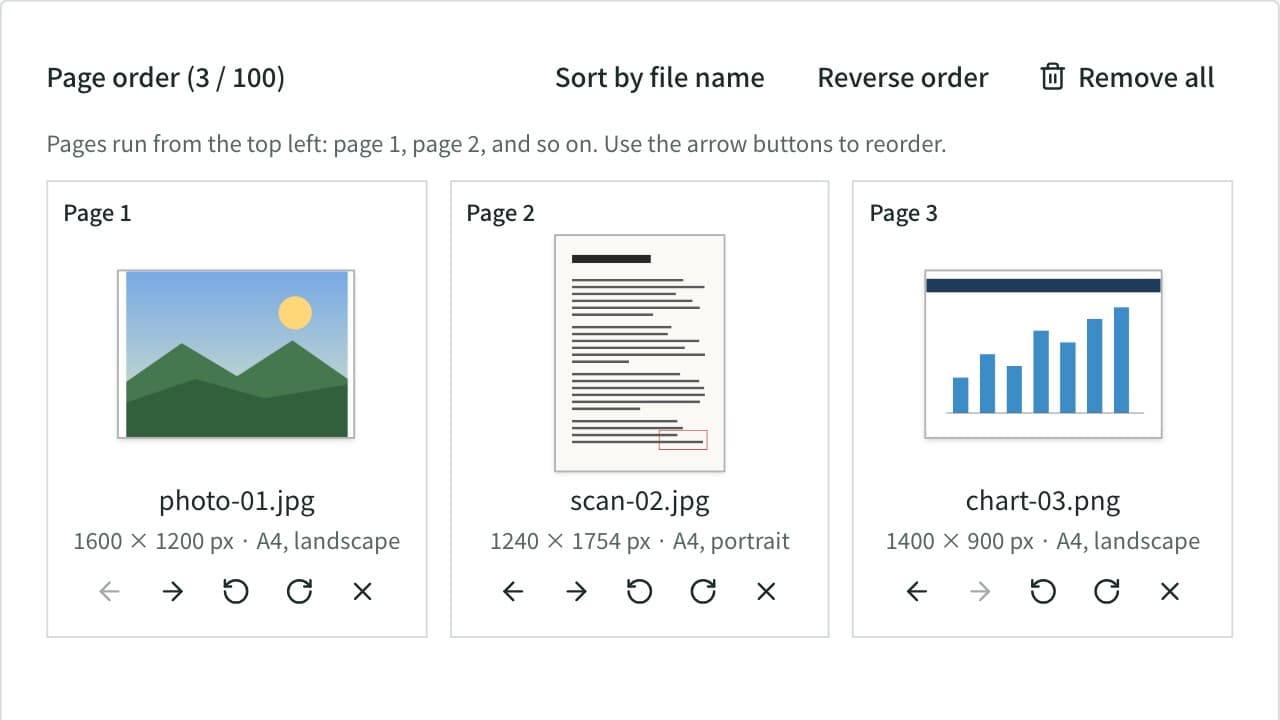
Image to PDF Converter
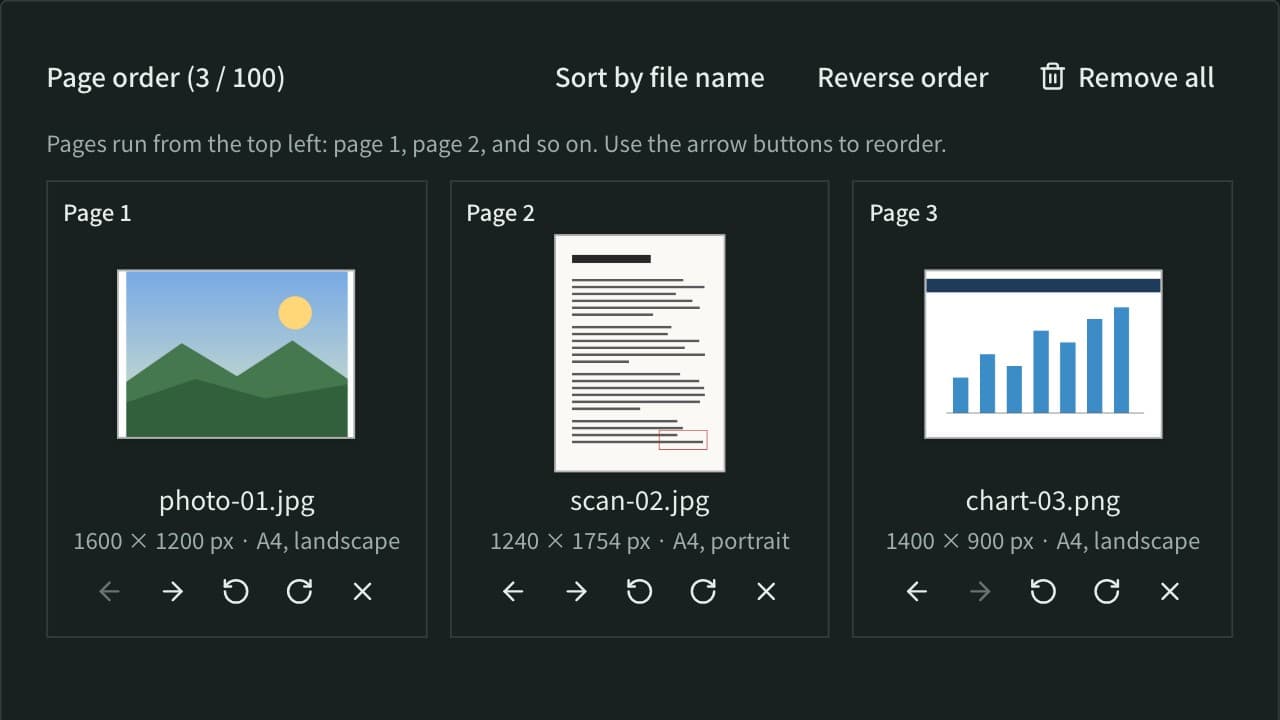
Combine JPG, PNG, WebP, and other images or photos into one PDF. Set the page order and rotation, the page size (A4, Letter, and more), orientation, margins, and how each image sits on its page, or make one PDF per image. JPEGs go in without re-encoding, and Exif data such as the location stays out of the PDF. Everything runs in your browser.
Print Size & DPI Calculator
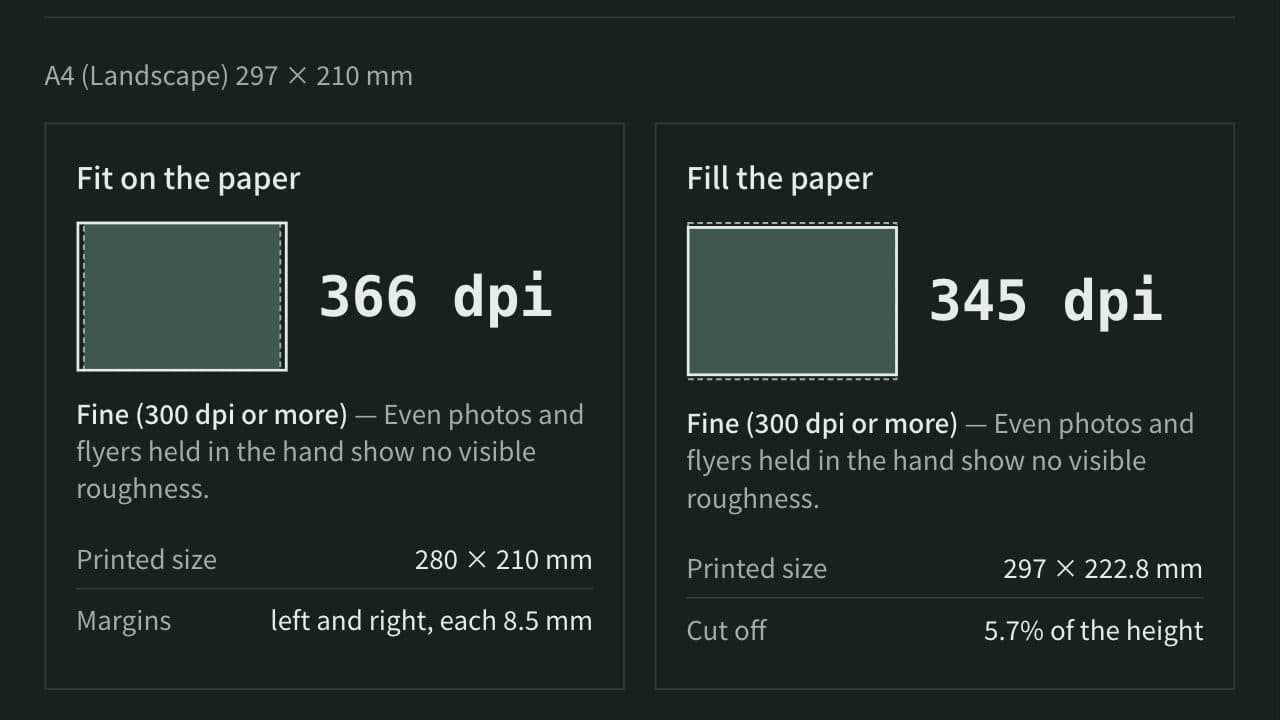
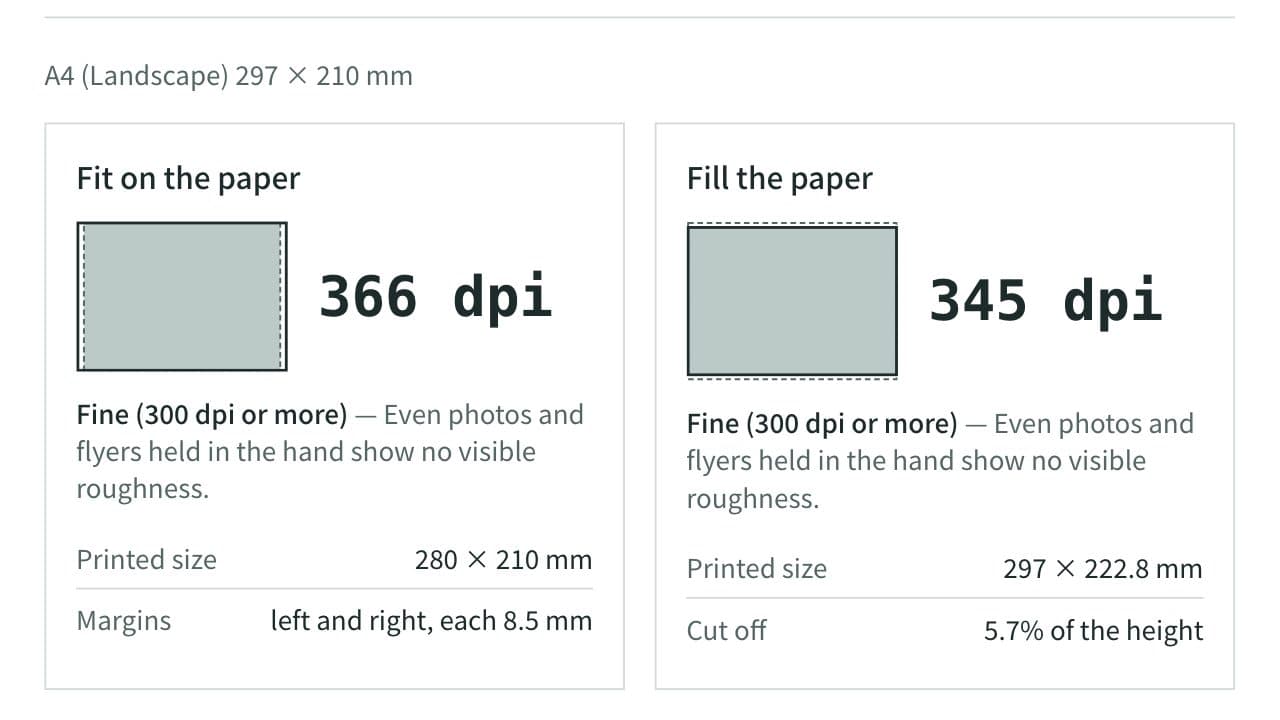
Work out the pixels needed to print A4 at 300 dpi, how large an image can be printed, and the resolution (dpi) a photo prints at on a given paper. Includes A and B paper sizes, photo print sizes, postcards, ID photos, and bleed for print shops.
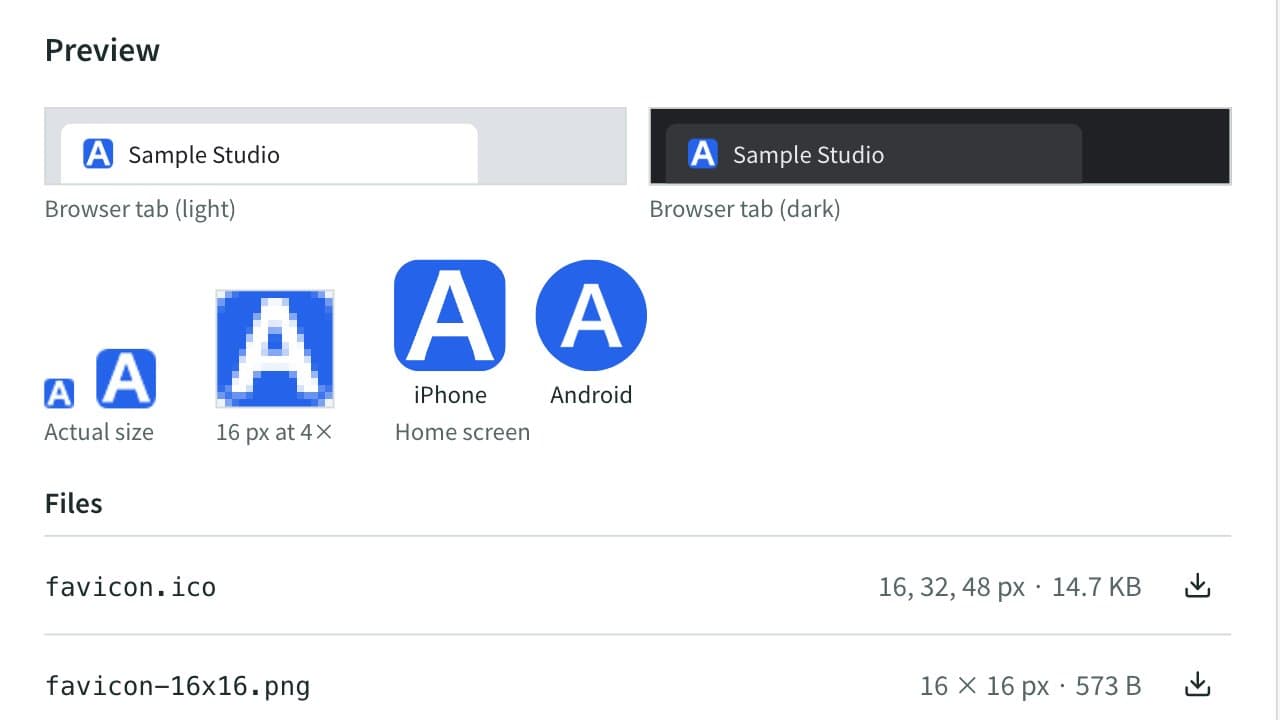
Favicon Generator
Create favicon.ico (16, 32, 48 px), apple-touch-icon, 192 and 512 px Android/PWA icons, a maskable icon, and site.webmanifest from a logo image or text and emoji, then save them all as a ZIP. Copy the HTML tags or the Next.js file layout too. Everything runs in your browser.