Image Resizer & Compressor
Resize and compress images in your browser, then save them as JPEG, PNG, or WebP. Small images can also be enlarged beyond their original width.
The image is processed on your device and is never uploaded.
How to use
Drop an image or click the area to choose a file. Set the output width, JPEG, PNG, or WebP format, and quality, then select “Resize and compress.” Compare the dimensions and file size before saving. If you change the width, format, or quality after converting, convert again before saving.
The app handles one image at a time. “Choose another image” removes the image and the result, returns to the first screen, and resets the width, format, and quality to their defaults.
Settings
- Output width (px): a whole number from 1 up to the width of the original, with an upper limit of 5000 px. Turn on “Make it wider than the original” to enter a width larger than the original. The largest width you can enter is shown below the field. Right after loading, it is set to 1200 px, or to the original width if the image is narrower. If you enter a value above the largest width or a decimal, the app converts with the value adjusted to a whole number in range and shows that value when you leave the field.
- Make it wider than the original: off by default. When on, the image can be enlarged as long as the result stays within 5000 px wide and 8000 px high. It is unavailable for images that cannot get any larger, such as an original 5000 px or more wide or 8000 px or more high. If you turn it off while the output width is larger than the original, the width returns to the original width.
- Height: set automatically to keep the aspect ratio of the original; it cannot be entered. It is “original height × output width ÷ original width”, rounded to the nearest whole number, and set to 1px when that would be 0.
- Output format: JPEG, PNG, or WebP. The default is JPEG.
- Quality: 10 to 100% in steps of 1%. The default is 80%. It applies only to JPEG and WebP; a lower value gives a smaller file and a coarser image.
Sizing by height and converting several images at once are not supported. To crop or rotate an image, use Image Crop & Rotate.
Example
Load a 4032 × 3024 px photo named photo.jpg and convert it with an output width of 1200, JPEG format, and 80% quality. The result is 1200 × 900 px and is saved as photo_1200w_q80.jpg. A 1920 × 1080 px image converted at a width of 1200 becomes 1200 × 675 px. A 64 × 64 px icon named icon.png, converted with “Make it wider than the original” on, a width of 256, and PNG format, becomes a 256 × 256 px icon_256w.png.
File names follow the pattern “original name, width, quality, extension”. PNG does not use quality, so logo.png converted at a width of 512 becomes logo_512w.png. Characters that cannot be used in file names are replaced with _.
After converting, the change in file size is shown below the before and after previews. For example, when a 2.5 MB image becomes 350.0 KB, the line reads “2.2 MB (86.3%) smaller”. How much smaller a file actually gets depends on the image and the settings.
Choosing a format
Use JPEG for lighter photos, PNG for transparency and diagrams, and WebP when you want a good balance of quality and size. PNG does not use the quality slider.
- JPEG: cannot hold transparency. When an image with transparent areas is converted to JPEG, those areas are filled with white.
- PNG: keeps transparent areas as they are. It has no quality setting, so a photo saved as PNG tends to be larger than the same photo as JPEG or WebP.
- WebP: keeps transparent areas and still accepts a quality setting. If the browser cannot write WebP, the app shows a conversion error instead of switching to another format.
When the file does not get much smaller
- Lower the output width. Fewer pixels has the largest effect on file size.
- Choose JPEG or WebP and lower the quality. Check the image in the preview after each conversion.
- If a screenshot or diagram got larger as PNG, try WebP.
- There is no option to convert to a target size such as “under 500 KB”. Change the width and quality, convert again, and check the size shown.
Browser-only processing
Image loading, resizing, and format conversion all happen in your device’s browser. The image is never uploaded to a server, and neither the input nor the result is stored. Unless you turn on “Make it wider than the original”, the app never enlarges an image beyond its original width, which prevents accidental upscaling. Reloading the page clears the loaded image and the result.
FAQ
Is there a limit on the images I can load?
Yes. Files up to 50 MB and images up to 50 megapixels (width × height) are accepted. Larger images are not loaded and an error is shown.
Which image formats can I load?
JPEG, PNG, WebP, and any other format your browser can display as an image. For a format the browser cannot read, or a damaged file, the app shows “This image could not be read. Try another file.” Choosing a file that is not an image shows “Choose an image file.”
Does this change the original image?
No. The converted image is saved as a new file.
Can the image become larger?
Yes. Some settings, such as converting a small image to PNG or enlarging an image beyond its original width, can increase the file size. The change is shown before you save.
Is metadata such as the capture date or location kept?
No. The output is made by redrawing the pixels of the loaded image, so the capture date, location, and similar data recorded in the original file are not carried over.
Can I enlarge an image?
Yes. Turn on “Make it wider than the original” to enter a width larger than the original, as long as the result stays within 5000 px wide and 8000 px high. The browser stretches the image by filling in between its pixels, which adds no detail, so edges look softer. With the option off, a larger value is converted at the original width.
Are animations preserved?
No. Animated images such as GIFs are exported as still images.
- Type
- Utility
- Category
- Images
- Tags
- image
- resize
- compress
- enlarge
- jpeg
- png
- webp
Related apps
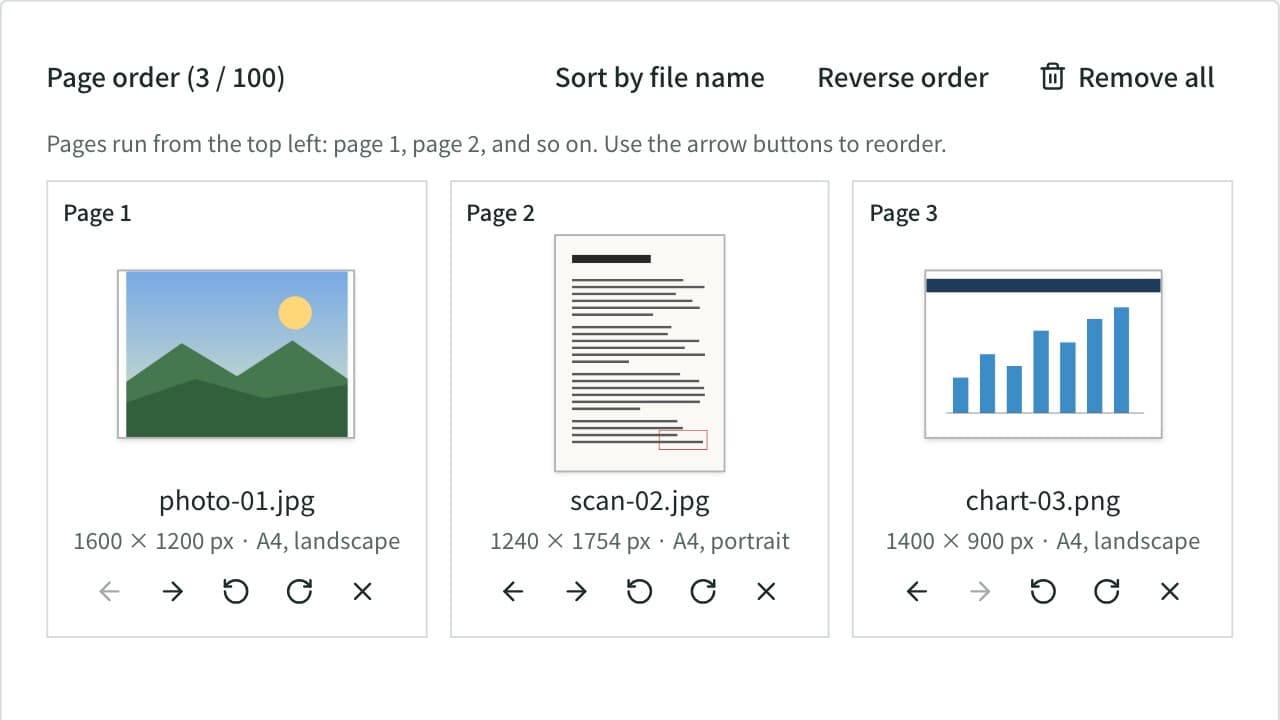
Image to PDF Converter
Combine JPG, PNG, WebP, and other images or photos into one PDF. Set the page order and rotation, the page size (A4, Letter, and more), orientation, margins, and how each image sits on its page, or make one PDF per image. JPEGs go in without re-encoding, and Exif data such as the location stays out of the PDF. Everything runs in your browser.
Favicon Generator
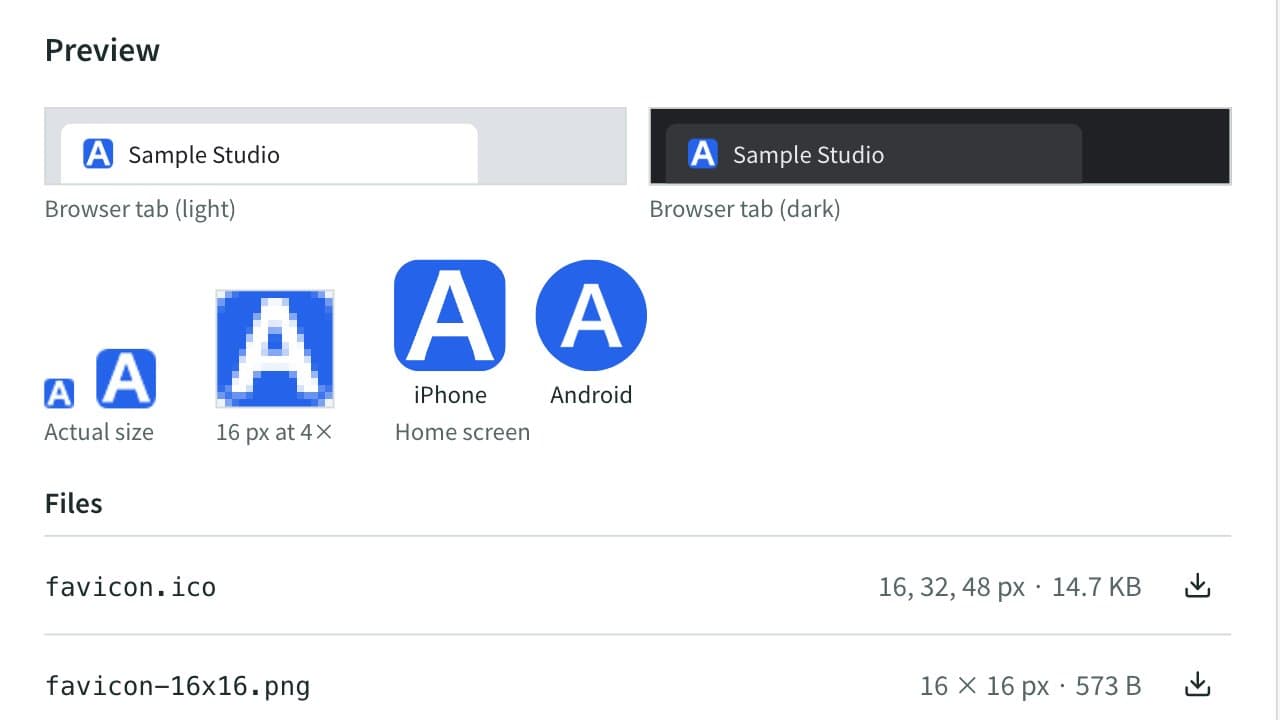
Create favicon.ico (16, 32, 48 px), apple-touch-icon, 192 and 512 px Android/PWA icons, a maskable icon, and site.webmanifest from a logo image or text and emoji, then save them all as a ZIP. Copy the HTML tags or the Next.js file layout too. Everything runs in your browser.
Color Blindness Simulator
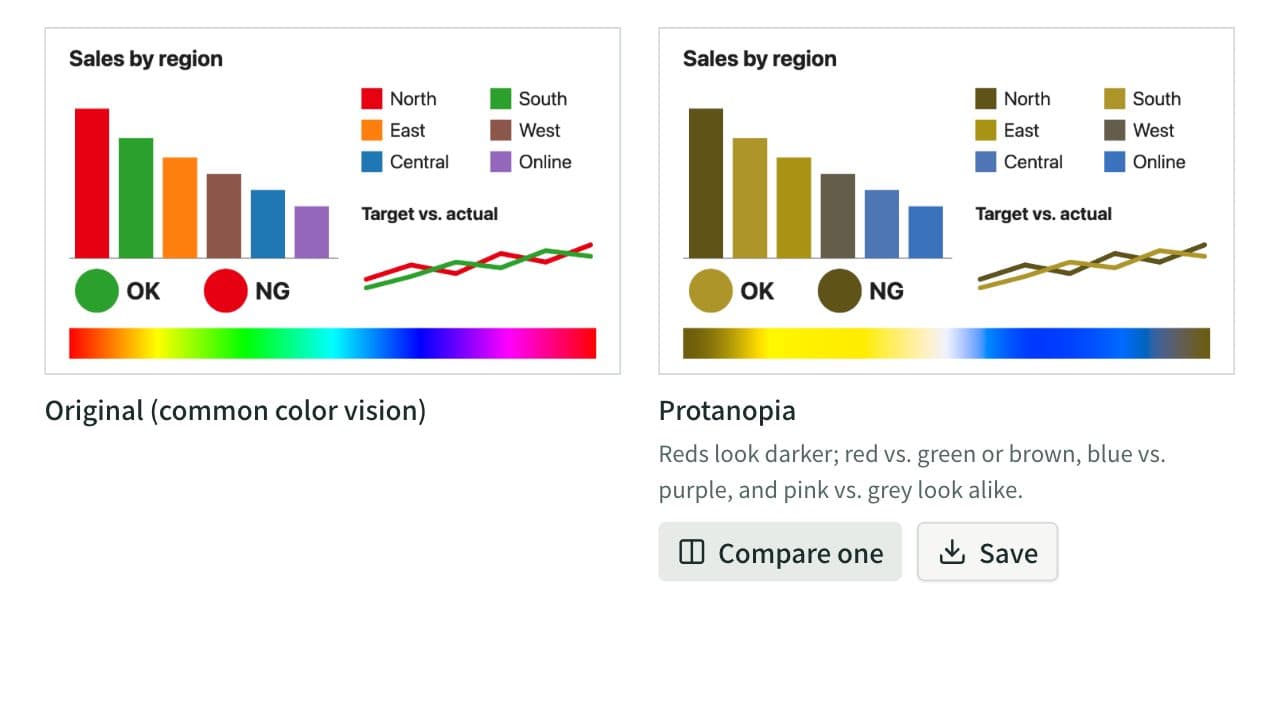
See how an image or a set of colors looks with protanopia, deuteranopia, tritanopia, or achromatopsia, side by side. Lower the severity to approximate color weakness, and find pairs of HEX colors that become hard to tell apart. Everything runs in your browser.
UtilityImagescoloraccessibilitycolor-blindnesscolor-visioncolor-universal-designsimulatorimagedesignpalette