Image Crop & Rotate
Crop an image to any area, rotate it 90°, flip it horizontally or vertically, straighten a tilted photo or scan by up to ±45° (or trace a line to level it), and save it as JPEG, PNG, or WebP. Choose aspect ratios such as 1:1 and 16:9, or sizes for OGP images (1200×630), YouTube thumbnails, icons, and ID photos. Everything runs in your browser.
The image is processed on your device and is never uploaded. Saved images carry no Exif data such as the capture date or location.
How to use
- Drop an image or click the box to choose a file
- Fix the orientation if needed with "Rotate left 90°", "Rotate right 90°", "Flip horizontally", and "Flip vertically". This fixes a scan saved sideways or a selfie that came out mirrored. For a photo with a tilted horizon or a page scanned at a slant, turn it a little at a time under "Straighten"
- Under "Aspect ratio or size", choose a ratio such as 1:1 or 16:9, or a size such as an OGP image, a YouTube thumbnail, or an icon. Leave it on "Free" when no shape is required
- Drag the frame on the image to choose the crop area. To set it by numbers, type into the "Crop position and size (px)" fields
- Press "Crop". The cropped image appears below with its dimensions and file size. Press "Save image" to save it
If you change the area, orientation, format, or another setting after cropping, press "Crop" again before saving. "Choose another image" returns to the first screen.
Choosing the area
- Drag inside the frame: moves the whole frame. It never leaves the image
- Drag a square on a corner or edge: resizes the frame. The opposite corner or edge stays put
- Drag outside the frame: draws a new frame over the dragged area. A plain click leaves the frame unchanged
- Keyboard: select the frame with Tab. Arrow keys move it 1 px, or 10 px with Shift. With Alt (Option on a Mac), they move the bottom-right corner to resize it
- By numbers: enter "Left X", "Top Y", "Width", and "Height" in pixels from the top-left of the image. Values that would leave the image are brought back inside it
Lines dividing the frame into thirds help with composition. They are not part of the saved image.
Aspect ratios and sizes
With "Free" the frame can take any shape. Choosing another ratio places the largest frame of that ratio that fits, centred on the image, and dragging keeps the ratio. "Same as the image" uses the ratio of the image after any rotation.
The ratios are 1:1, 4:3, 3:4, 3:2, 2:3, 16:9, 9:16, and 4:5. "Custom ratio" takes a whole number from 1 to 10000 for each side.
Choosing a size locks the frame to that size's ratio and scales the cropped area down (or up) to exactly that size when saving.
- OGP / link preview image: 1200 × 630
- YouTube thumbnail: 1280 × 720
- Square post: 1080 × 1080
- Portrait post (4:5): 1080 × 1350
- Story / vertical video (9:16): 1080 × 1920
- X header: 1500 × 500
- Profile icon: 400 × 400
- Résumé photo 30×40 mm (300 dpi): 354 × 472
- Passport photo 35×45 mm (300 dpi): 413 × 531
"Custom size" takes a whole number from 1 to 8000 for the width and the height. When the crop area is smaller than the chosen size, a note warns that the image will be stretched and look softer.
The frame moves in whole pixels. When a ratio does not divide evenly, the length is rounded, so a 16:9 frame 1000 px wide is 1000 × 563 px and the ratio is slightly off. With a size chosen, the saved image is exactly that size.
Rotating, flipping, and the frame
Rotating or flipping moves the frame with the image so it keeps covering the same part. With "Free" and "Same as the image", the frame turns along with the image. With a ratio or size chosen, a 90° turn keeps the frame at that ratio and re-centres it on the same part, shrinking it with the ratio kept if it no longer fits.
"Undo rotate and flip" restores the original orientation (and sets the tilt back to 0°) and resets the frame. "Reset crop area" keeps the orientation and resets only the frame.
Straightening
You can level a photo with a tilted horizon or a page scanned at a slant.
- Slider and angle field: turn the picture from −45° to 45° in 0.1° steps, plus for clockwise and minus for counterclockwise. The angle field also takes
-1.5,−1.5°, and full-width digits. With the slider selected, each arrow key moves it 0.1° - Trace a line to level: press the button, then drag along a line on the picture that should be level or upright, such as the horizon, the edge of a building, or the edge of a document, from one end to the other. The picture turns to whichever angle from −45° to 45° makes the line exactly level or exactly upright. A nearly level line becomes level and a nearly upright one becomes upright, unless that would take the tilt past 45° (for example when the picture is already tilted a lot); then the line is set upright or level instead. The turn is added to the current tilt, so you can trace again as often as you like
- While you use the slider or the angle field, and while you trace a line, a guide grid is drawn over the picture. The grid is not part of the saved image
Tilting leaves empty corners around the picture. To keep them out, only the largest upright rectangle that fits inside the tilted picture is used, so the image gets a little smaller (a 4000 × 3000 px photo tilted 3° becomes 3856 × 2799 px). The larger the angle, and the longer and thinner the image, the smaller it gets. "Same as the image" keeps the ratio of the image itself (after any 90° turn), even when it is tilted. Images less than 4 px wide or tall cannot be tilted.
When the angle changes, the frame keeps its size and its offset from the centre of the image, shrinking only when it no longer fits the smaller area. A frame that covered the whole image still covers the whole image after tilting.
A 90° turn keeps the tilt. A horizontal or vertical flip reverses its direction (2° clockwise becomes 2° counterclockwise) so that the picture you see is simply mirrored.
90° turns and flips only rearrange pixels, but straightening redraws the image by interpolating between pixels, so it becomes slightly softer.
Example
Load a 3000 × 2000 px photo photo.jpg and choose "OGP / link preview image 1200×630". The largest 40:21 frame that fits appears (3000 × 1575 px, Top Y 213). Press "Crop" to get a 1200 × 630 px JPEG, saved as photo_crop_1200x630.jpg.
A scan of a portrait page saved sideways (4000 × 3000 px) becomes 3000 × 4000 px after "Rotate right 90°". Leave the ratio on "Free" and press "Crop" to save the image just rotated.
Output formats
JPEG and WebP images are saved in their own format by default; anything else (PNG, GIF, BMP, and so on) is saved as PNG. Change it under "Save as".
- PNG: no quality loss, and transparent areas stay transparent. Photos tend to be large
- JPEG: good for making photos smaller. Transparent areas are filled with white
- WebP: keeps transparency and lets you set the quality. If the browser cannot write WebP, an error is shown
Quality applies only to JPEG and WebP and starts at 90%. Saving a JPEG as JPEG again changes it slightly, even at 100%.
Everything stays in your browser
Loading, rotating, cropping, and saving all happen in your browser on your device. The image is never uploaded, and nothing you enter or produce is stored. Reloading the page clears the image and the result.
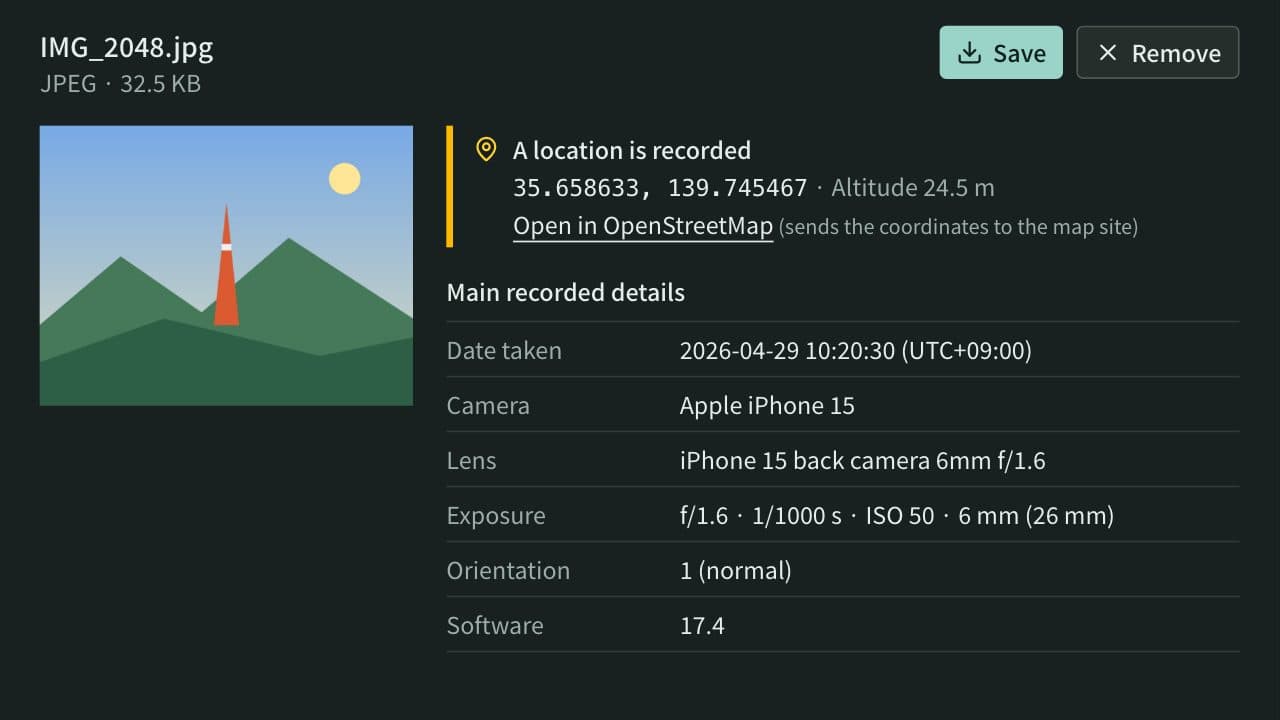
The saved image is redrawn, so it carries no Exif data such as the capture date, camera model, or GPS location.
FAQ
Will a phone photo come out sideways?
No. The image is read in the orientation recorded in the photo (the Exif Orientation tag), the same way the browser shows it. The saved image carries no orientation tag, so every app shows it the same way up.
Is there a size limit?
Yes. Files can be up to 50 MB and images up to 50 megapixels (width × height). The saved image can be up to 8000 px on each side and 50 megapixels in total. Even within the limits, a device short on memory may fail to save; if so, choose a smaller output size.
Can I use it for résumé or passport photos?
"Résumé photo" and "Passport photo" are the pixel counts that print at that size at 300 dpi. The saved image carries no dpi information, so set the print size to 30×40 mm or 35×45 mm on the paper when printing. Check the face size, background, and other rules with the organisation you are submitting to.
Can I crop to a circle or rounded corners?
No. The crop is always a rectangle, and nothing outside it is saved.
Does it work with animated GIFs?
It reads them, but both the editor and the saved image use only the first frame, saved as a still image.
What if I only want to make the image smaller?
Image Resizer & Compressor shrinks an image to a chosen width with its aspect ratio kept and shows the file size before you save. To work out an aspect ratio without an image, use the Aspect Ratio Calculator.
Is the original image changed?
No. The cropped image is saved as a new file.
- Type
- Utility
- Category
- Images
- Tags
- image
- crop
- trim
- rotate
- straighten
- flip
- aspect-ratio
- ogp
- thumbnail
- icon
- jpeg
- png
- webp
Related apps
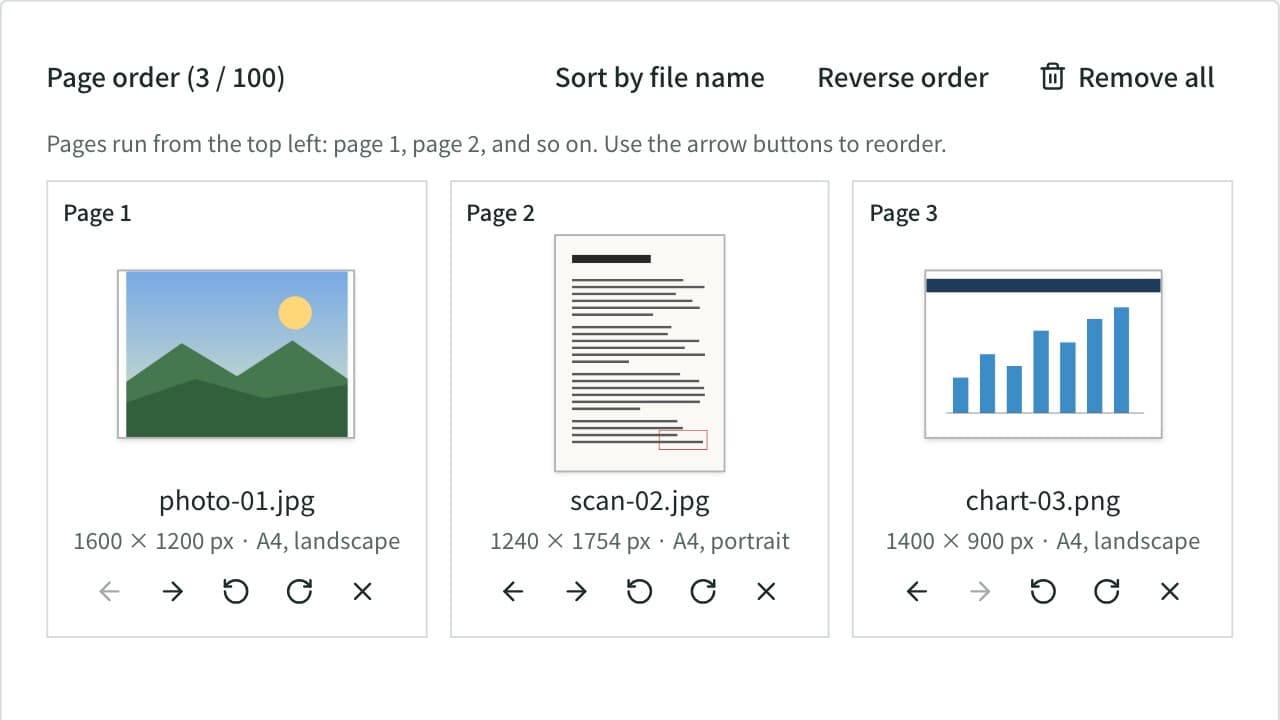
Image to PDF Converter
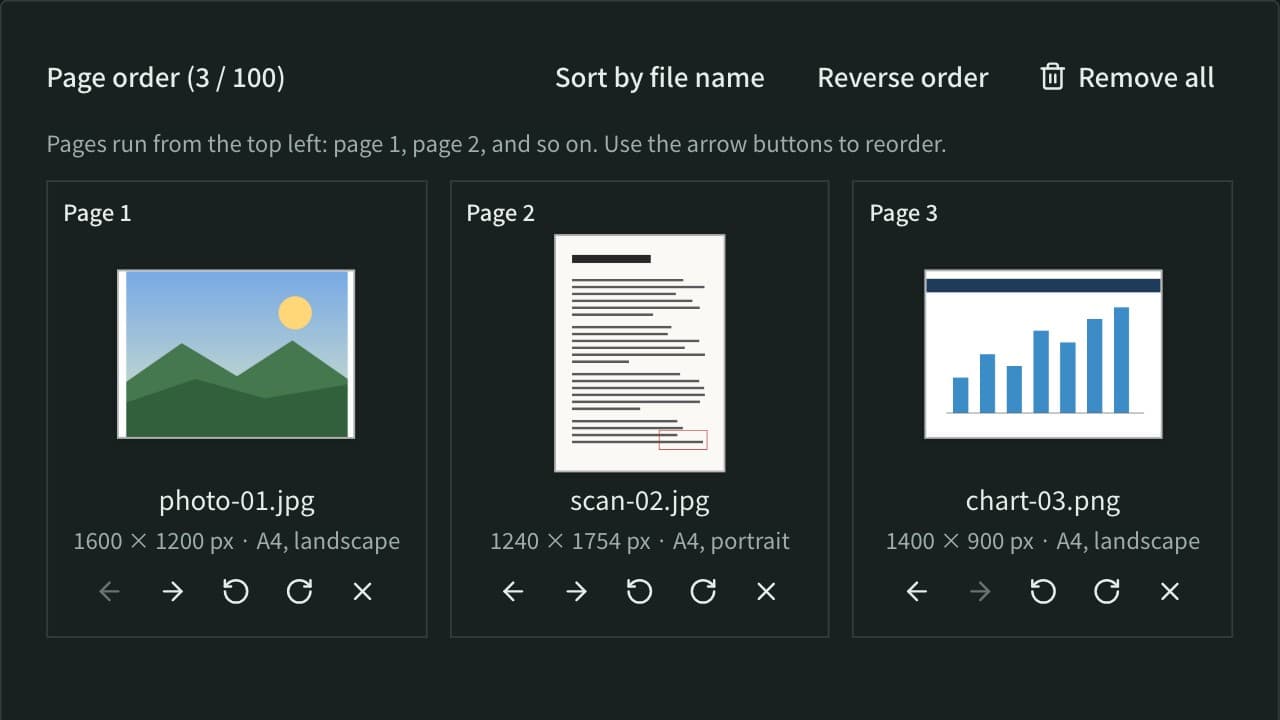
Combine JPG, PNG, WebP, and other images or photos into one PDF. Set the page order and rotation, the page size (A4, Letter, and more), orientation, margins, and how each image sits on its page, or make one PDF per image. JPEGs go in without re-encoding, and Exif data such as the location stays out of the PDF. Everything runs in your browser.
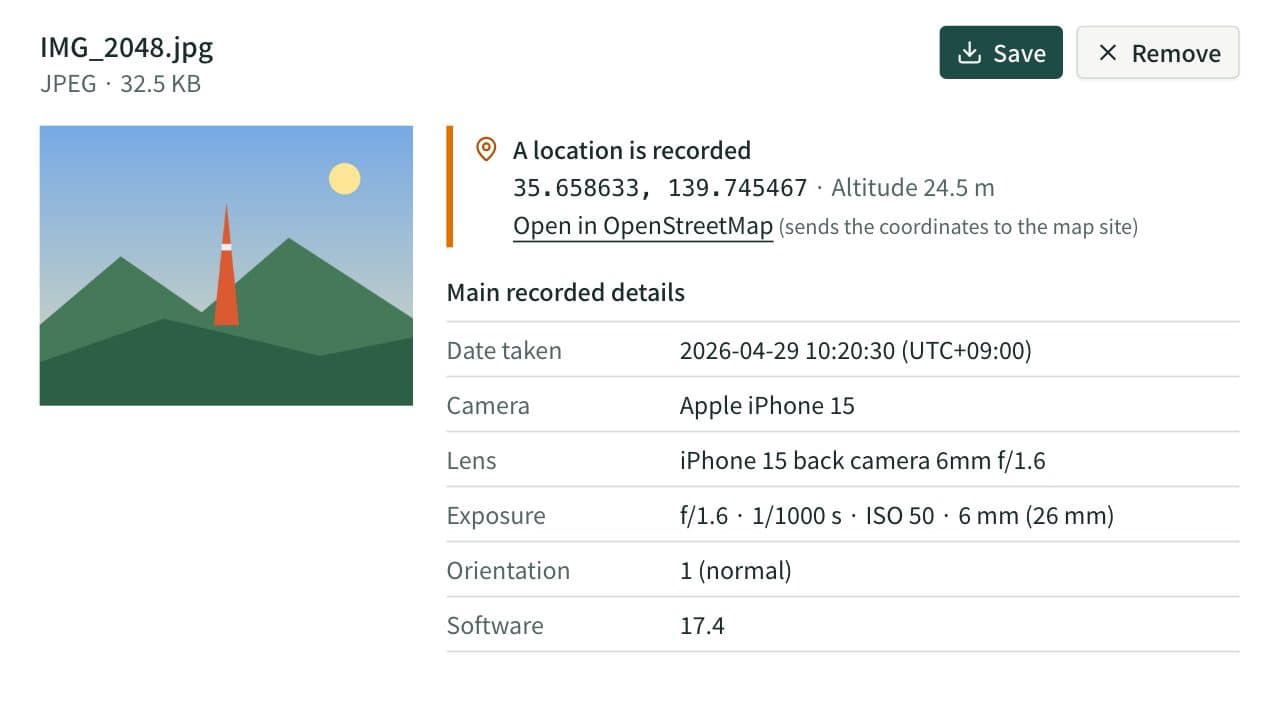
EXIF Viewer & Remover
View the EXIF data in photos, such as location, date taken, and camera, then remove it without changing image quality. Works with JPEG, PNG, and WebP, including several images at once.
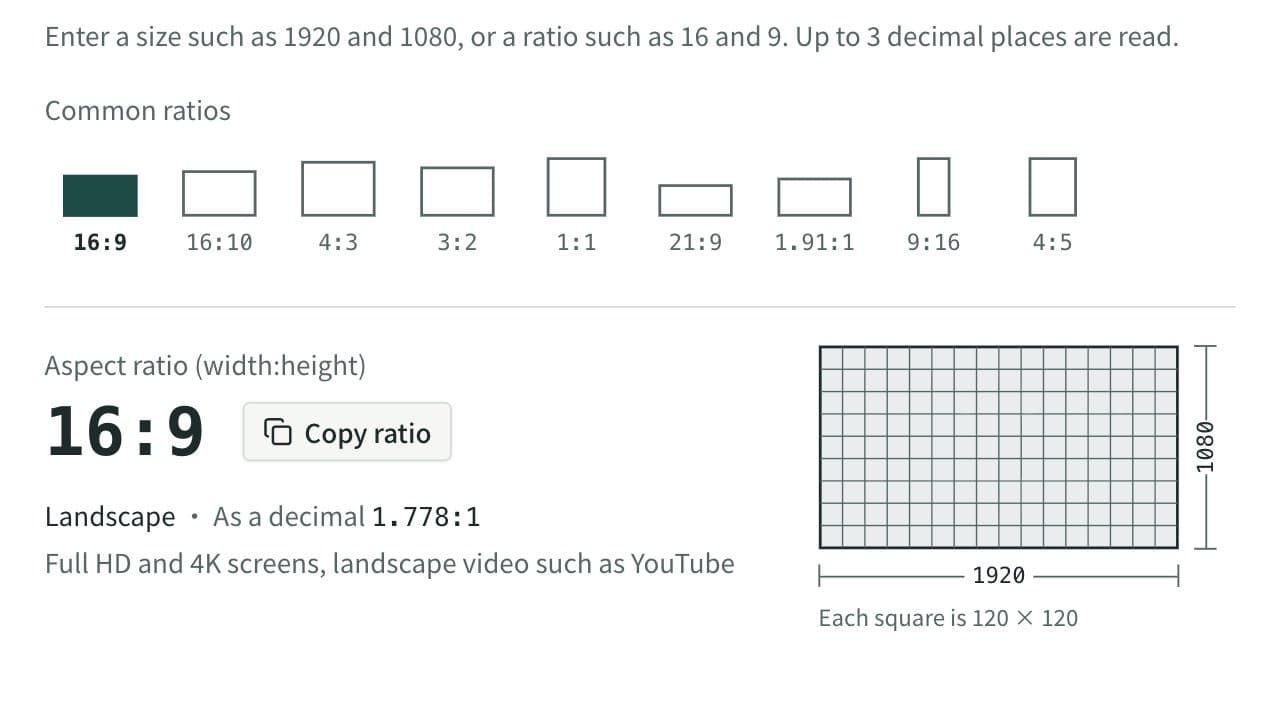
Aspect Ratio Calculator
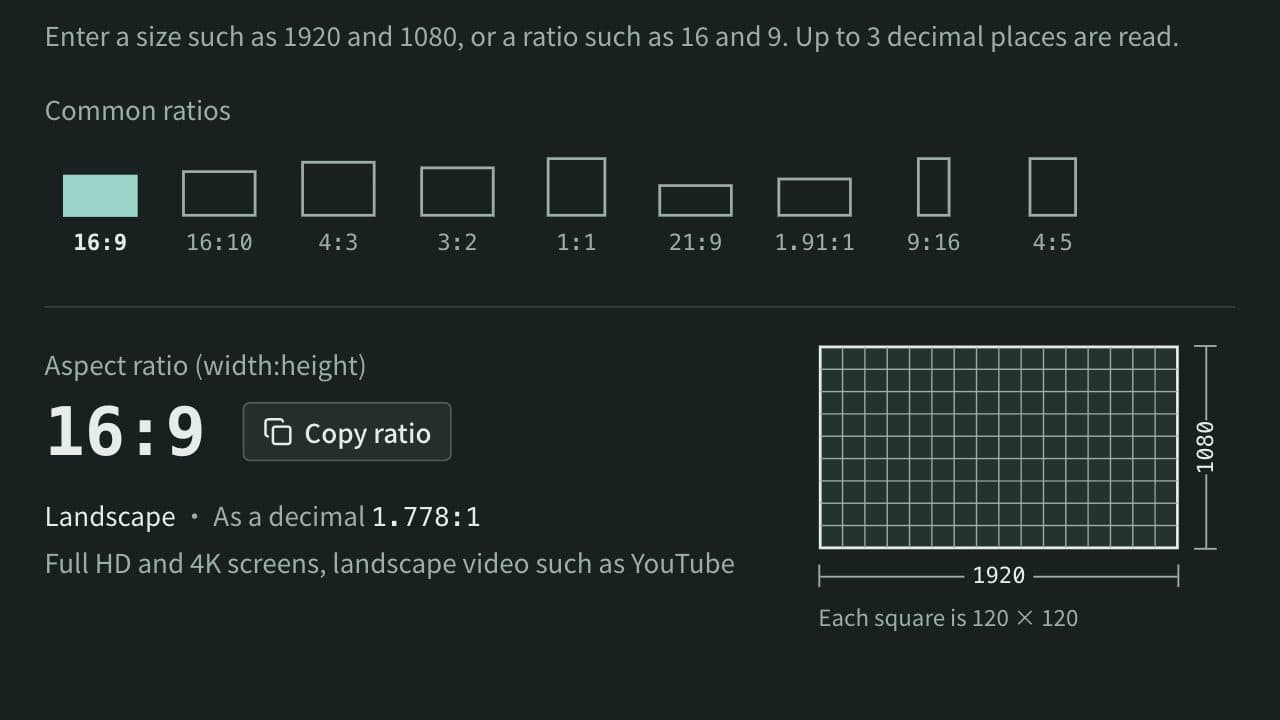
Find the aspect ratio (such as 16:9) from a width and height, and work out the other side when you change the width or height while keeping the same ratio. It also gives the size when a 16:9 image is cropped or padded to another ratio such as 9:16 or 1:1, and how many pixels to cut or add on each side.