EXIF Viewer & Remover
View the EXIF data in photos, such as location, date taken, and camera, then remove it without changing image quality. Works with JPEG, PNG, and WebP, including several images at once.
Images are processed on your device and are never uploaded.
How to use
Drop photos here or click the box to choose files. You can choose several at once. As soon as they load, each image shows whether a location is recorded, its main details such as the date taken and camera, and a list of the metadata found.
Then choose what to remove and use Save on each image or Save all (ZIP) to save the files without metadata. The original files are not changed. Saved files are named original-name_noexif.jpg (all metadata removed) or original-name_nogps.jpg (location only removed).
Choosing what to remove
- All metadata (default): removes the date taken, camera and lens, location, artist, serial numbers, comments, XMP, IPTC, embedded thumbnails, and more. Use it before a photo leaves your hands, for example before posting it on social media or a blog or sending it to someone.
- Location only: removes the Exif GPS items (coordinates, altitude, and so on) and keeps the date taken and camera details. It suits sorting photos by date or keeping shooting details for your own records.
- If XMP or IPTC holds place names or coordinates, that whole XMP or IPTC block is removed (other details in it, such as keywords and ratings, go too). XMP that records where an HDR gain map or motion photo video sits is also removed as a whole, because that attached data is removed.
- Anything whose contents cannot be checked (maker-specific segments, compressed text, and so on), and Exif whose GPS part cannot be cut out safely, may hold a location, so it is removed as with All metadata. When the whole Exif is removed, the orientation is still written back.
- Comments (COM) and PNG text without words such as GPS, latitude, or longitude are kept. You can review them under Comments and text.
With "Keep the image orientation (Orientation)" checked (the default), only the orientation is written back after everything else is removed. Phones often store an upright photo with its pixels sideways plus an instruction to rotate it by 90° when shown; without that instruction the photo may appear on its side. The orientation does not reveal where or when the photo was taken.
What is shown
- Location: latitude and longitude in decimal degrees, and altitude. "Open in OpenStreetMap" opens a map of the coordinates in a new tab. Only then are the coordinates sent to the map site.
- Main details: date taken (with the offset from UTC when recorded), modified (when software last saved the file, shown only when it differs from the date taken), camera, lens, exposure (f-number, shutter speed, ISO, focal length), orientation, software, description, artist, copyright, camera owner, serial number, and image unique ID. Items that can identify a person are marked "Linked to a person".
- Embedded thumbnail: a small image stored inside Exif. The one made when the photo was taken may remain even after cropping or editing.
- Metadata found: Exif, XMP, IPTC, comments, ICC profiles, and other blocks with their sizes, and whether the chosen setting will remove each one, remove only its location, or keep it.
- All Exif tags, XMP contents, IPTC contents, and Comments and text: collapsed sections showing the recorded contents as they are.
Why image quality does not change
The image is not redrawn. Only the metadata parts of the file are taken out. For JPEG, the compressed image data is copied unchanged, so there is no loss from re-saving and the pixels are identical to the original. PNG and WebP image data is likewise left untouched.
To change the size or file size of an image, use the Image Resizer & Compressor. It redraws the image, so metadata is not carried over either, but JPEG and WebP output changes in quality.
What is kept
The following are needed to show the image correctly, so they are kept with either setting.
- ICC profile: the color information. Without it, colors may look different.
- JFIF and Adobe segments (JPEG): information that decides how colors are converted.
- Resolution, gamma, transparency, and similar (PNG): display chunks such as pHYs, gAMA, sRGB, and tRNS.
On the other hand, data attached after a JPEG (such as HDR gain maps, depth maps, and motion photo videos) and their MPF index are removed with either setting, because the attached data can carry shooting details too. On HDR screens, bright areas then look the same as in an ordinary photo, and motion photos become still photos. A small thumbnail inside the JFIF segment is also removed with either setting.
Example
Load IMG_0123.jpg taken with a phone and "A location is recorded" appears with coordinates such as 35.658200, 139.741233 · Altitude 40.1 m. Saved with All metadata, IMG_0123_noexif.jpg keeps only the orientation (for example "6 (rotated 90° clockwise)"), and "No location was found in the readable metadata of the saved file" is shown.
Saved with Location only, IMG_0123_nogps.jpg keeps the date taken and the camera model and loses only the GPS items.
FAQ
Are my images uploaded to a server?
No. Loading, analysis, removal, and ZIP creation all happen in your browser. Reloading the page clears the loaded images. The coordinates are sent to OpenStreetMap only if you click the map link.
Which formats are supported?
JPEG, PNG, and WebP. The format is detected from the file contents, not its name. HEIC (the default iPhone format), AVIF, GIF, TIFF, and BMP are not supported. Export HEIC photos as JPEG before loading them. Each file can be up to 50 MB, and up to 20 images can be handled at a time.
Does posting on social media remove the location?
It depends on the service. Some remove metadata from posted images, others keep it, and some treat it differently depending on where the image is stored. If you are not sure how a service handles it, removing the metadata here before posting is the reliable way.
Can I check that nothing is left after removal?
After the file to save is made, it is analyzed again in the same way. Once no location is found in Exif GPS, place names or coordinates in XMP and IPTC, XMP inside Exif, or the embedded thumbnail's Exif, "No location was found in the readable metadata of the saved file" appears. If comments, Exif descriptions or user comments, IPTC, or PNG text remain, a note says they are only checked for words such as GPS, latitude, and longitude (read as UTF-8, Shift_JIS, JIS, and other encodings), and if MakerNote remains, a note says it is not checked; review them under Comments and text for place names. If part of the file could not be read, the tool says it could not confirm. You can also load the saved file back into this tool and review the list.
Is anything left with Location only?
MakerNote inside Exif, which camera makers write in their own formats, cannot be read, so it stays whenever Exif is kept. Comments (COM) and PNG text with words such as GPS, latitude, or longitude are removed, but the tool cannot tell whether a place name (such as "Tokyo Tower") is written, so the rest is shown and kept. Signs and scenery visible in the photo itself are of course not removed. To be certain, choose All metadata.
My upright photo turned sideways
If you clear "Keep the image orientation (Orientation)" before saving, the orientation is removed too, and a photo taken upright may appear sideways. Save it again with the box checked.
Can I change only the date taken?
No. This tool is for viewing and removing metadata. It does not edit or add values.
- Type
- Utility
- Category
- Images
- Tags
- image
- exif
- gps
- location
- metadata
- privacy
- jpeg
- png
- webp
Related apps
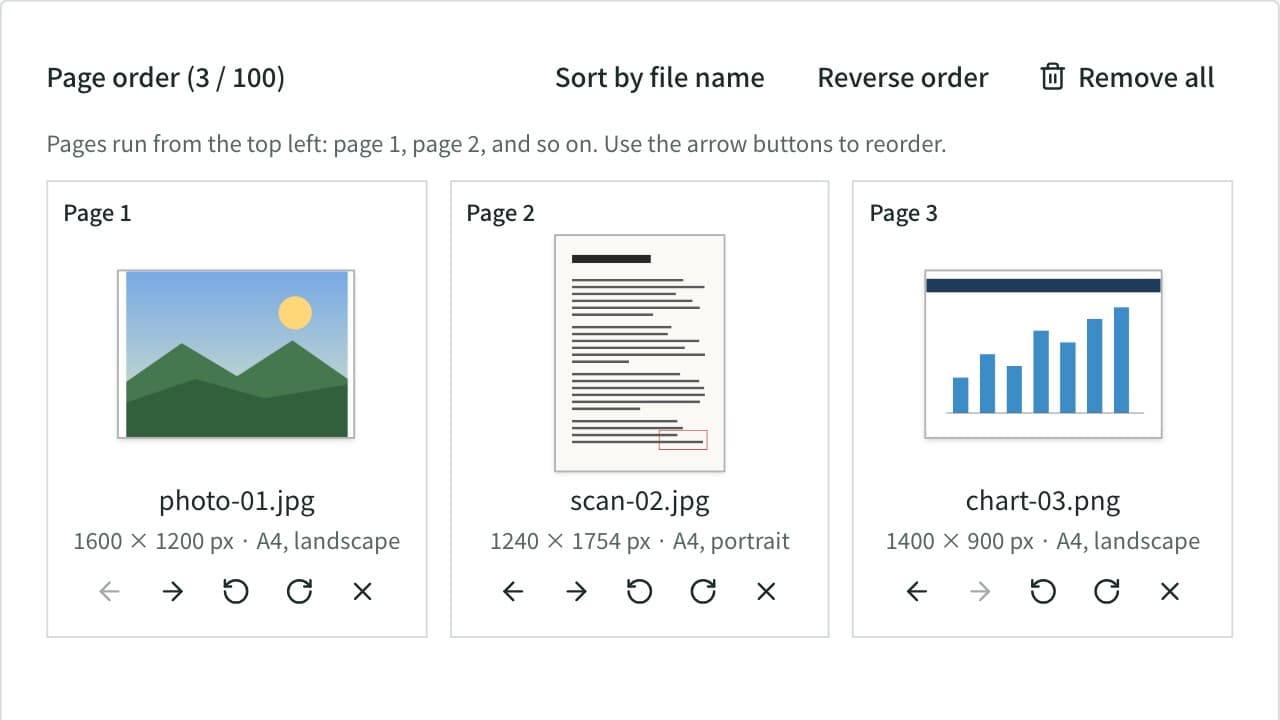
Image to PDF Converter
Combine JPG, PNG, WebP, and other images or photos into one PDF. Set the page order and rotation, the page size (A4, Letter, and more), orientation, margins, and how each image sits on its page, or make one PDF per image. JPEGs go in without re-encoding, and Exif data such as the location stays out of the PDF. Everything runs in your browser.
Favicon Generator
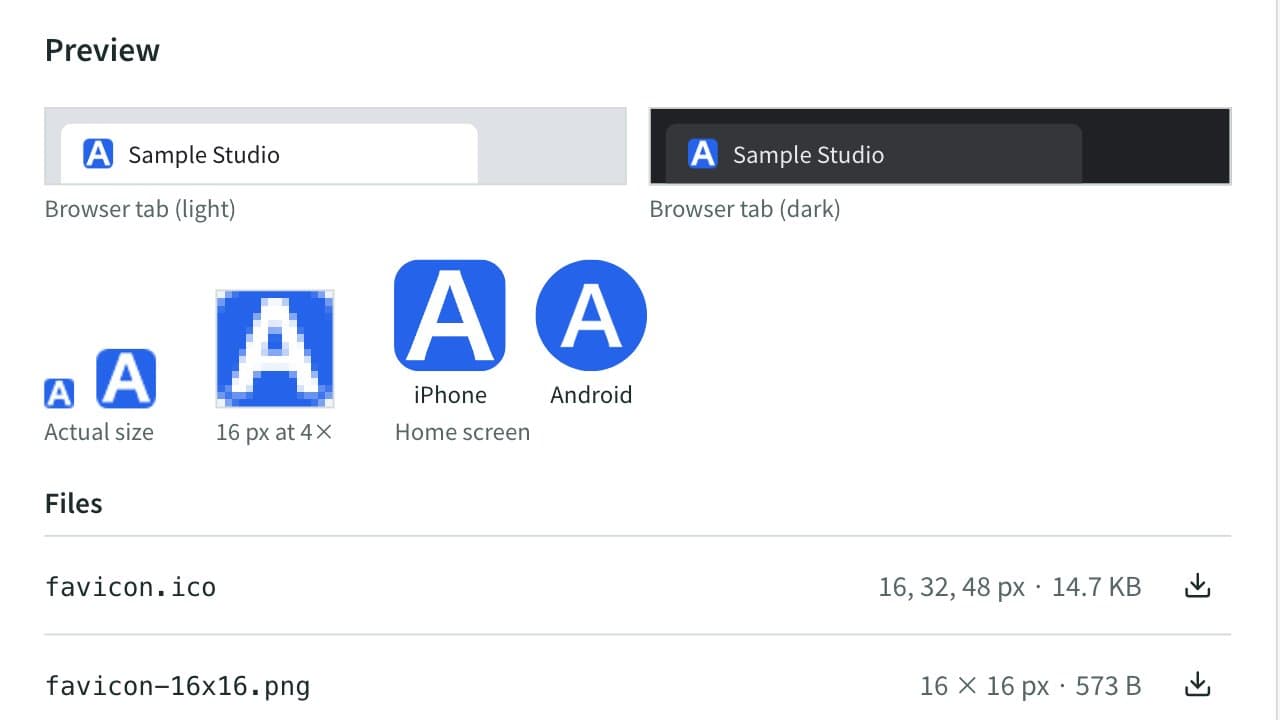
Create favicon.ico (16, 32, 48 px), apple-touch-icon, 192 and 512 px Android/PWA icons, a maskable icon, and site.webmanifest from a logo image or text and emoji, then save them all as a ZIP. Copy the HTML tags or the Next.js file layout too. Everything runs in your browser.
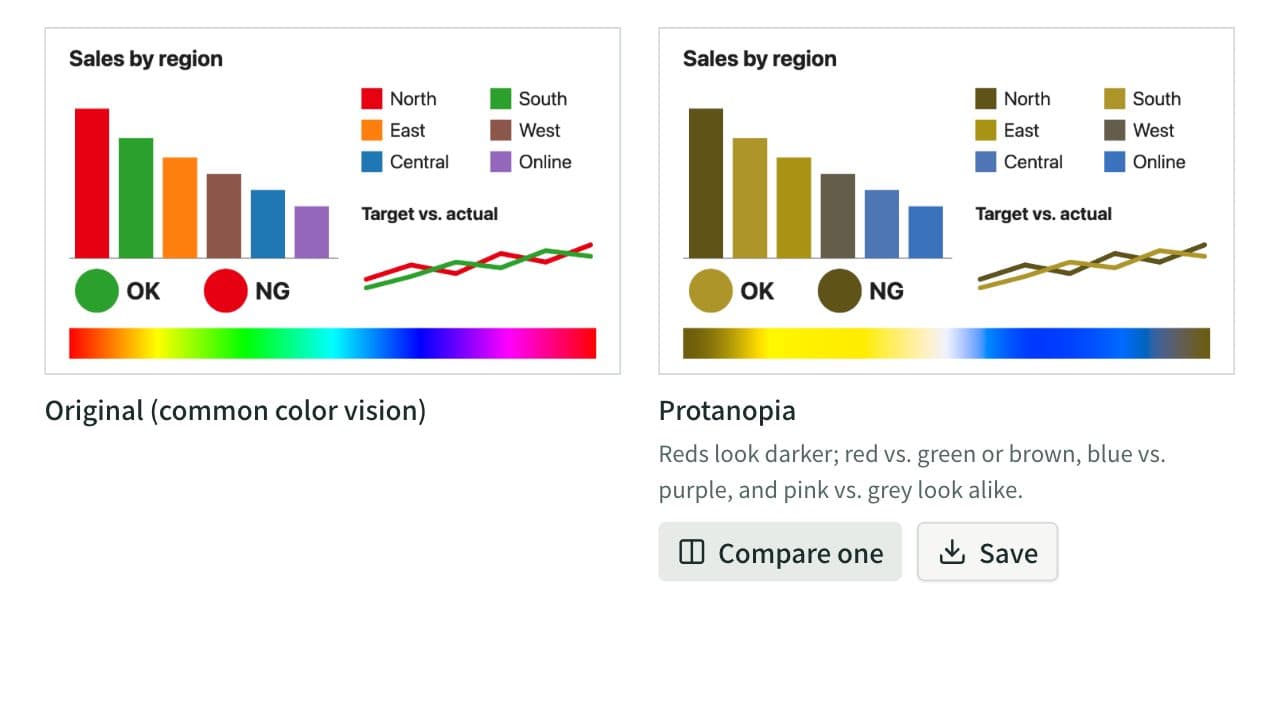
Color Blindness Simulator
See how an image or a set of colors looks with protanopia, deuteranopia, tritanopia, or achromatopsia, side by side. Lower the severity to approximate color weakness, and find pairs of HEX colors that become hard to tell apart. Everything runs in your browser.
UtilityImagescoloraccessibilitycolor-blindnesscolor-visioncolor-universal-designsimulatorimagedesignpalette