Aspect Ratio Calculator
Find the aspect ratio (such as 16:9) from a width and height, and work out the other side when you change the width or height while keeping the same ratio. It also gives the size when a 16:9 image is cropped or padded to another ratio such as 9:16 or 1:1, and how many pixels to cut or add on each side.
Common ratios
Aspect ratio (width:height)
16:9
- Landscape ・ As a decimal 1.778:1
- Full HD and 4K screens, landscape video such as YouTube
New size (width × height)
1280 × 720
Ratio to fit
Crop
Cuts off the edges of the image so that it fills the frame.
1080 × 1080
Cuts 420 from the left and from the right (840 in all).
Pad
Keeps the whole image and adds a margin where it falls short.
1920 × 1920
Adds 420 at the top and at the bottom (840 in all).
How to use
- Enter the size of an image, video, or screen in the width and height fields under "Original size, or a ratio" (for example
1920and1080). If you already know the ratio, entering it directly, such as16and9, works the same way - The aspect ratio (width:height) appears at once, reduced to the smallest pair of whole numbers. Beside it are the orientation (landscape, portrait, or square) and the ratio as a decimal
- Each "Common ratios" button shows a frame in the shape of its ratio. Press one to put that ratio into the width and height fields
- Under "Resize at the same ratio", enter either a new width or a new height, and the other side is calculated. The side you type is the one that is kept; typing in the other field switches which side is kept
- Under "Fit to another ratio (crop or pad)", enter the ratio to fit, or pick one of the shapes. The size of the original cropped to that ratio and the size of the original padded out to it appear side by side (one below the other on narrow screens)
- "Copy ratio", "Copy size", and the other copy buttons put the results on the clipboard
When the page opens, it holds an example: 1920 × 1080, a new width of 1280, and 1:1 as the ratio to fit. Replace the contents of the fields with the values you want to work out.
Reading the drawings
To the right of the aspect ratio (below it on narrow screens) is a drawing of the width and height, scaled down at the same ratio. The two lengths are written on dimension lines outside the frame, as on a technical drawing. When the numbers of the ratio are small enough for the squares to be seen, the frame is divided into squares, as many across as the width term and as many down as the height term. For 1920 × 1080 that is 16 squares across and 9 down, and the side of one square is the greatest common divisor of the two lengths (120). When the numbers are so large that the squares would be too fine, the frame is not divided.
To the right of the new size (below it on narrow screens) is a drawing of the original size as a dashed frame and the new size as a filled frame, to one scale with their bottom-left corners together. Two frames with the same ratio have their top-right corners on one diagonal drawn from that corner. When rounding the new size to whole numbers changes its ratio enough to move its corner visibly off that line (such as 2 × 1 resized to a width of 1, which gives 1 × 1), the diagonal is not drawn. When one of them would be too small to see, such as when the original is entered as a ratio like 16 and 9, only the new size is drawn. A very long or very tall size such as 100000 × 1 has its thin side drawn thicker so that it can be seen, so that drawing is not to scale.
Under "Crop" and "Pad" is a drawing of the original size as a dashed frame and the image that remains as a filled frame, centred on each other. The hatched part is what is cut off for a crop, and the margin that is added for padding. When the difference is too small to see, or the size is very long or very tall, the hatching becomes thin or cannot be seen.
Example
This is what is shown for a width of 1920, a height of 1080, and a new width of 1280.
Aspect ratio (width:height)
16:9
Landscape ・ As a decimal 1.778:1
Full HD and 4K screens, landscape video such as YouTube

New size (width × height)
1280 × 720
More examples:
1080×1920→9:16(portrait, 1:1.778)1920×1200→8:5. This ratio is usually written as16:10, and that form is shown as well1366×768→683:384. Close to 16:9, but not exactly 16:91200×630→40:21. A common size for link preview (Open Graph) images, close to 1.91:1- Keeping
4:3and setting the width to800→800 × 600 - Keeping
16:9and setting the height to1080→1920 × 1080
Fitting to another ratio (crop or pad)
There are two ways to fit an image into a frame of a different ratio, as when landscape video is made into a vertical short or a photo into a square post.
- Crop — cuts off the edges of the image so that it fills the frame. The side that is too long for the ratio is shortened, and the other side stays as it was
- Pad — keeps the whole image and adds a margin (such as black or white bars) where it falls short. The side that is too short for the ratio is lengthened, and the other side stays as it was
For both, the amount cut from or added to the top and bottom, or the left and right, is shown for an image placed in the centre.
This is what is shown when 1920 × 1080 is fitted to 9:16.
Crop
607 × 1080
Cuts 656 from the left and 657 from the right (1313 in all).
The calculated width is 607.5. It is rounded down to a whole number so that the crop stays inside the original.

Pad
1920 × 3414
Adds 1167 at the top and at the bottom (2334 in all).
The calculated height is about 3413.333. It is rounded up to a whole number so that the whole original fits.
Some more examples:
1920×1080to1:1→ cropped,1080 × 1080(420 from the left and from the right); padded,1920 × 1920(420 at the top and at the bottom)1920×1080to4:5→ cropped,864 × 1080; padded,1920 × 24001080×1920to16:9→ cropped,1080 × 607(cut from the top and bottom); padded,3414 × 1920(added to the left and right)6000×4000to4:3→ cropped,5333 × 4000; padded,6000 × 4500
When a calculated length is not a whole number, a crop is rounded down and padding is rounded up. A crop never goes outside the original image, and the padded frame always holds the whole original. Because of this, the ratio of the result can be slightly off the ratio you asked for. When the total cut or added is an odd number, the left or the top gets 1 less (0.001 less when decimals were entered).
When the original is entered with decimals, such as 2.35 and 1, the results are given to three decimal places (rounded down for a crop and up for padding). When a crop would be thinner than 1 (0.001 when decimals were entered), 1 (or 0.001) is used. When cropping leaves the original as it is, the app says there is nothing to cut off. When the original already has the ratio to fit, the app says that nothing needs to be cropped or added.
To actually crop an image, the same ratio can be chosen or entered in Image Crop & Rotate.
How it is calculated
The aspect ratio is found by dividing the width and the height by their greatest common divisor. The greatest common divisor of 1920 and 1080 is 120, so 1920 ÷ 120 = 16 and 1080 ÷ 120 = 9, which gives 16:9.
To change the size while keeping the ratio, these formulas are used.
- New height = new width × original height ÷ original width
- New width = new height × original width ÷ original height
At 16:9 with a width of 1280, the height is 1280 × 9 ÷ 16 = 720.
When the calculated side is not a whole number, it is rounded to the nearest whole number so that it can be used as a pixel count, and the calculated value is shown underneath. At 16:9 with a width of 1000 the height is 562.5, so the app shows 1000 × 563 with the note "The calculated height is 562.5." A rounded size has a ratio that differs very slightly from the original. To avoid any difference, choose a multiple of the ratio's number, such as a width that is a multiple of 16 for 16:9.
Common ratios
16:9— Full HD (1920×1080), 4K (3840×2160), landscape video such as YouTube16:10— Laptop screens (1920×1200, 2560×1600, and so on)4:3— Older televisions, standard-size slides (such as 1024×768)3:2— Photos from interchangeable-lens digital cameras (such as 6000×4000)1:1— Profile pictures and square social posts21:9— Ultrawide monitors1.91:1— Link preview (Open Graph) images, such as 1200×6309:16— Vertical video for phones (such as 1080×1920)4:5— Portrait social posts (such as 1080×1350)
The ratios and sizes that a service accepts can change. Check that service's own guidance before you upload.
Input that is read
- Decimals — Up to three decimal places can be entered, so ratios such as
1.91and1, or2.35and1, can be typed as they are. The resulting ratio is rewritten as a pair of whole numbers, so1.91:1becomes191:100 - Full-width digits —
1920is read as1920 - Thousands separators —
1,920is read as1920. A comma used in place of a decimal point, as in1,5, is not read - Range — Values greater than 0, up to 100000
Enter numbers only, without units. Only the ratio is used in the calculation, so it works the same for pixels and for millimeters.
FAQ
What is an aspect ratio?
It is the ratio of the width of an image or screen to its height. It is written as width:height, so 16:9 means 16 units of width for every 9 units of height. Two sizes with the same ratio have the same shape, however large or small they are.
Is 1366 × 768 not 16:9?
Not exactly. 1366 × 768 reduces to 683:384, which is 1.779:1 as a decimal. 16:9 is 1.778:1, so the size is very slightly wider. It is often called 16:9, but this app describes it as close to 16:9.
Why is 2560 × 1080 not shown as 21:9?
Because 21:9 is a name for a family of screens, and the actual sizes differ a little from it. 2560 × 1080 reduces to 64:27 (2.37:1) and 3440 × 1440 to 43:18 (2.389:1), about 2% away from 21:9 (2.333:1). The app says a ratio is close to a common one when the two differ by 3% or less.
Are 8:5 and 16:10 different ratios?
They are the same ratio. 16:10 reduces to 8:5. Screen ratios are customarily written as 16:10 so that they are easy to compare with 16:9, so the app shows the reduced form 8:5 and adds "This is usually written as 16:10." The same applies to 21:9, which reduces to 7:3.
Which goes first, the vertical side or the horizontal side?
An aspect ratio is written as width:height, so the width (the horizontal length) goes in the left field and the height (the vertical length) in the right field. For a portrait image the width is the smaller number (1080 × 1920 is 9:16).
Should I crop or pad?
If nothing important is near the edges of the image, cropping fills the whole frame. When something must be kept right to the edge, such as a person's head or text, padding loses nothing. On social media, a padded image is shown with bars around it.
Can this change the size of an image itself?
This app only calculates numbers. To change the size of an image file, use the Image Resizer & Compressor, and to crop one, use Image Crop & Rotate.
Are the values I enter sent anywhere?
No. All calculation is done in the browser, and the values and results are not stored. Reloading the page returns it to the first example.
- Type
- Utility
- Category
- Calculators
- Tags
- aspect-ratio
- image
- video
- resize
- crop
- screen
- calculator
Related apps
Elapsed Time Calculator
Calculate elapsed, remaining, and active time from start, end, current time, and breaks, or work out the end time from the active time. Also adds and subtracts durations such as 1:30 or 2h 15m and converts them to decimal hours.
Split Bill Calculator
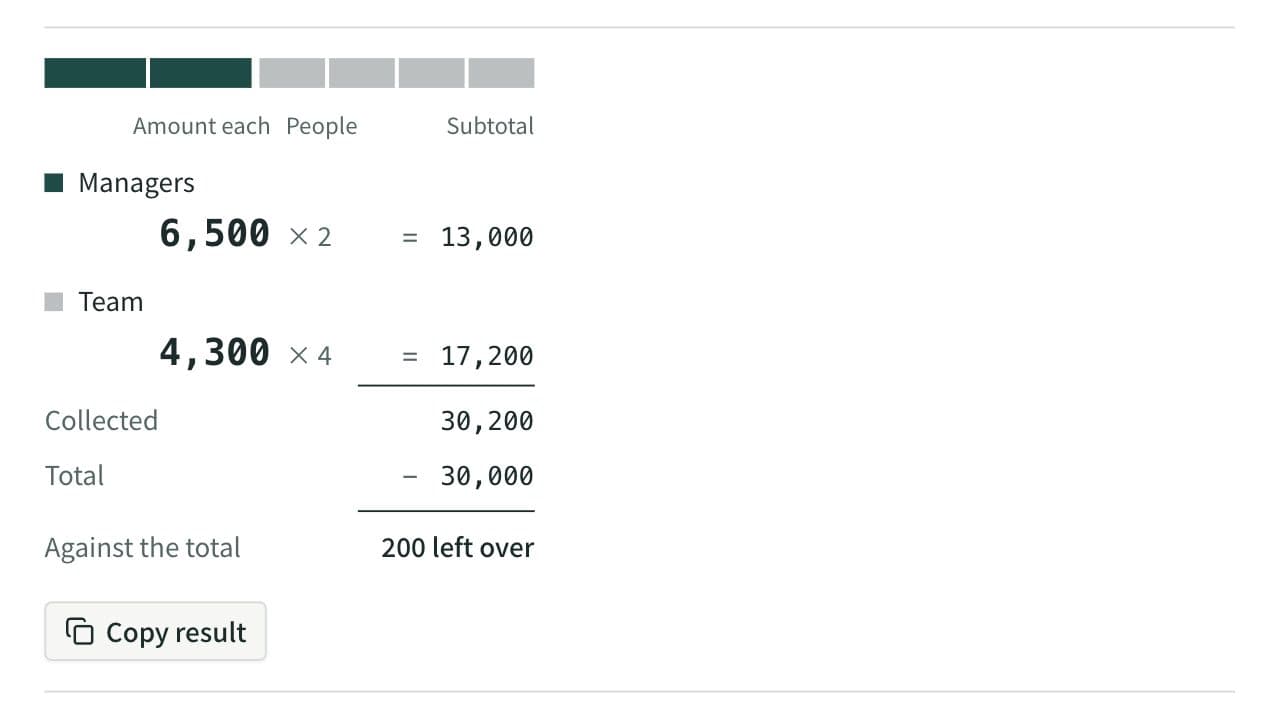
Work out what each person pays from the total and the head count. Round payments to 10, 100, 500, or 1,000, let some groups pay a larger share or a set amount, and see how much is collected and left over. When several people paid, it also works out who pays whom to settle up.
Sales Tax Calculator
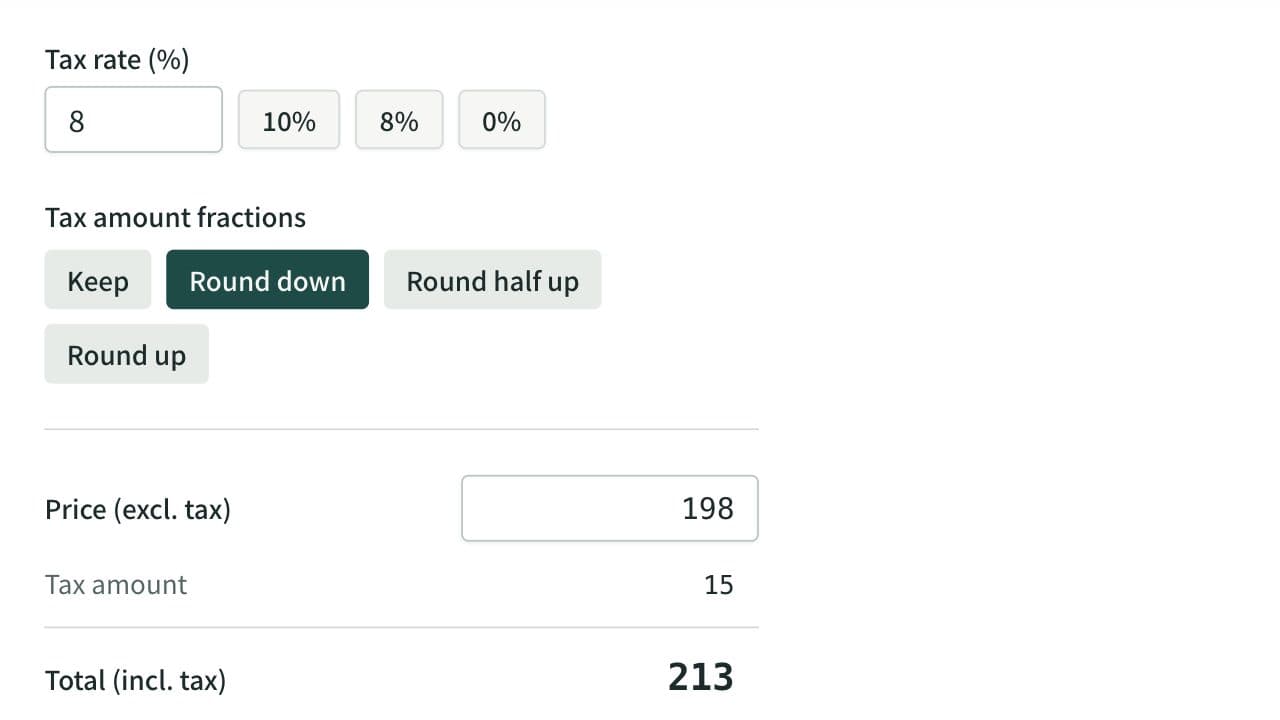
Calculate tax-inclusive and tax-exclusive prices for a given tax rate, with the tax amount rounded down, half up, or up if you choose. For a total with both 10% and 8% items, it works out the tax for each rate from either the sum at each rate or each item's price and quantity.