Elapsed Time Calculator
Calculate elapsed, remaining, and active time from start, end, current time, and breaks, or work out the end time from the active time. Also adds and subtracts durations such as 1:30 or 2h 15m and converts them to decimal hours.
- Progress
- 50%
09:0010:30
- Elapsed
- 45 min
- Remaining
- 45 min
- Total
- 1 hr 30 min
- Break
- 10 min
- Active
- 1 hr 20 min
Write them like “1:30”, “2h 15m”, “45 min”, or “1.5h”. A line that starts with “-” is subtracted.
- Total (4 lines)
- 4 hr 10 min
- Hours:minutes
- 4:10
- Decimal hours
- 4.17 h
- Minutes
- 250 min
How each line reads
- Line 11:30+1 hr 30 min
- Line 22h 15m+2 hr 15 min
- Line 345 min+45 min
- Line 4-0:20−20 min
How to use
Choose the kind of calculation with the buttons at the top. “From a time range” works out the elapsed and remaining time between a start and an end time, and “Add and subtract durations” adds up lengths of time such as “1 hr 30 min”. Switching keeps what you entered in each. The steps below are for “From a time range”.
- Under “Set the end by”, choose “Entering the end time” or “Working out from active time”.
- Enter the start time. With “Entering the end time”, enter the end time; with “Working out from active time”, enter the hours and minutes of active time.
- If there is a break along the way, enter its length in minutes under “Break (minutes)”. Leave it at
0when there is none. - Enter the current time, or press “Use current time” to fill it from your device clock.
- The right side shows the progress (%), the elapsed time, the remaining time, and the sum Total − Break = Active. With “Working out from active time”, the end time leads the result and the sum reads Active + Break = Total.
The result updates as soon as you change an input. The “45 min”, “90 min”, and “Overnight” buttons fill in a sample plan of that kind. “Reset values” returns to the initial state (09:00 to 10:30, a 10-minute break, current time 09:45). These three buttons and “Reset values” fill in both the end time and the active time, and keep the way of setting the end you have chosen.
What each figure means
- Total: the length from the start time to the end time.
- Break: the break you entered.
- Active: the total minus the break.
- Elapsed: the length from the start time to the current time.
- Remaining: the length from the current time to the end time.
- Progress: elapsed ÷ total as a percentage, rounded to a whole number.
With “Entering the end time”, the break is used only for the active time. Elapsed time, remaining time, and progress are measured on the clock, break included. With “Working out from active time”, the break pushes the end time back, so changing it also changes the total, the remaining time, and the progress. The app does not ask when the break is taken, so it never subtracts the break from the elapsed time.
Durations under an hour are shown like “45 min”, and longer ones like “1 hr 30 min” or “9 hr”.
Examples
A plan that ends on the same day, such as a lecture or a meeting:
Start 09:00 / End 10:30 / Break 10 / Current 09:45
Progress 50% / Elapsed 45 min / Remaining 45 min
Total 1 hr 30 min − Break 10 min = Active 1 hr 20 min
A working day. You get the active time after a 60-minute lunch break and the time left at 15:00:
Start 09:00 / End 18:00 / Break 60 / Current 15:00
Progress 67% / Elapsed 6 hr / Remaining 3 hr
Total 9 hr − Break 1 hr = Active 8 hr
A range that crosses midnight, such as a night shift. The end time is marked “(next day)”:
Start 22:00 / End 06:00 / Break 60 / Current 02:00
Progress 50% / Elapsed 4 hr / Remaining 4 hr
Total 8 hr − Break 1 hr = Active 7 hr
Working out the end from active time
To find out when you will finish — say, eight hours of work with an hour's break — choose “Working out from active time”. The end time is the start time plus the active time and the break.
Start 09:00 / Active 8 hr 0 min / Break 60 / Current 15:00
Ends at 18:00
Active 8 hr + Break 1 hr = Total 9 hr
When the end falls on the following day, it is marked “(next day)”:
Start 22:00 / Active 7 hr 0 min / Break 60
Ends at 06:00 (next day)
- Hours may have a decimal part: 7.5 hours is 7 hr 30 min.
- Minutes may go past 59. 0 hr 90 min is calculated as 1 hr 30 min, and the fields are rewritten as “1” and “30” when you leave them.
- A blank or unreadable value counts as 0, and a negative value as 0. The sum is rounded to the nearest minute.
- Active time plus break must be at least 1 minute and at most 24 hours. At exactly 24 hours, the end is the start time on the following day. At 0 minutes or past 24 hours, the result is replaced by “Active time plus break must be at least 1 minute and at most 24 hours.”
- Switching how the end is set keeps the plan on screen. Switching from “Entering the end time” fills in the active time left after the break. If the break was longer than the total, the break is cut down to the total and the active time becomes 0 min. Switching from “Working out from active time” fills in the end time it reached. If the plan cannot be calculated when you switch, the other field keeps its earlier value.
Adding and subtracting durations
Choose “Add and subtract durations” to total lengths of time written one per line: a week of hours on a timesheet, the time each task took, or the running times of videos or lessons.
- Under “Durations (one per line)”, enter one length of time per line. You can paste a column from a spreadsheet as it is.
- To subtract a duration, start its line with “-” (for example
-0:20). - If some lines are numbers without a unit, such as
7.5or90, choose under “Numbers without a unit” whether to read them as hours or as minutes. Hours is the default. - The right side shows the total and three ways of writing it: hours:minutes, decimal hours, and minutes. Each has a “Copy” button that copies just the value. A total of 24 hours or more is also shown in days.
These are the forms it reads. Full-width digits and symbols (such as 1:30) are read too.
1:30(hours:minutes). The hours may be 24 or more (37:45). Write the minutes with two digits.7:30:00(hours:minutes:seconds), read only when the seconds are00. This is for values copied from a spreadsheet as times.2h 15m,1h30m,2 hours 15 minutes,45 min,1.5h(upper or lower case)- Japanese units:
2時間15分,45分,1時間半(an hour and a half) - Numbers without a unit (
7.5,90), read in the unit chosen under “Numbers without a unit”.
1:30
2h 15m
45 min
-0:20
Total 4 hr 10 min / 4:10 / 4.17 h / 250 min
A timesheet pasted in decimal hours:
7.75
8
7:30
8h 15m
Total 31 hr 30 min / 31:30 / 31.50 h / 1,890 min
In days 1 day 7 hr 30 min
- Blank lines are skipped. Line numbers stay those of the lines in the box.
- If any line cannot be read, the total is held back and the line numbers are named, as in “Lines 2, 3 cannot be read.” “How each line reads” below shows how each line was read, or why it could not be. It lists the first 200 lines.
- A line with a note, such as “1:30 meeting”, a number with separators such as
1,000 min, and a clock time such as1時30分cannot be read. - Decimal hours and minutes are rounded to the nearest minute on each line. 0.125 hours (7.5 minutes) is 8 minutes. When a line has both hours and minutes, they are added before rounding:
0.125h 0.5mis 7.5 + 0.5, exactly 8 minutes. - Decimal hours are rounded to two places. 20 minutes is 0.33 h, and 50 minutes is 0.83 h.
- When more is subtracted than added, the total is negative (such as
−0:30). A copied value uses the ASCII “-” for the minus sign. - One line can hold up to a million hours. The limit is checked before rounding, so
1000000.001his over it.
Overnight ranges
When the end time is earlier than or equal to the start, the app treats the end as the following day. For example, 23:20 to 00:10 is 50 minutes. Entering the same time for start and end is treated as exactly 24 hours.
The current time has no date, so an overnight range uses this rule to place it. Times from the start through the end are inside the range, and any time after the end and before the start is treated as “before the start”. For 23:20 to 00:10, that gives:
- 23:55 → 35 min elapsed, 15 min remaining, 70%
- 00:05 → 45 min elapsed, 5 min remaining, 90%
- 00:10 → the end (100%)
- 23:00, 00:30, and 12:00 → all before the start (0 min elapsed, 50 min remaining, 0%)
Limits to keep in mind
- “From a time range” works with clock times only; there is no date input. The longest range it can calculate is 24 hours, so it cannot be used for periods of two days or more. To add up lengths past 24 hours, use “Add and subtract durations”.
- Calculations are in whole minutes. Seconds are not handled.
- The current time does not advance by itself. Press “Use current time” again when you come back to the page later.
- With “Entering the end time”, a break longer than the total is cut down to the length of the total, which makes the active time 0 min.
- A decimal break is rounded to the nearest minute, and a negative value is treated as 0.
FAQ
What is active time?
Active time is the full duration from start to end minus the break you entered. For 9:00 to 18:00 with a 60-minute break, the total is 9 hr and the active time is 8 hr.
Why doesn't the remaining time change when I enter a break?
With “Entering the end time”, remaining time is the clock time from the current time to the end time you entered, and the break only affects the active time. With “Working out from active time”, the end time is the active time plus the break, so a longer break makes the end later and the remaining time longer.
What happens when the current time is outside the range?
Progress is shown as 0% before the start and 100% after the end. An overnight range cannot tell “after the end” from “before the next start”, so every time after the end and before the start is shown as before the start (0%).
Which time does “Use current time” use?
The hour and minute on your device clock at the moment you press the button, in the time zone your device is set to.
What happens if the start and end are the same time?
The range is calculated as 24 hours, up to the same time on the following day, not as 0 minutes.
How do I find out when I can leave work?
Choose “Working out from active time”, enter when you start as the start time, how long you work as the active time, and your break in minutes. The end time at the top of the result is when your day ends.
Why do I see “Enter a start, end, and current time.”?
One of the three times is empty. The result appears once the start time, end time, and current time are all filled in. With “Working out from active time” there is no end time field, so the message reads “Enter a start and current time.”
How do I turn “7:45” on a timesheet into decimal hours?
Enter 7:45 as a single line under “Add and subtract durations”. Decimal hours shows “7.75 h”. Enter several days, one per line, to get their total in decimal hours.
Isn't “1:30” one minute and thirty seconds?
This app reads two numbers separated by a colon as hours:minutes, and does not handle seconds. 1:30 is 1 hr 30 min.
Are my times saved?
No. Times and durations are calculated only in the browser and are not sent to a server. They reset when the page reloads.
- Type
- Utility
- Category
- Calculators
- Tags
- time
- duration
- elapsed
- remaining
- schedule
- time-sum
- calculator
Related apps
Split Bill Calculator
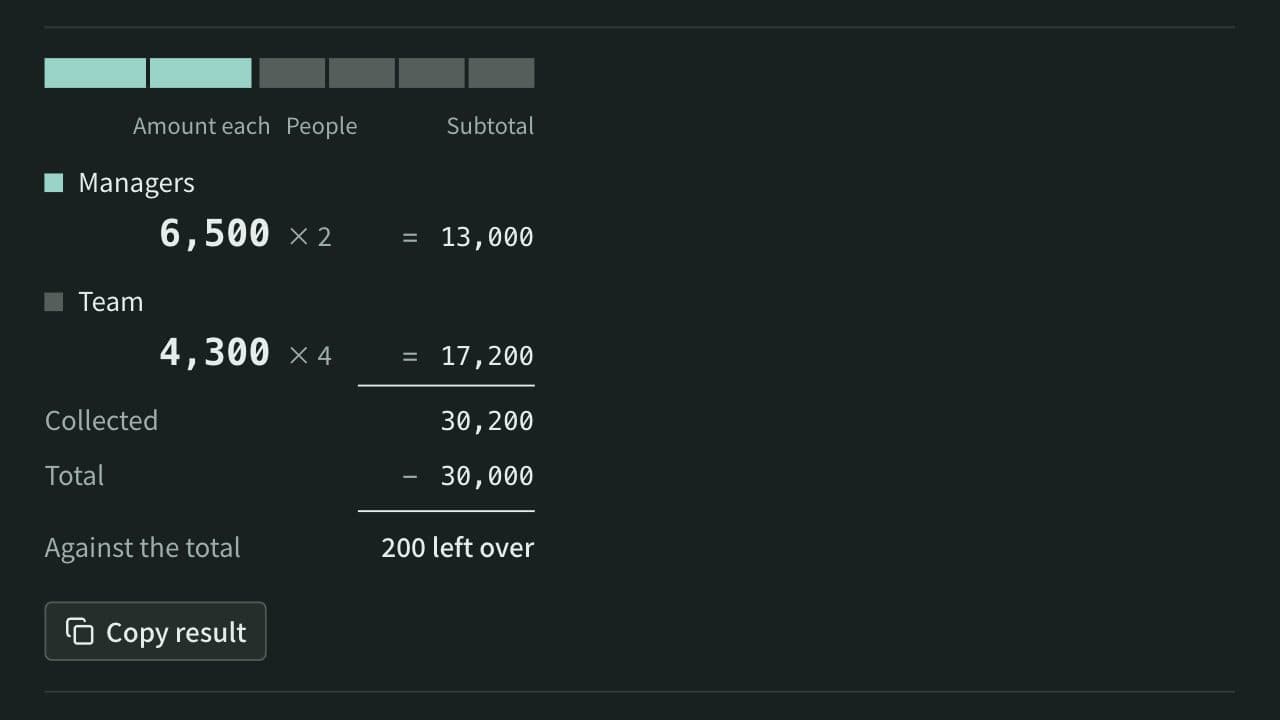
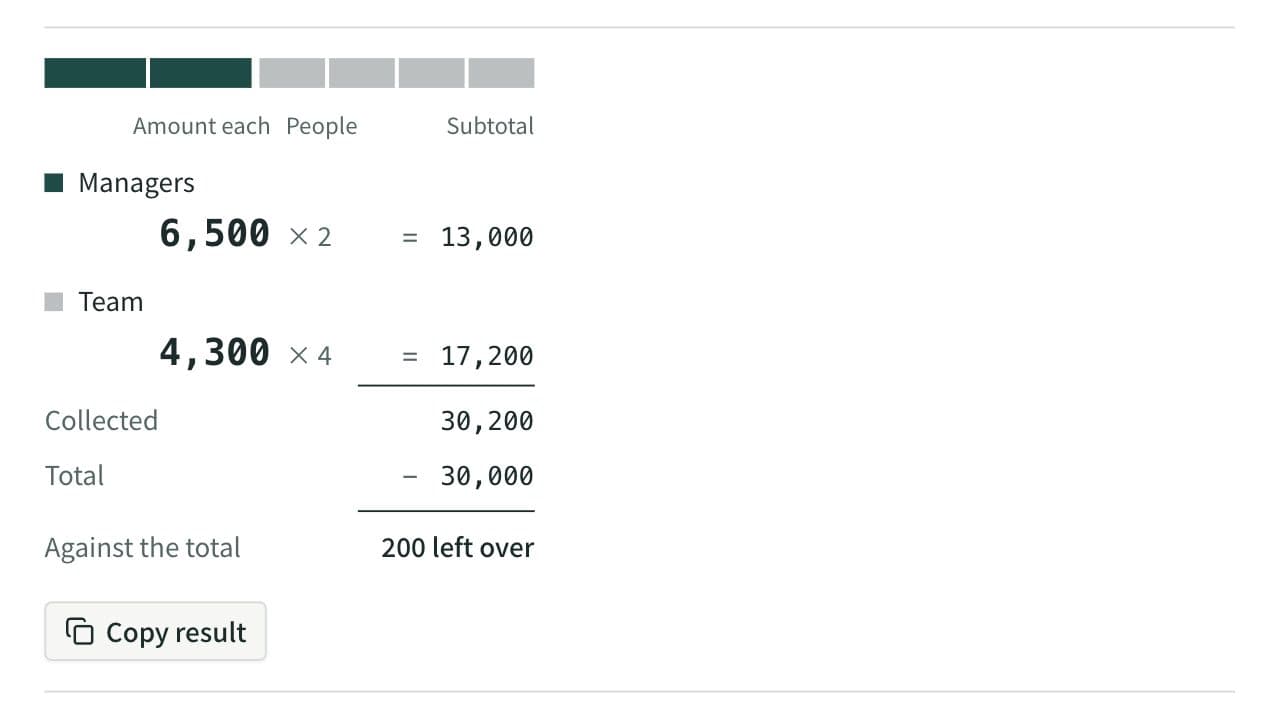
Work out what each person pays from the total and the head count. Round payments to 10, 100, 500, or 1,000, let some groups pay a larger share or a set amount, and see how much is collected and left over. When several people paid, it also works out who pays whom to settle up.
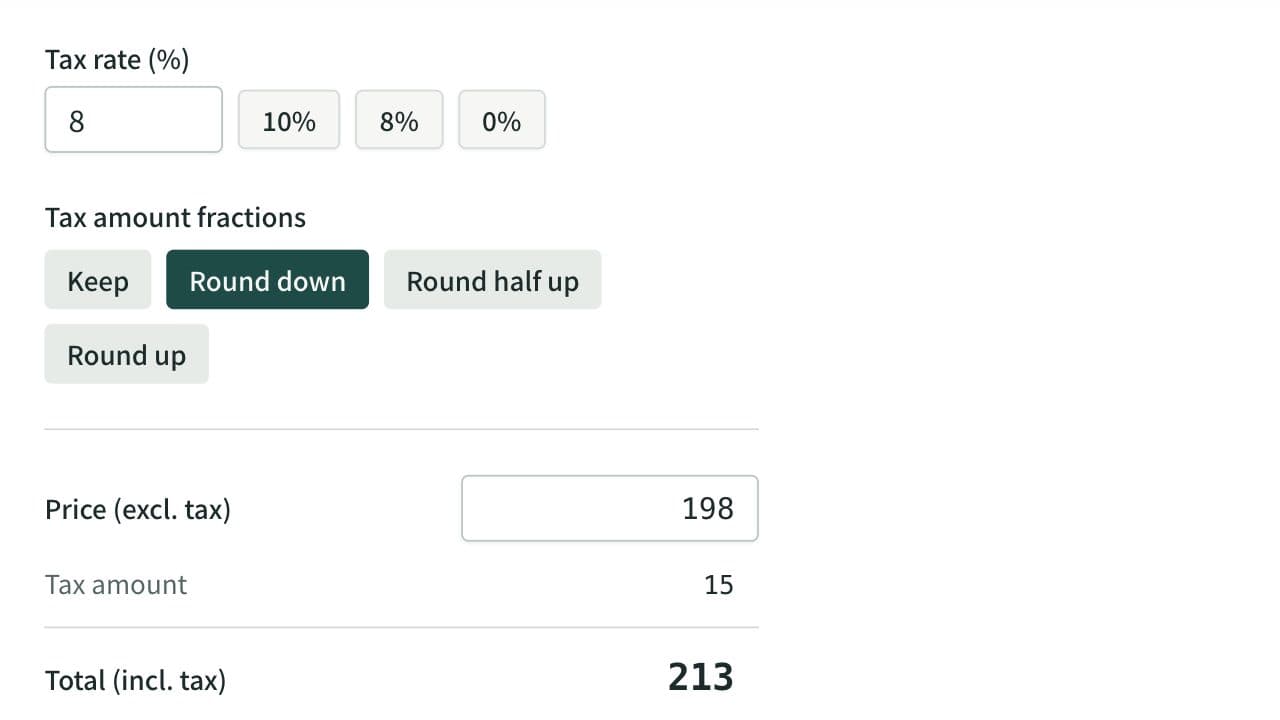
Sales Tax Calculator
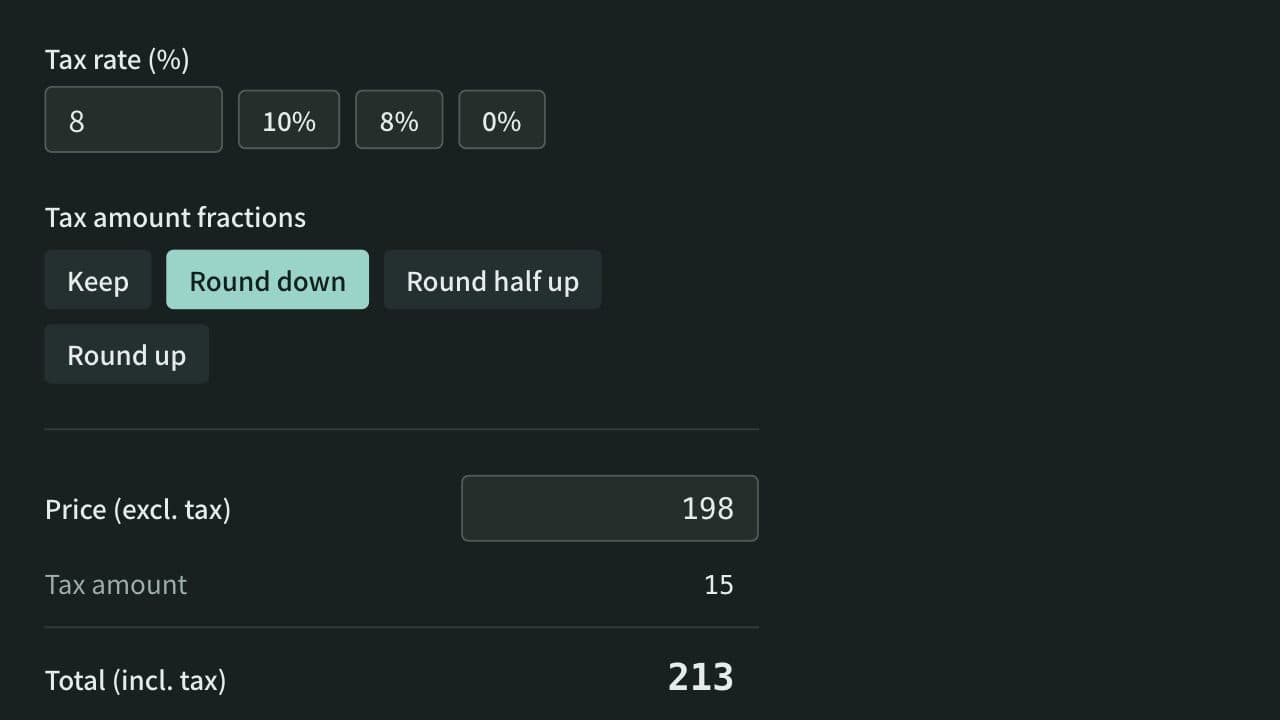
Calculate tax-inclusive and tax-exclusive prices for a given tax rate, with the tax amount rounded down, half up, or up if you choose. For a total with both 10% and 8% items, it works out the tax for each rate from either the sum at each rate or each item's price and quantity.
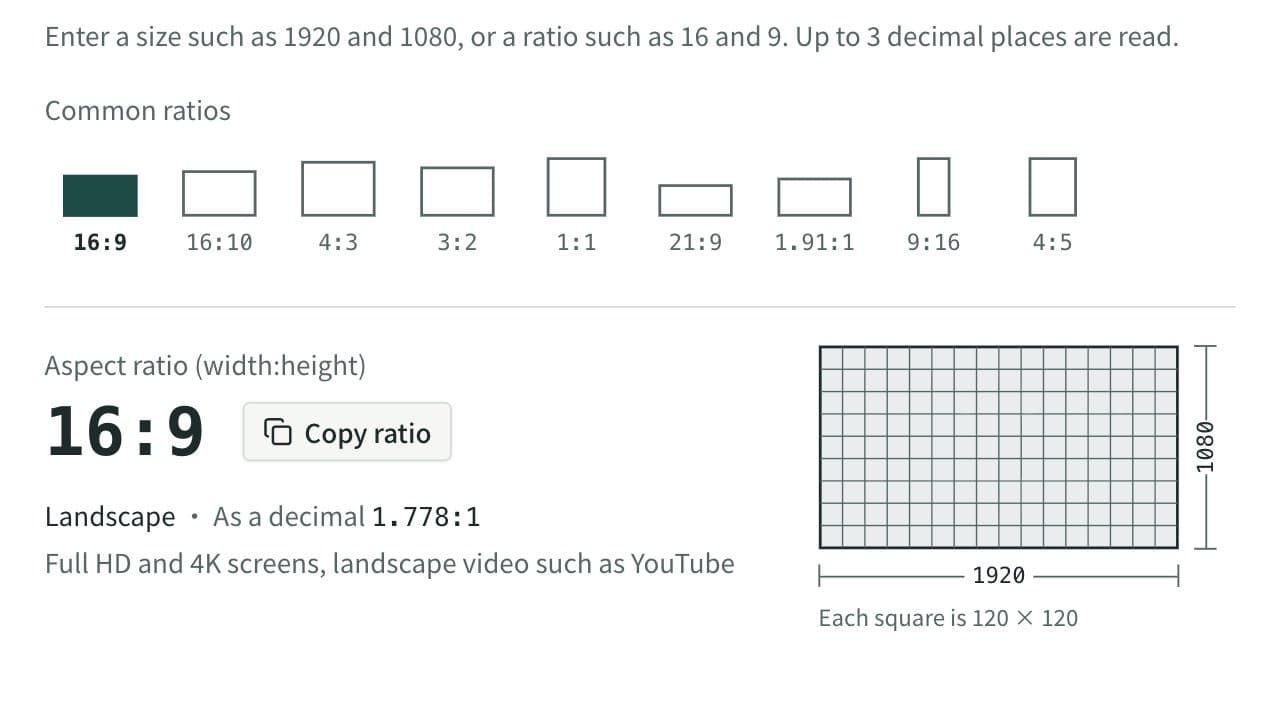
Aspect Ratio Calculator
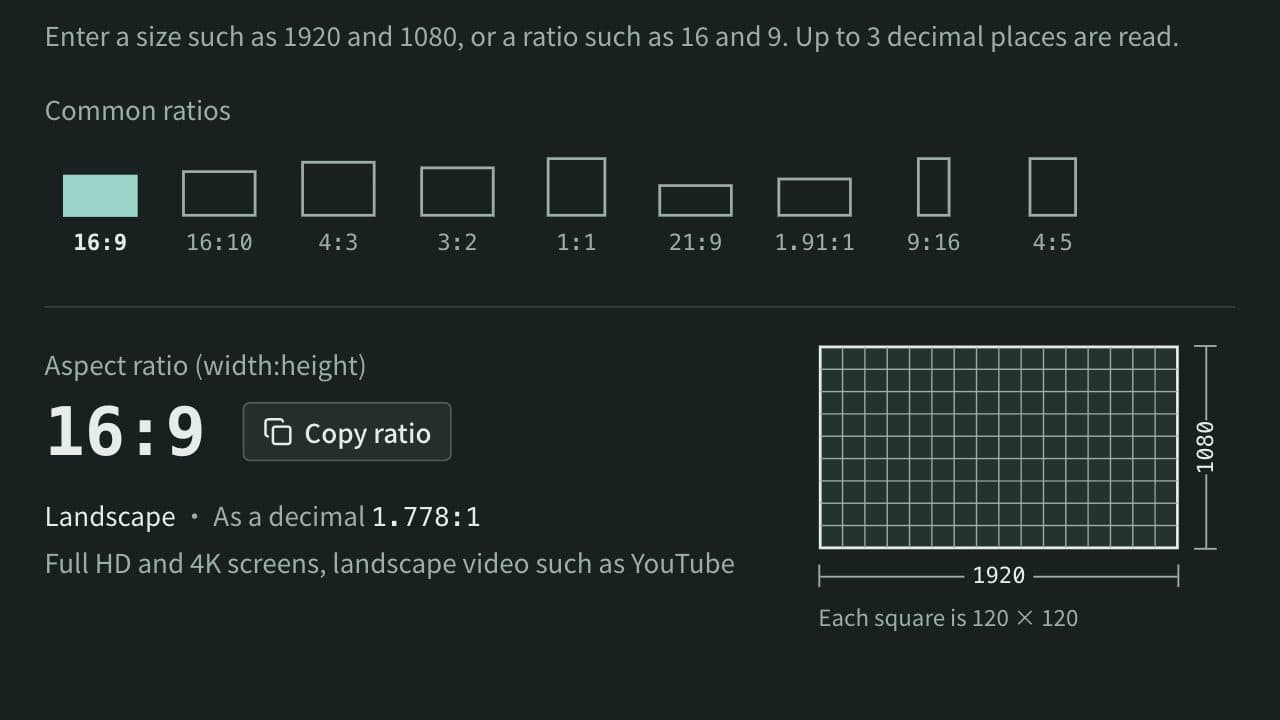
Find the aspect ratio (such as 16:9) from a width and height, and work out the other side when you change the width or height while keeping the same ratio. It also gives the size when a 16:9 image is cropped or padded to another ratio such as 9:16 or 1:1, and how many pixels to cut or add on each side.