Unix Timestamp Converter
Convert between Unix timestamps and dates. Detects seconds, milliseconds, microseconds, and nanoseconds from the digit count or lets you choose the unit, and shows both UTC and local time. When converting a date, choose whether it is read as local time or UTC.
How to use
Timestamp → Date
- Enter a Unix timestamp (an integer in seconds, milliseconds, microseconds, or nanoseconds) in the top field
- Press "Convert" to see the date and time in three formats (UTC, local time, and ISO 8601) and the unit the value was read in
- If the unit is not the one you meant, press "Seconds", "Milliseconds", "Microseconds", or "Nanoseconds" under "Unit" below the field. When a result is showing, it switches at once to the same value read in that unit. "Auto" goes back to detecting the unit from the digit count
- Press "Now" to fill the field with the current timestamp and show its result at the same time. The value is written in the chosen unit, or in seconds when the unit is "Auto". The result is that of the value in the field, so "Seconds" and "Auto" drop the part below one second
Date → Timestamp
- Enter a date and time (e.g.
2026-07-12 09:00:00) in the bottom field - Under "Time zone" below the field, choose whether a date written without a time zone is read as "Local" time on your device or as "UTC". "Local" is chosen at first
- Press "Convert" to see the timestamp in seconds, milliseconds, microseconds, and nanoseconds, the instant in ISO 8601 (UTC), and how the input was read ("Read as"). When a result is showing, pressing "Local" or "UTC" switches at once to the same input read that way
Editing a field clears the result for that section. Press "Convert" again. Editing a field does not change the chosen unit or time zone.
What a Unix timestamp is
A Unix timestamp expresses the time elapsed since 1970-01-01 00:00:00 UTC as a single number. 0 is that reference instant, and negative values are times before it. It appears in logs, API responses, and database columns as an integer in seconds or in milliseconds. Some databases and programming languages record it in microseconds or nanoseconds.
The number itself carries no time zone. The same value shows a different clock time, and sometimes a different date, depending on whether it is displayed in UTC or in the device's time zone. This app shows both side by side. See Is a Unix timestamp UTC? Timestamps vs. time zones for details.
Example
This is the result for the timestamp 1752307200. The Local line is an example from a browser set to Japan time with US English formatting.
UTC       Sat, 12 Jul 2025 08:00:00 GMT
Local     7/12/2025, 5:00:00 PM
ISO 8601  2025-07-12T08:00:00.000Z
Unit      Seconds (detected from the digit count)
Entering the millisecond value 1752307200000, the microsecond value 1752307200000000, or the nanosecond value 1752307200000000000 gives the same date and time. Only the Unit line and the number of fractional digits on the ISO 8601 line change (six for microseconds, nine for nanoseconds). Some other values:
0→1970-01-01T00:00:00.000Z-86400→1969-12-31T00:00:00.000Z(exactly one day before the reference instant)2147483647→2038-01-19T03:14:07.000Z(the maximum signed 32-bit integer)
Going the other way, entering 2026-07-12 09:00:00.123456 in a browser whose time zone is Japan time gives:
Seconds       1783814400
Milliseconds  1783814400123
Microseconds  1783814400123456
Nanoseconds   1783814400123456000
ISO 8601      2026-07-12T00:00:00.123456Z
Read as       Local (Asia/Tokyo, UTC+09:00)
Read as "Local", the same input produces different numbers on a device in a different time zone. Press "UTC" under "Time zone" to read it as 9:00 UTC on every device, which is 1783846800 in seconds.
Detecting the unit and choosing it yourself
When the unit is "Auto", the top field decides the unit from the number of digits, not counting a minus sign.
- 11 digits or fewer → seconds
- 12 to 14 digits → milliseconds
- 15 to 17 digits → microseconds
- 18 digits or more → nanoseconds
Times near the present are 10 digits in seconds, 13 in milliseconds, 16 in microseconds, and 19 in nanoseconds, so they are normally detected correctly. The detected unit is shown on the Unit line of the result, as in "Milliseconds (detected from the digit count)". In the following cases the value is read in a unit you may not intend.
- A millisecond value with few digits is treated as seconds. The millisecond value
86400000(January 2, 1970) is read as seconds and becomes September 27, 1972 - A second value of 12 to 14 digits is treated as milliseconds, a second or millisecond value of 15 to 17 digits as microseconds, and any value of 18 digits or more as nanoseconds
- Leading zeros count as digits.
001752307200has 12 digits, so it is read as milliseconds and becomes January 21, 1970
When that happens, press the right unit under "Unit". The value is then read in that unit whatever its length. 86400000 above becomes January 2, 1970 when you press "Milliseconds", and 001752307200 becomes July 12, 2025 when you press "Seconds". After you choose a unit yourself, the Unit line shows only its name, such as "Milliseconds".
Detection is a hint. Check the value against the specification of its source. How to distinguish Unix timestamp seconds from milliseconds covers how to tell them apart.
How microseconds and nanoseconds are shown
The UTC and Local lines show whole seconds, and the ISO 8601 line shows every digit you entered. The microsecond value 1752307200123456 is 2025-07-12T08:00:00.123456Z, and the nanosecond value 1752307200123456789 is 2025-07-12T08:00:00.123456789Z. A 19-digit nanosecond value is shown down to its last digit without rounding.
For a negative value, the date moves to the earlier second so that the part below one second stays positive. The microsecond value -1 is 1969-12-31T23:59:59.999999Z, one microsecond before the reference instant.
The bottom section, "Date → Timestamp", also reads up to nine fractional digits (nanoseconds) without rounding. Its ISO 8601 line shows three, six, or nine fractional digits to match what you typed, and its seconds, milliseconds, and microseconds are rounded toward the past, as in the top section.
Date formats and time zones
The bottom field reads these forms itself:
- A date with a four-digit year, then month and day, separated by
-or/:2026-07-12,2026/7/12 - Then, after a space or
T, a time:09:00,9:00:30,09:00:00.123456789(up to nine fractional digits) - After the time, a time zone:
Z,UTC,GMT,+09:00,+0900,+09 - The form of the UTC line in the top section:
Sat, 12 Jul 2025 08:00:00 GMT
A date written without a time zone is read in the time zone chosen under "Time zone". A date alone is midnight on that day. A date with a time zone is read as written whichever is chosen, and the Read as line says so, as in "The offset in the input (+09:00)". 2026-07-12T09:00:00Z is 9:00 UTC, and its value in seconds is 1783846800. The UTC line of the top section can be pasted back as it is.
In the forms above, a date or time that does not exist, such as 2026-02-30 or 2026-07-12 24:00, is an error.
Any other form, such as July 12, 2026 or the US English Local line 7/12/2025, 5:00:00 PM, is left to the browser's date parser (JavaScript's Date), and only while "Local" is chosen. The Read as line then says "The browser's date parser", and browsers may interpret the text differently. A date that does not exist may roll over into the next month, and digits below a millisecond may be dropped, so use the forms above for an exact conversion. Whether such text includes a time zone cannot be checked from outside, so it is an error while "UTC" is chosen. Japanese notation such as 2026年7月12日 cannot be read.
Local times around daylight saving time
Where the clocks go forward for daylight saving time, the times in between do not exist (for example 2024-03-10 02:30 in America/Los_Angeles). Read as "Local", such a time is moved later by the amount the clocks skip (to 03:30 in this example), and the Read as line says so. When the clocks go back and a time occurs twice, the earlier one (on daylight saving time) is used. Neither happens with an input that states its offset or with "UTC".
FAQ
How does it tell seconds from milliseconds?
When the unit is "Auto", by the number of digits, not counting a minus sign. Eleven digits or fewer are treated as seconds, 12 to 14 as milliseconds, 15 to 17 as microseconds, and 18 or more as nanoseconds, and the detected unit is shown on the Unit line of the result. If the date is not the one you expect, press the right unit under "Unit" to read the value again in that unit.
Which time zone is "Local"?
The time zone configured in your browser and operating system. In the bottom section, the Read as line shows its name, such as Asia/Tokyo, and its offset on that date. There is no option to display another time zone. To compare the time in several cities, use the Time Zone Converter. The order of the date parts and the separators on the Local line of the top section follow your browser's language settings. The UTC and ISO 8601 lines are in Coordinated Universal Time in every environment.
Why do I see "Enter a valid timestamp"?
The top field accepts integers only. A fraction such as 1752307200.5, digit separators such as 1,752,307,200, and a plus sign such as +5 all produce the error. Enter date strings in the bottom field. A value outside the range JavaScript's Date can represent (±8,640,000,000,000,000 milliseconds, and the same instants in microseconds and nanoseconds) is also an error. A unit that is too large for the value, such as a 16-digit microsecond value read as seconds, goes outside this range too. Set the unit back to "Auto" or choose the right one.
Why do I see "Enter a valid date"?
The bottom field does not accept digit-only input as a date. 20260712 and 1752307200 produce the error, so add separators as in 2026-07-12, or enter a timestamp in the top field. In a date written in numbers in year-month-day order, a date that does not exist, such as 2026-13-01 or 2026-02-29, a time such as 24:00 or 09:60, and seconds with ten or more fractional digits cannot be read either.
With "UTC" chosen under "Time zone", a form such as July 12, 2026 shows "UTC can read only dates written as numbers…". Write the date in numbers in year-month-day order, as in 2026-07-12, or switch to "Local".
Can I convert dates before 1970?
Yes. A negative timestamp converts to a date, and entering a date before 1970 in the bottom field gives a negative value.
Can I convert a timestamp in seconds with a fraction?
No, the top field supports integers only. Drop the fractional part, or multiply by 1000 and enter the result as an integer in milliseconds.
Is my data stored anywhere?
No. Conversion runs entirely in your browser and the values you enter are not sent to a server. Reloading the page clears the input and the results.
- Type
- Utility
- Category
- Converters
- Tags
- time
- timestamp
- date
- converter
- developer
Guides related to this app
The difference between JWT decoding and signature verification
Understand JWT headers, payloads, and signatures, why decoding does not establish validity, and how to inspect tokens safely.
DeveloperjwtjwsauthenticationsecurityHow to distinguish Unix timestamp seconds from milliseconds
Learn how to identify Unix timestamps in seconds or milliseconds by combining digit count, source contracts, and converted results.
Convertersunix-timestampsecondsmillisecondsjavascriptIs a Unix timestamp UTC? Timestamps vs. time zones
A Unix timestamp counts from 1970-01-01 00:00:00 UTC and stores no time zone. See why one value shows different clock times and dates by zone and DST.
Convertersunix-timestamptimezoneutcdst
Related apps
Time Zone Converter
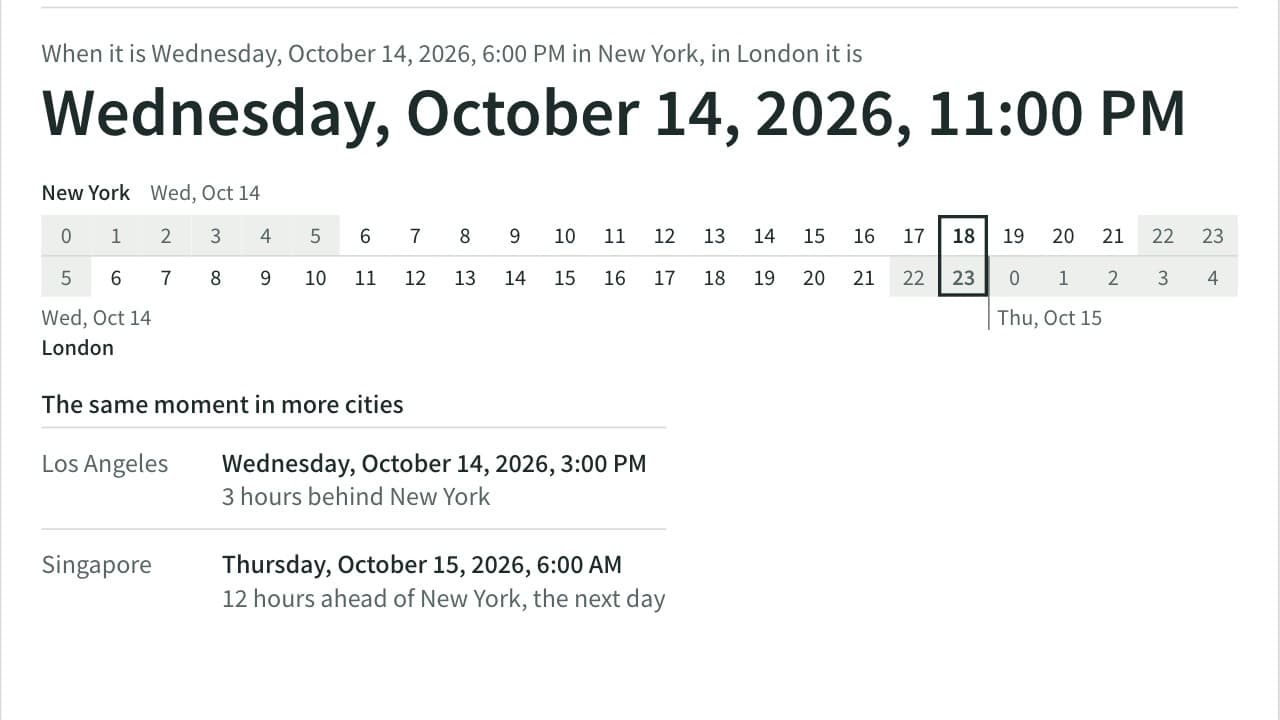
Convert a date and time between cities and see the time difference. Covers 36 cities plus UTC, applies daylight saving time for the date you enter, and tells you when the result falls on the previous or next day. Add up to four more cities to compare the same moment side by side.
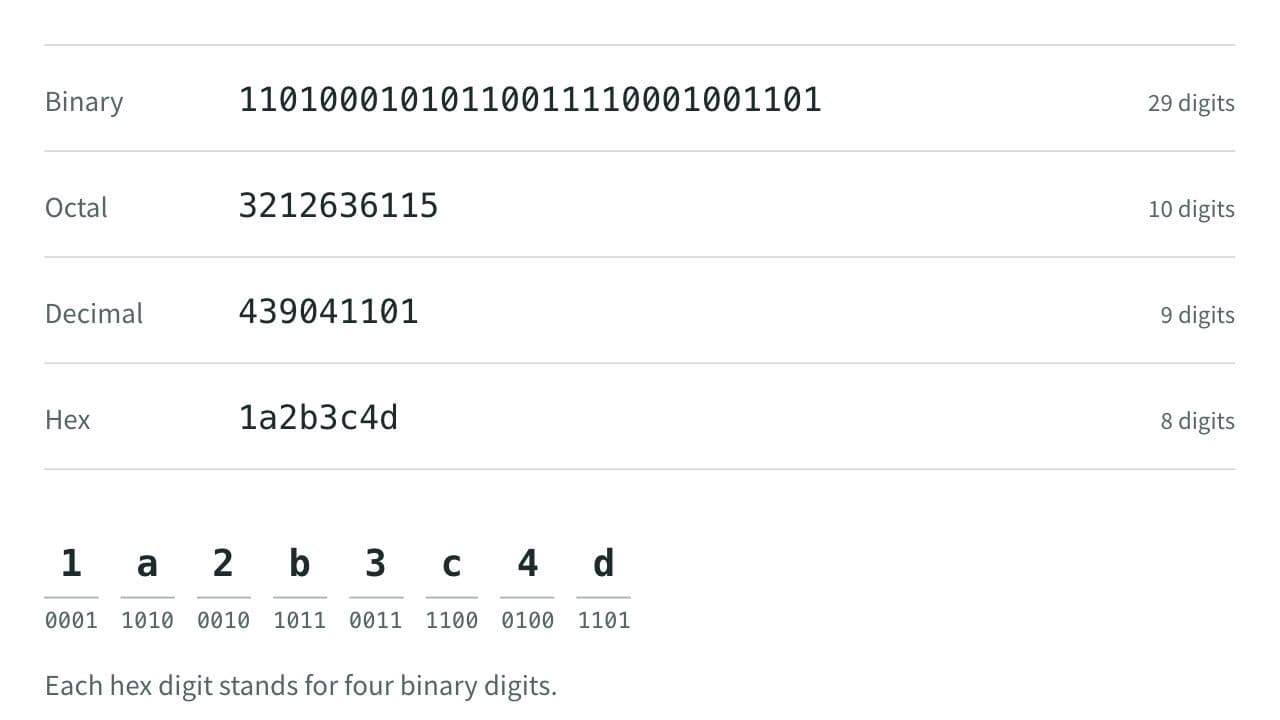
Number Base Converter
Convert between binary, octal, decimal, and hexadecimal — edit any field and the others update automatically, with optional 8- to 64-bit two's complement.
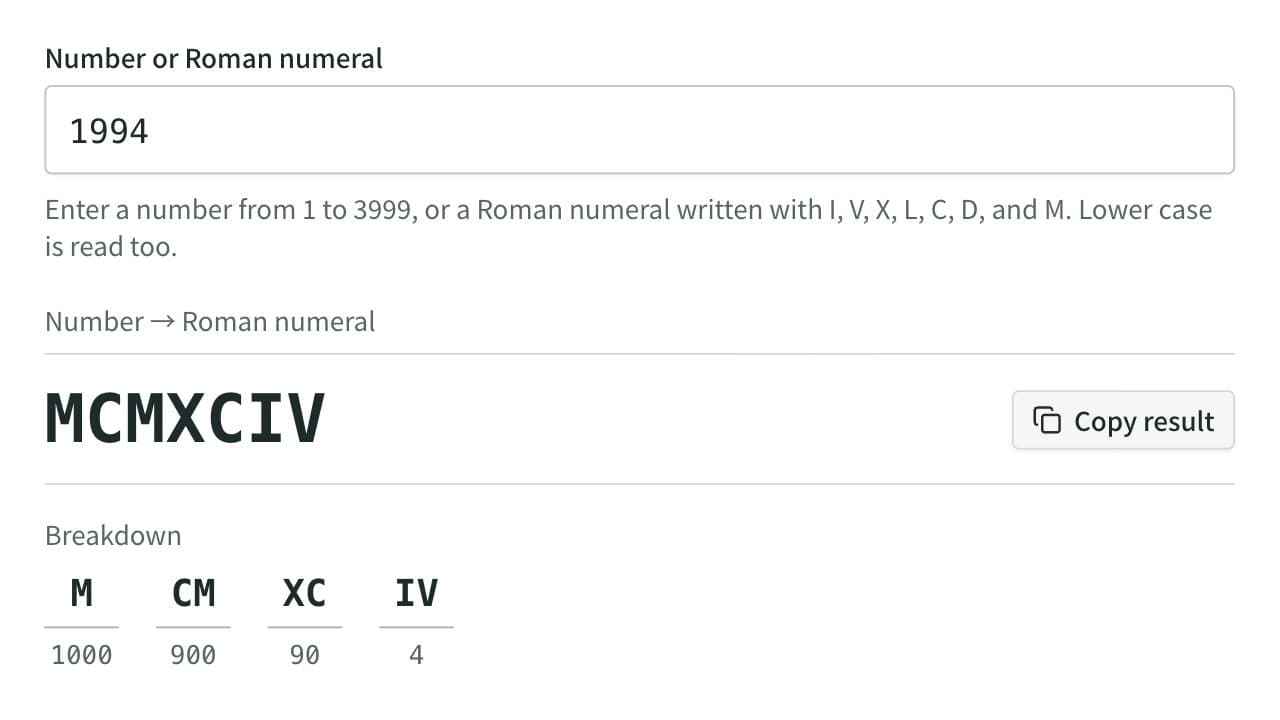
Roman Numeral Converter
Convert numbers from 1 to 3999 into Roman numerals (I, V, X, L, C, D, M) and Roman numerals back into numbers, with a breakdown of what each group of symbols stands for. Dates can be written field by field, and numerals can be output in lower case.