Sales Tax Calculator
Calculate tax-inclusive and tax-exclusive prices for a given tax rate, with the tax amount rounded down, half up, or up if you choose. For a total with both 10% and 8% items, it works out the tax for each rate from either the sum at each rate or each item's price and quantity.
- Tax amount
- —
- Total (incl. tax)
- —
- Tax amount
- —
- Base (excl. tax)
- —
A total with both 10% and 8% items
- Tax at 10%
- —
- Tax at 8%
- —
- Subtotal (excl. tax)
- —
- Total tax
- —
- Grand total (incl. tax)
- —
How to use
- Check "Tax rate (%)". It starts at 10. To change it, type a number or press the 10% / 8% / 0% button
- To round the tax to a whole number, press "Round down", "Round half up" or "Round up" under "Tax amount fractions". It starts at "Keep", which does not round
- To start from a tax-exclusive amount, enter it in "Price (excl. tax)" on the left. "Tax amount" and "Total (incl. tax)" appear right below
- To start from a tax-inclusive amount, enter it in "Price (incl. tax)" on the right. "Tax amount" and "Base (excl. tax)" appear right below
- For a total that has both 10% and 8% items, use "A total with both 10% and 8% items" below. Choose "Excl. tax" or "Incl. tax" under "Amounts entered", then enter the sum of the items at each rate in "Amount at 10%" and "Amount at 8%". The tax for each rate and the overall totals appear
- If you do not have the sum for each rate yet, press "Item by item" under "Entry". Enter one item's price and quantity per row, and choose its rate with "10%" or "8%" at the right of the row. Press "Add an item" for more rows, and "×" to remove a row. The sum for each rate and its tax appear
The "Price (excl. tax)" and "Price (incl. tax)" fields are independent and share only the tax rate and the rounding choice. You can use just one, or enter a different amount in each and check both at once. "A total with both 10% and 8% items" shares only the rounding choice and does not use "Tax rate (%)" above. What you enter under "Totals per rate" and "Item by item" is kept separately, so switching between them does not clear it. Results update as you type, and there is no calculate button.
Examples
At a 10% rate:
- Price (excl. tax)
1000→ tax amount 100, total (incl. tax) 1,100 - Price (excl. tax)
2980→ tax amount 298, total (incl. tax) 3,278 - Price (incl. tax)
1100→ tax amount 100, base (excl. tax) 1,000 - Price (incl. tax)
1000→ tax amount 90.91, base (excl. tax) 909.09
At an 8% rate:
- Price (excl. tax)
198→ tax amount 15.84, total (incl. tax) 213.84 - Price (incl. tax)
1080→ tax amount 80, base (excl. tax) 1,000 - Price (incl. tax)
500→ tax amount 37.04, base (excl. tax) 462.96
When 10% and 8% are mixed
Use this to check a receipt for food (8%) and household goods (10%) bought together, or the total of an invoice that lists items at both rates. With "Entry" set to "Totals per rate", enter the sum for each rate, not each item. To enter items one by one, see "Entering items one by one" below.
Entered excluding tax, with fractions set to "Round down":
- Amount at 10%
3980, amount at 8%1296→ tax at 10% 398, tax at 8% 103, subtotal (excl. tax) 5,276, total tax 501, grand total (incl. tax) 5,777
Entered including tax, with fractions set to "Round half up":
- Amount at 10%
1000, amount at 8%500→ tax at 10% 91, tax at 8% 37, subtotal (excl. tax) 1,372, total tax 128, grand total (incl. tax) 1,500
The tax is calculated for each rate, and each is rounded once. The combined tax is not rounded in one go. In the first example the tax at 8% is 103.68 before rounding, which becomes 103 when rounded down.
Entering items one by one
Choose "Item by item" under "Entry" to enter items one row at a time. Each row gives price × quantity, rows at the same rate are added up into the sum for that rate, and the tax is then worked out on that sum. A row with an empty quantity counts as one item.
Entered excluding tax, with fractions set to "Round down":
- Row 1
98×3(10%), row 21296(8%) → items at 10% 294, items at 8% 1,296, tax at 10% 29, tax at 8% 103, subtotal (excl. tax) 1,590, total tax 132, grand total (incl. tax) 1,722
The tax at 10% is 294 × 10% = 29.4, rounded down to 29. Working out the tax on each 98 item and rounding it down would give 9 × 3 = 27, which this tool does not do.
Under Japan's qualified invoice system, the tax on one invoice is rounded once for each rate. Rounding the tax on each item and adding those up is not allowed. Whichever way you enter the amounts, this section rounds once on the sum for each rate, which is the same calculation that rule asks for.
When there are items at only one rate, leave the other field empty. An empty rate is left out of the calculation and its tax is shown as a dash (—). The rates in this section are fixed at 10% and 8%. It cannot be used for other pairs of rates.
Formulas
Starting from a tax-exclusive price:
Total (incl. tax) = Price (excl. tax) × (1 + rate ÷ 100)
Tax amount        = Total (incl. tax) − Price (excl. tax)
Starting from a tax-inclusive price:
Base (excl. tax) = Price (incl. tax) ÷ (1 + rate ÷ 100)
Tax amount       = Price (incl. tax) − Base (excl. tax)
A common mistake when working back from a tax-inclusive price is to subtract 10% from it. The tax-exclusive price of a 1,000 tax-inclusive price is 909.09, not 900. The 10% is charged on the tax-exclusive price, so the tax-inclusive price has to be divided by 1.1.
Rounding
In real payments and invoices, the amount depends on how fractions of the smallest currency unit are handled. "Tax amount fractions" offers four choices.
- Keep (the starting choice): no rounding. The result is shown to at most two decimal places
- Round down: drops everything after the decimal point of the tax amount
- Round half up: rounds the tax amount up when its first decimal is 5 or more, and down when it is 4 or less
- Round up: if the tax amount has any fraction at all, it becomes the next whole number
Only the tax amount is rounded. The total (incl. tax) is the price (excl. tax) plus the rounded tax, and the base (excl. tax) is the price (incl. tax) minus the rounded tax, so the base and the tax always add up to the total.
For a tax-exclusive 198 at 8%, the tax amount is 15.84 before rounding.
- Rounded down, the tax amount is 15 and the total (incl. tax) is 213
- Rounded half up or rounded up, the tax amount is 16 and the total (incl. tax) is 214
For a tax-inclusive 1,000 at 10%, the tax contained is 90.91 before rounding.
- Rounded down, the tax amount is 90 and the base (excl. tax) is 910
- Rounded half up or rounded up, the tax amount is 91 and the base (excl. tax) is 909
Rounding is always to a whole 1. It cannot round to the nearest 10, or to 0.01 for currencies that use units smaller than 1, such as dollars and cents. Choose "Keep" in those cases.
Which method applies varies by store and business. Check the receipt or invoice for the official amount.
Accepted values
- The tax rate can be any number that is 0 or greater. Decimals such as
7.5work - The amount must also be 0 or greater. Amounts with decimals are accepted
- When the rate or the amount is empty or negative, the result is shown as a dash (—)
- When rounding, the amount, the tax amount and the total (incl. tax) must each be 9,007,199,254,740,991 or less. Beyond that a difference of 1 cannot be represented correctly, so the result is shown as a dash
- Digit grouping in the results follows your browser's language setting. Enter numbers in the input fields without separators
- Amounts in "A total with both 10% and 8% items" must also be 0 or greater. When any field you filled in is negative, every result in that section is shown as a dash. While rounding is on, the same happens when an amount of more than 15 digits and a decimal amount add up to a sum that cannot be represented exactly
- A quantity under "Item by item" is a whole number that is 0 or greater, and an empty one counts as 1. A decimal such as
1.5or a negative value shows every result in that section as a dash and gives that quantity field a red border - Under "Item by item", a row with an empty price is left out of the calculation, whatever its quantity
- "Item by item" takes up to 30 rows. At 30 rows, "Add an item" is no longer shown
- Under "Item by item" with rounding on, the result is also shown as a dash when the sum for a rate cannot be represented exactly
FAQ
How do I find just the tax contained in a tax-inclusive price?
Enter the amount in "Price (incl. tax)" on the right. "Tax amount" below it is the tax contained in that amount. For a tax-inclusive 3,300 at 10%, the tax amount is 300 and the base (excl. tax) is 3,000.
Does it support an 8% rate?
Yes. Press the "8%" button or enter 8 in the tax rate field. Switching the rate immediately recalculates the results for the amounts already entered.
How much tax is there when I buy 8% and 10% items together?
Enter the sum for each rate in "A total with both 10% and 8% items". When a receipt shows tax-inclusive amounts for the 10% and 8% items, set "Amounts entered" to "Incl. tax" and enter those amounts to see the tax contained in each. If the result does not match the tax on the receipt, try another choice under "Tax amount fractions".
Can I enter items one at a time and add them up?
Yes. Press "Item by item" under "Entry" in "A total with both 10% and 8% items", enter one price and quantity per row, and choose the rate. When you bought several of the same item, enter how many as the quantity. The sum and the tax for each rate update as you type.
How are fractions handled?
With the starting choice, "Keep", nothing is rounded and the value is shown to at most two decimal places. Choose "Round down", "Round half up" or "Round up" under "Tax amount fractions" and the tax amount becomes a whole number, with the total (incl. tax) or the base (excl. tax) following that tax.
What happens when the rate is 0%?
The tax amount becomes 0, and the tax-inclusive and tax-exclusive amounts are the same. For a price (excl. tax) of 1000, the tax amount is 0 and the total (incl. tax) is 1,000.
Can I use it for currencies other than yen, or for tax rates in other countries?
Yes. It is a plain rate calculation with no currency unit, so enter whatever rate you need. For a tax-inclusive 120 at 20%, the base (excl. tax) is 100 and the tax is 20. For currencies with decimal amounts, leave "Tax amount fractions" on "Keep". The other three round the tax to a whole number.
The result stays as a dash
Check that the tax rate field is not empty and that neither the amount nor the rate is negative. Both must be numbers that are 0 or greater. While rounding is on, very large amounts of more than about 16 digits also give a dash.
Are the amounts I enter saved?
No. The calculation runs entirely in your browser, and the amounts and rates you enter are neither sent to a server nor stored. Reloading the page clears the amounts and resets the rate to 10, the rounding to "Keep", "Amounts entered" to "Excl. tax", "Entry" to "Totals per rate", and the "Item by item" rows to three empty ones.
- Type
- Utility
- Category
- Calculators
- Tags
- tax
- consumption-tax
- price
- calculator
Related apps
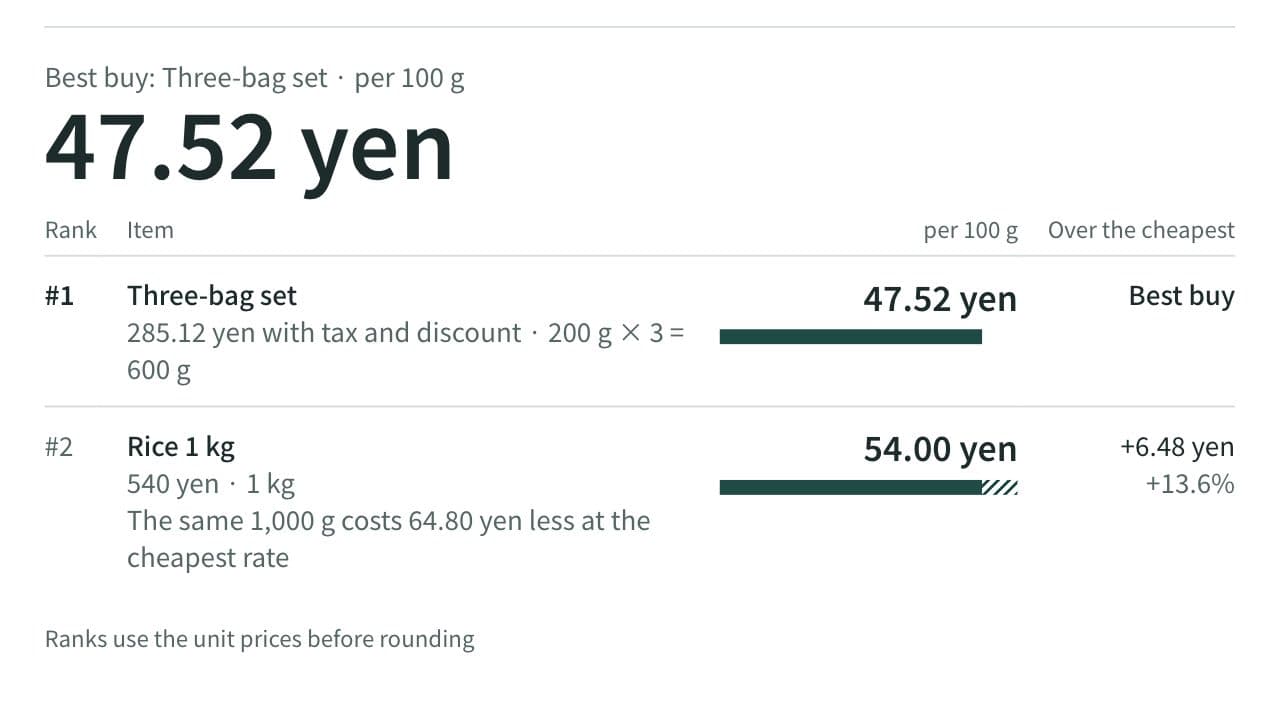
Unit Price Comparison Calculator
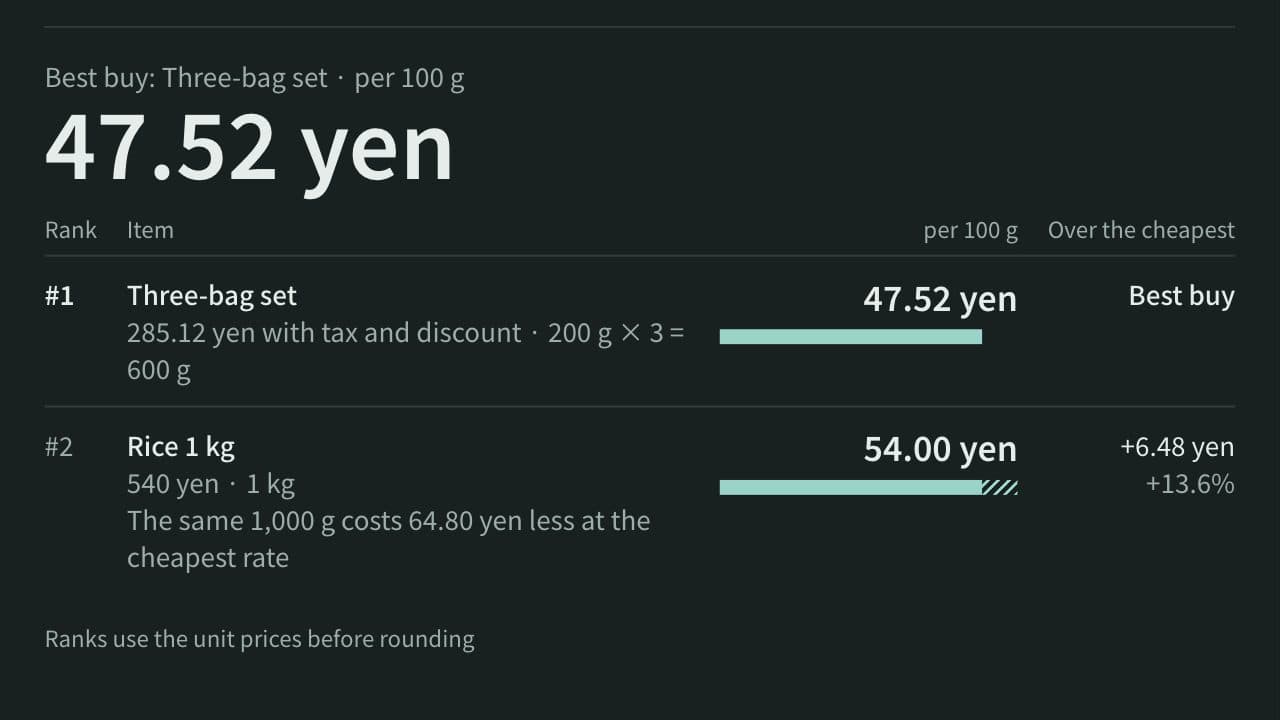
Work out the price per 100 g, 100 mL, or piece from each item's price and amount, and rank up to 10 items to find the best buy. Handles multipacks, prices before 8% or 10% tax, and percent-off discounts.
Elapsed Time Calculator
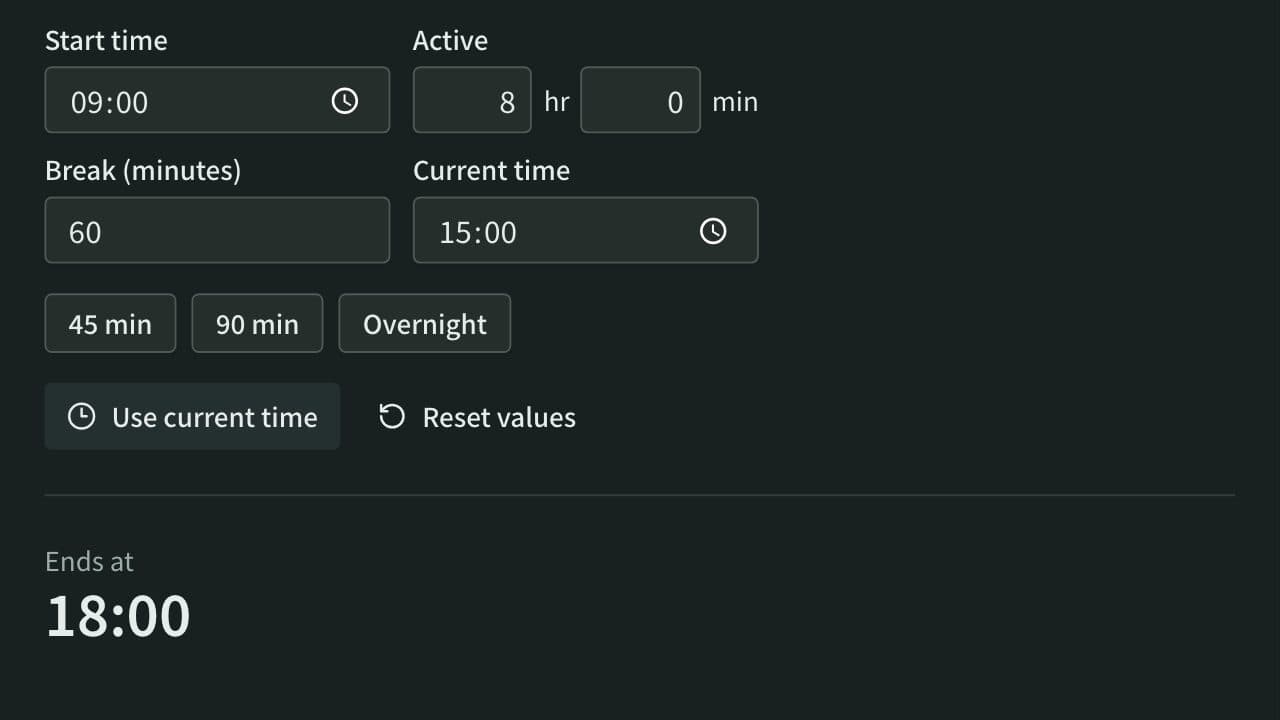
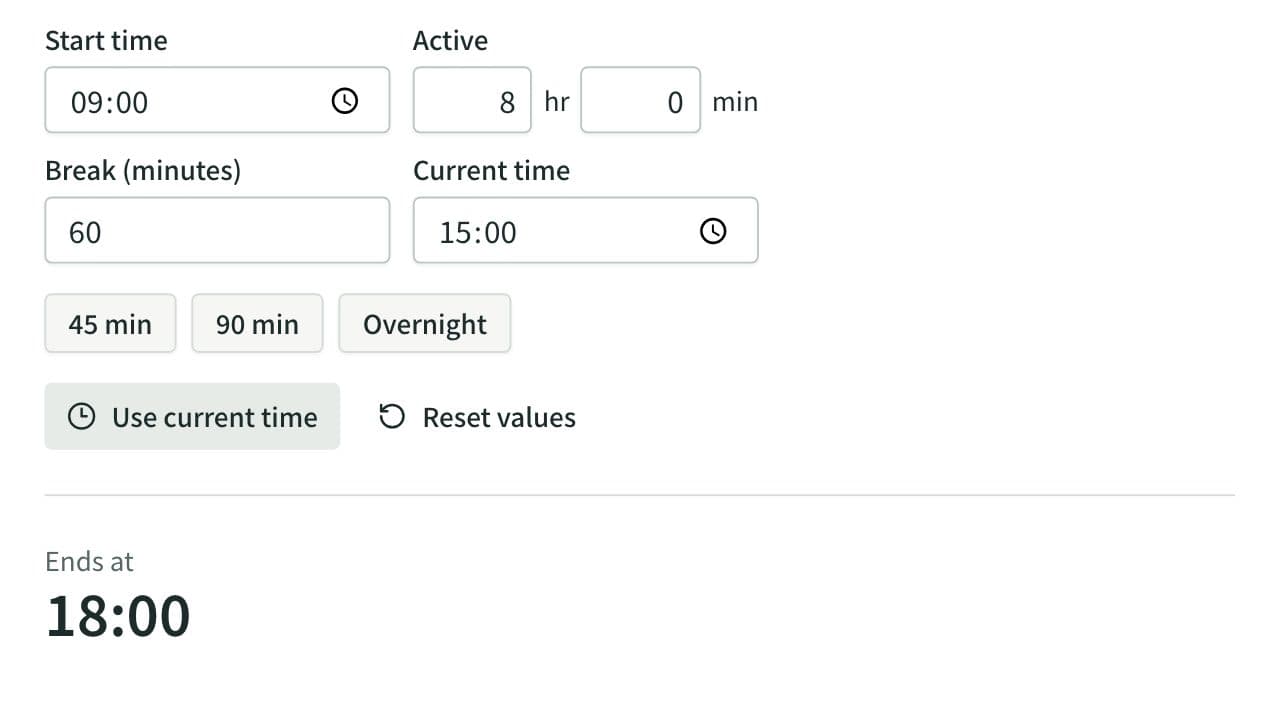
Calculate elapsed, remaining, and active time from start, end, current time, and breaks, or work out the end time from the active time. Also adds and subtracts durations such as 1:30 or 2h 15m and converts them to decimal hours.
Split Bill Calculator
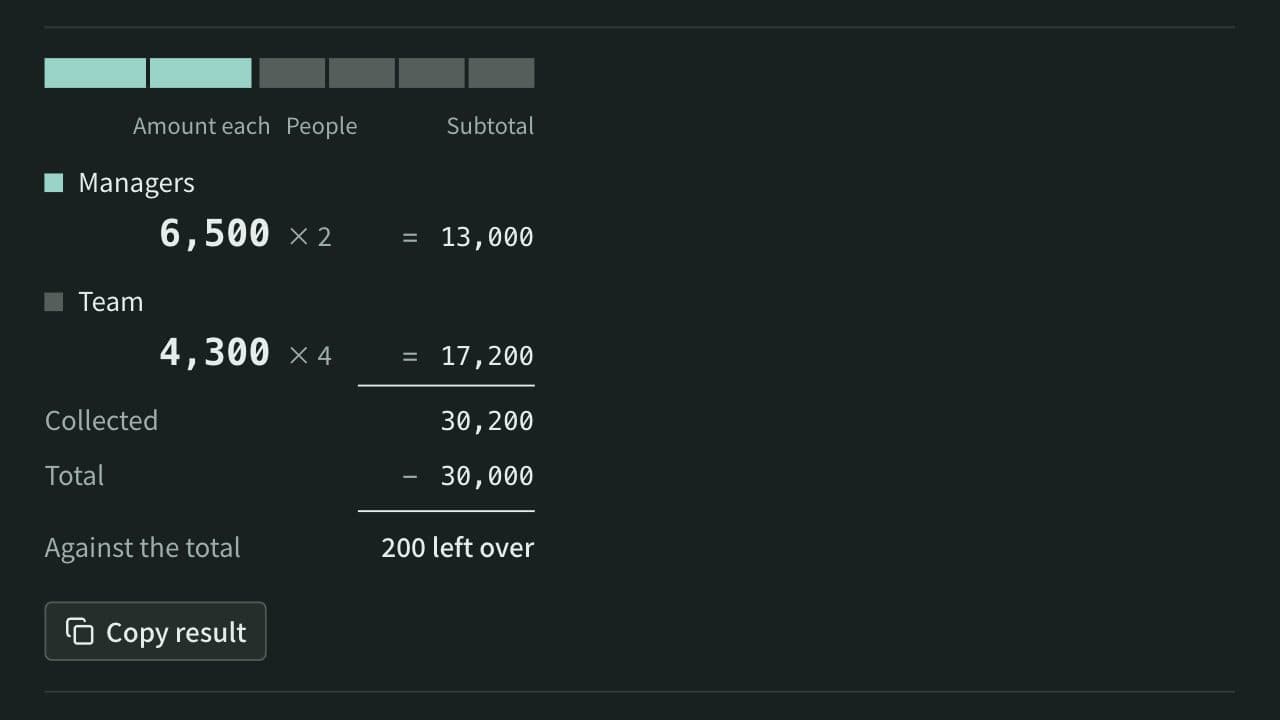
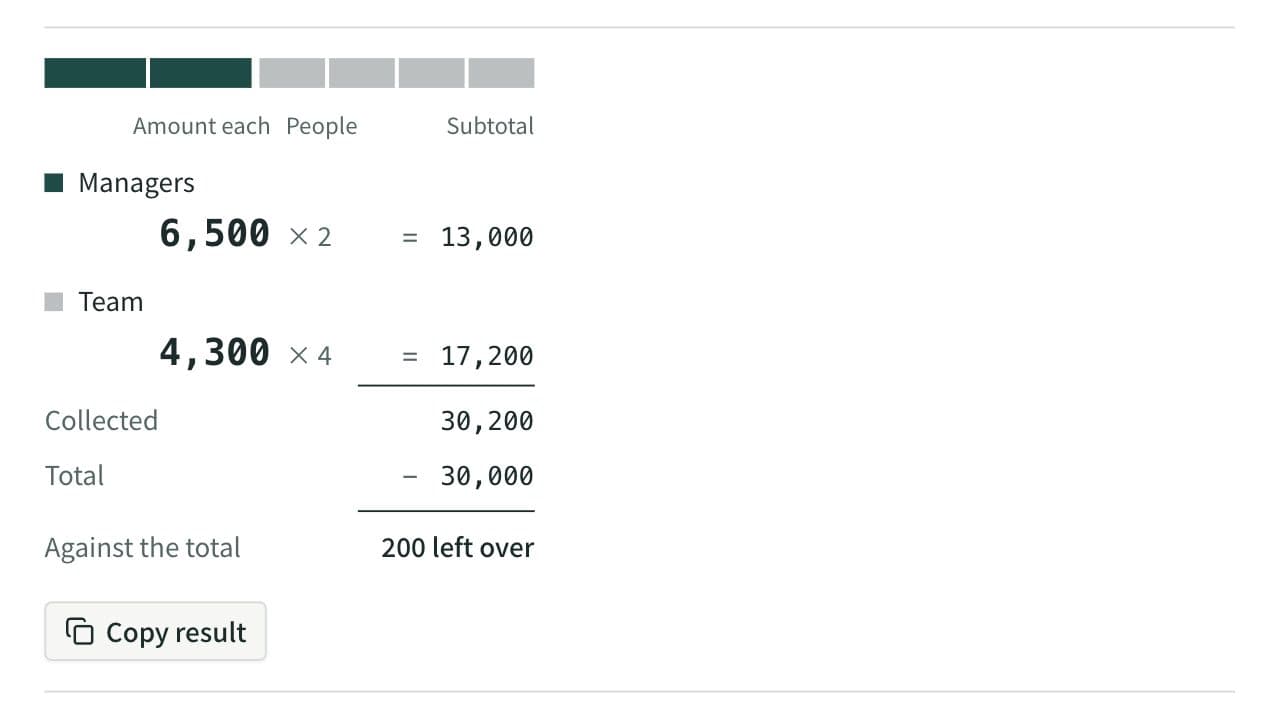
Work out what each person pays from the total and the head count. Round payments to 10, 100, 500, or 1,000, let some groups pay a larger share or a set amount, and see how much is collected and left over. When several people paid, it also works out who pays whom to settle up.