Character Counter
Count characters, words and lines in real time. Also shows the count with full-width characters as 2, UTF-8 bytes, and UTF-16 code units, with the amount left before a limit and where the text goes over it. For social posts, manuscripts, and form fields.
- Characters
- 0
- No spaces
- 0
- Words
- 0
- Lines
- 0
- Full-width as 2
- 0
- UTF-8 bytes
- 0
- UTF-16 code units
- 0
- Code points
- 0
How to use
- Type or paste your text into the text area
- The character count, the count without spaces, the word count, and the line count update on every keystroke. The row below them shows the count with full-width characters as 2, the UTF-8 byte count, the number of UTF-16 code units, and the number of code points
- If the text has a length limit, enter the number in “Character limit (optional).” A line reading “N characters left” or “N characters over” appears below the numbers. When the text is over the limit, the app also shows where it goes over with the text around that point, and you can copy just the part within the limit
- The numbers and the remaining count change as soon as you edit, so you can trim the text toward the limit while watching them
There is no run button, and the app does not restrict how much text you can enter. Emptying the text area returns every number to 0.
The character limit and the remaining count
You can leave “Character limit (optional)” empty. The remaining count appears only when a number is entered.
- Within the limit: the app shows “N characters left.” Exactly at the limit it shows “0 characters left”
- Over the limit: the app shows “N characters over” in red, and the bar below turns red
- Beside it, a line such as “Characters 128 / limit 140” shows the count being compared and the limit
“Count to compare with the limit” chooses which of four numbers is compared. It starts on “Characters” (spaces and line breaks included).
- Characters: compares the character count with spaces and line breaks included
- No spaces: compares the character count without spaces and line breaks
- Full-width as 2: compares the count with full-width characters as 2 and half-width characters as 1. The remaining count reads “N half-width characters left.” For a limit stated as “100 full-width characters (200 half-width),” enter 200
- UTF-8 bytes: compares the UTF-8 byte count. The remaining count reads “N bytes left”
The limit must be a whole number of 1 or more. Full-width digits (140) are read as well. Entering 0, a decimal, a negative number, or anything other than digits shows a note under the field, and the remaining count is not shown.
For example, with a limit of 140 compared against “Characters,” entering the first text in the example below (20 characters) shows “120 characters left.” Switching to “No spaces” compares 17 characters, so it shows “123 characters left.”
Where the text goes over, and copying the part within the limit
When the text is over the limit, a line such as “Over the limit from line 2, character 4” appears below the remaining count. Under it, up to 20 characters before that point and up to 40 from it are shown, with the part over the limit marked by a red background and underline. “…” shows where the text continues beyond the excerpt.
- The point depends on the “Count to compare with the limit.” With “No spaces,” spaces and line breaks do not count toward the limit, so the text never goes over at a space or a line break
- “Character N” counts each visible character from the start of that line as one. This position counts spaces as characters whichever count is chosen
- With “Full-width as 2” and “UTF-8 bytes,” a character that straddles the limit falls wholly on the over side. For example, a hiragana character (3 bytes) with 1 byte left is marked over from that character. Joined emoji are not split either
- A line break in the part over the limit is shown with a “↵” sign
“Copy the part within the limit” copies the text before the point where it goes over. The text in the text area stays as it is. When even the first character is over the limit (for example, a limit of 1 compared against “Full-width as 2” with “あ” entered), the button is not shown.
The copied part is the text cut off exactly before that point. When the limit is compared with “No spaces,” it may end with spaces or line breaks.
For example, with a limit of 12 compared against “Characters,” entering the text below shows “5 characters over” and “Over the limit from line 2, character 4,” with “まだ無い。” marked as over the limit.
吾輩は猫である。
名前はまだ無い。
Line breaks count as characters, so the 12 characters within the limit are the 8 on the first line, the line break, and “名前は.” Those 12 characters are what “Copy the part within the limit” copies.
How the four numbers are counted
- Characters: every character in the text. Regular and full-width spaces, tabs, and line breaks each count as one character
- No spaces: the number of characters after regular spaces, full-width spaces, tabs, and line breaks are removed
- Words: the number of chunks separated by spaces or line breaks
- Lines: the number of lines separated by line breaks. A blank line counts as a line
In these four numbers, full-width and half-width characters both count as one.
Emoji and combined characters count as one for each character you see (grapheme clusters). For example, the family emoji “👨👩👧👦” is stored as seven joined code points, but it is one character here. The flag emoji “🇯🇵” also counts as one.
Other ways to count (full-width as 2, bytes, and more)
The row below the four numbers shows the text counted in other units that forms and systems sometimes use for their limits. All of them include spaces and line breaks, and a line break counts as 1.
- Full-width as 2: the sum of 1 for each half-width character and 2 for every other character. Half-width means half-width letters, digits and symbols, the regular space, tabs, line breaks, half-width katakana (
カand゙), the half-width yen sign¥, and the overline‾. Hiragana, kanji, full-width letters, digits and symbols, and the full-width space are 2 - UTF-8 bytes: the size of the text in bytes when saved as UTF-8. Half-width letters and digits are 1, most hiragana and kanji are 3, and most emoji are 4
- UTF-16 code units: the unit counted by
"string".lengthin JavaScript and by themaxlengthattribute of HTML inputs. Most emoji and some kanji (such as𠮷) are 2 for one character - Code points: the number of numbers Unicode assigns to characters and their parts. A joined emoji adds one for each part
The same characters in each unit. The values are, in order, characters / full-width as 2 / UTF-8 bytes / UTF-16 code units / code points.
a: 1 / 1 / 1 / 1 / 1あ: 1 / 2 / 3 / 1 / 1ガ(half-width katakana with a half-width voiced mark): 1 / 2 / 6 / 2 / 2𠮷: 1 / 2 / 4 / 2 / 1😀: 1 / 2 / 4 / 2 / 1🇯🇵: 1 / 4 / 8 / 4 / 2👨👩👧👦: 1 / 14 / 25 / 11 / 7
“Full-width as 2” counts each code point, so a joined emoji grows with the number of its parts. An invisible code point that follows an emoji also counts as 2. For text made only of half-width letters, digits and symbols, half-width katakana, hiragana, full-width katakana, and the kanji and full-width symbols of JIS levels 1 and 2, this value equals the size in bytes when saved as Shift_JIS (with a line break as 1 byte). With other characters, or depending on how the text is converted, the two may differ.
Example
Input:
こんにちは 世界
Hello World
Result:
- Characters: 20
- No spaces: 17
- Words: 4
- Lines: 2
- Full-width as 2: 27
- UTF-8 bytes: 34
- UTF-16 code units: 20
- Code points: 20
The 20 characters include the space on the first line, the line break between the lines, and the space on the second line, at one character each. Removing those three gives the “No spaces” value of 17. The 27 for “Full-width as 2” is 14 for the seven full-width characters plus 13 for the ten half-width letters, the two spaces and the line break. The 34 UTF-8 bytes are 21 bytes for the seven full-width characters plus 13 bytes for the other 13 characters.
For Japanese text written without spaces, the word count becomes the number of sentence or line chunks.
吾輩は猫である。名前はまだ無い。
どこで生れたかとんと見当がつかぬ。
- Characters: 34
- No spaces: 33
- Words: 2
- Lines: 2
Which count to use
Whether spaces and line breaks are counted depends on where you are submitting the text.
-
When the limit is stated as “within N characters including spaces and line breaks,” read “Characters”
-
When it is stated as “N characters excluding spaces and line breaks,” or when you only want the amount of body text, read “No spaces”
-
When nothing is stated, checking both values so the text fits under the stricter reading is the safe choice
-
When the limit is stated as “N full-width characters (2N half-width),” read “Full-width as 2.” The number to enter as the limit is the half-width one
-
When the limit is stated as “within N bytes” and the destination stores text as UTF-8, read “UTF-8 bytes”
-
When a field stops accepting input partway through once emoji are in the text, it may be limited by
maxlength. Read “UTF-16 code units”
When you have entered a character limit, set “Count to compare with the limit” to the same rule: “Characters” when spaces are included, “No spaces” when they are excluded.
The count your destination uses may not match any value in this app, as in the cases below. Make the final check with the number shown on the destination's screen.
- X (formerly Twitter) counts Japanese characters and emoji as 2, a URL as 23 whatever its length, and a joined emoji as 2. Its count differs from “Full-width as 2” for text with URLs, joined emoji, or half-width katakana
- A system that counts a line break as CRLF (two code points) gives a value larger by the number of line breaks
- Services differ in the details of what they treat as full-width. This app counts accented Latin letters (such as
é) as 2
Why character counts differ between tools, and which count to match explains why the methods differ and how to test which one a destination uses.
Things to keep in mind
- A line break after the last line adds one to the line count. Typing
abcfollowed by one line break gives 4 characters, 3 without spaces, and 2 lines - Typing only three spaces gives 3 characters, 0 without spaces, 0 words, and 1 line
- The word count is meant for text that separates words with spaces, such as English. It does not count Japanese words (morphemes)
- The counts are calculated inside the browser that is showing this page. The text is not sent anywhere
FAQ
How many characters does an emoji count as?
One, the way it looks. Several emoji joined together such as “👨👩👧👦” and flag emoji also count as one.
Is a full-width space treated as a space?
Yes. “No spaces” excludes regular spaces, full-width spaces, tabs, and line breaks. “Characters” counts a full-width space as one character.
Are line breaks included in the character count?
“Characters” includes each line break as one character. “No spaces” does not include them.
Are full-width characters counted as two and half-width as one?
In “Characters” and “No spaces,” both count as one. The count with full-width characters as 2 and half-width characters as 1 is shown as “Full-width as 2” in the row below, and it can be compared with the limit.
Can I see the byte count?
“UTF-8 bytes” shows the UTF-8 byte count. The app does not show a Shift_JIS byte count. For text made only of half-width letters, digits and symbols, half-width katakana, hiragana, full-width katakana, and the kanji and full-width symbols of JIS levels 1 and 2, it equals “Full-width as 2,” which you can use as an estimate. Both count a line break as 1 byte.
Can I also see the number of manuscript pages?
Not in this app. The Text Formatter shows an estimate of 400-character pages.
Does the app stop me from typing past the limit?
No. Typing continues past the limit and nothing in the text area is cut off. The app shows how far over you are and where the text goes over. When you need text that fits, “Copy the part within the limit” copies only the text before that point.
Is the text I enter saved?
No. There is no save feature, and both the text and the character limit disappear when you reload the page.
- Type
- Utility
- Category
- Text
- Tags
- text
- counter
- writing
- byte
- unicode
Guides related to this app
Why character counts differ between tools, and which count to match
The same text gets different character counts because tools count different units and treat spaces and line breaks differently. See where emoji, full-width text, and line breaks diverge, and how to match the count your destination uses.
Textcharacter-countunicodeemojiwriting
Related apps
Text Formatter
Clean up extra spaces and blank lines, optionally join the line breaks of text pasted from a PDF and remove spaces between Japanese characters, check text counts, and copy the result.
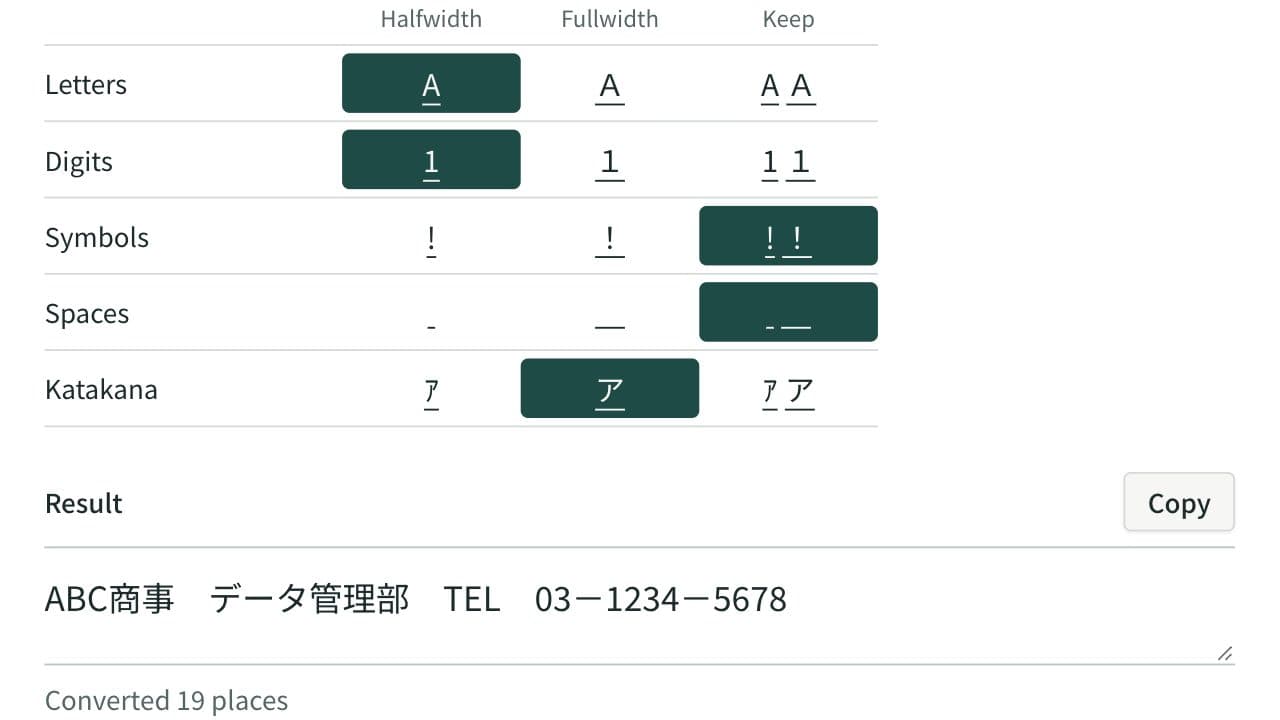
Fullwidth and Halfwidth Converter
Convert letters, digits, symbols, spaces and katakana between fullwidth and halfwidth, choosing the width for each kind so mixed Japanese text is tidied in one pass.
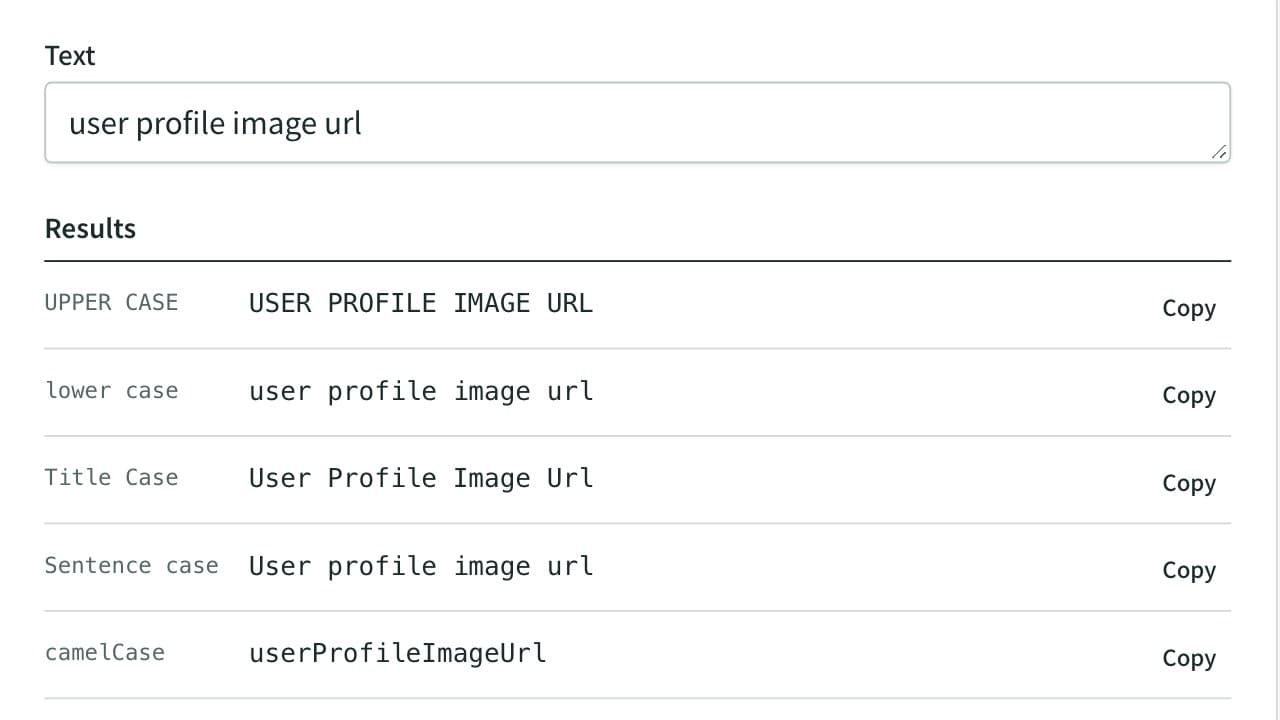
Case Converter
Convert text to UPPER, lower, Title, camelCase, PascalCase, snake_case, CONSTANT_CASE and kebab-case in real time. All nine results are listed in one table to compare at a glance, several lines are converted line by line, and each row has its own copy button.