Text Formatter
Clean up extra spaces and blank lines, optionally join the line breaks of text pasted from a PDF and remove spaces between Japanese characters, check text counts, and copy the result.
Enter text to see the formatted result and statistics.
How to use
- Paste or type your text into the “Original” panel on the left
- The cleaned-up text appears in the “Formatted” panel on the right as you type. There is no run button
- To join line breaks, remove spaces between Japanese characters, or keep indents, tick the boxes under “Formatting options” below the input. The formatted text changes right away
- Check the character, word, line, and manuscript page counts for the formatted text below the panels
- Select “Copy formatted text” to copy only the formatted text to the clipboard
“Clear” empties the input. The original text is never rewritten, so you can compare both panels before copying.
What gets changed
With no box ticked under “Formatting options”, the app applies the following five rules. None of the four options is ticked when you open the page.
- Tabs, full-width spaces, and non-breaking spaces are replaced with regular spaces
- Spaces at the beginning and end of each line are removed
- Two or more consecutive spaces are reduced to one
- Lines that contain only spaces are treated as blank lines, and runs of blank lines are reduced to one
- Blank lines at the very beginning and end of the text are removed
Windows CRLF and old Mac CR line endings are each treated as a single line break. The characters themselves and punctuation are left alone. Line breaks inside the text also remain unless you tick “Join line breaks inside a paragraph” below. The app does not convert character widths, such as full-width letters to half-width ones. Use the Fullwidth and Halfwidth Converter for that.
Example
Text copied from an email draft or a PDF often carries full-width spaces and extra blank lines. In the input below, the first line starts with a full-width space, two full-width spaces separate the sentences, the second paragraph has repeated regular spaces, and two or three blank lines separate the paragraphs.
 お世話になっております。  株式会社サンプルの山田です。


先日の件、   資料を  お送りします。


よろしくお願いいたします。
Formatted:
お世話になっております。 株式会社サンプルの山田です。

先日の件、 資料を お送りします。

よろしくお願いいたします。
The statistics for this result are:
- Characters: 57
- Words: 6
- Lines: 5
- 400-char pages: 1
The two full-width spaces between the sentences become one regular space. If you want no space there either, tick “Remove spaces between Japanese characters”. The first line then reads お世話になっております。株式会社サンプルの山田です。, the third reads 先日の件、資料をお送りします。, and the character count becomes 54.
Formatting options
Four checkboxes sit below the input. You can combine them.
Join line breaks inside a paragraph
Text copied from a PDF or an email often has a line break at the end of every visual line. This option treats each group of lines separated by a blank line as one paragraph and joins it into a single line. A line that contains only spaces counts as a blank line.
Input:
このたびは資料をご請求いただき、
ありがとうございます。料金表は
3ページにあります。

Please see page 3
for the price list.
Formatted:
このたびは資料をご請求いただき、ありがとうございます。料金表は3ページにあります。

Please see page 3 for the price list.
Whether a space goes in at the join depends on the one character before the line break and the one after it.
- If either is hiragana, katakana (including half-width katakana), kanji, a full-width letter, digit, or symbol, or Japanese punctuation such as
。,、, and corner brackets, the lines are joined with nothing in between. That is why no space appears between料金表はand3ページabove - If both are anything else, such as regular letters, digits, symbols, or Hangul, one regular space goes between them
Keep the following in mind.
- Text with no blank lines becomes a single line
- Lines that stand on their own, such as list items and headings, are joined too when no blank line surrounds them. Add a blank line before and after any line you want to keep separate
- A word split with a hyphen at the end of a line is not put back together.
exam-andplebecomeexam- ple - The ellipsis
…and the dash—are not treated as Japanese punctuation. When a line ends with one of them and the next line starts with a regular letter or digit, a regular space goes between them
Remove spaces between Japanese characters
Japanese text copied from a PDF sometimes has a space between every character, as in こ の 文 章 は. A full-width space typed between two sentences also stays as one regular space when this option is off. This option removes a space inside a line when the characters on both sides of it are Japanese.
Input:
こ の 文 章 は PDF か ら の コ ピ ー で す。
料金は 3,000 円 です。Apple の 製品 と iPhone 15 を 比べ ます。
Formatted:
この文章はPDFからのコピーです。
料金は 3,000 円です。Apple の製品と iPhone 15 を比べます。
A character counts as Japanese by the same test used where “Join line breaks inside a paragraph” joins two lines: hiragana, katakana (including half-width katakana), kanji, full-width letters, digits, and symbols, and Japanese punctuation such as 。, 、, and corner brackets.
- A kanji followed by a variation selector, the invisible code that picks a glyph variant, still counts as kanji
- A space with a regular letter, digit, or symbol, or Hangul, on either side stays. The spaces in
は 3,000 円andApple のabove are kept - The spaces it removes are regular spaces, full-width spaces, tabs, and non-breaking spaces. Each run of them is first reduced to one regular space and then checked. Other special-width spaces are not removed
- The ellipsis
…and the dash—are not treated as Japanese punctuation, so a space next to them stays - A space put between Japanese words on purpose, as in
株式会社 サンプル, is removed too - Combined with “Keep spaces at the start of each line (indents)”, the leading spaces that are kept are left alone. Only spaces inside a line are removed
Remove every blank line
The single blank line normally kept between paragraphs is removed as well, leaving text with no blank lines. Combined with “Join line breaks inside a paragraph”, each paragraph becomes one line, with a line break between paragraphs. Paragraphs are identified before the blank lines are removed.
Keep spaces at the start of each line (indents)
Spaces at the start of each line stay exactly as entered. A full-width space stays a full-width space, a tab stays a tab, and their number does not change. Spaces inside and at the end of a line are still cleaned up as they are without this option.
- A line that contains only spaces still counts as a blank line
- Combined with “Join line breaks inside a paragraph”, only the indent of a paragraph's first line remains. Leading spaces on the lines joined after it are removed
- The character count includes each leading space that was kept
How the statistics are counted
The statistics describe the formatted text, not the text you entered.
- Characters: the number of characters excluding line breaks. A regular space counts as one character. An emoji or a character built from several code points counts as one, the way it looks
- Words: the number of chunks separated by spaces or line breaks. Japanese is written without spaces between words, so a whole phrase or sentence counts as one, as in the example above. The figure is meant for checking English word counts
- Lines: the number of lines in the formatted text. A blank line left between paragraphs counts as a line
- 400-char pages: the character count divided by 400, rounded up. 400 characters is 1 page and 401 characters is 2 pages
The page count is an estimate based on the character count alone. Real Japanese manuscript paper also spends squares on the rest of a line after a line break and on paragraph indents, so the figure can be lower than a handwritten page count.
Things to keep in mind
- With no option ticked, a paragraph indent made with a full-width space is removed along with any other leading space. If your manuscript needs indents, tick “Keep spaces at the start of each line (indents)”
- The app is not suited to tables aligned with spaces, because repeated spaces inside a line are reduced to one. For source code and YAML where indentation matters, “Keep spaces at the start of each line (indents)” preserves the leading spaces, but spaces inside a line and blank lines are still cleaned up
- The options are not saved. Reloading the page returns all four to unticked
- When the input contains only spaces and line breaks, the formatted panel is empty and no statistics are shown
- Pasted text is formatted inside the browser tab that has this page open. It is not sent anywhere or saved, and it disappears when you reload the page
FAQ
Does it remove every line break?
Not unless you ask. With no option ticked, line breaks inside the text remain, and only runs of blank lines are reduced to one. Tick “Join line breaks inside a paragraph” to join each paragraph into one line. Text with no blank lines then becomes a single line.
What happens to full-width spaces?
They are replaced with regular spaces, then removed at the start and end of a line and reduced to one where they repeat. They stay full-width only at the start of a line, and only when “Keep spaces at the start of each line (indents)” is ticked. To drop a space that sits between two Japanese characters, tick “Remove spaces between Japanese characters”.
Can I keep paragraph indents?
Yes, by ticking “Keep spaces at the start of each line (indents)”. Leading full-width spaces, regular spaces, and tabs then stay exactly as entered. Without it, they are all removed.
Can I remove the line break at the end of every line in text copied from a PDF?
Tick “Join line breaks inside a paragraph”. Japanese lines are joined with nothing in between, and English lines with one regular space. If the PDF has no blank lines between paragraphs, everything becomes one line, so add a blank line first wherever a paragraph should end.
Can I remove the spaces between characters in Japanese text copied from a PDF?
Tick “Remove spaces between Japanese characters”. Only a space with a Japanese character on both sides is removed, and the spaces around English words and numbers stay. To also join the line breaks, tick “Join line breaks inside a paragraph” as well.
Does it overwrite the original?
No. The original and formatted text stay in separate panels so you can compare them before copying.
Do the character counts include spaces and line breaks?
Line breaks are not included. Each regular space that remains after formatting counts as one character.
What if I only need counts without formatting?
Use the Character Counter, which counts the text exactly as entered and also shows the count without spaces.
- Type
- Utility
- Category
- Text
- Tags
- text
- formatter
- writing
- counter
Related apps
Fullwidth and Halfwidth Converter
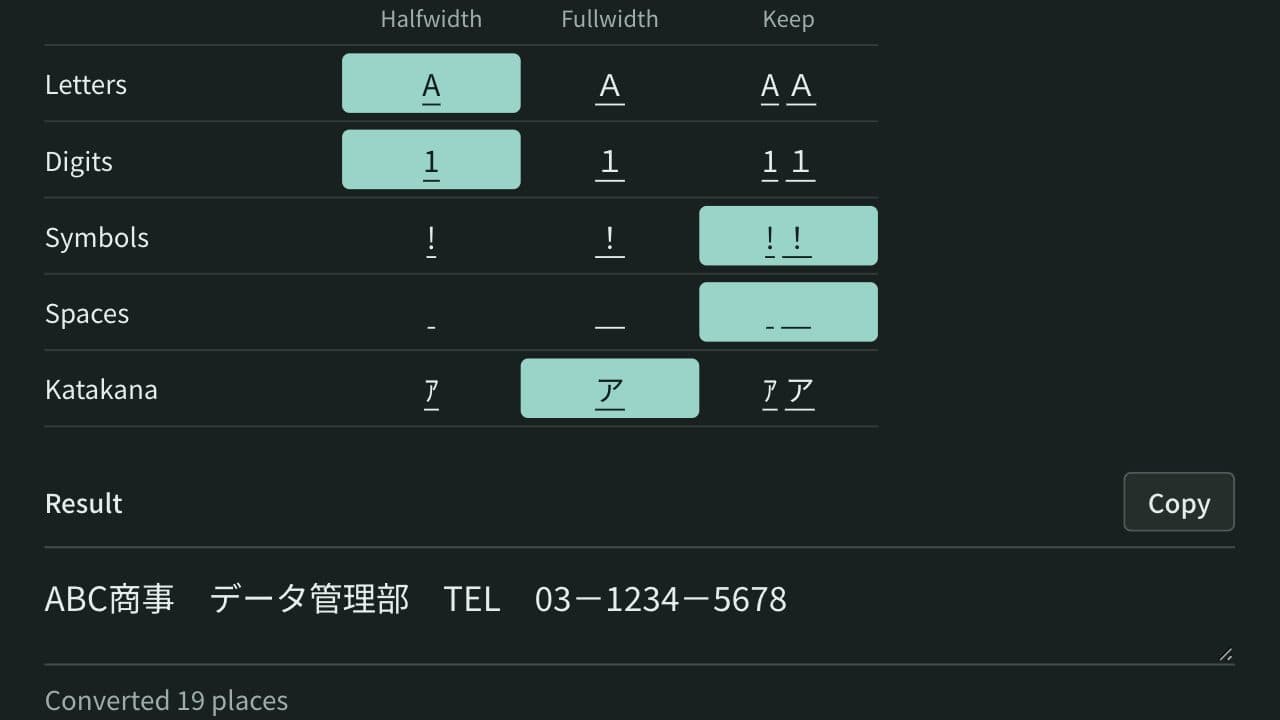
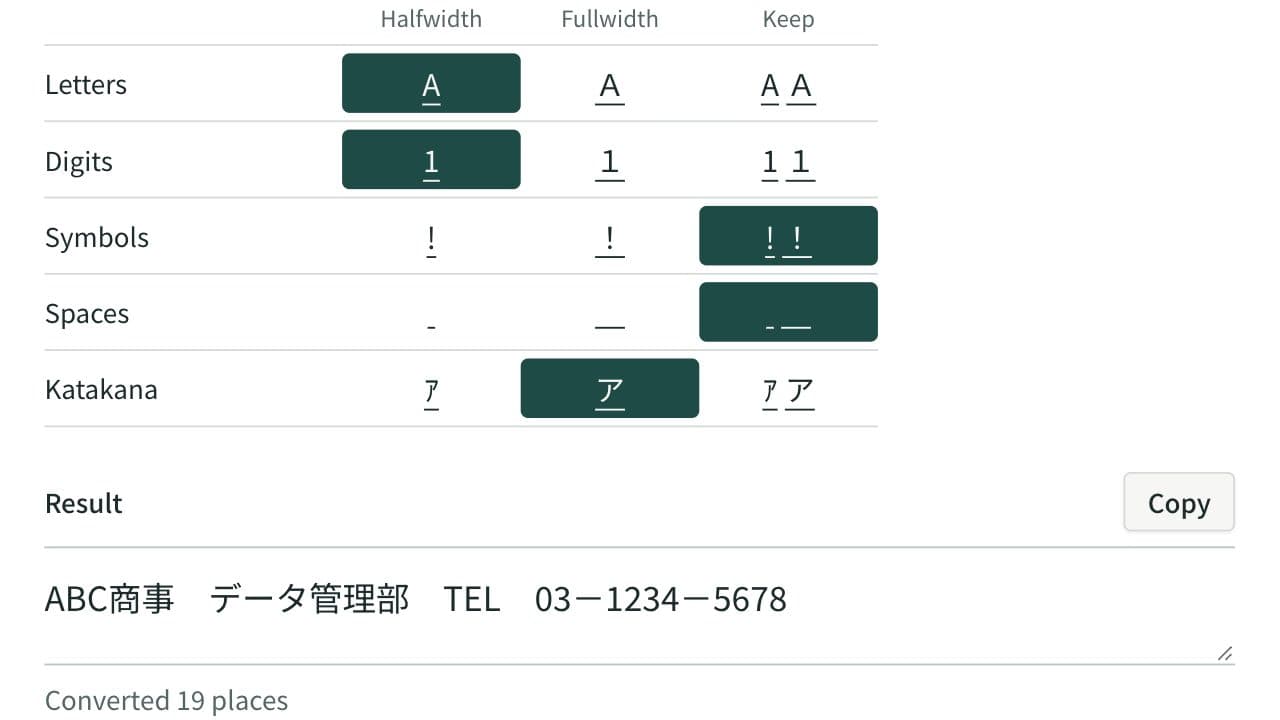
Convert letters, digits, symbols, spaces and katakana between fullwidth and halfwidth, choosing the width for each kind so mixed Japanese text is tidied in one pass.
Hiragana and Katakana Converter
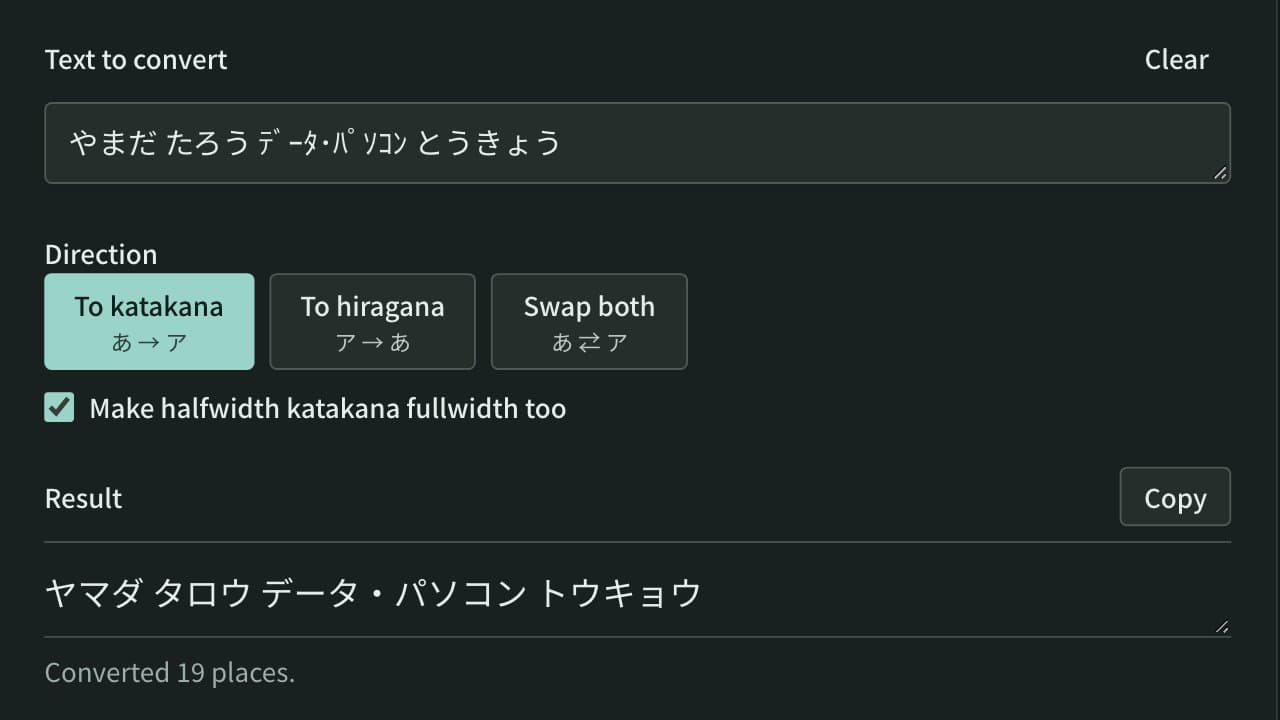
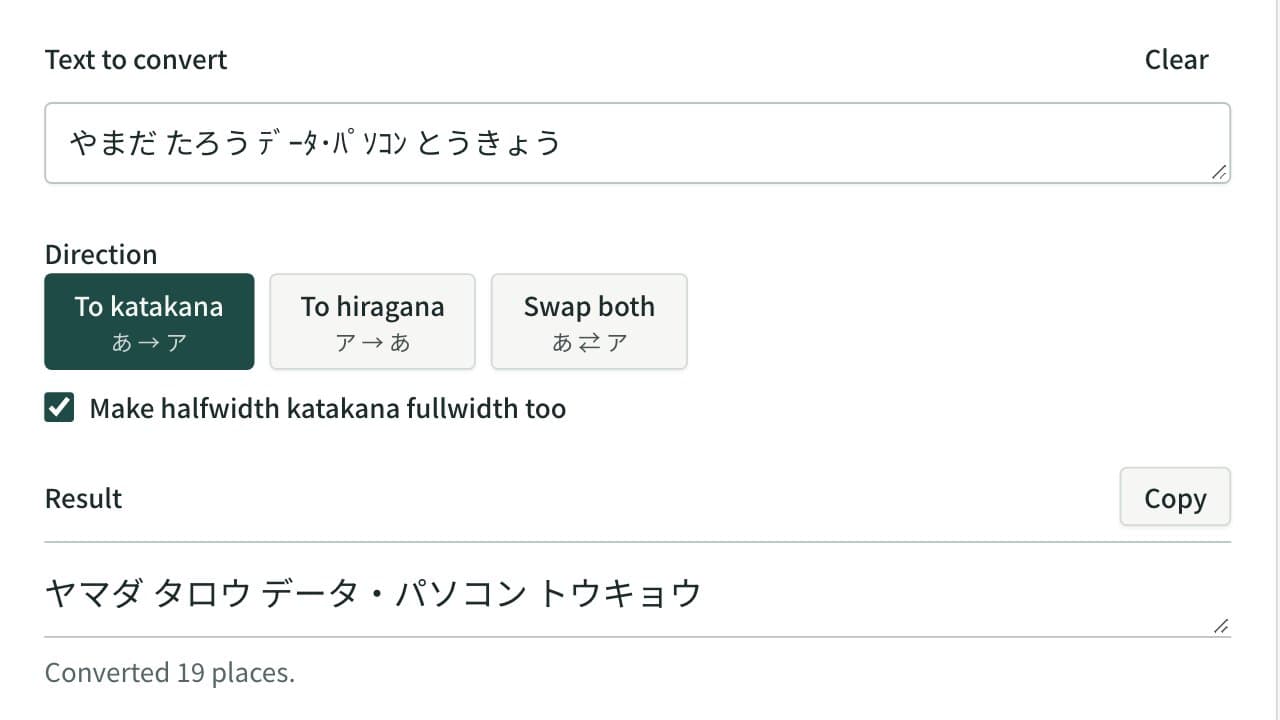
Convert hiragana to katakana, katakana to hiragana, or swap both in one pass. Halfwidth katakana can become fullwidth katakana or hiragana, and kana with a separate voiced mark are joined.