Text Diff
Compare two texts line by line, see added and removed lines with the changed characters highlighted, and copy a unified diff.
Enter the before and after text to see the diff here.
How to use
Paste text into “Before” and “After.” A line-by-line diff appears right below. There is no compare button: the result updates whenever the text or an option changes. Added lines are marked with + and removed lines with -, each with its own color, and you can see how many lines were added, removed, or left unchanged. Every row shows its line number in the “Before” and “After” text.
- Copy unified diff: copies the diff so you can paste it into a review comment or a note. It is disabled when there are no differences.
- Swap: exchanges the “Before” and “After” text. Use it when you pasted the two texts the wrong way round.
- Clear: empties both fields.
When only one field has text, every line is shown as added or removed.
When to use it
- Putting two versions of a draft or a contract clause side by side to see what changed
- Comparing a config file or a list of environment variables between a working and a broken environment
- Checking where a copied and edited piece of code or SQL differs from the original
- Picking out the lines that appeared or disappeared between two log or CSV outputs
Example
Enter this as “Before”:
apples 3
oranges 5
bananas 2
Enter this as “After”:
apples 3
oranges 8
bananas 2
grapes 1
The result is 2 added, 1 removed, and 2 unchanged lines. A rewritten line counts as one removed line and one added line. In the “oranges” line only 5 and 8 get the stronger color. “Copy unified diff” gives you this:
--- before
+++ after
@@ -1,3 +1,4 @@
 apples 3
-oranges 5
+oranges 8
 bananas 2
+grapes 1
How the comparison works
The app keeps as many shared lines as possible in order and reports the rest as removed and added lines. A line moved to another position is shown as a removal at the old position and an addition at the new one.
Where removed lines are directly followed by added lines, lines in the same position are compared character by character, and only the changed parts get a stronger color. Emoji and letters with combining marks are treated as a single visible character. When the two lines share fewer characters than half the length of the shorter line, the app skips the in-line highlight and colors the whole line. It also stops adding in-line highlights partway through when a very large number of long lines changed.
CRLF, CR, and LF line endings are treated as the same line break. A missing or extra line break at the very end is not counted as a changed line; a note appears only when the two texts differ in that respect.
- Ignore whitespace: lines are compared with all whitespace removed, including spaces, tabs, and full-width spaces. This covers not only indentation changes but also a space added or removed between words.
- Ignore case:
Helloandhellocount as the same line.
In the inline view, lines treated as equal because of these options are shown with the “After” text; the side-by-side view shows each side as written. When an option removes every difference, the app shows “No differences with the selected ignore options.”
Side-by-side view
Under the line counts, “View” switches between “Inline” and “Side by side.” Inline, the default, lists every line in one column in diff order. Side by side puts the “Before” text on the left and the “After” text on the right, each with its own line numbers and +/- marks.
- An unchanged line appears on both sides in the same row.
- Where removed lines are followed by added lines, the removed line on the left faces the added line in the same position on the right, the same pairs whose changed characters are highlighted.
- When a change has more lines on one side, the extra lines face a shaded empty cell.
- On a narrow screen, the two halves keep a readable width and the diff scrolls sideways instead of squeezing the text.
Switching views keeps the collapsed and opened parts as they are, and it does not change the counts or what gets copied. The view is not saved and returns to inline when you reload the page.
Collapsing unchanged lines
In a long text, unchanged lines that are four or more lines away from every change are collapsed into a single row such as “Show 12 unchanged lines.” The three lines before and after each change stay visible, like the context in the copied unified diff. Press a collapsed row to show the lines it hides.
The “Collapse unchanged lines” button appears below the line counts only when there is something to collapse. Turning it off shows every line; turning it on again collapses everything, including the parts you opened. While it is off, every line stays visible when you change the text or a comparison option. While it is on, such a change collapses the parts you opened again.
- A stretch is not collapsed when it would hide only one line.
- When there are no differences, every line is shown and nothing is collapsed.
- Lines treated as equal because of an ignore option are collapsed like other unchanged lines.
- Collapsing does not change the added, removed, and unchanged counts or what gets copied.
Reading the unified diff
--- beforeand+++ afterare the headers for the two texts. They are always these names, not file names.@@ -1,3 +1,4 @@is a range: three lines starting at line 1 of the “Before” text, and four lines starting at line 1 of the “After” text.- A line starting with a space is unchanged,
-is removed, and+is added. - Three lines of context are included before and after each change. Changes that are far apart are split into separate ranges.
How your text is handled
The comparison runs entirely in this browser. Your text is not sent to a server and is not saved. Reloading the page clears both fields. A copied diff only goes to the clipboard of your device.
FAQ
Is there a size limit?
Each side can hold up to 2,000 lines and 100,000 characters. The limit keeps the browser responsive; beyond it the app shows an error instead of calculating a diff. Characters are counted in internal code units, so an emoji may count as two. Split larger texts and compare them in parts.
Why are lines that look the same reported as different?
Trailing spaces, tabs versus spaces, full-width versus half-width characters, or precomposed versus combining characters (such as “é” written as one character or as “e” plus an accent) can cause this. Turn on “Ignore whitespace” if spacing is the reason. The app does not normalize characters.
Can I compare word by word or character by character?
The unit of comparison is the line. Differences inside a line are highlighted character by character where a removed line is paired with an added line. If one line holds a long paragraph, put each sentence on its own line first to make the changed parts easier to follow.
Can I choose files to compare?
The app does not read files. Open the file in an editor, copy its content, and paste it in.
Can I apply the copied diff as a patch?
The output is a unified diff with --- / +++ headers, @@ ranges, and three lines of context. A last line without a final line break is followed by \ No newline at end of file, so without ignore options the diff can be applied to the “Before” text to reproduce the “After” text (line breaks are treated as LF). With an ignore option enabled it may not match the original text exactly, so treat it as a review aid. When only the final line break differs, the texts count as having no differences and there is nothing to copy.
What if I want to clean up spacing before comparing?
Run the text through the Text Formatter first to tidy spaces and blank lines, which makes the meaningful changes easier to follow.
- Type
- Utility
- Category
- Text
- Tags
- text
- diff
- compare
- writing
Related apps
Fullwidth and Halfwidth Converter
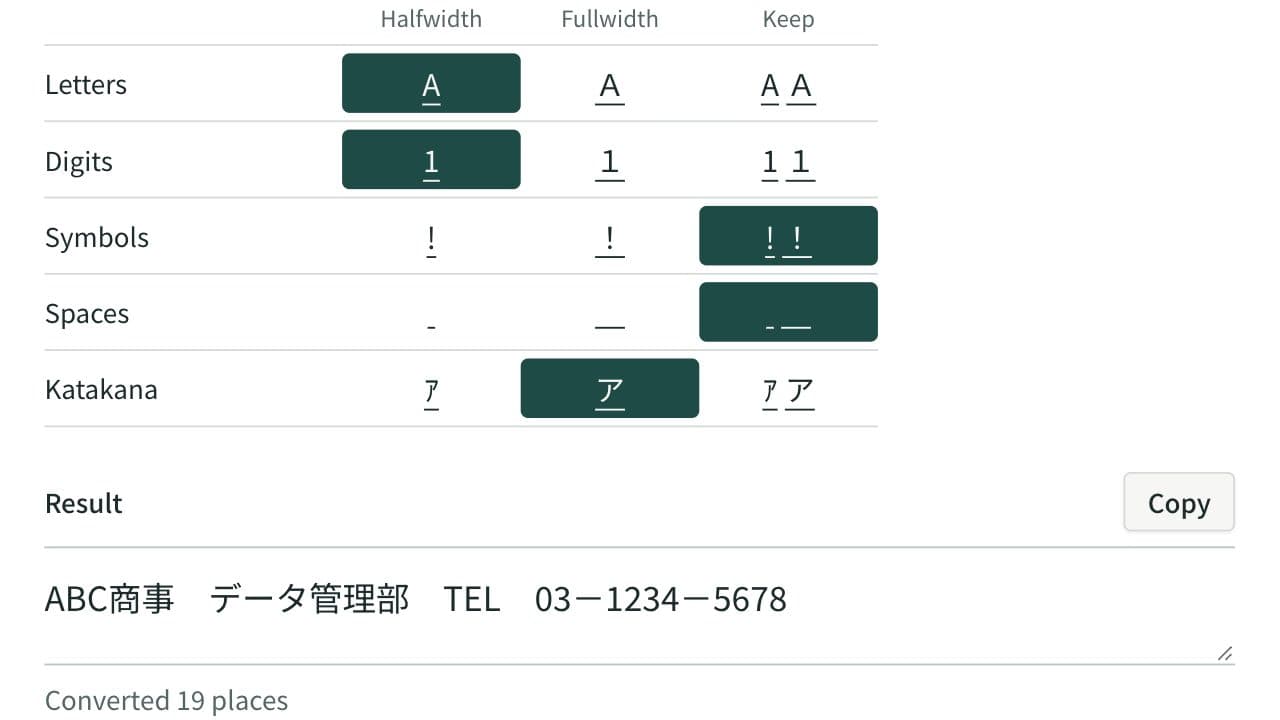
Convert letters, digits, symbols, spaces and katakana between fullwidth and halfwidth, choosing the width for each kind so mixed Japanese text is tidied in one pass.
Case Converter
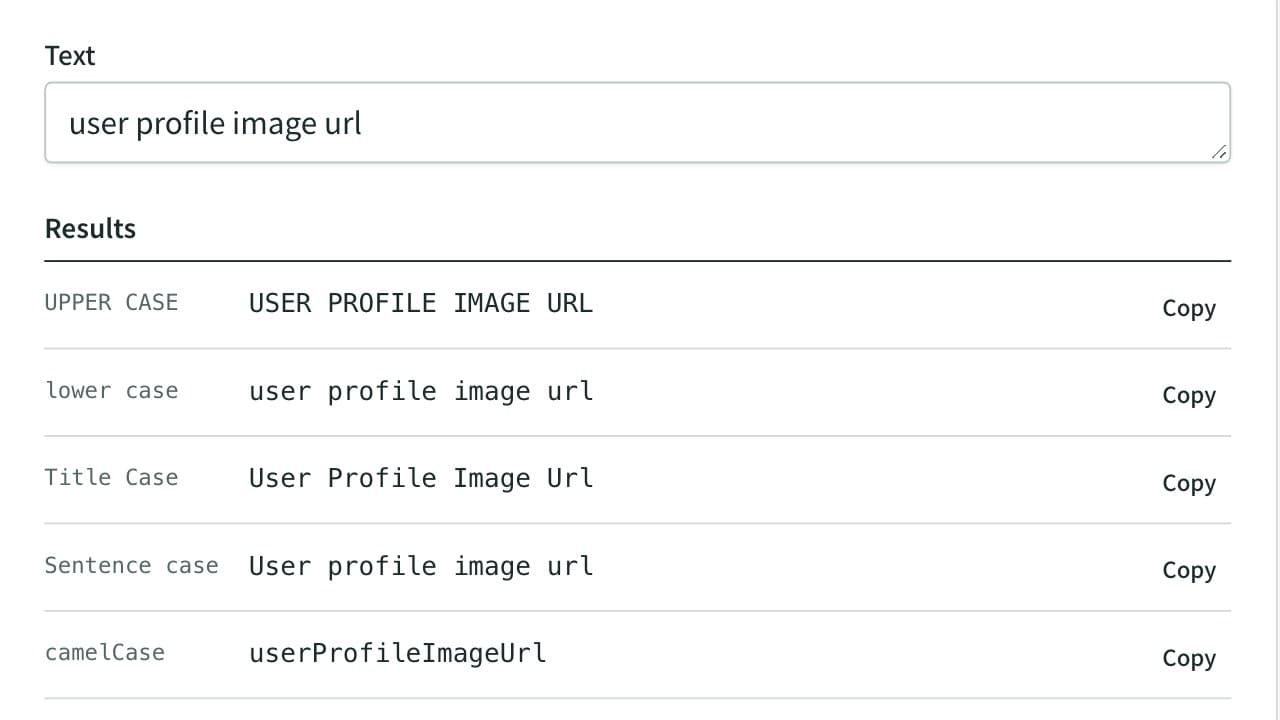
Convert text to UPPER, lower, Title, camelCase, PascalCase, snake_case, CONSTANT_CASE and kebab-case in real time. All nine results are listed in one table to compare at a glance, several lines are converted line by line, and each row has its own copy button.
Hiragana and Katakana Converter
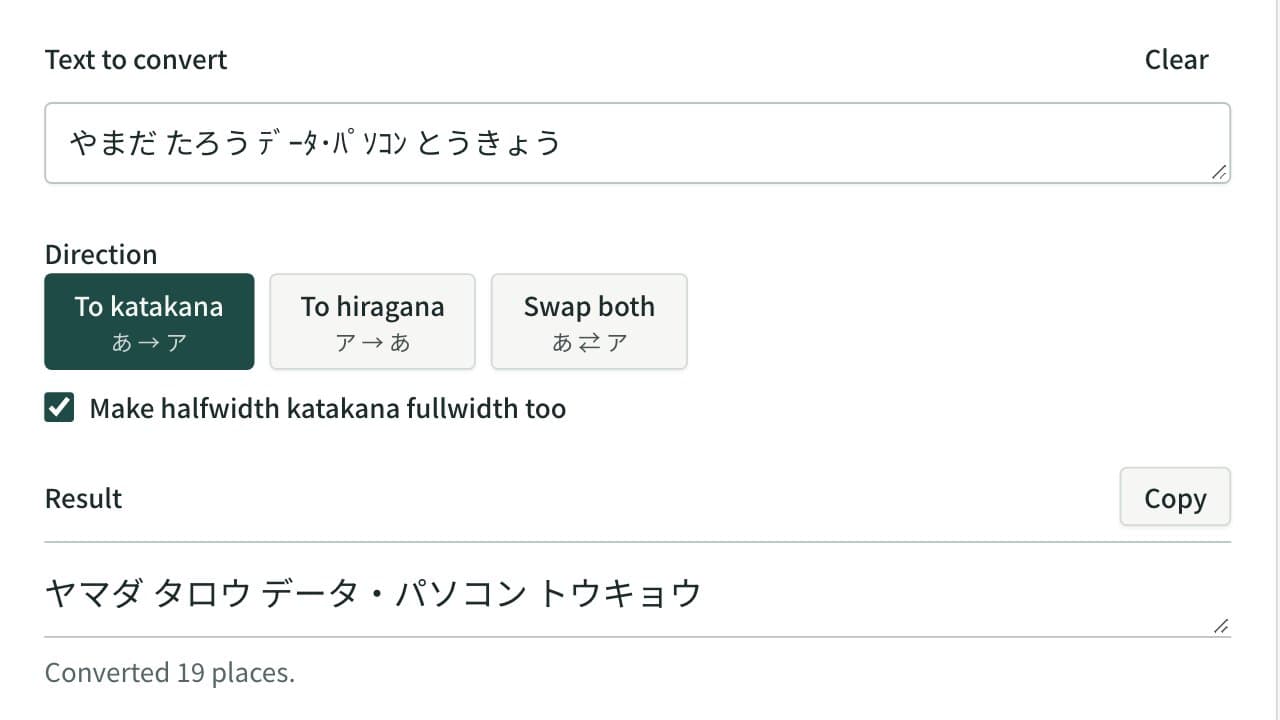
Convert hiragana to katakana, katakana to hiragana, or swap both in one pass. Halfwidth katakana can become fullwidth katakana or hiragana, and kana with a separate voiced mark are joined.