TOTP Generator (One-Time Passwords)
Calculate the 6-digit one-time passwords (TOTP) used for two-factor authentication from a Base32 secret, in your browser. Check a code against the ones around it, switch to SHA-256 or 8 digits, read or build otpauth:// URIs, and show a QR code for authenticator apps to scan.
The "setup key" a service shows when you turn on two-factor authentication. Spaces, hyphens and lowercase letters are fine.
Enter an account name to get the otpauth:// URI that adds this key to an authenticator app.
Enter a code from an authenticator app or a server to compare it with the codes on this page.
How to use
- Paste a Base32 key (the "setup key") into "Secret key". To just try it, press "Make a random key"
- "Current code" shows the one-time password that is valid right now. The previous code sits to its left and the next code to its right, in time order. Along the line underneath, the thick part is time already gone and the short upright mark is now. "Changes in … seconds" says how long until the next code replaces it
- Press "Copy" to copy the current code without the space in the middle
- Change the hash function, digits or period under "Code settings" only when the service says so. With no such instruction, the defaults (SHA-1, 6 digits, 30 seconds) give the same codes as an authenticator app
- To compare with a code from an authenticator app or a server, enter it under "Code to check"
- To add the key to an authenticator app, enter an "Account name". The URI for the app and a QR code of it appear; scan the QR code with the app
Everything is calculated in your browser. The key and the codes are never sent to a server.
What TOTP is
TOTP (Time-based One-Time Password) is the method behind the "6 digits that change every 30 seconds" used for two-factor authentication. It is defined in RFC 6238, and authenticator apps such as Google Authenticator, Microsoft Authenticator and 1Password all use it.
The service and the authenticator app first share one secret key (scanning the QR code does this). After that, both do the same calculation from the secret key and the current time, so they arrive at the same digits without talking to each other.
The calculation goes like this.
- Divide the current Unix time in seconds by the period (usually 30) and drop the fraction. This is the counter
- Calculate the HMAC of the counter (8 bytes), with the secret key as the key
- Take 4 bytes from the position given by the last 4 bits of the HMAC, and drop the top bit to get a 31-bit number
- The last 6 digits of that number (the last 8 with the 8-digit setting) are the code, padded with zeros at the front when it is shorter
Example
These are test values from RFC 6238. The key is the string 12345678901234567890 in Base32: GEZDGNBVGY3TQOJQGEZDGNBVGY3TQOJQ.
- Unix time
59seconds falls in period number1, counting 30 seconds at a time (59 ÷ 30 = 1.96…, rounded down) - The code of this period is
94287082with SHA-1 and 8 digits, and its last 6 digits,287082, with 6 digits - The code of the period before it (
0–29seconds) is755224, and the code of the period after it (60–89seconds) is359152 - The code at Unix time
1111111109seconds is07081804with SHA-1 and 8 digits. The leading0is part of the code
This page shows the codes for the current time, so the values above will not appear on screen. Add the same key to an authenticator app as well, and you can see the app and this page show the same code.
Checking a code
Digits entered under "Code to check" are compared with three codes: the current one, the one before it and the one after it. Spaces are ignored. The code that matches is marked "✓ Match".
- Matches the current code: the key, the settings and the clocks all agree
- Matches the previous code: the clock that made the code is behind, or a period ended between the code appearing and being entered
- Matches the next code: the clock that made the code is ahead
- Matches none of them: the key or the settings differ, or the clocks are more than one period apart
Many services also accept the codes one period before and after, to allow for clock drift and slow typing. Giving the same allowance is common when you implement the server side yourself.
Reading and building otpauth:// URIs
The QR code an authenticator app scans holds a URI like this one.
otpauth://totp/Example:alice@example.com?secret=JBSWY3DPEHPK3PXP&issuer=Example&algorithm=SHA1&digits=6&period=30
- Reading: paste the URI into the "Secret key" field to load the key, service name, account name, hash function, digits and period at once. A URI without
algorithm,digitsorperiodis read as SHA-1, 6 digits and 30 seconds - Building: enter a key and an "Account name" to see the URI for the current settings. The "Service name" becomes the name shown in the authenticator app's list. Neither name can contain
:(a colon). The format can only say 6 or 8 digits, so no URI is shown with the 7-digit setting
The URI is also shown as a QR code right below it. Point "Scan a QR code" in an authenticator app at it, and the key is added. The QR code uses error correction level M (about 15%), has the white border scanners need around it, and is drawn black on white even in dark mode.
The QR code holds the secret key as it is. Keep the screen from being photographed and do not share the image. To save it as a PNG or SVG image, copy the URI and paste it into the QR Code Generator.
Counter-based (HOTP) URIs, which start with otpauth://hotp/, are not handled.
Choosing the settings
- Hash function: almost every service uses SHA-1. Choose SHA-256 or SHA-512 only when the service says so. Some authenticator apps ignore this setting and always calculate with SHA-1, so when the design is yours, staying with SHA-1 works in every app
- Digits: 6 is the standard. A few services use 8. 7 can be calculated, but an otpauth:// URI cannot say it
- Period: 30 seconds is the standard. Some services use 60
TOTP's use of SHA-1 is not a problem so far. The known weakness of SHA-1 is that two inputs with the same hash can be constructed, which does not let someone without the key guess an HMAC value.
FAQ
The code differs from my authenticator app
Check these in order.
- Clock: this page calculates codes with the clock of the device you are using. A clock that is off by 30 seconds or more gives a different code. Turn on "Set time automatically" in the operating system
- Key: check that it was not cut off, and that
0(zero) andO, or1andIorL, were not mixed up. A Base32 key never contains0,1,8or9 - Settings: check that the defaults were not left in place for a service that specifies 8 digits or SHA-256
If the app's code matches "previous" or "next" under "Code to check", the key and the settings are right and only the clock is off.
The QR code does not appear
The QR code appears only while the URI for authenticator apps is shown. Check whether any of these applies:
- The "Account name" is empty
- The digits are set to 7 (an otpauth:// URI can only say 6 or 8)
- The service name or the account name contains
:(a colon) - The secret key or the period shows an error
If the URI is too long to fit in a QR code, the page shows the URI alone and says so. Shorten the service name or the account name.
Is it safe to enter a secret key I really use?
The key is processed in your browser only, and is neither sent nor stored. Still, the secret key is the "second factor" itself: anyone who knows it can make valid codes at any time. Do not enter it where your screen can be seen or on a shared computer, and use the key of a test account to check that things work.
Can I use the key from "Make a random key" as it is?
It is a 160-bit key (32 Base32 characters) made with the browser's cryptographic random numbers (crypto.getRandomValues), the length RFC 4226 recommends. It is fine for checking things during development and for prototyping your own service. Keys for real users should be made and stored safely on the server.
My key is written in hexadecimal or Base64
This page reads Base32 keys only. A Base32 key is made of the letters A–Z and the digits 2–7. Convert a hexadecimal key (0–9 and a–f) to Base32 first.
My key has spaces, hyphens or = in it
Paste it as it is. A key split into groups of four such as jbsw y3dp ehpk 3pxp, a lowercase key and a key ending in = are all read as the same key.
It says the key has the wrong number of characters
Base32 writes 5 bytes as 8 characters, so no key has a length that leaves 1, 3 or 6 characters over. A key of such a length lost a character, or gained one, when it was copied. Calculating with what is there would give the codes of a different key, so this page reports an error instead.
How is HOTP different?
HOTP (RFC 4226) makes a code from a counter that goes up by one each time a button is pressed. TOTP replaces that counter with "the current time ÷ the period". The rest of the calculation is the same.
Can it calculate the codes sent by SMS or email?
No. A code sent by SMS or email is a random number the service makes on the spot, not something calculated from a secret key. This page handles only the TOTP codes you get by adding a key to an authenticator app.
Can it make Steam codes or 5-digit codes?
No. Steam Guard is a different format that uses its own set of characters instead of digits. This page supports TOTP codes of 6, 7 and 8 digits.
How often does the code change?
Once per period (30 seconds by default). Periods are not counted from when the key was entered: they are counted from Unix time 0 (midnight UTC on January 1, 1970). With a 30-second period the code changes when the seconds of the clock reach 00 and 30. With 60 seconds, it changes at 00 seconds of every minute.
Is the key I enter stored?
No. Everything is processed in your browser and is gone when the page is reloaded.
- Type
- Utility
- Category
- Developer
- Tags
- totp
- otp
- 2fa
- authenticator
- security
- generator
- qr
Related apps
Password Generator
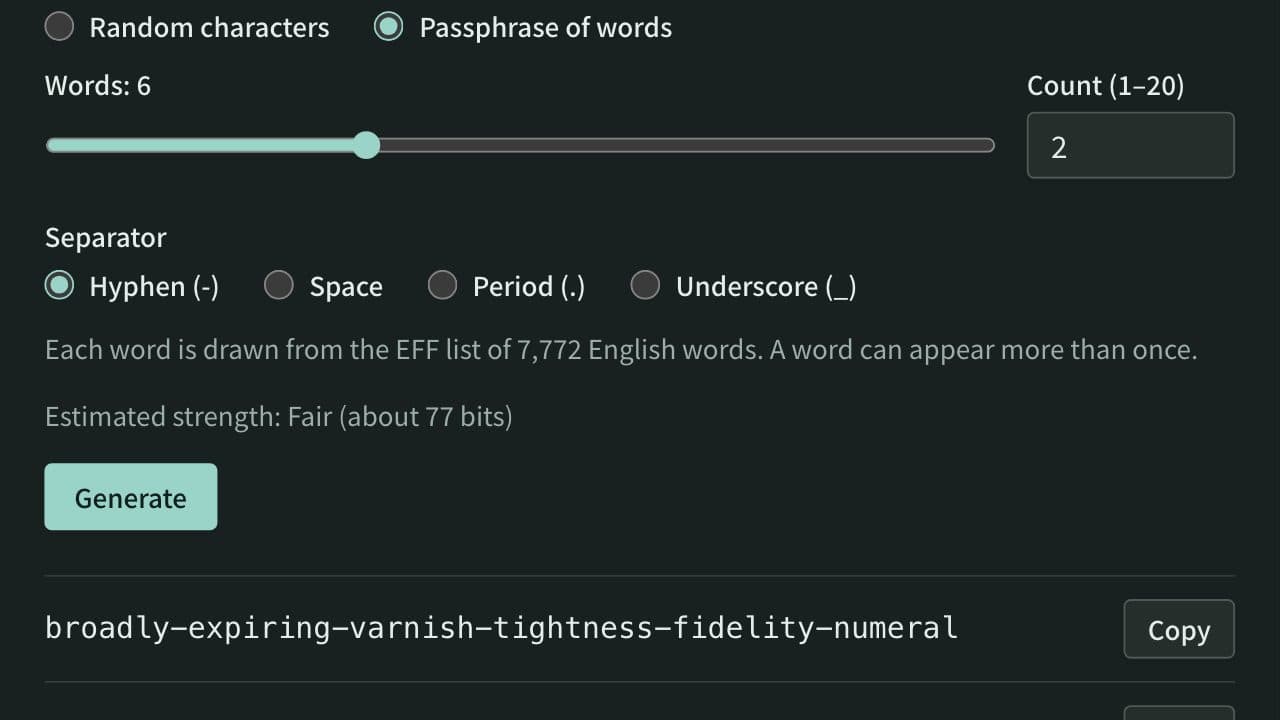
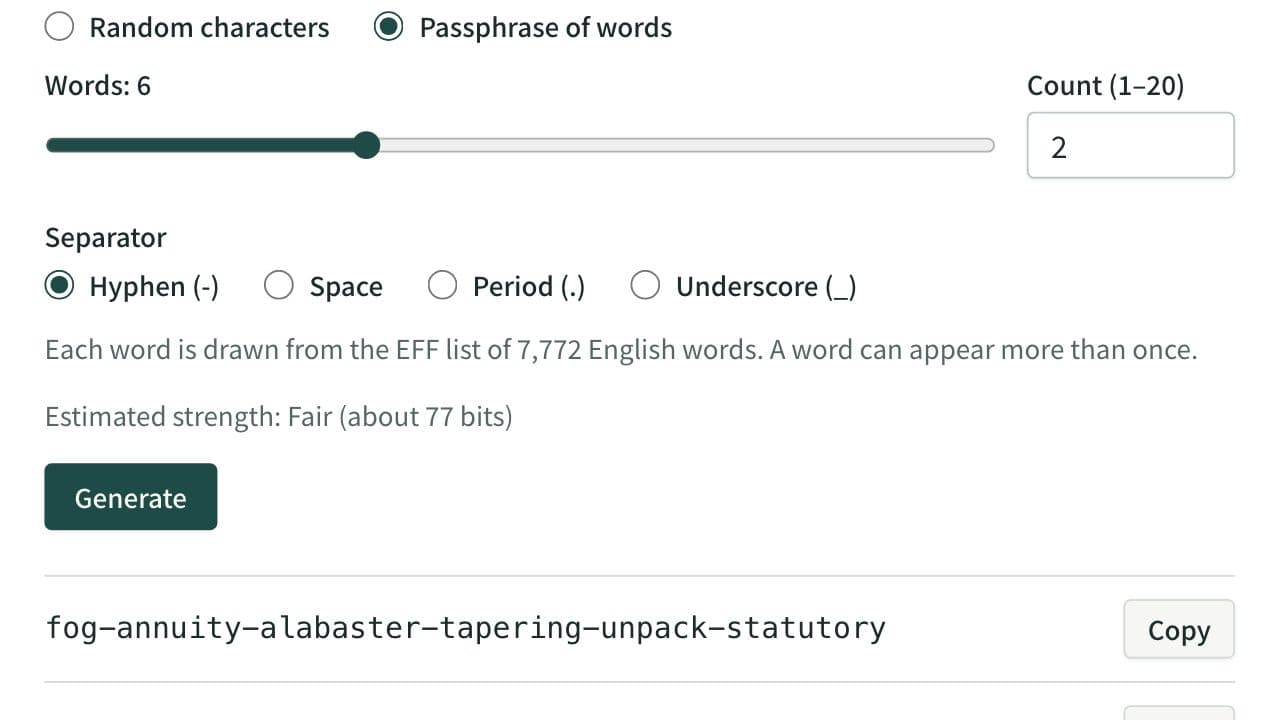
Generate secure random passwords or word passphrases in bulk. Choose the length, character types and allowed symbols, exclude look-alikes and see a strength estimate.
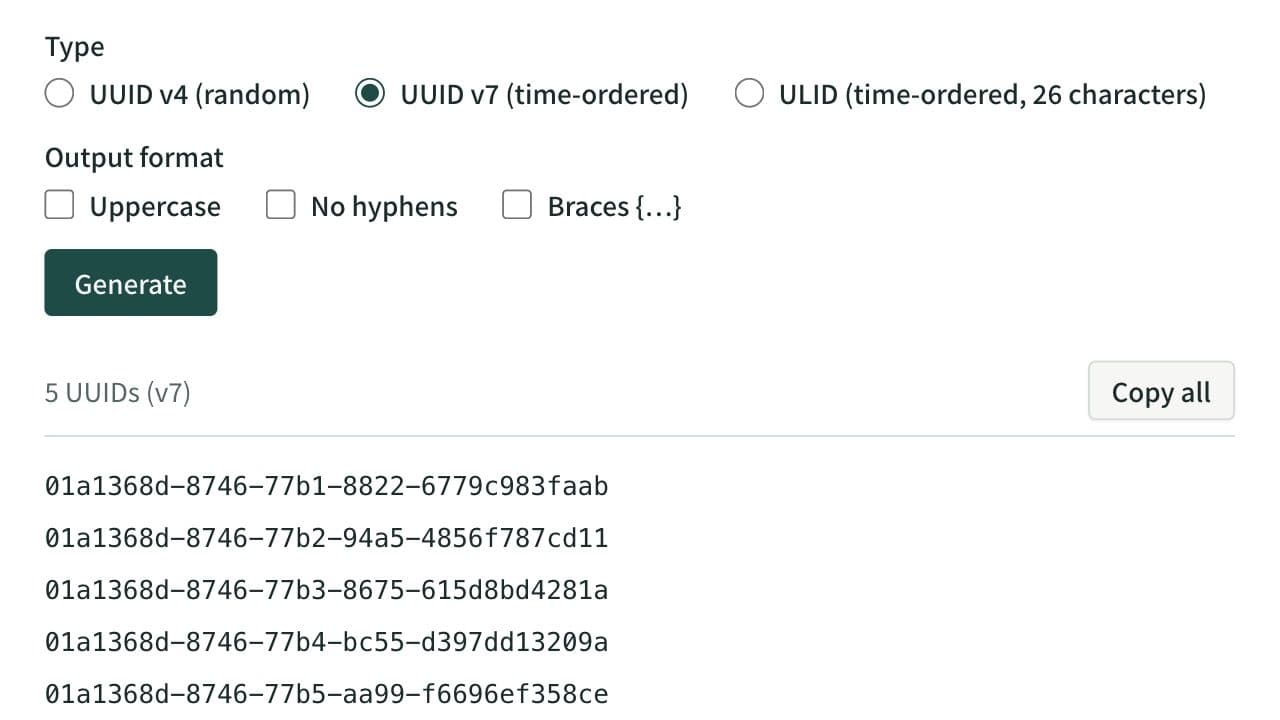
UUID & ULID Generator
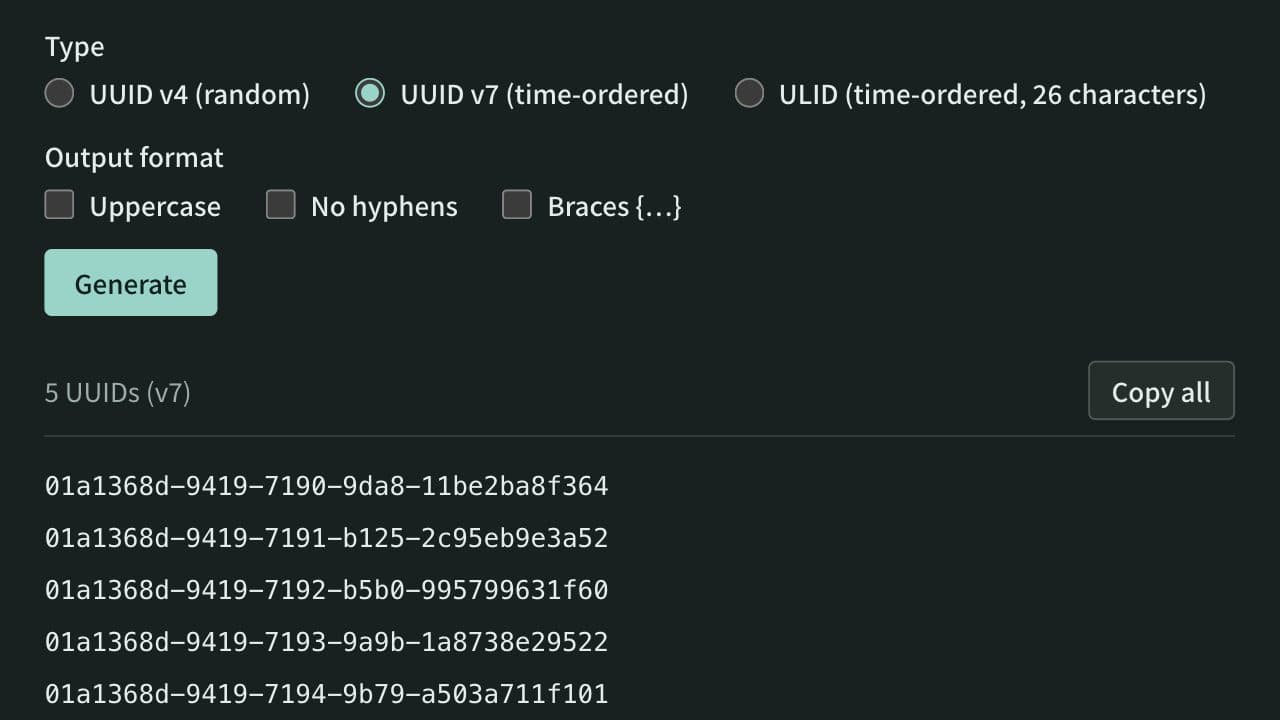
Generate UUID v4, time-ordered UUID v7, and ULIDs in bulk. Create up to 100 values with one click, switch UUIDs to uppercase, hyphen-less, or brace-wrapped output, and copy them. Paste a UUID or ULID to see its version and creation time and to rewrite it between ULID and UUID notation.
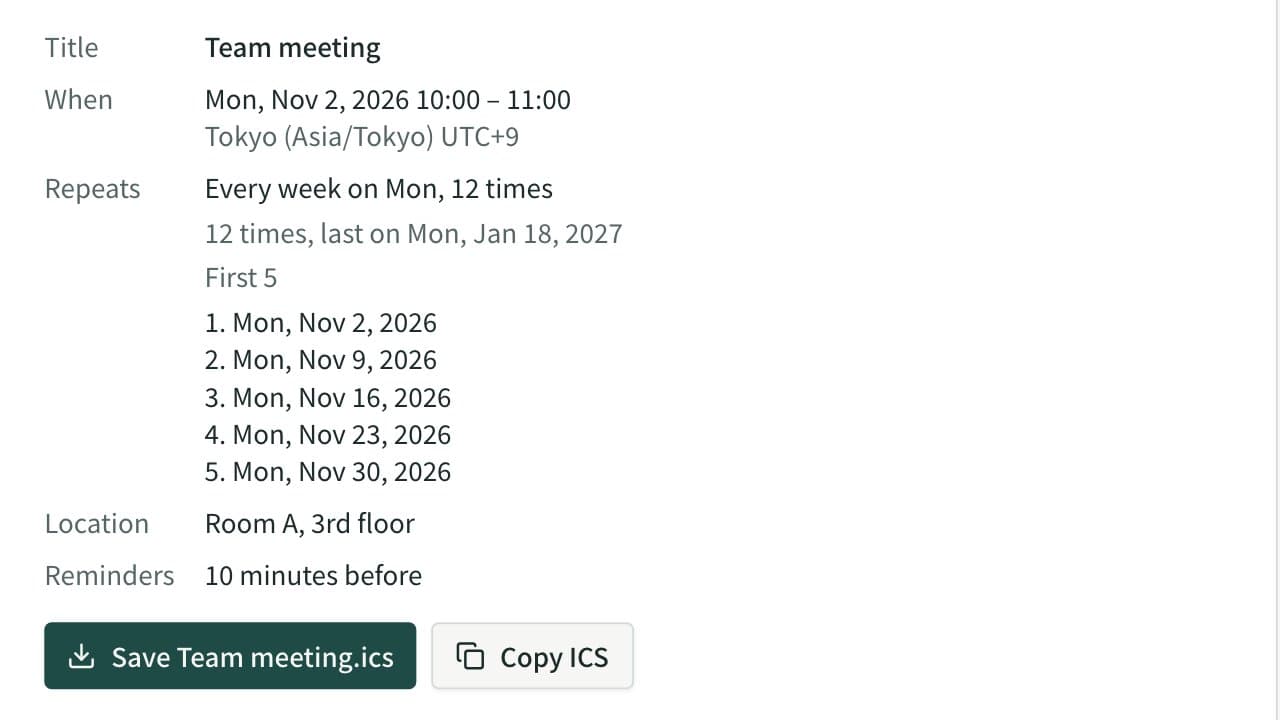
Calendar Event Creator (ICS File & Add-to-Google-Calendar Link)
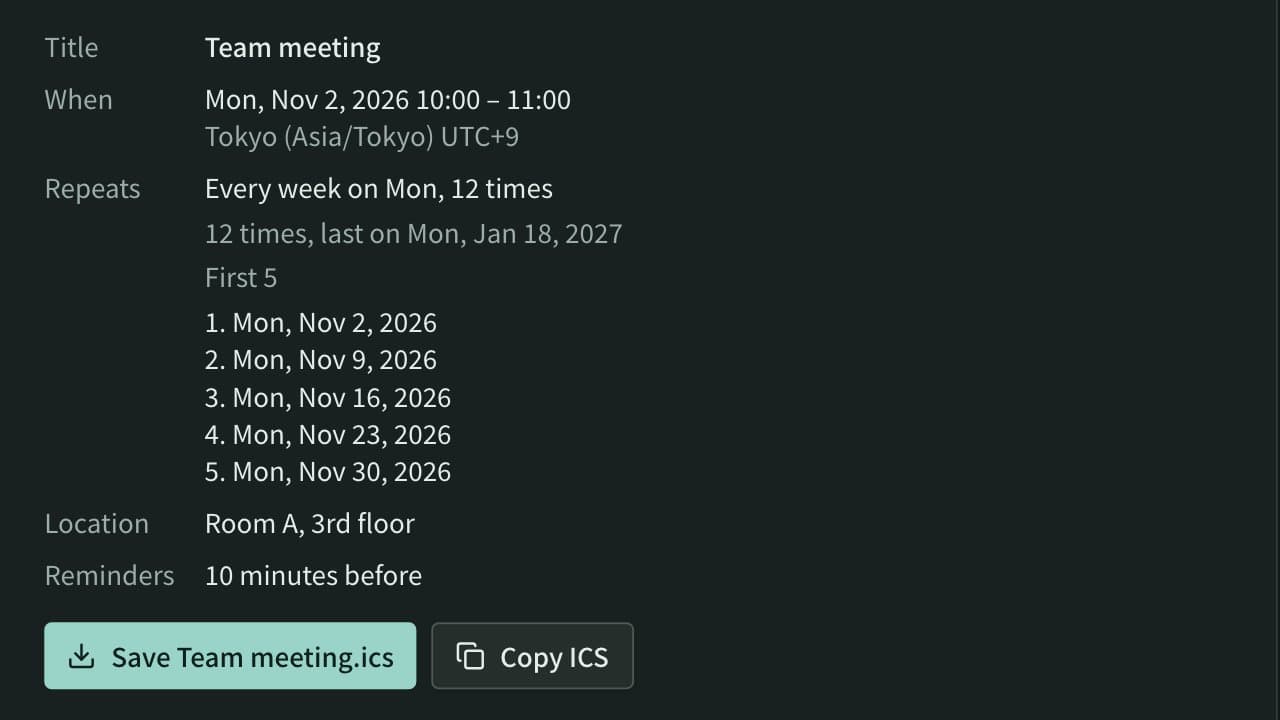
Create an .ics file for Apple Calendar, Outlook and Google Calendar, plus add-to-calendar links for Google and Outlook. Supports all-day events, repeats (weekdays, nth weekday, count, end date), reminders and time zones.