Image Color Palette Extractor
Extract a palette of 2 to 16 colors from an image, with each color's share and its HEX, RGB, and HSL values. Pick any pixel with the eyedropper, then export as CSS variables, SCSS, Tailwind, JSON, a GIMP palette, or a PNG image. Everything runs in your browser.
You can also paste a copied image with Ctrl+V (⌘+V on a Mac).
The image is processed on your device and is never uploaded.
How to use
- Drop an image, or click to choose one. You can also paste a copied image with Ctrl+V (⌘+V on a Mac). Dropping or pasting another image later replaces the current one
- As soon as it loads, the colors used in the image appear in the "Palette", most used first. Each color shows its share (%) and its HEX, RGB, and HSL values
- Use the "Number of colors" slider to choose 2 to 16 colors. "Order" switches between most used first, by hue, lightest first, and darkest first
- To get the color at a particular spot, click, tap, or drag across the image. "Color picked with the eyedropper" shows the surrounding pixels enlarged and the values. "Add to palette" appends it to the end of the palette
- Press a value (such as
HEX #e61e28) to copy it - Under "Export", choose a format and press "Copy all" or "Save as file". "Save palette image (PNG)" saves the swatches side by side as an image
Example
Load a flat image of 250,000 pixels or fewer that is 60% red #e61e28, 30% blue #143cc8, and 10% white #ffffff, and the palette has these three colors even with the number set to 6. The image has only three colors, so none is repeated to make up six.
#e61e28  rgb(230, 30, 40)   hsl(357, 80%, 51%)  60.0%
#143cc8  rgb(20, 60, 200)   hsl(227, 82%, 43%)  30.0%
#ffffff  rgb(255, 255, 255) hsl(0, 0%, 100%)    10.0%
Images larger than 250,000 pixels are scaled down before counting, which blends colors along their edges into in-between colors, so the shares can shift slightly and a few tiny in-between colors can appear. In a photo, where colors shift gradually, similar colors are grouped into the number of representative colors you choose.
How the colors are found
- Colors are counted on a copy scaled down to 250,000 pixels or fewer (and no more than 16,384 px on the long side). The eyedropper is not scaled: it reads one pixel of the full-size image as it is
- Pixels less than 50% opaque count as transparent and are left out. When an image has transparent areas, their share is shown above the palette. Palette shares are of the colored part, taken as 100%
- Colors are counted in a grid of 32 steps each for red, green, and blue, and representative colors are found with k-means (a method that splits colors into a set number of groups of similar colors) in OKLab, a color space close to how the eye judges color differences
- The starting points of the groups are chosen at random, but from a fixed seed, so the same image and the same number of colors always give the same result
- Representative colors too close to tell apart (an OKLab distance under 0.02) are merged into one. That is why an image with few colors gives fewer than you asked for, and a note above the palette says so
- Each representative color is the mean of the pixels in its group, averaged as light intensity. In an image with fine patterns, it can be an in-between color that no single pixel has exactly. Use the eyedropper when you need the color of an actual pixel
- Shares are rounded to one decimal place. The leftover tenths go to the colors with the largest remainders, so the total is exactly 100.0%. A tiny share that still comes to 0.0% shows as
<0.1% - By hue, colors go from red through yellow, green, and blue to purple. Colors without a hue, such as white, greys, and black, come last from light to dark
Using the eyedropper
- Click or tap the image to pick the color at that spot. Hold and drag to keep picking as you move
- With the image selected (move there with Tab), arrow keys move the point by 1% of the long side; with Alt, by 1 px. Press Enter to add the color to the palette
- The magnifier shows 11 × 11 pixels around the picked one; the frame in the middle marks the picked pixel
- For a semi-transparent pixel, the values are for the color without transparency, and the opacity is shown separately. Because of how browsers store such pixels, the values can be off by a few steps at very low opacity. A fully transparent pixel cannot be added to the palette
- Colors added with the eyedropper have no share and are marked "Eyedropper". Remove them with the × button. You can add up to 16, and a color already in the palette is not added again. Loading another image clears them
Export formats
Colors are numbered from 1 in the order the palette shows them. Colors added with the eyedropper come last.
- CSS — custom properties in
:root, written as--color-1: #e61e28;. Use them ascolor: var(--color-1); - SCSS — variables written as
$color-1: #e61e28; - Tailwind CSS v4 —
@theme { --color-palette-1: #e61e28; }to paste into your CSS file. Use the colors with classes such asbg-palette-1andtext-palette-2 - Tailwind CSS v3 — the shape for
theme.extend.colors.paletteintailwind.config.js. In v3 too, use them asbg-palette-1. If your config already has other settings, copy just thepalettepart - JSON — an array where each color has
hex,rgb(three integers),hsl(degrees, %, %), andpercent(its share, ornullfor an eyedropper color) - HEX — a list of HEX codes, one per line
- GIMP / Inkscape (.gpl) — a palette file that GIMP and Inkscape can import. Krita and Aseprite can read it too
- Palette image (PNG) — 160 px swatches side by side, with each HEX and share written underneath
File names are the image's name with -palette added, such as photo-palette.css for photo.jpg.
FAQ
Why do my results differ from other sites?
An image has no single "correct" palette. The result depends on how the image is scaled down, how color differences are measured, and how the groups are formed and started. This app always gives the same result for the same image, but it can differ from other tools by a few percent or a few steps. Use the eyedropper when you need the exact color at a given spot.
Why do I get fewer colors than I asked for?
The image uses only a few colors, or some representative colors were too close to tell apart. Colors are never repeated to make up the number. In illustrations and logos, the in-between colors along smooth edges can also show up as separate colors; lower the number of colors when that happens.
Is a transparent PNG background counted?
Pixels less than 50% opaque are not counted, so icons and logos on a transparent background give a palette of just the drawn part. An image whose pixels are all transparent has no colors to extract, and the app says so.
Are the color values of a photo accurate?
They are read as the sRGB colors the browser shows on screen. For a wide-gamut photo, such as one in Display P3, they are the values after the browser converts it to sRGB, so they can differ from what an editor shows in the original color space. Phone photos are loaded in their recorded orientation (Exif Orientation).
Is there a size limit? Can I use an animated GIF?
Files can be up to 50 MB and up to 50 megapixels (width × height). Animated GIF and APNG files use only their first frame. Formats the browser cannot display, such as HEIC, cannot be loaded.
Is my image uploaded anywhere?
No. Loading, color calculation, and export all happen in your browser on your device. Closing or reloading the page clears both the image and the results.
How can I check the contrast of a color in detail?
The "Aa" on each swatch uses whichever of white or black text reads better. To check WCAG levels or the ratio against any text color, copy the HEX and paste it into the Color Code Converter.
- Type
- Utility
- Category
- Images
- Tags
- image
- color
- palette
- color-picker
- eyedropper
- hex
- rgb
- hsl
- css
- tailwind
- design
Related apps
Color Blindness Simulator
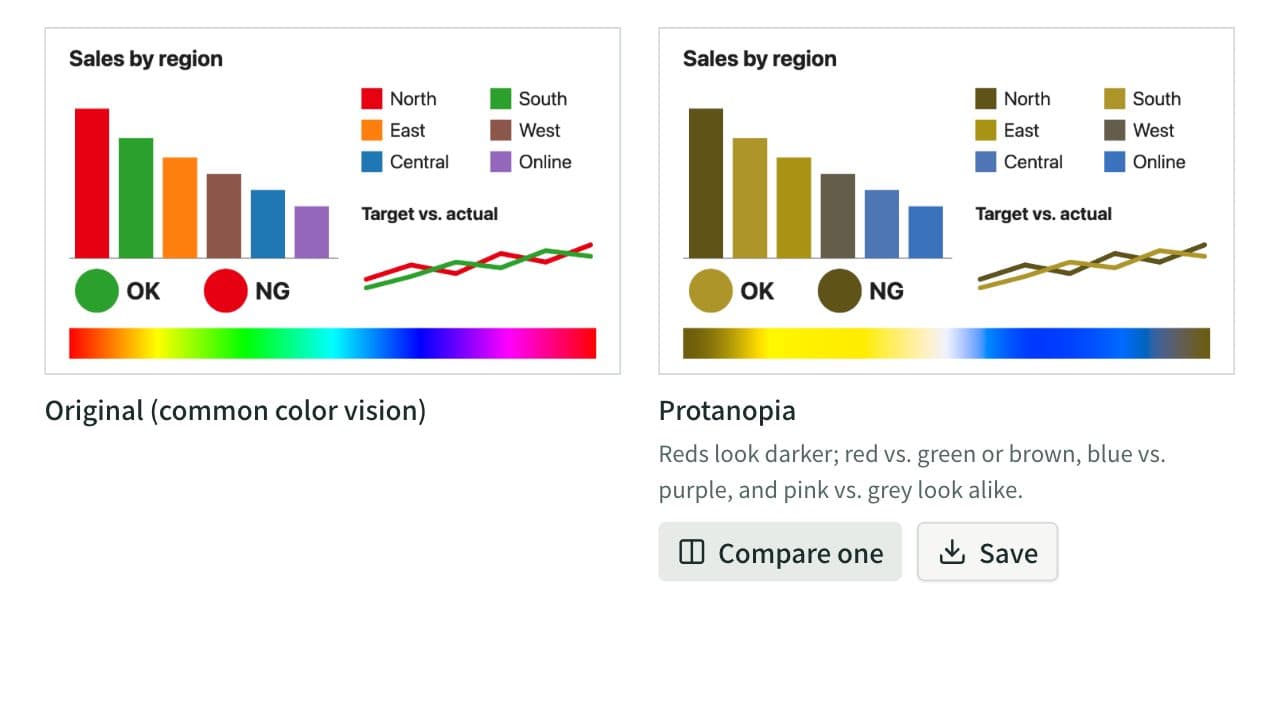
See how an image or a set of colors looks with protanopia, deuteranopia, tritanopia, or achromatopsia, side by side. Lower the severity to approximate color weakness, and find pairs of HEX colors that become hard to tell apart. Everything runs in your browser.
UtilityImagescoloraccessibilitycolor-blindnesscolor-visioncolor-universal-designsimulatorimagedesignpalette
Image to PDF Converter
Combine JPG, PNG, WebP, and other images or photos into one PDF. Set the page order and rotation, the page size (A4, Letter, and more), orientation, margins, and how each image sits on its page, or make one PDF per image. JPEGs go in without re-encoding, and Exif data such as the location stays out of the PDF. Everything runs in your browser.
Image Resizer & Compressor
Resize and compress images in your browser, then save them as JPEG, PNG, or WebP. Small images can also be enlarged beyond their original width.