Statistics Calculator (Mean, Median, Standard Deviation)
Paste a list of numbers to get the mean, median, mode, variance, standard deviation, sample variance and quartiles at once, turn a score into a deviation score, and build a frequency table and histogram.
Separate numbers with spaces, line breaks, commas or tabs. A column copied from a spreadsheet works as is.
Enter numbers to see the results here.
How to use
- Enter numbers in the "Data" box. Separate them with spaces, line breaks, commas (
,or、), tabs or semicolons - You can also copy a column from Excel or Google Sheets and paste it as is. Each number goes on its own line
- The results appear below as you type. There is no calculate button. The mean comes first in large type, with the count, sum and mode under it. Then come a box plot drawn on one line from the minimum to the maximum (the box spans the first to the third quartile, the line inside it is the median and the ▲ below is the mean), a table of the five-number summary (minimum, first quartile, median, third quartile, maximum) with the range and interquartile range, and a table of the variance and standard deviation in two columns, "Population (÷ n)" and "Sample (÷ n − 1)". With a single value, or when every value is the same, no box plot is drawn
- Switch the quartile method and the number of decimals if you need to
- "Copy results" copies each label and value separated by a tab. Pasted into a spreadsheet, they fall into two columns
- Enter a score under "Deviation score (hensachi)" to see its deviation score within the data, with the formula worked out from the difference from the mean and the standard deviation
- "Frequency table and histogram" at the bottom sorts the data into classes and shows them as a frequency table and a histogram. "Class width" and "First class starts at" are chosen automatically while blank, and the chosen values appear faintly in the fields, such as "Auto (10)". The table's caption also shows the number of classes, the width and the start. Type a number to rebuild the table with that width and start. "Copy frequency table" copies the table, with a header line, as tab-separated text
Full-width digits (85) and the full-width minus (-3) are read the same as their ASCII forms.
Example
Test scores of ten students: 72 85 64 90 58 77 81 69 73 88.
- Count 10, sum 757
- Mean 75.7
- Median 75 (the average of the 5th value, 73, and the 6th value, 77, in ascending order)
- Mode None (every value appears once)
- Minimum 58, maximum 90, range 32
- First quartile 69, third quartile 85, interquartile range 16 (median of halves)
- Population variance 98.81, population standard deviation 9.94032192638
- Sample variance 109.788888889, sample standard deviation 10.4780193209
A student who scored 85 has a deviation score of 59.4 within this group. The difference from the mean is +9.3.
The frequency table is built automatically with a class width of 10, starting at 50.
- 50 to under 60: midpoint 55, frequency 1, relative frequency 0.10, cumulative frequency 1, cumulative relative frequency 0.10
- 60 to under 70: midpoint 65, frequency 2, relative frequency 0.20, cumulative frequency 3, cumulative relative frequency 0.30
- 70 to under 80: midpoint 75, frequency 3, relative frequency 0.30, cumulative frequency 6, cumulative relative frequency 0.60
- 80 to under 90: midpoint 85, frequency 3, relative frequency 0.30, cumulative frequency 9, cumulative relative frequency 0.90
- 90 to under 100: midpoint 95, frequency 1, relative frequency 0.10, cumulative frequency 10, cumulative relative frequency 1.00
The top score, 90, falls on a boundary, so it goes into "90 to under 100", not "80 to under 90".
Formulas
Let n be the count, x each value and x̄ the mean.
mean = (sum of x) ÷ n
population variance = (sum of (x − x̄)²) ÷ n
population standard deviation = √population variance
sample variance = (sum of (x − x̄)²) ÷ (n − 1)
sample standard deviation = √sample variance
deviation score = 50 + 10 × (score − x̄) ÷ population standard deviation
- The median is the middle value in ascending order. With an even count, it is the average of the two middle values
- The mode is the value that appears most often. When several values tie, all of them are listed in ascending order (
1 1 2 2 3gives 1, 2). With 11 or more, the first 10 and the number of the rest are shown, and "Show all" opens the full list. "Copy results" always includes every one. When every value appears only once, the mode is shown as "None" - The range is maximum − minimum, and the interquartile range is Q3 − Q1
- VAR.P, STDEV.P, VAR.S and STDEV.S under the figures in the variance table are the Excel functions that return the same values
Population or sample variance
The population variance (divide by n) describes the spread of the data you have. This is the "variance" and "standard deviation" taught in Japanese high schools, and it is the standard deviation used for deviation scores.
The sample variance (divide by n − 1) treats your data as a sample drawn from a larger group and estimates the variance of that group. Use it when you infer a whole population from part of it, such as some of the answers to a survey, or when you run a statistical test. With a single value, n − 1 is 0, so it is shown as "—".
Quartile methods
There are several conventions for quartiles, and they can give different results for the same data. This tool offers two.
- Median of halves (default): split the data at the median into a lower half and an upper half, and take the median of each half as Q1 and Q3. With an odd count, the median itself goes into neither half. This method needs at least two values; with one value it shows "—". It is the method taught in Japanese high schools
- Excel (QUARTILE.INC): interpolate linearly between neighboring values at positions (n − 1) × 0.25 and (n − 1) × 0.75 in ascending order. It matches Excel's QUARTILE.INC and PERCENTILE.INC and Google Sheets' QUARTILE
In the ten-student example, the median of halves gives 69 and 85, and the Excel method gives 69.75 and 84.
Frequency table and histogram
A frequency table splits the data into intervals of equal width (classes) and counts how many values fall into each (the frequency).
- Each class runs from its lower boundary up to, but not including, its upper boundary. A value exactly on a boundary goes into the class that starts there. When the maximum falls on a boundary, one more class starting at the maximum is added at the end
- The midpoint is the value halfway between a class's lower and upper boundaries
- The relative frequency is frequency ÷ count, the cumulative frequency is the sum of the frequencies from the first class up to that one, and the cumulative relative frequency is cumulative frequency ÷ count
- The "Total" line at the bottom of the table shows the count and the total of the relative frequencies (1)
- The histogram draws each class's frequency as the height of a bar, with no gaps between bars. The heights are in proportion to the fullest class, which is drawn at full height. When the figures fit side by side even on a phone (few classes with short frequencies), each bar has its frequency written above it. The horizontal axis labels both ends and class boundaries at intervals chosen so the labels do not overlap
While "Class width" and "First class starts at" are blank, they are chosen as follows.
- Sturges' rule (⌈log₂ count⌉ + 1) gives a target number of classes. The width is the smallest value of 1, 2 or 5 times a power of ten that is at least the span from the minimum (or from the start you typed for the first class) to the maximum divided by that number. In the ten-student example the target is 5 classes, and 32 (from 58 to 90) divided by 5 is 6.4, so the width is 10
- When every value is a whole number, the width is never below 1
- The first class starts at the largest multiple of the width at or below the minimum (a minimum of 58 with a width of 10 starts at 50)
- When every value is the same, the width is the largest power of ten at or below that value's absolute value and there is a single class (75 gives a width of 10 and "70 to under 80"). A value of 0 gives a width of 1
You can type your own values within these limits.
- The class width must be a number from 10^-100 to 10^15
- The first class must start at 0 or a number from 10^-100 to 10^15 in absolute value, at or below the minimum. Above it, the minimum would be left out of the table, so no table is built
- There can be at most 100 classes. A width and start that would make more build no table, and the tool asks for a wider class (and, if you typed a start, for a start closer to the minimum)
- When the width is so fine for the size of the data that neighbouring boundaries become the same number on a computer (a width of 10^-100 when every value is 75, for example), no table is built, and the tool asks for a wider class
- Decimal widths such as 0.1 keep their boundaries exactly as written in decimal. With a width of 0.1, for example, 0.3 goes into "0.3 to under 0.4"
- Class boundaries are shown to the decimal places of the width or the start, whichever has more (a width of 0.25 gives "0.50 to under 0.75")
Rounding in the display
Nothing is rounded during the calculation. Values are rounded only when shown.
- "Auto" rounds to 12 significant digits, but the whole-number part is always shown in full, even beyond 12 digits. The tiny errors computers make with decimals, such as in the sum of
0.1 0.2, do not show up - "0" to "4" round to that many decimal places
- The deviation score is shown to one decimal place under "Auto"
- In the frequency table, relative and cumulative relative frequencies are shown to two decimal places under "Auto", "0" and "1", and to that many places under "3" and "4". Class boundaries and midpoints are shown unrounded
- Each relative frequency is rounded on its own, so the shown relative frequencies may not add up to exactly 1. The cumulative relative frequency is the cumulative frequency divided by the count, so it always reaches 1 in the last class
- Because of this, recalculating from the shown values can differ in the last digit
Accepted input
- Decimals, negative numbers and exponent notation such as
1.5e3are accepted - Commas are separators.
1,234is read as two numbers, 1 and 234, so leave out thousands separators - Items that are not numbers (a header such as "score", or "85pts" with a unit attached to the number) are left out of the calculation, and the tool shows how many were left out and what they were
- Nothing is calculated when a number is larger than 10^15 in absolute value, when a non-zero number is smaller than 10^-100 in absolute value, or when there are more than 100,000 numbers. The tool shows which numbers are out of range
- Full-width digits, points, signs and commas are read as their ASCII forms, but superscripts such as
10²and fraction characters such as½are not read as numbers - The score for the deviation score does not need to be one of the values in the data
FAQ
The results do not match Excel
The population variance and standard deviation match Excel's VAR.P and STDEV.P (or the older VARP and STDEVP). Excel's VAR, STDEV, VAR.S and STDEV.S correspond to the sample variance and sample standard deviation. For quartiles, switch to "Excel (QUARTILE.INC)" to match Excel's QUARTILE and QUARTILE.INC.
How is the deviation score calculated?
It uses the mean and the population standard deviation (divide by n) of the data: 50 + 10 × (score − mean) ÷ standard deviation. A score equal to the mean gives 50, and one standard deviation above the mean gives 60. When every value is the same, the standard deviation is 0 and no deviation score can be calculated.
What if I only know the mean and the standard deviation?
This tool works out the mean and the standard deviation from the raw data. If you only have the mean and the standard deviation, put them straight into the deviation score formula above.
Can it work from a frequency table?
No. It can build a frequency table from the data you enter, but it cannot take a frequency table as input and work out the mean and the rest from it. Enter each value individually. When a value occurs several times, repeat it that many times.
The frequencies do not match Excel's FREQUENCY function
Excel's FREQUENCY function counts each bin as the values above the previous bin value and up to and including its own. This tool counts from the lower boundary up to, but not including, the upper one, as Japanese school textbooks do, so a value exactly on a boundary lands one class later. With a boundary at 60, for example, a score of 60 goes into "60 to under 70" here, but into the bin up to 60 with FREQUENCY.
Can it leave out outliers?
There is no automatic outlier removal. Delete the numbers from the data box and the results update right away. A common rule of thumb flags values below Q1 − 1.5 × IQR or above Q3 + 1.5 × IQR as outliers.
Is my data saved?
No. The calculation runs entirely in your browser. The numbers you enter are never sent to a server or stored, and reloading the page clears every field.
- Type
- Utility
- Category
- Calculators
- Tags
- statistics
- average
- mean
- median
- mode
- standard-deviation
- variance
- quartile
- deviation-score
- frequency-distribution
- histogram
- calculator
Related apps
Elapsed Time Calculator
Calculate elapsed, remaining, and active time from start, end, current time, and breaks, or work out the end time from the active time. Also adds and subtracts durations such as 1:30 or 2h 15m and converts them to decimal hours.
Split Bill Calculator
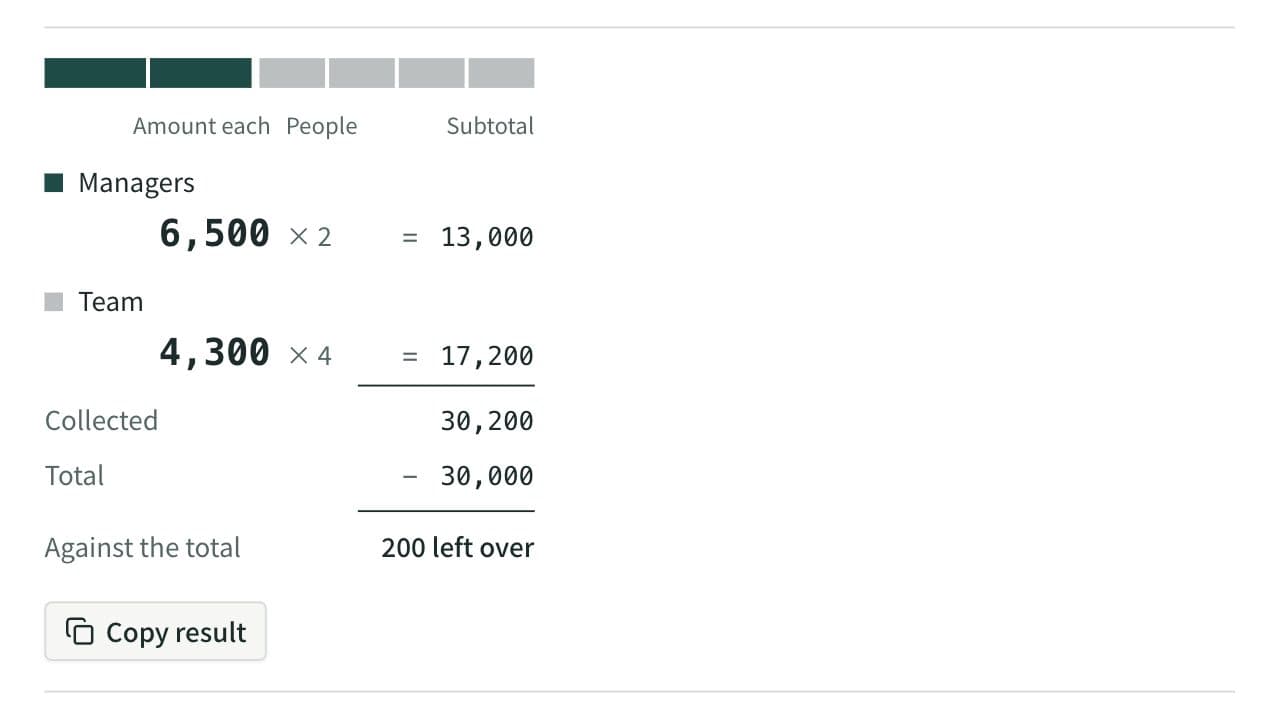
Work out what each person pays from the total and the head count. Round payments to 10, 100, 500, or 1,000, let some groups pay a larger share or a set amount, and see how much is collected and left over. When several people paid, it also works out who pays whom to settle up.
Sales Tax Calculator
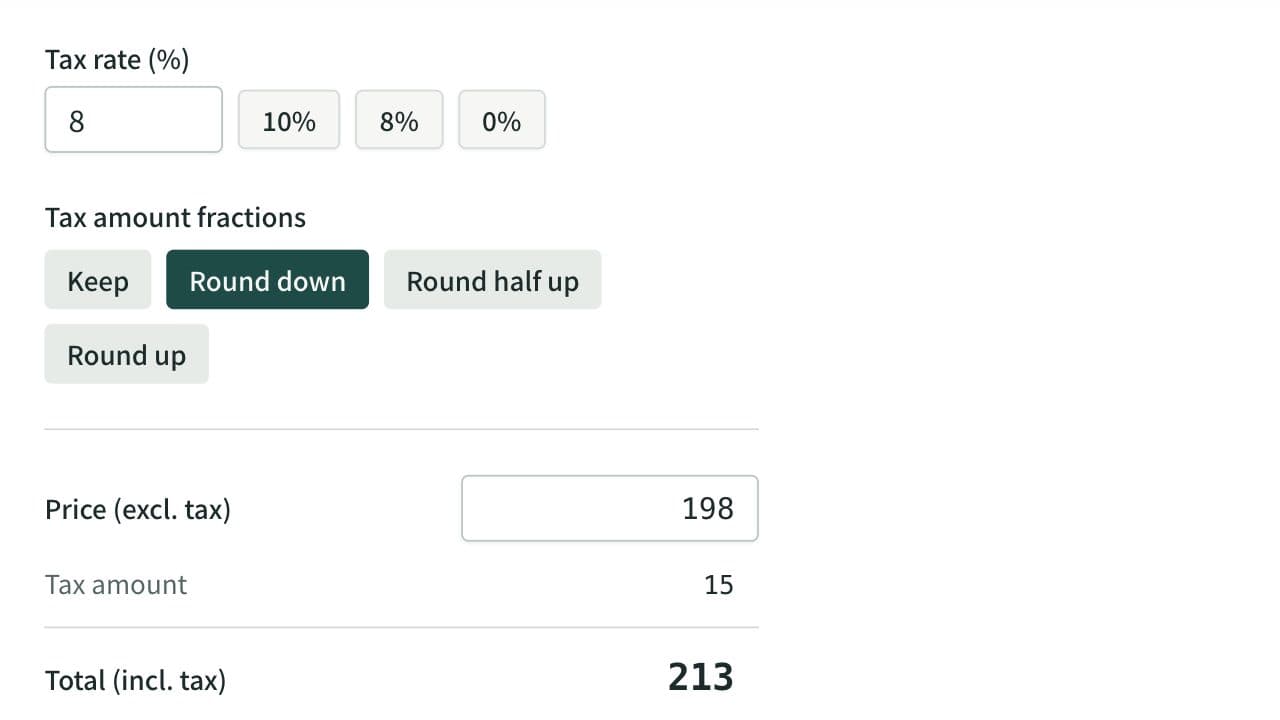
Calculate tax-inclusive and tax-exclusive prices for a given tax rate, with the tax amount rounded down, half up, or up if you choose. For a total with both 10% and 8% items, it works out the tax for each rate from either the sum at each rate or each item's price and quantity.