XML Formatter and Minifier
Format XML that arrives on a single line into indented, readable text. Indent with 2 spaces, 4 spaces, or tabs, or minify the XML to one line. Mistakes such as an unclosed tag are reported with their line and position, and an XPath expression extracts the elements or attributes you need. Runs entirely in your browser.
9 elements, 3 levels deep, 13 lines
Extract with XPath
How to use
- Paste the XML you want to format into the "XML" field
- Under "Output style", choose the indentation (2 spaces, 4 spaces, or tabs) or choose to minify to one line
- The formatted XML appears under "Result" below. "Copy result" puts it on your clipboard
- To take out only some elements or attributes, enter an expression such as
//book/titlein "XPath expression" under "Extract with XPath"
There is no button to press. The result changes as soon as you change the input or the output style. The page opens with an example already filled in.
Below the result you see the number of elements, how many levels deep they nest, and the number of lines. When the XML has a mistake, the line, the position, and what is wrong are shown under the input field. "Select this place in the input" selects the part at fault inside the input field.
Example
Take the XML the page opens with. It is on a single line, as you often find in API responses and logs.
<?xml version="1.0" encoding="UTF-8"?><catalog><book id="b1" lang="en"><title>Pride and Prejudice</title><author>Jane Austen</author><price currency="USD">7.99</price></book><book id="b2" lang="en"><title>Moby-Dick</title><author>Herman Melville</author><price currency="USD">9.50</price></book></catalog>
With "Format (2 spaces)" it becomes:
<?xml version="1.0" encoding="UTF-8"?>
<catalog>
  <book id="b1" lang="en">
    <title>Pride and Prejudice</title>
    <author>Jane Austen</author>
    <price currency="USD">7.99</price>
  </book>
  <book id="b2" lang="en">
    <title>Moby-Dick</title>
    <author>Herman Melville</author>
    <price currency="USD">9.50</price>
  </book>
</catalog>
Below the result it says "9 elements, 3 levels deep, 13 lines".
Choosing "Minify (one line)" turns formatted XML back into the single line above.
How the XML is formatted
- Elements — An element that has child elements gets its start tag, its children, and its closing tag on separate lines, with the children indented one level deeper
- Elements that hold only text — The start tag through the closing tag stay on one line, as in
<title>Moby-Dick</title> - White space around text — In an element that holds only text, white space before or after the text is removed only when it contains a line break, which is how indentation looks. Spaces written on one line, as in
<a> value </a>, are kept as content. Line breaks and spaces in the middle of the text are not changed - Content that mixes text and tags — The inside of an element where text and tags sit side by side, as in
<p>This is <b>important</b>.</p>, is left exactly as written, including the white space and line breaks at its ends. Moving a tag onto its own line would add white space to the text - White space between tags — White space between two tags is replaced with new indentation only when it contains a line break. A space written between tags on one line, as in
<b>New</b> <b>York</b>, may separate two words, so it is treated as content and the inside of that element is left exactly as written - Attributes — Spaces and line breaks between attributes become a single space. The order of the attributes, their values, and the kind of quote (
"or') are not changed - Empty elements —
<a/>and<a></a>are each kept in the form they were written.<a />becomes<a/> - Comments, processing instructions, and the DOCTYPE — Each goes on its own line with its content unchanged. In a comment that spans several lines, the indentation of the second and later lines stays as it was
- CDATA sections — The inside of
<![CDATA[ … ]]>is not changed xml:space="preserve"— The content of an element with this attribute is left exactly as written, white space included- References —
&,あ, and the like are kept as written, not replaced by the characters they stand for - Line endings and the start — Line endings become LF. A byte order mark (BOM) at the start and white space before the XML declaration are removed
Formatting an already formatted result gives the same result again.
How the XML is minified
"Minify (one line)" removes the white space between tags that contains a line break. These are the same places where formatting puts new indentation. Spaces written between tags on one line, spaces in the middle of text, content that mixes text and tags, comments, and CDATA sections are kept, so XML with line breaks inside its text may not end up on a single line.
Comments are not removed.
Extract with XPath
Enter an expression in "XPath expression" to list only the parts of the XML that match it. The list changes as soon as you change the expression or the XML. The "Examples" buttons fill in expressions that match the XML the page opens with.
//book/title— everytitleelement inside abookelement//book/@id— theidattribute of everybookelement//book[price > 8]/title— thetitleof eachbookwhosepriceis greater than 8count(//book)— the number ofbookelements
The matches are numbered in the order they appear in the XML.
- Elements — each element is formatted with the indentation chosen under "Output style". With "Minify (one line)" chosen, it is shown minified. An element inside an element with
xml:space="preserve"is shown as written, white space included, just as formatting leaves it - Attributes — the name and the value are shown, as in
id=b1 - Text — the text is shown as it is. Text that is only spaces and line breaks is shown as "(white space only)"
- Comments and processing instructions — shown as they are written
- Numbers, strings, and booleans — an expression whose result is not a list of nodes, such as
count(),string(), or a comparison likeprice > 8, shows the kind of result and its value.1 div 0givesInfinity, and something that cannot be read as a number givesNaN
Up to the first 100 matches are shown. "Copy extracted results" puts all of them on your clipboard, one after another separated by line breaks: elements formatted as shown, and attributes as their values alone.
Things to know when using XPath
XPath uses the XML parser and the XPath engine (XPath 1.0) built into your browser. That makes it differ from formatting in these ways.
- Matches are written out again — an extracted element is rewritten from what the browser read. A character reference such as
あbecomes the character itself, a>in text becomes>, and namespaces declared (xmlns) on an outer element are declared again on the extracted element - XML the browser cannot read — XML that formats fine can still be refused by the browser's parser when it uses a namespace prefix that is not declared (
ns:a) or a reference such as that is not defined. XPath is then not available, and the mistake the browser reports is shown as well - Namespace prefixes — an expression can use the prefixes declared in the XML. When one prefix is declared for different namespaces in different places, the first declaration in the XML is used. A prefix that is not declared is reported as an error
- Default namespaces — an element in a default namespace declared with
xmlns="…"cannot be selected by a name without a prefix such as//book. This is how XPath 1.0 works. Write//*[local-name()='book']instead. When nothing matches and the XML has a default namespace, a note says so - Not supported — functions from XPath 2.0 and later, and the
namespace::axis
When an error is shown
When the input cannot be read as XML, nothing is formatted and the first mistake found is shown, with a position such as "Line 4, column 3".
Below it, the line with the mistake is shown with its line number, and the part at fault (a tag such as </d>, or a single character such as &) is marked. Of a long line, only the text around the mark is shown, and "…" stands for what is left out. A character that looks like blank space, such as a full-width space, is shown by its code point, such as U+3000.
"Select this place in the input" selects the same part inside the input field and scrolls to it, so that what you type next replaces it. When a closing tag does not match, "Select the opening tag (line 2)" selects the tag that is still open as well.
- A closing tag does not match — For example,
<b>is open and</d>closes it. The name and line of the open tag are shown as well. Tag names are case-sensitive, so</item>cannot close<Item> - A tag is not closed — The element whose closing tag never came is named
- What follows
<is not a tag name — A literal<was written, as in1 < 2. Write it as< - A bare
&— As inTom & Jerry, or a URL inside an attribute such as?a=1&b=2. Write it as& ]]>inside text —]]>, which ends a CDATA section, cannot appear in ordinary text. Write the>as>- How attributes are written — A value without quotes as in
<a x=1>, an attribute with no value as in<input disabled>, no space between two attributes, the same attribute twice, or a<inside a value - The root element — More than one outermost element, text outside the element, or no element at all
- A comment, CDATA section, processing instruction, DOCTYPE, or tag that is not closed — The place where it opens is shown
- Where the XML declaration and the DOCTYPE are —
<?xml … ?>is not at the start, or the DOCTYPE comes after the root element or appears twice
After you fix one mistake, the next one may be shown.
What this app does not check
This app checks that tags and attributes are written correctly, which is the main part of being well-formed. It does not check the following.
- Whether the XML conforms to a DTD or an XML Schema (XSD)
- Whether a named reference such as
is defined. Anything in the form&name;is accepted - Whether a namespace prefix such as
ns:is declared - What the XML declaration says (the values of
versionandencoding) - Whether the text contains control characters XML does not allow, or whether a comment contains
--
No error here does not guarantee that the program receiving the XML can read it.
FAQ
Does formatting change what the XML says?
What changes is white space with a line break between tags, the white space between attributes, and, in an element that holds only text, white space with a line break before or after the text. The order of the elements, the order and values of the attributes, the text, and the comments are not changed. In most XML the white space between tags carries no meaning, so the formatted XML is read as the same data. Some programs do take that white space as it is, though. For XML where white space matters, put xml:space="preserve" on the element and its content is left exactly as written.
Can it format HTML?
HTML that follows the XML rules (XHTML) can be formatted. Ordinary HTML often has tags that are never closed such as <br> and <img>, attributes with no value such as <input disabled>, and attribute values without quotes, and those give an error.
How do I write a literal < or &?
Write < as < and & as &. Inside an attribute value you can write " as " and ' as '. Text with many < and & characters, such as program code, can be written as it is between <![CDATA[ and ]]>. To replace the characters in HTML, you can use the HTML Escape and Unescape Tool.
Are <a/> and <a></a> different?
As XML, both are an element with nothing inside and mean the same. This app does not convert one into the other; each stays in the form it was written.
An element that mixes text and tags stays on one long line
That is by design. Moving the <b> in <p>This is <b>important</b>.</p> onto its own line would put a line break and spaces between "This is" and "important", which changes the result for a program that reads it as prose. To keep the content unchanged, the inside of an element that mixes text and tags is not touched.
An element with spaces between its tags on one line, as in <a> <b>1</b> <c>2</c> </a>, is left as it is for the same reason. If those spaces are not needed, remove them or break the line between the tags before pasting, and the element is indented.
My XPath expression finds no elements
There are two common causes. One is a default namespace (xmlns="…") in the XML: write //*[local-name()='book'] instead. The other is a difference in case: XML names are case-sensitive, so <Book> is not selected by //book.
Can it convert XML to JSON or YAML?
This app only formats and minifies XML. To format JSON, use the JSON Formatter. To convert between JSON and YAML, use the JSON ⇔ YAML Converter.
Can it format large XML?
There is no size limit. The whole input is read again each time you change the input or the output style, though, so large XML may respond slowly. Elements can nest up to 1000 levels deep.
Is the XML I enter sent or stored anywhere?
No. Formatting happens entirely in your browser. The XML you enter is not sent to a server and is not stored in the browser. Reloading the page clears the input.
- Type
- Utility
- Category
- Developer
- Tags
- xml
- formatter
- minify
- pretty-print
- validator
- xpath
- developer
Related apps
Color Code Converter
Convert colors between HEX, RGB, and HSL, and see them in HSV, CMYK, and OKLCH too, with a color picker, a live preview, and WCAG contrast ratios against white, black, or any text color you choose.
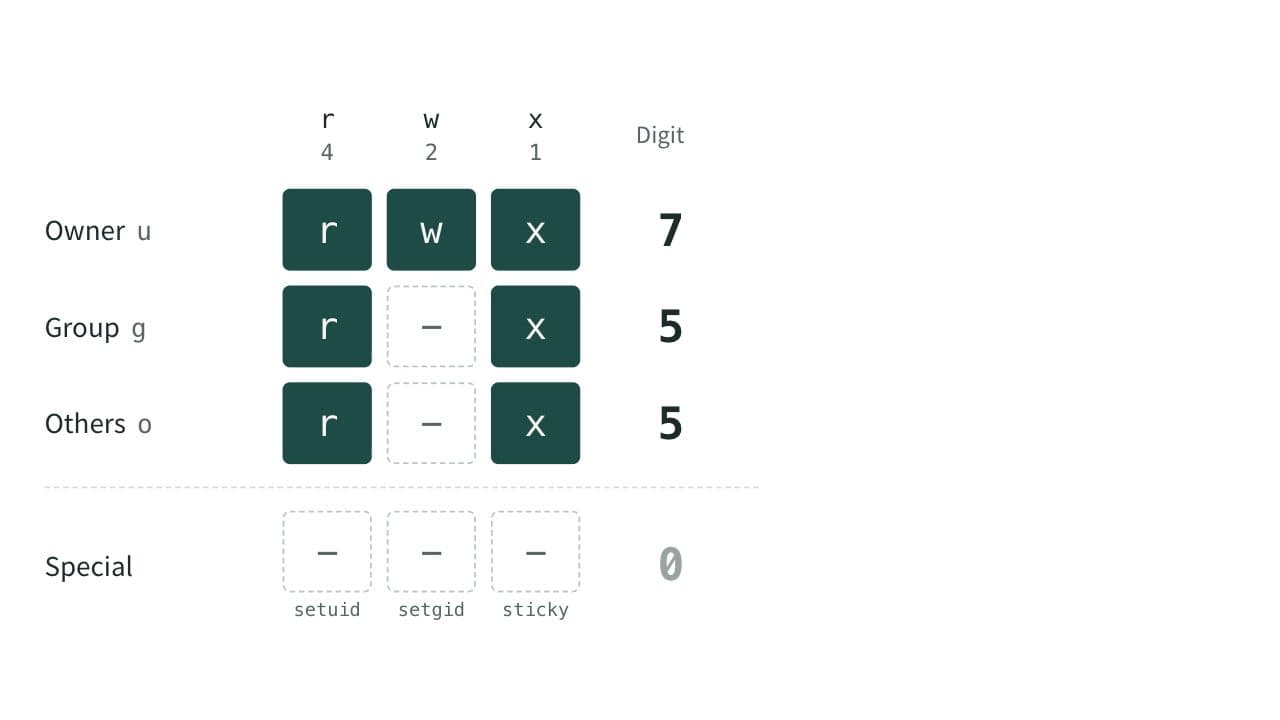
Chmod Calculator (File Permissions)
Convert Linux and macOS file permissions between numbers such as 755 and symbols such as rwxr-xr-x. Switch read, write and execute on and off to build the chmod command as you go. Handles setuid, setgid and the sticky bit, and shows the permissions a umask gives new files and directories.
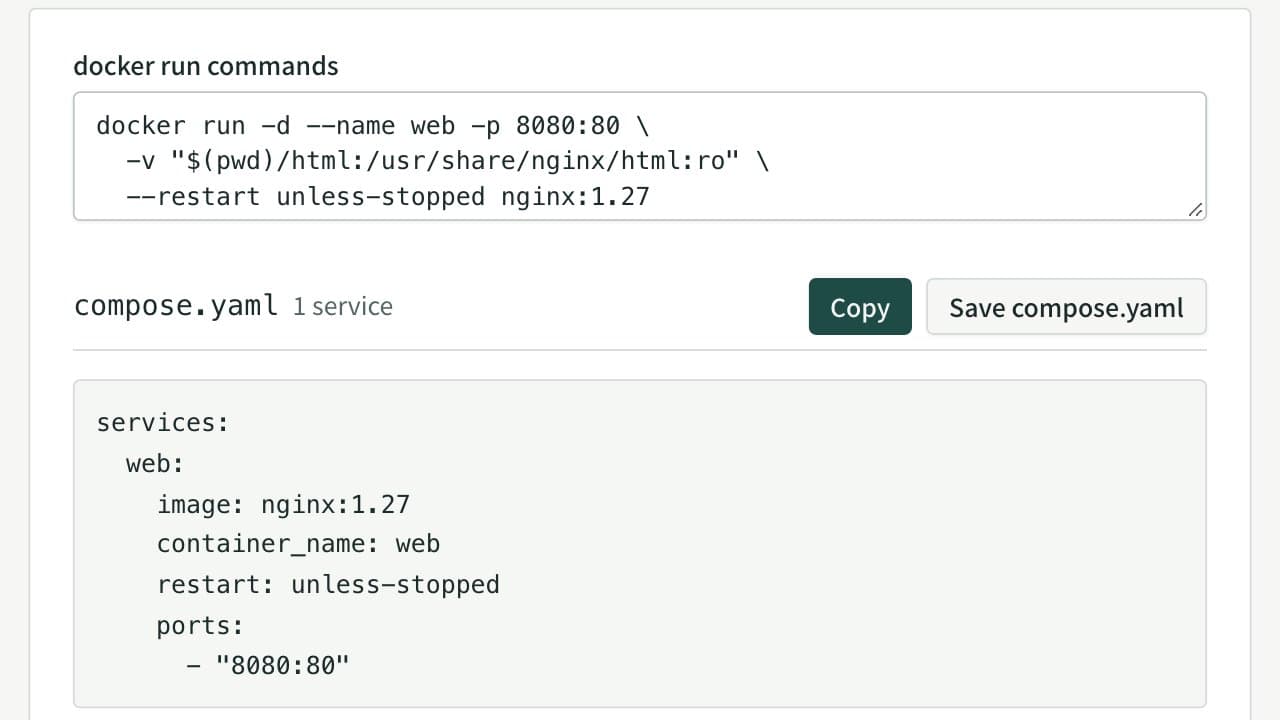
docker run to Docker Compose Converter (compose.yaml)
Paste docker run commands and get a compose.yaml. Reads every docker run option, including ports, environment, volumes, networks, health checks and GPUs, merges several commands into one file, rewrites $(pwd) and $ for Compose, and flags options Compose cannot express.