JSON Formatter
Format, minify, and sort the keys of JSON instantly, keeping large integers and other numbers as written if you choose. Syntax errors are shown with their line, column, and cause. Everything runs in your browser — no data is uploaded.
How to use
- Paste JSON into the upper text area
- To reorder keys, check “Sort keys by character code”
- To write large integers and numbers such as
1.0exactly as they are in the input, check “Keep numbers as written in the input” - Select “Format (2 spaces)”, “Format (4 spaces)”, or “Format (tabs)” to display it with indentation
- Select “Minify” to get single-line JSON with spaces and line breaks removed
- Use “Copy” below the result to copy only the result to the clipboard
- When the input cannot be read as JSON, the line and column of the first mistake, its cause, and a copy of that line are shown instead of a result
Editing the input or switching either checkbox clears the previous result and any error. Select a button again to build the result from the current input and setting.
Example
Input:
{"name":"太郎","age":30,"tags":["a","b"],"address":{"city":"東京","zip":null}}
Output of “Format (2 spaces)”:
{
  "name": "太郎",
  "age": 30,
  "tags": [
    "a",
    "b"
  ],
  "address": {
    "city": "東京",
    "zip": null
  }
}
Arrays are expanded to one element per line even when the elements are short. An empty array [] and an empty object {} stay as they are. “Format (4 spaces)” gives the same structure with four-space indentation, “Format (tabs)” uses one tab character per level, and “Minify” returns the single line shown as the input.
Sorting keys
With “Sort keys by character code” checked, the app reorders the keys of every object, nested ones included, before writing the result. It applies to formatting and to minifying. The order of array elements is not changed.
Input:
{"name":"太郎","id":7,"Tags":["b","a"],"10":true,"2":false}
Output of “Minify” with the box checked:
{"10":true,"2":false,"Tags":["b","a"],"id":7,"name":"太郎"}
Keys are compared one character at a time from the start, by Unicode code point. This differs from dictionary order in these ways:
- Digits are compared as characters, not as numbers, so
"10"comes before"2" - Every uppercase letter from A to Z comes before every lowercase letter from a to z (
"Tags"before"id"). An accented letter such asÅcomes afterz, uppercase or not - Each symbol has a fixed position:
_falls between the uppercase letters A to Z and the lowercase letters a to z, and-comes before digits - Accented letters and non-Latin scripts come after ASCII letters and digits, in code point order rather than in any language’s alphabetical order
This is the order jq -S and Python’s json.dumps(..., sort_keys=True) produce. Two JSON documents that hold the same data with keys in different orders come out identical, which makes sorting a useful step before comparing them in the Text Diff app.
Keeping numbers as written
With the box unchecked, each number is read as a JavaScript number and then written out again, so its notation can change (see the next section). When the result holds numbers written differently from the input, the app shows how many above the result, with the first three as examples in the form “12345678901234567890 → 12345678901234567000”.
With “Keep numbers as written in the input” checked, every number is written with exactly the characters it has in the input. It works with formatting, minifying, and sorting keys.
Input:
{"id":12345678901234567890,"price":1.50,"rate":1e-3}
Output of “Minify” with the box unchecked:
{"id":12345678901234567000,"price":1.5,"rate":0.001}
Output of “Minify” with the box checked:
{"id":12345678901234567890,"price":1.50,"rate":1e-3}
- Long integers such as
12345678901234567890, the trailing zero of1.50, exponent notation such as1e-3, and the sign of-0all stay as they are - A number outside the representable range, such as
1e400, is written out as it is instead of causing an error - Only numbers are kept. Duplicate keys, the order of integer-shaped keys, and string escapes still change as described in the next section, even with the box checked
The option relies on a browser feature that hands JSON numbers over as the text they were written with (JSON.rawJSON). In browsers older than Chrome 114, Edge 114, Firefox 135, and Safari 18.4, the checkbox cannot be selected and the reason is shown below it, and the note about numbers written differently does not appear.
What formatting changes and what it keeps
The app reads the input as JSON and writes the value out again. It does more than swap spaces and line breaks, so some notation changes even though the value is the same.
- Number notation:
1.0becomes1,1e2becomes100,0.10becomes0.1, and-0becomes0, unless “Keep numbers as written in the input” is checked - Long integers:
12345678901234567890becomes12345678901234567000. Digits that a JavaScript number cannot represent exactly are lost. Checking the box keeps the input’s digits, but the program that reads the JSON may lose the same digits, so check that large IDs are handled as strings - Duplicate keys:
{"a":1,"a":2}becomes{"a":2}, keeping only the later value - Key order: with the sort box unchecked, keys normally keep the input order, but keys shaped like integers, such as
"2"and"10", move to the front in ascending numeric order. With the box checked, integer-shaped keys are ordered by character code along with the rest - String escapes:
あis written asあand\/as/, turning them back into readable characters. Escapes such as\nfor a line break and\"for a quotation mark stay escaped
String contents, booleans, null, and the order of array elements do not change. If you need duplicate keys or string escapes preserved as written, check these points before using the result. The guide “How to format and minify valid JSON safely” covers a safe procedure.
Input that causes an error
For input that cannot be read as JSON, the app shows “The JSON is not valid.” and, right below it, the first place where reading stopped and the cause. The app finds the place by scanning the input from the start, so the result is the same in every browser.
Input:
{
  "name": "Taro",
  "age": 30,
}
Shown:
Line 3, column 12: There is a comma after the last element. Remove this comma.
3 |   "age": 30,
The second line is the line with the error, copied from the input. On the page, the part in question (the last comma in this example) is colored and underlined. When the line is long, up to 40 characters before that part and 24 after it are kept, with “…” on each side that was cut. Select “Select this place in the input” to select the same part in the input area.
- Lines are counted by line breaks. The column is the number of characters from the start of that line. A kanji or kana character, a tab, and each leading space all count as one character
- Only the first place is shown. Fix it and select a button again to see the next one
- The place shown is where reading stopped, and the place to fix can be a little earlier. A missing comma is shown at the start of the next element, and an unclosed bracket at the end of the input
These causes are told apart:
- A comma after the last element (
{"a":1,}). The comma itself is shown - Commas in a row, or a leading comma (
[1,,2]) - A missing comma between elements (
{"a":1 "b":2}). A"inside a string that is not written as\"also ends up here - A missing colon after a key, or a missing value after a colon (
{"a":}) - Keys or strings in single quotes (
{'a':1}), and keys without quotation marks ({a:1}) //or/* */comments- Words that JSON does not have, such as
NaN,undefined, andTrue - Forms that are not JSON numbers (
012,+1,.5,0x1F) - A string that is never closed, a line break or tab inside a string, and a
\pair that is not allowed, such as the\Uin"C:\Users" - Brackets of different kinds (
[1, 2}) and brackets that are never closed. The line that opened the bracket is shown with it - Characters after the value has ended (
{"a":1}{"b":2}) - Full-width symbols, digits, and spaces outside strings, quotation marks that are not straight, such as
“and”, and invisible characters such as a no-break space. An invisible character is shown in the copied line by its code, such asU+00A0
When a button is selected while the input is empty, no place is shown; the app only says that the input is empty.
Open “Technical details” below the message to see the original error returned by the browser. In browsers whose message includes a position, it can differ from the place this app shows. For a trailing comma, for example, the browser points at the closing bracket after it, and this app points at the comma.
A number outside the representable range, such as 1e400, is reported as a separate error instead of being rewritten to null. That is not a mistake in notation, so no place is shown. With “Keep numbers as written in the input” checked, the number is written out as it is, without an error.
See the guide “How to find and fix JSON syntax errors” for ways to track down the cause.
FAQ
Can it format JSON with comments or trailing commas (JSON5, JSONC)?
No. Only standard JSON is accepted. Remove comments and trailing commas before pasting.
Is the error position shown in every browser?
Yes. The position is not read from the browser’s error message; this app finds it by scanning the input. Browsers that do not report an error position show the line and column, the cause, and the copy of that line in the same way.
Can it format an array or a string on its own, not only an object?
Yes. An array such as [1,2,3] and single values such as "abc", 42, and null are processed as valid JSON.
Can it sort keys alphabetically?
Check “Sort keys by character code” and then format or minify, and the keys of every object are reordered. The order differs from dictionary order in a few ways, such as the uppercase letters A to Z coming before the lowercase ones; see the “Sorting keys” section. With the box unchecked, keys are written in the input order, apart from integer-shaped keys moving to the front.
The digits of a large ID change. Can I keep them?
Check “Keep numbers as written in the input” and then format or minify, and long integers such as 12345678901234567890 are written with the input’s digits. With the box unchecked, any number whose digits or notation change is shown as an example above the result.
Can I indent with tabs?
Yes. “Format (tabs)” indents with one tab character per level. The page draws each tab four characters wide, but what is copied is the tab character itself, so the width where you paste it depends on that editor’s settings.
Is it safe to paste JSON that contains API keys or personal data?
The pasted JSON is read and written only by JavaScript in the browser. Nothing is sent to a server or saved, and it disappears when you reload the page.
Can it convert JSON to YAML or CSV?
Not in this app. Use the JSON ⇔ YAML Converter and the CSV ⇔ JSON Converter.
- Type
- Utility
- Category
- Developer
- Tags
- json
- formatter
- developer
Guides related to this app
How to format and minify valid JSON safely
Reformat only insignificant whitespace in valid JSON, then verify strings, numbers, Unicode, escapes, and property-order assumptions.
DeveloperjsonformattingminifyserializationvalidationHow to find and fix JSON syntax errors
Learn how to isolate and safely fix common JSON errors involving quotes, commas, keys, and numbers.
Developerjsonsyntax-errordebuggingWhat to check when converting between YAML and JSON
Understand how comments, types, anchors, and keys can be lost or change meaning during YAML and JSON conversion.
Convertersyamljsonconversion
Related apps
JSON ⇔ YAML Converter
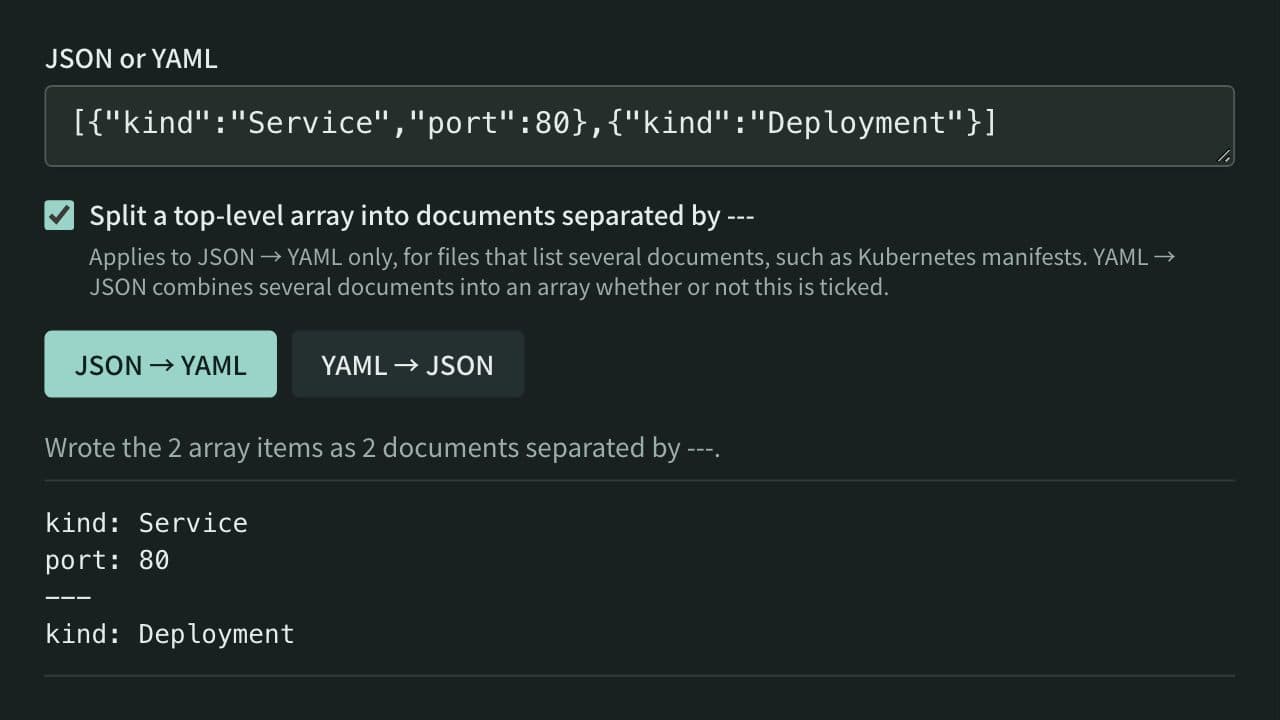
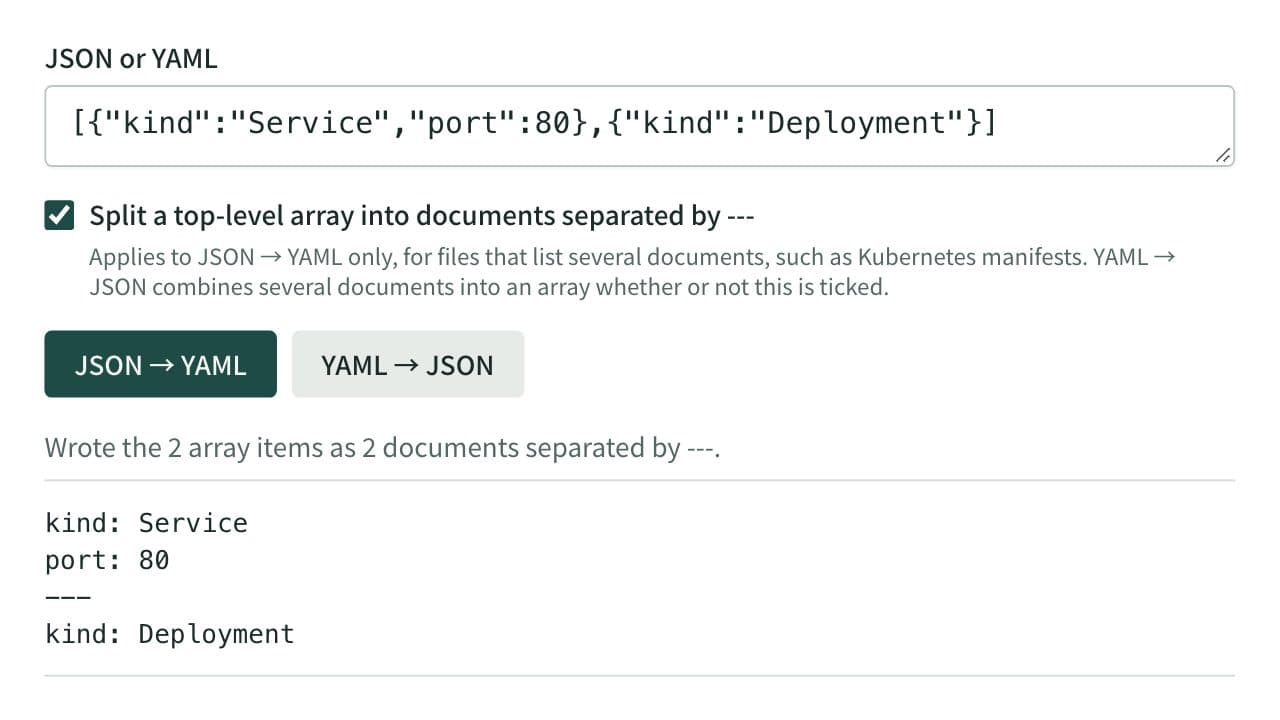
Convert between JSON and YAML, including multi-document YAML (--- separated) to and from JSON arrays — useful for config file format conversion and data inspection.
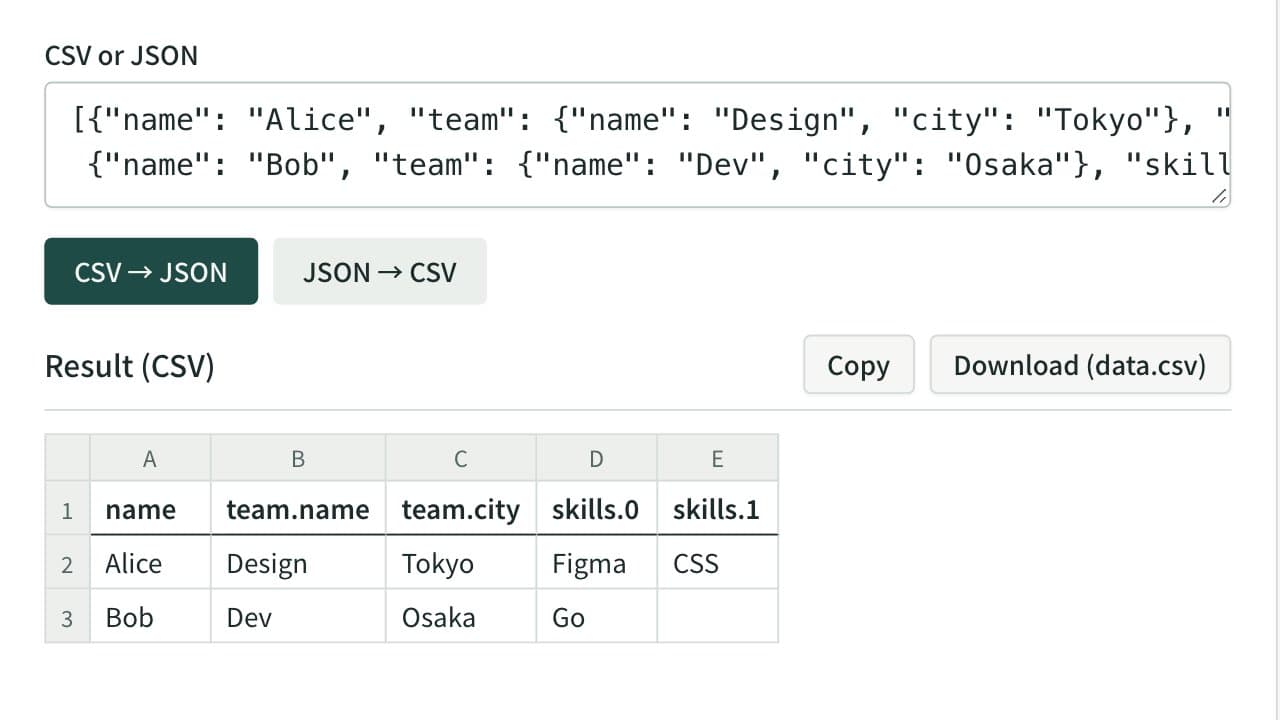
CSV ⇔ JSON Converter
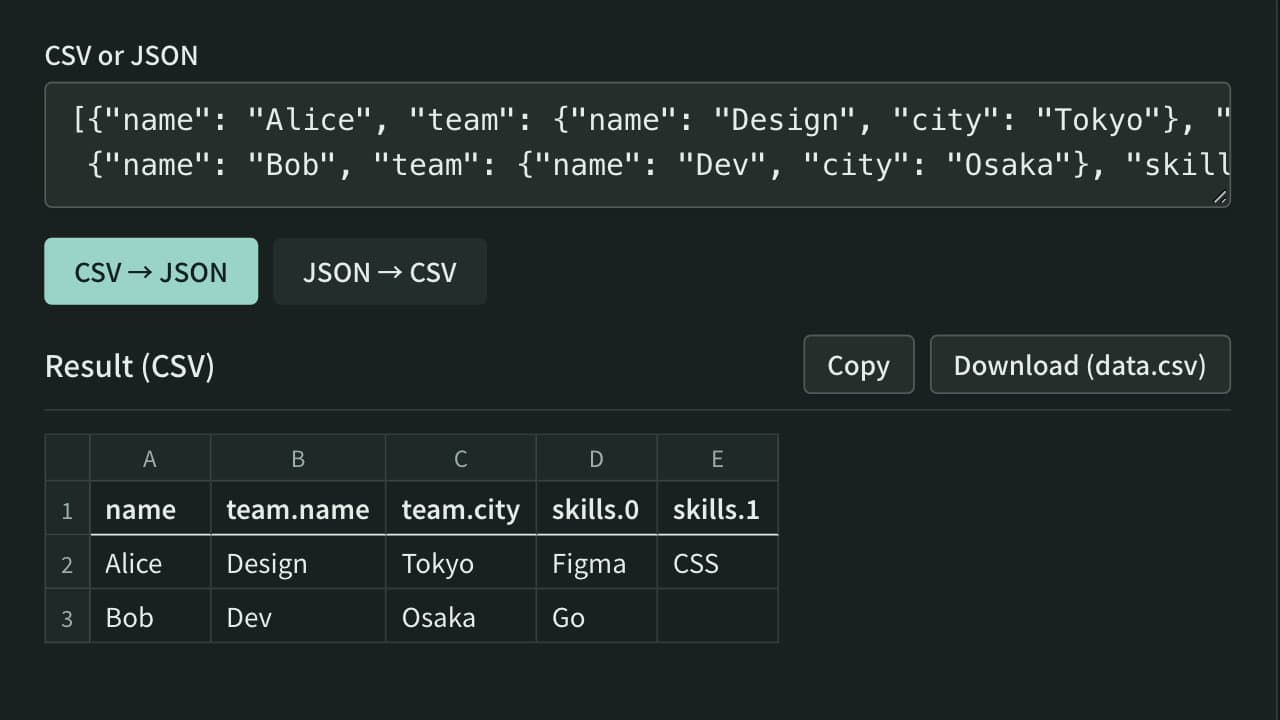
Convert between CSV or tab-separated text and JSON — turn a spreadsheet table into JSON, or a JSON array back into rows and columns. Nested JSON is expanded into columns such as address.city. Download the result as a CSV file that Excel opens without garbled text.
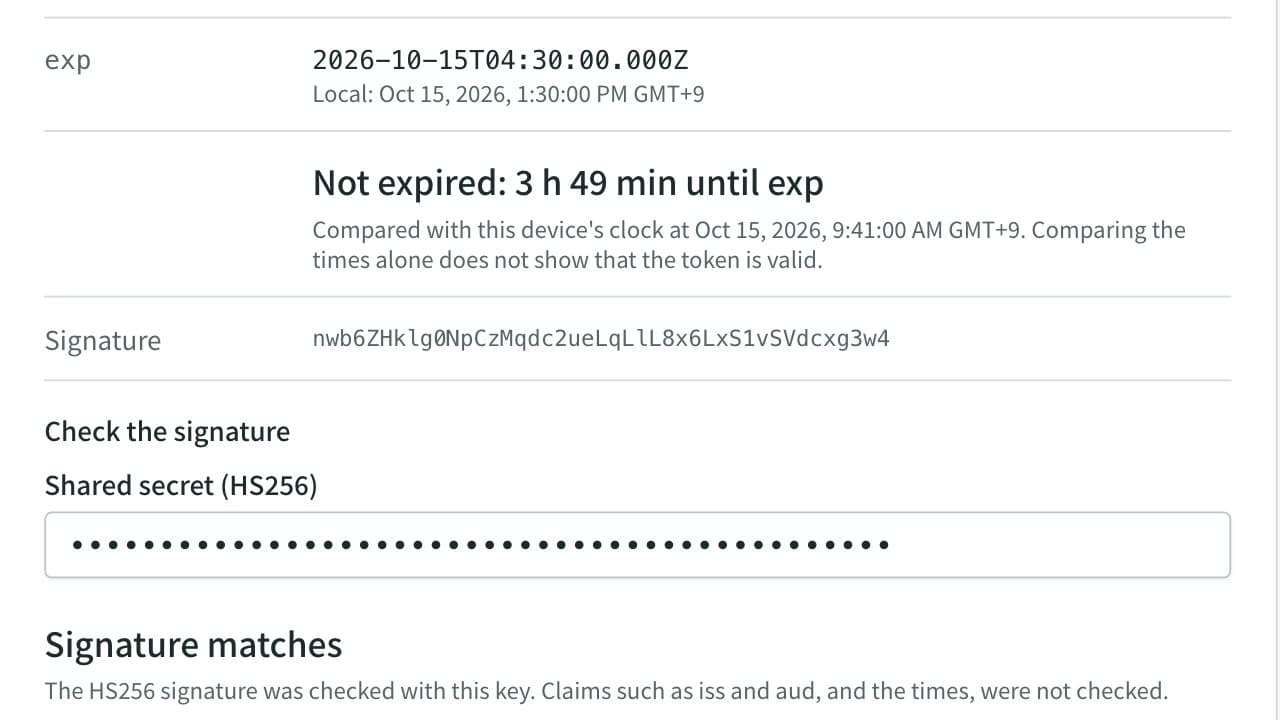
JWT Decoder
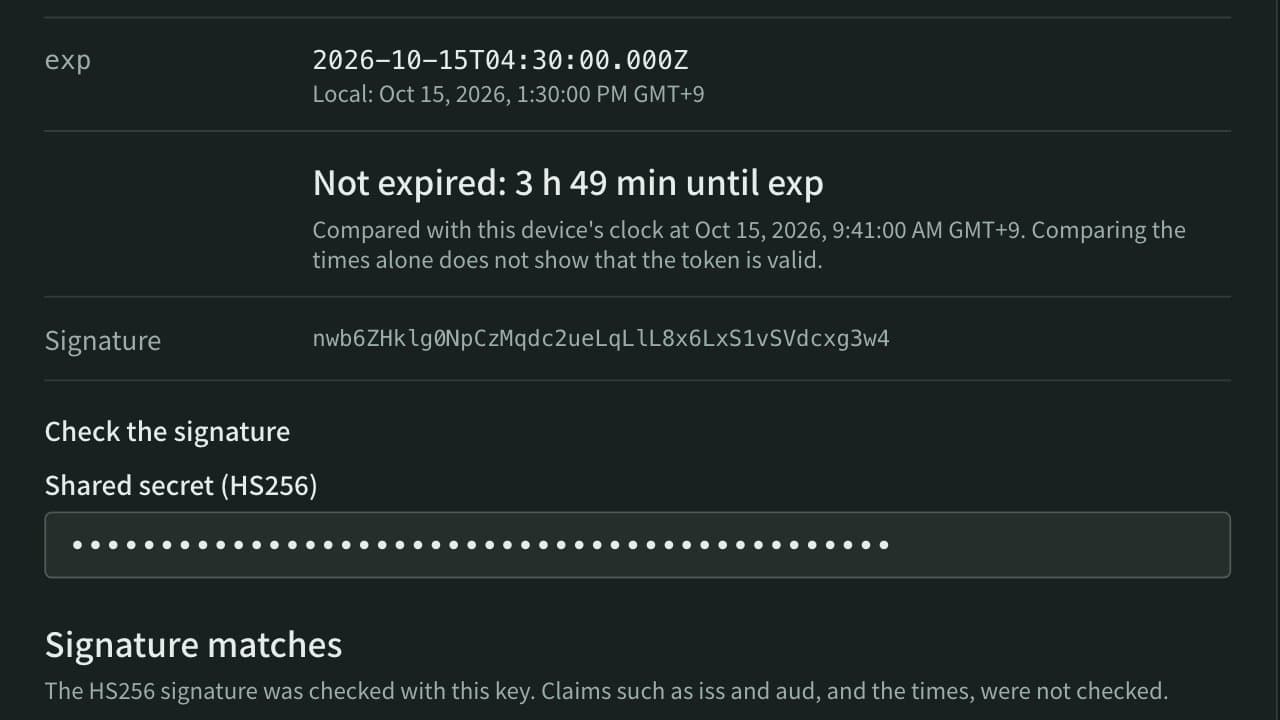
Decode a JWT (JSON Web Token) header and payload, and compare its expiration time (exp) with the current time. Enter a shared secret or public key to check whether an HS256, RS256, ES256, or similar signature matches, right in the browser.