Bullet List Formatter
Unify mixed list markers into -, •, 1., (1), a) and more, and renumber the items. Levels are read from the indentation and each level gets its own marker. Also converts to Markdown or HTML lists, removes markers, and joins wrapped lines.
The first number at level 1 (0–99999; 0 only for digits).
Automatic: uses indentation if lines are indented to different depths, otherwise the kind of numbering. Different symbols such as • and - count as one level.
Enter a list to see the formatted result here.
How to use
- Paste a list into "Original list", or type one item per line. "Try an example" fills in a list with mixed markers
- Pick a style under "Common styles": Markdown, Japanese middle dot, business document, Japanese official documents and more. Each one switches the marker for every level, “Between marker and text”, “Digits and letters in numbers” and the indentation together
- If needed, change the marker of each level under "Marker for each level". "Custom" lets you use any marker, such as
▼or[Done] - Adjust "Indentation", "Start at", "Lines without a marker", "Blank lines", "Checkboxes" and "Output" as needed
- The result appears in "Formatted list". "Copy result" puts it on the clipboard
There is no run button: the result updates whenever you change the text or a setting. The first style is "Markdown (-)". Your text is processed only in your browser and is never sent or stored anywhere.
Below the result you can see the number of items and levels, how the levels were found, and every kind of marker that was read with its line count. Use it to check that the markers were read the way you expected.
Example
A list copied from an email or document, with mixed markers and indentation:
1. Set up the room
  • Arrange the desks and chairs
  • Check the projector
2.Reception
  - [x] Print the guest list
  - [ ] Prepare name tags
3) Clean up
  a. Sort the rubbish
  b. Return the key
With "Business document (1. (1) ①)" (indented with one full-width space):
1. Set up the room
 (1) Arrange the desks and chairs
 (2) Check the projector
2. Reception
 (1) [x] Print the guest list
 (2) [ ] Prepare name tags
3. Clean up
 (1) Sort the rubbish
 (2) Return the key
1., 2. (no space) and 3) are all read as level 1, and •, - and a. as level 2 because they share the same indentation; the items are renumbered from 1. Set "Checkboxes" to "Remove" if you don't want the boxes.
With "Markdown (1.)", the same list becomes:
1. Set up the room
   1. Arrange the desks and chairs
   2. Check the projector
2. Reception
   1. [x] Print the guest list
   2. [ ] Prepare name tags
3. Clean up
   1. Sort the rubbish
   2. Return the key
Markers that are read
These markers at the start of a line are read as list markers, removed, and replaced:
- Symbols:
・•●○◎■□◆◇▶★☆✓and others. They are read even without a space after them - Markdown markers:
-*+, only when followed by a space or full-width space.-5 °Cand*emphasis*stay as text - Numbers:
1.1)(1)1、①–㊿⑴⒈a.a)(a)A.i.ii.Ⅰ, Japanese第1一、(一)ア.(ア), and full-width digits and letters. Roman numerals are read only when made ofi,vandx(up to 39) - Outline numbers with two or more dots, such as 1.2.3, or ending in a dot, such as
1.1.. Each number must be 1–99, and the first one at most 19. A number with one dot followed by a full-width space or tab, such as1.1 目的, is read only when it continues an item numbered1.directly above it in order (1.1, then1.2) - Checkboxes:
[ ][x]☐☑(also full-width[ ]and[ ]with a full-width space), after a marker or on their own at the start of a line
These are kept as text rather than read as markers:
- Things that look like a number, such as
1.5kgor1,000 yen - A number followed by a half-width space, such as
3 applesor10 個, since it cannot be told apart from a quantity. A full-width space or tab after the number makes it numbering 1.1 Overview(one dot followed by a half-width space), IP addresses such as192.168.1.1, year-month-day dates such as24.10.18, and decimals such as2.5 kg. Version numbers such as1.2.3 releaseare, however, read as outline numbers- A Japanese numeral followed straight away by the next digit, such as
二、三日("two or three days") or二、三十代("20s or 30s");二、一般事項is still numbering, andア、without a space after it - Placeholders, legends and ratings such as
○○,○月○日,○歳以上,○×,○:可,★☆☆or★5, the same symbol repeated, such as・・・, and copyright notices such as(c) 2024 - Initials such as
J. K. Rowling, and words with letters other than i, v and x, such asCD.or(mix) ▲and△(often a minus sign in Japanese accounts),※and→
A single i., v. or x. could be a letter or a Roman numeral. It is read as whichever continues the letters or numerals before it in the same style (i. after h. is a letter, v. after iv. a numeral). If neither, i. starts a Roman numeral list and v. and x. are letters.
How levels are found
"How levels are found" has four choices.
- Automatic: uses the indentation if some lines are indented more than others, otherwise the kind of numbering
- From indentation: uses the depth of spaces, tabs and full-width spaces. Tabs stop every 4 columns and a full-width space counts as two spaces. A deeper line goes one level down; a shallower line goes back to the level with the same depth
- From marker types: a kind of marker seen for the first time goes one level down, and a kind seen before goes back to its level. Different symbols such as
●and○become different levels - All on one level: puts every item on level 1, ignoring indentation and markers
Lists can have up to 10 levels. Deeper indentation or markers are put on level 10, with a notice.
For a document whose indentation was lost when copying, "Automatic" or "From marker types" can restore levels such as • under 1. or a. under (1). "Automatic" treats different symbols such as • and - as one level, so a list that only mixes symbols does not get nested.
Japanese official documents
"Japanese official, horizontal" follows the horizontal-writing order given as an example in the Council for Cultural Affairs' "Approach to Writing Official Documents" (公用文作成の考え方, 2022): 第1 → 1 → (1) → ア → (ア), with a for level 6. The vertical-writing example 第一 → 一 → 1 → (一) → (1) → ア is "Japanese official, vertical". Both use full-width digits, a full-width space after the number, and one full-width space of indentation per level.
The guidance says this order is only an example. If your organization's rules differ, change the marker for each level under "Marker for each level".
Making Markdown
"Markdown (-)" and "Markdown (1.)" set the indentation to "Align to text". In Markdown, a nested item has to be indented to where the text of its parent item starts, or it is not nested. The indentation follows the length of the parent marker: two spaces under - , three under 1. , four under 10. .
The output also keeps these Markdown rules:
- One marker per level, because mixing
-and*splits a list in two - A notice appears if “Between marker and text” is anything other than a space, or if the indentation (2 spaces, 4 spaces or a tab) is narrower than the marker above it, such as 2 spaces under
1.or 4 under100. - Text that starts with
2026.,1),-,#,>and so on gets a backslash, as in2026\., so that it does not become a nested list or a heading - With "Leave as they are" for lines without a marker, such lines are moved to the left edge with a blank line before and after, so that they are not read as part of the item above
- With "Keep and restart numbering" for blank lines, lists with Markdown markers get
<!-- -->after the blank line, because a blank line alone does not end a Markdown list - Checkboxes are written as
- [ ] to doand- [x] done, which GitHub and other tools show as task lists
Markers such as ・ and ① are not Markdown list markers, so in Markdown they show as plain text.
HTML output
Set "Output" to "HTML (ul / ol)" to get nested <ul> and <ol> lists.
1.a.A.i.I.use the numbering of<ol>(thetypeattribute), with astartattribute when the list does not start at 1•,●and-become a<ul>with discs (list-style-type: disc),○with circles (circle), and■with squares (square). This is always written, because browsers otherwise turn nested lists into circles and squares- Markers HTML has no numbering for, such as
(1),①or・, go into a list withlist-style-type: none, and the marker is written as text in each item - Checkboxes become
<input type="checkbox" disabled>. Characters such as<and&in the text are escaped
Lines without a marker, blank lines and numbering
- Lines without a marker: "Make them items" makes each line an item. "Join to the item above" adds a line that was wrapped (for example in a PDF) to the item before it, with no space between Japanese text and one space between English words. "Leave as they are" keeps lines such as headings without a marker and restarts numbering after them
- Blank lines: "Remove", "Keep", or "Keep and restart numbering". Use the last one when the lists before and after a blank line are separate
- Start at: the first number at level 1, from 0 to 99999. Lower levels restart from 1 under each parent item.
①,ア,a, Japanese and Roman numerals have no 0, so item 0 uses a digit, with a notice - Digits and letters in numbers: "Full-width" turns the digits, letters, brackets and dots of numbers into full-width characters such as
1.or(a).-,*and+stay as they are
① goes up to 50, ア up to ン (46), Japanese numerals up to 9999 and Roman numerals up to 3999. Later items use digits, with a notice.
FAQ
Is my text sent anywhere?
No. Everything is formatted in your browser, and the text is never sent to a server or stored. Reloading the page clears it.
Can I keep the original numbers?
No. The tool always renumbers items to follow their order. To keep certain numbers, leave that part out of the text you format.
A marker stays as part of the text
A - or * without a space after it, a half-width number followed by a space (3 apples), ※, placeholders such as ○月○日 and similar are not read as markers because they cannot be told apart from text. They appear as "no marker" in "Markers found" below the result. Add a space after the marker, or write the number as 3..
The levels are not what I expected
Try another "How levels are found". "From marker types" suits text whose indentation is broken, "From indentation" follows the indentation whatever the markers are, and "All on one level" flattens the list.
What happens when I paste into Word or Excel?
The result is plain text, so in Word the markers and numbers arrive as characters, not as Word's automatic lists. To use Word's list feature, choose "Remove markers" to keep only the text, then apply the list in Word. Pasted into Excel, each line goes into its own cell, with the markers and indentation spaces as part of the cell text. With the indentation set to Tab, the tabs split the line into neighbouring cells.
How long can the list be?
Up to 5,000 lines and 200,000 characters. Longer text shows a notice and is not formatted.
- Type
- Utility
- Category
- Text
- Tags
- text
- list
- bullet
- numbering
- markdown
- indent
- html
Related apps
Random Team Generator
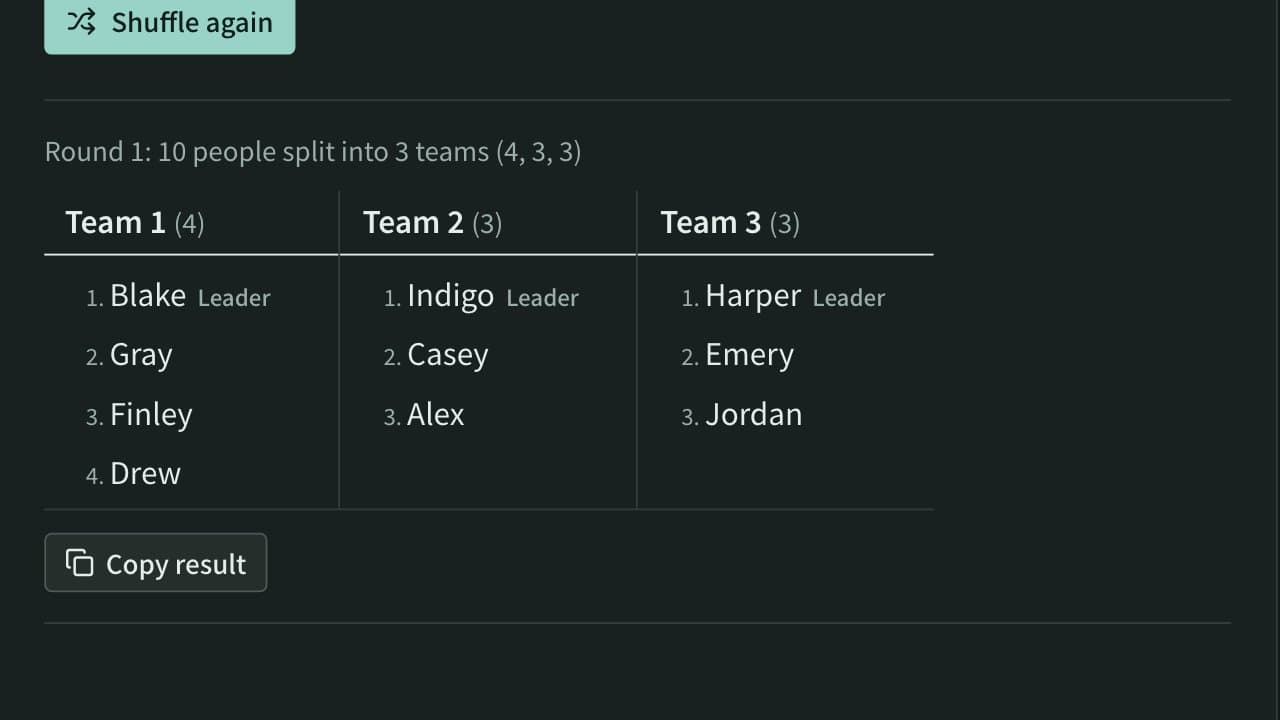
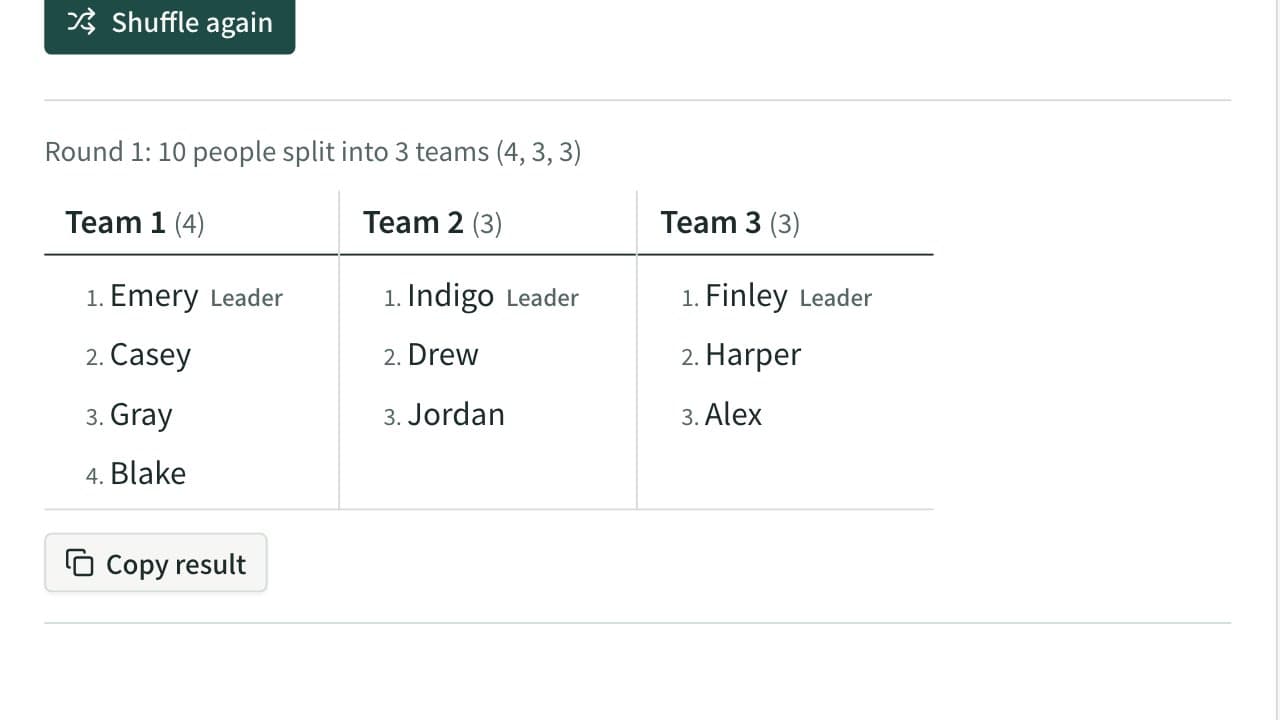
Split a list of names into random teams by the number of teams or the people per team. Team sizes differ by at most one, groups such as experienced and new members can be spread evenly, and a leader can be picked for each team.
Character Counter
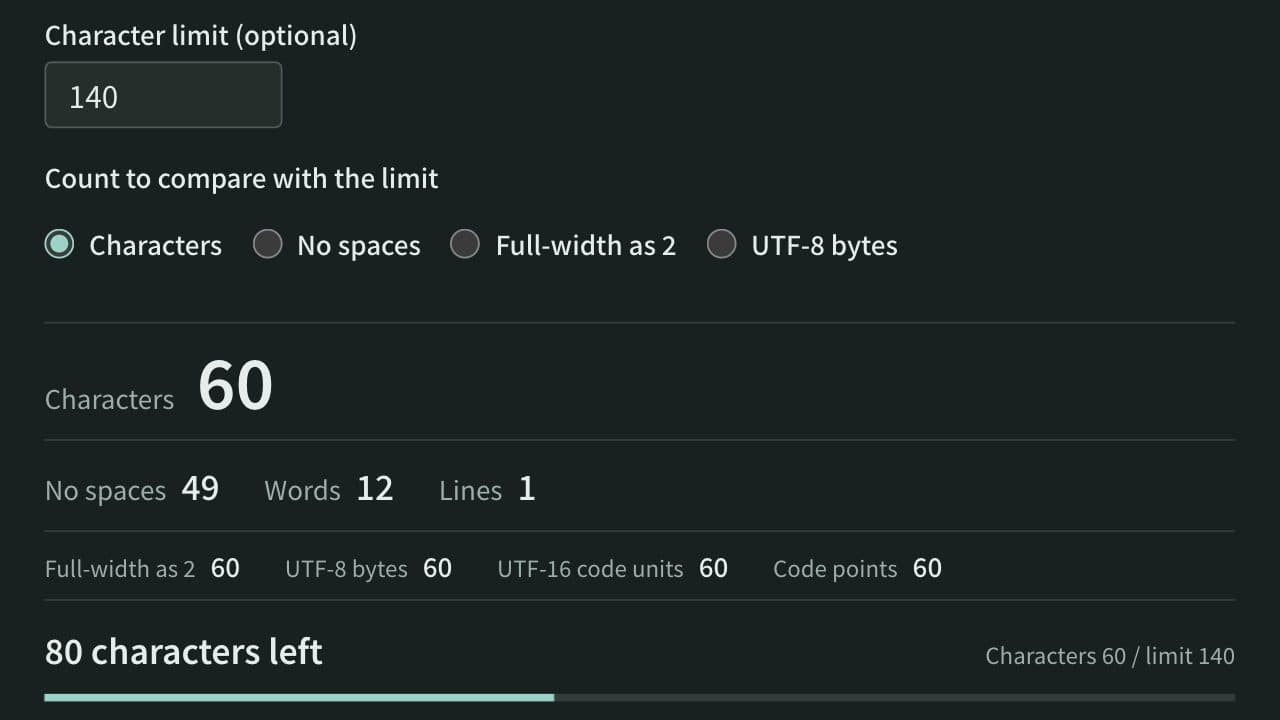
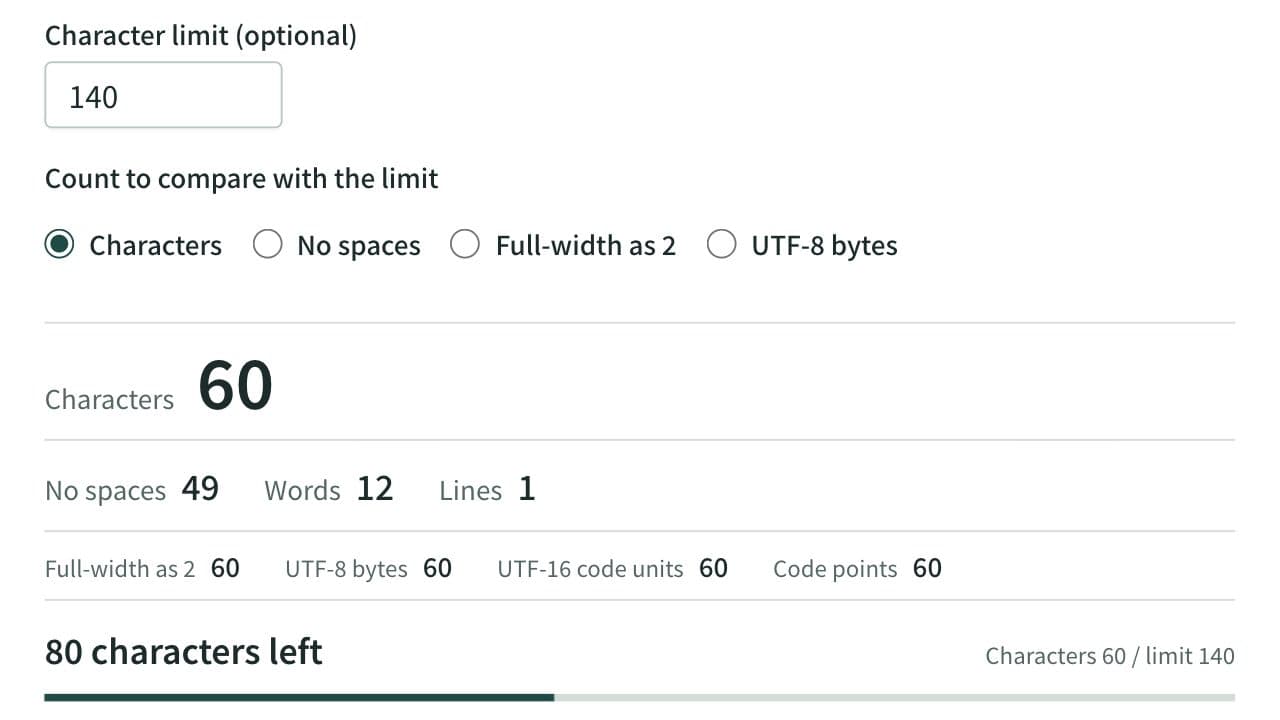
Count characters, words and lines in real time. Also shows the count with full-width characters as 2, UTF-8 bytes, and UTF-16 code units, with the amount left before a limit and where the text goes over it. For social posts, manuscripts, and form fields.
Find and Replace Text Tool
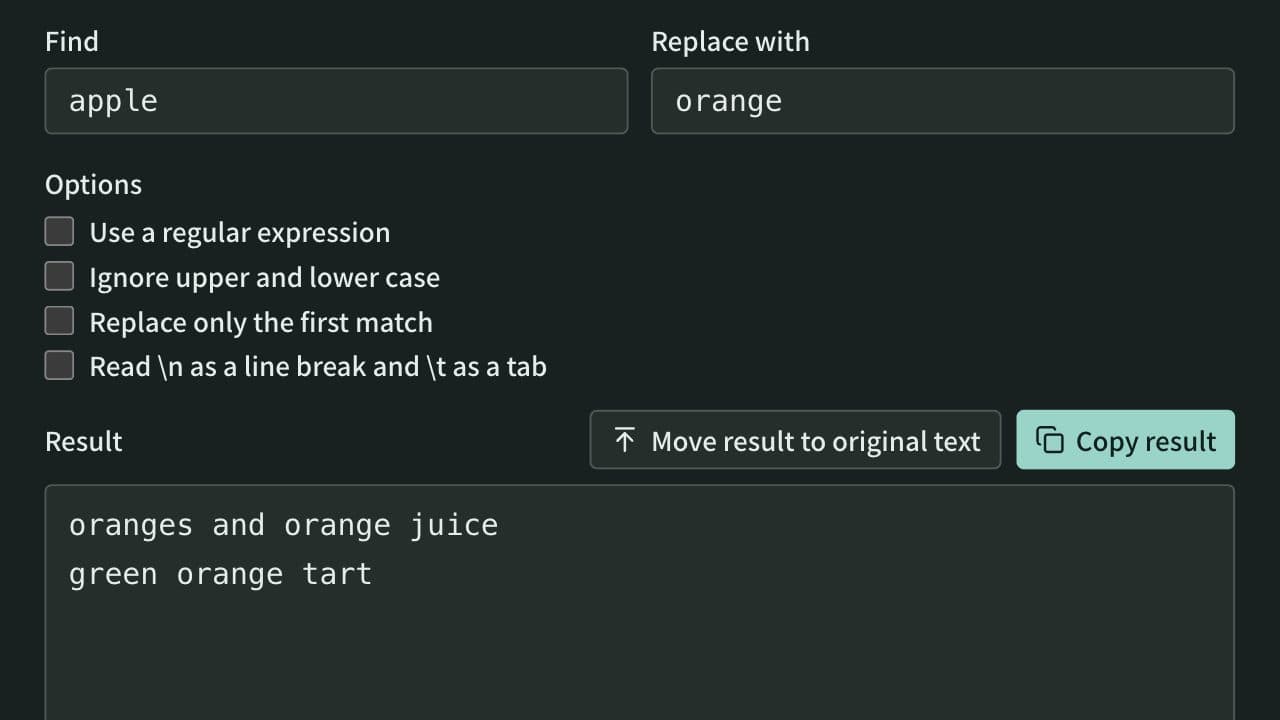
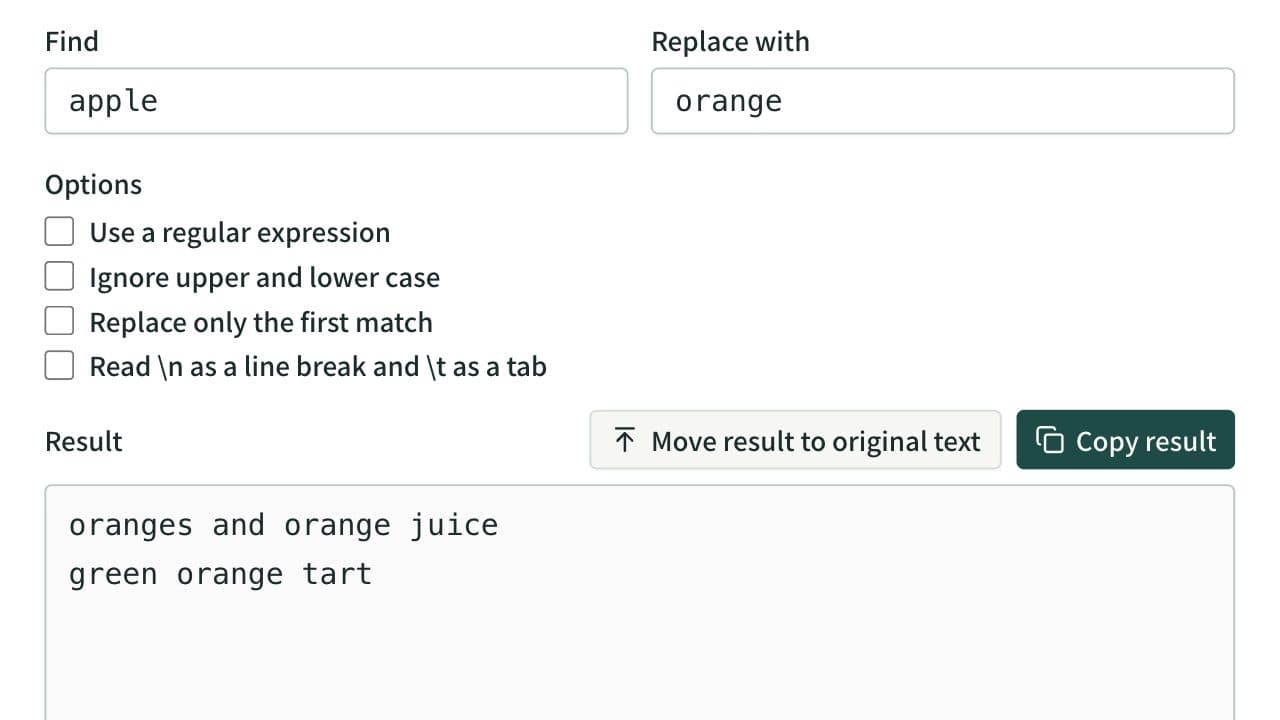
Replace every occurrence of a string in pasted text and see how many were replaced. Apply several rules in order, and replace only the first match, ignore case, use line breaks and tabs, or use regular expressions with $1 references.