Find and Replace Text Tool
Replace every occurrence of a string in pasted text and see how many were replaced. Apply several rules in order, and replace only the first match, ignore case, use line breaks and tabs, or use regular expressions with $1 references.
Enter text and a string to find to see the result and the number of replacements.
How to use
- Type or paste the text you want to change into "Original text"
- Enter the string to look for in "Find"
- Enter the string to put in its place in "Replace with". Leave it empty to delete the string you searched for
- "Result" shows the text with every match replaced. With "Replace only the first match" on, only the first match is replaced. The number of replacements appears below it
- Press "Copy result" to put the result on the clipboard
There is no run button. The result changes whenever you change the input or a setting. The original text is never rewritten, so you can try as many search strings as you like.
To replace several strings at once, press "Add rule" to add another pair of "Find" and "Replace with". See "Replace with several rules" below for details.
To run another replacement on the result, press "Move result to original text". The result becomes the original text, and the rules go back to a single empty one for the next replacement.
Example
This example renames a product everywhere at once. Put this sentence in the original text:
apples and apple juice
With apple in "Find" and orange in "Replace with", the result is the following, and "Replaced 2 matches." appears below it.
oranges and orange juice
If you leave "Replace with" empty, both occurrences of apple are deleted and the result is s and juice.
How replacement proceeds
- Matches are searched from the start of the text, and they do not overlap. Replacing
aawithainaaamatches only the first two characters; the result isaa, with 1 replacement - Inserted text is not searched again. Replacing
awithaainabgivesaab, with 1 replacement - If nothing matches, the result is the same as the original text and "No matches were found." is shown
- While "Use a regular expression" is off, both "Find" and "Replace with" are read as the exact characters you typed. Symbols such as
.,*,+,(, and$1have no special meaning. To find the+in1+1=2, you do not need a\before it
Replace with several rules
Press "Add rule" to add another pair of "Find" and "Replace with" (a rule). With two or more rules, each is numbered "Rule 1", "Rule 2", and so on, and the number of its matches appears next to the number.
This example fixes several typos at once. Put this sentence in the original text:
Please recieve teh file and teh notes.
Set Rule 1 to find recieve and replace it with receive, and Rule 2 to find teh and replace it with the. The result is the line below. "1 match" appears next to Rule 1, "2 matches" next to Rule 2, and "Replaced 3 matches in total." below the result.
Please receive the file and the notes.
- Rules are applied from top to bottom. Rule 2 searches the result of Rule 1, not the original text. When Rule 1 replaces
awithband Rule 2 replacesbwithc,abbecomescc. With the two rules swapped, it becomesbc - Change the order with the up and down arrow buttons of each rule. The × button removes that rule
- A rule with an empty "Find" is skipped, and no count appears next to its number
- The options below apply to every rule alike. With "Replace only the first match" on, each rule replaces its own first match
- When a regular expression is invalid, or an intermediate result grows past 5 million characters, the message names the rule where replacing stopped, as in "Rule 2: ", and no result is shown
- You can add up to 20 rules
Options
Unless stated otherwise, each example below shows the result with the other options off. For example, with "Replace only the first match" left on, only the first match is replaced instead of every line or separator.
Ignore upper and lower case
When on, apple also matches Apple and APPLE. Full-width letters (ABC and abc) are treated the same way.
Full-width and half-width characters (ABC and ABC), and hiragana and katakana, remain different characters even with this option on. To unify them first, use the full-width and half-width converter.
Replace only the first match
When on, only the first match from the start of the text is replaced, and the later ones are left as they are. After a replacement, "Replaced the first match." is shown.
Replacing apple with orange in apples and apple juice gives oranges and orange juice with the option off, and oranges and apple juice with it on.
With "Use a regular expression" on as well, only the first match is replaced. Finding ^ and replacing with - makes only the first line start with - .
Read \n as a line break and \t as a tab
"Find" and "Replace with" are single-line fields, so you cannot type a line break or a tab into them. When this option is on, three sequences are read differently:
\n: a line break\t: a tab\\: a single\
For example, with a, b, c as the original text, , in "Find", and \n in "Replace with", turning the option on gives three lines:
a
b
c
When the option is off, \n is the two characters \ and n, and the result is a\nb\nc. Leave it off when working with paths such as C:\new.
Any other \, as in \x or \d, stays as it is. When "Use a regular expression" is on, "Find" is read as a regular expression, so this option only changes "Replace with". Inside a regular expression, \n matches a line break and \t matches a tab regardless of the option.
Use a regular expression
When on, "Find" is read as a JavaScript regular expression. Enter the pattern without surrounding /.
- Change a date format: find
(\d{4})/(\d{2})/(\d{2}), replace with$2/$3/$1, and2026/10/12becomes10/12/2026 - Swap two words: find
(\S+) (\S+), replace with$2 $1, andTaro YamadabecomesYamada Taro - Add text to the start of every line: find
^, replace with-, and every line starts with- - Delete trailing spaces: find
+$(starting with a space), and leave "Replace with" empty - Collapse repeated spaces: find
{2,}(starting with a space), replace with one space - Delete blank lines: also turn on "Read \n as a line break and \t as a tab", find
\n{2,}, replace with\n
In "Replace with", these sequences insert what was matched:
$1,$2, …: the text matched by the first, second, … parenthesized (capturing) group$<name>: the text matched by a group named with(?<name>…)$&: the whole match. Findingband replacing with[$&]turnsabcintoa[b]c$$: a single$
A group number that the pattern does not have, such as $1 with a pattern that has no parentheses, is not replaced and comes out as $1. Numbers are read up to two digits. However, when there is no group with the two-digit number but there is one with its first digit, it is read as the one-digit number followed by a digit. With a pattern that has a single group, $12 gives the content of the first group followed by 2.
Regular expressions always run with the following settings. Individual flags cannot be chosen.
- While "Replace only the first match" is off, every match is replaced (
g) ^and$match at the start and end of each line, not of the whole text (m)- Characters are handled as whole Unicode characters (
u)..matches an emoji or a character such as𠮷as one character, and classes such as\p{Script=Hiragana}work. In exchange, a meaningless\, as in\-, is an error; write-as it is .does not match a line break. Use[\s\S]for any character including a line breakiis added only when "Ignore upper and lower case" is on
To check what a pattern matches before replacing, look at the matches in the regex tester first.
Limits and behavior
- Either every match or only the first match is replaced. You cannot choose a later match, such as only the second one
- Several rules are applied one after another from the top. There is no way to apply every rule at the same moment so that the text one rule inserts is kept from the others. To swap two strings, use the method in the FAQ below
- The 5-million-character limit is checked after each rule
- There is no whole-word option. For English words, a regular expression such as
\bcat\bleaves out thecatinsideconcat - A result longer than 5 million characters is not shown. This also applies when nothing is replaced and the original text itself would be the result
- The browser turns line breaks pasted into the original text into the single character
\n. Line breaks in the copied result are\nas well - With a regular expression, the replacement runs 0.15 seconds after you stop typing, in background processing separate from the page (a Web Worker). With several rules, all of them together must finish within 1 second. If they do not, replacing is stopped and no result is shown. In a browser without Web Workers it runs in the page, so this cutoff does not apply
- The text you enter is processed only inside the browser showing this page. It is not sent or stored anywhere. Reloading the page clears the input
FAQ
Can I delete line breaks or replace them with something else?
Yes. Turn on "Read \n as a line break and \t as a tab" and enter \n in "Find". Leave "Replace with" empty to delete the line breaks and join the text into one line, or enter a character such as , to put it in their place.
Can I search for ., *, or parentheses as they are?
Yes. While "Use a regular expression" is off, every symbol is searched for as the character you typed. While it is on, put a \ in front, as in \. or \*.
The $1 I wrote in "Replace with" comes out as it is
While "Use a regular expression" is off, $1 is inserted as the characters you typed. Even when it is on, $1 stays as it is if "Find" has no parenthesized group.
Can I replace only the first match?
Yes. Turn on "Replace only the first match". To change a single later place, include the characters around it in "Find" so that only that place matches.
How do I replace several strings at once?
Add rules with "Add rule" and enter "Find" and "Replace with" for each. Rules are applied from top to bottom, so the order can change the result: a rule that replaces b with c below one that replaces a with b also turns the original a into c.
Can I swap two strings?
Swap them with three rules and a marker character that is not in the text. To swap apple and lemon, replace apple with ● in Rule 1, lemon with apple in Rule 2, and ● with lemon in Rule 3. apple and lemon becomes lemon and apple. With only Rule 1 replacing apple with lemon and Rule 2 replacing lemon with apple, Rule 2 also replaces the lemon that Rule 1 inserted, and the result is apple and apple.
Can I see which places were replaced?
This app shows the replaced text and the number of replacements. To see what changed, paste the original text and the result into the text diff tool.
Why does it say "Replacing was stopped because it did not finish within 1 second"?
A regular expression with nested repetition, such as (a+)+$, can need an explosively growing number of attempts on text that does not match (catastrophic backtracking). Remove the nested repetition, as in a+$, or shorten the text.
- Type
- Utility
- Category
- Text
- Tags
- text
- replace
- find
- search
- regex
- bulk
- delete
Related apps
Text Formatter
Clean up extra spaces and blank lines, optionally join the line breaks of text pasted from a PDF and remove spaces between Japanese characters, check text counts, and copy the result.
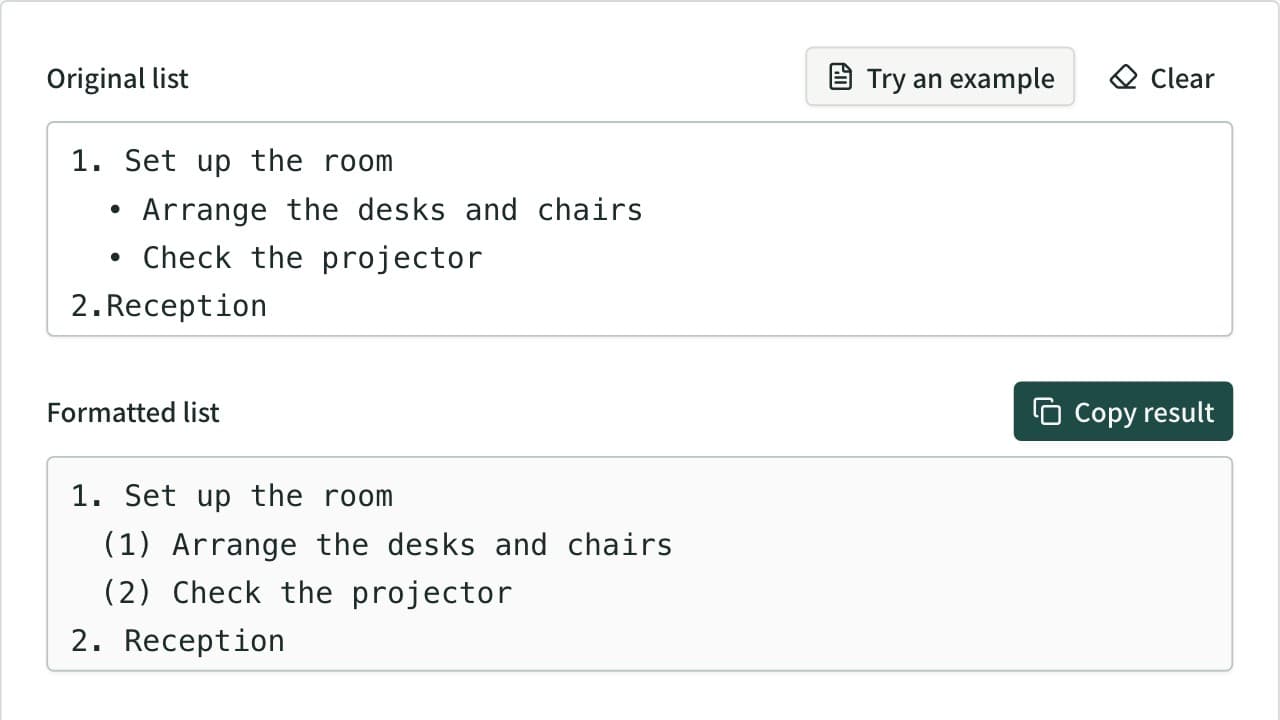
Bullet List Formatter
Unify mixed list markers into -, •, 1., (1), a) and more, and renumber the items. Levels are read from the indentation and each level gets its own marker. Also converts to Markdown or HTML lists, removes markers, and joins wrapped lines.
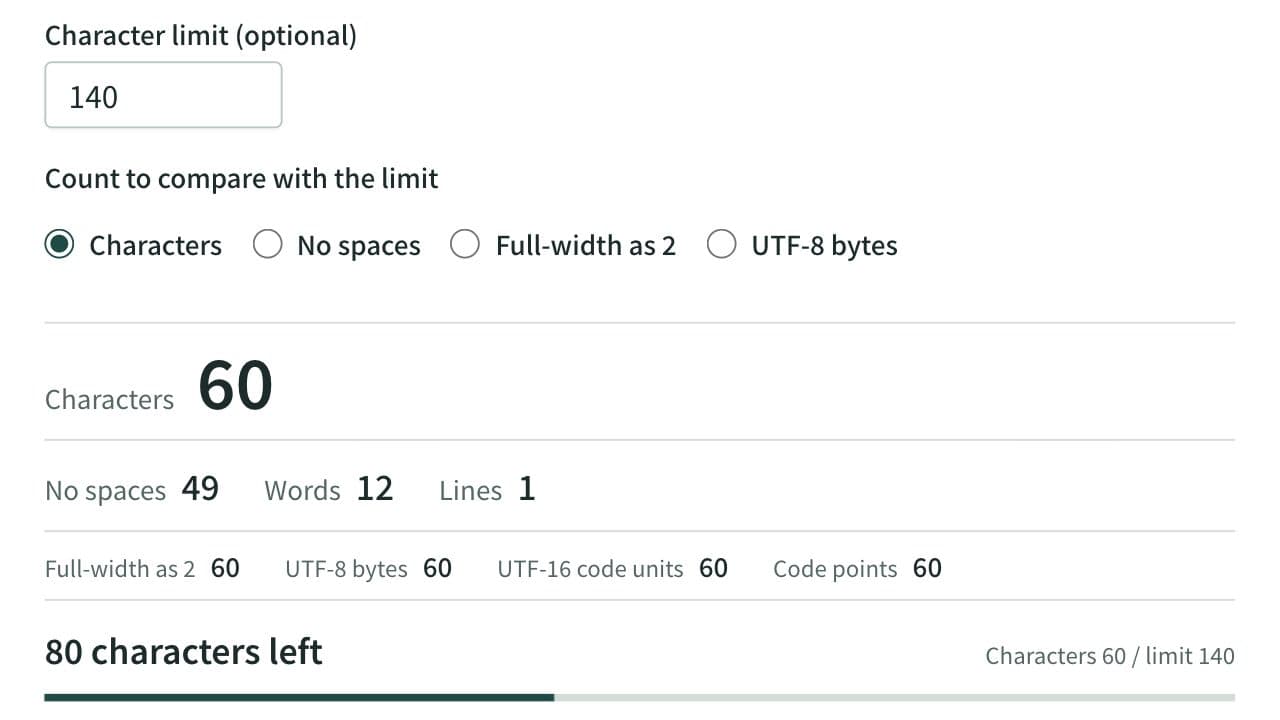
Character Counter
Count characters, words and lines in real time. Also shows the count with full-width characters as 2, UTF-8 bytes, and UTF-16 code units, with the amount left before a limit and where the text goes over it. For social posts, manuscripts, and form fields.