Line Sorter and Duplicate Remover
Sort a one-item-per-line list ascending, descending, reversed, or shuffled, and remove duplicate and blank lines. Spreadsheet tables and CSV can be sorted by a chosen column with the header line kept on top. Can also list only repeated or only unique lines and count how often each line appears.
Enter a list to see the sorted result and line counts.
How to use
- Type one item per line into "Original list", or paste a spreadsheet column or a note
- Choose an order: keep input order, ascending, descending, reverse, or shuffle
- For ascending or descending, choose what to compare by: text, natural, number, length, or frequency
- To sort a spreadsheet table or CSV, choose how its columns are split under "Compare", then choose the column
- Under "Duplicate lines", choose to keep all, keep one of each, keep repeated lines only, or keep unique lines only. You can also put each line's count in front of it
- Under "Clean up lines", switch blank line removal and the other options on or off. If the first line is a header, turn on "Keep the first line on top as a header"
- The sorted list appears in "Result". Press "Copy result" to put it on the clipboard
There is no run button. The result changes whenever you change the input or a setting. The original list is never rewritten, so you can try different settings as often as you like.
The starting settings are ascending by text, keep one of each duplicate line, trim spaces at both ends, and remove blank lines. To remove duplicates without changing the order, set the order to "Keep input order".
Order of processing
Whatever the settings, the steps run in this order.
- Split the text into lines. Windows CRLF, old Mac CR, and LF each count as one line break
- Trim spaces at both ends of each line (when the option is on)
- Remove blank lines (when the option is on)
- Set the first line aside as the header (when the option is on). Steps 5 to 8 leave the header line alone
- Count how many times each line appears
- Keep the lines that the "Duplicate lines" setting selects
- Arrange the lines in the chosen order
- Put the count in front of each line (when the option is on)
- Put the header line back on top (when the option is on)
Duplicates are found and counted after trimming and blank line removal. A line apple and a line apple with a space in front of it therefore count as the same line when trimming is on. When trimming is off, they count as different lines.
Below the result you see the number of input lines, the number of result lines, how many lines were removed, and the chosen order. When you sort by a column, the column compared is shown too, and "Header: first line" appears when a header line is kept. Removed lines are counted separately as duplicates (second and later copies), lines appearing once, repeated lines, and blank lines. A line break at the very end of the input is not counted as a line.
Example
Several people added to the same shopping note. The second line starts with a space, and there is a blank line in the middle.
oranges
 apples

bananas
oranges
grapes
apples
Result with the starting settings (ascending by text):
apples
bananas
grapes
oranges
The line below reads "7 lines in → 4 lines out (removed: 2 duplicate, 1 blank) Order: Ascending (Text)". With the order set to "Keep input order", the lines stay in the order they first appeared: oranges, apples, bananas, grapes.
Orders and comparisons
There are five orders.
- Keep input order: the order does not change. Use it when you only want to remove duplicates or blank lines
- Ascending: smallest first, by the comparison you chose
- Descending: the opposite of ascending
- Reverse: turns the input order upside down. Line contents are not compared
- Shuffle: puts the lines in a random order. "Shuffle again" draws the order again
The comparison applies only to ascending and descending.
- Text: dictionary-like order. Symbols come first, then digits, Latin letters, kana, and kanji. Upper and lower case sit next to each other, as in
a,A,b,B - Natural: the same as Text, except that a run of digits compares by its value. Digits in the middle of a line sort by value too, as in
Part 9,Part 10,Part 100 - Number: reads the number at the start of each line and sorts by its value. Text may follow the number, as in
9 pcs,10 pcs,100 pcs - Length: sorts by the number of characters in the line. An emoji or a character built from several code points counts as the one character you see
- Frequency: sorts by how many times the same line appears in the original list. Descending puts the most frequent first
With every comparison, lines that rank the same stay in their input order. With Frequency, lines with the same count follow the order in which each line first appeared, and copies of the same line stay together.
Digits in text order
Text order compares one character at a time from the start, so 10, 9, 100 become 10, 100, 9. Choose Natural or Number to sort by value.
Natural or Number
Natural also compares the text around the digits. Number compares only the number at the start of the line.
- Use Natural when the number follows text: lines such as
Part 10,Chapter 2,file10.txt, andv1.10.0. Number reads only a number at the start of the line, so it does not treat these lines as numbers - Use Number for decimals, negative numbers, and numbers with thousands separators: Natural compares each run of digits as a separate whole number and does not read a decimal point, a sign, or a comma as part of a number. In ascending Natural order,
1.5and1.25become1.5,1.25(comparing5with25),-5and-10become-5,-10, and999and1,000become1,000,999 - A line with several numbers is compared from the left:
a9b99,a10b2,a10b10 - Full-width digits compare as numbers too:
9comes before10 - Digits that differ only in leading zeros, such as
007and7, or only in being full-width or half-width, such as7and7, rank the same and stay in input order - Natural tells apart long runs of digits that Number cannot:
9007199254740992and9007199254740993sort by value. A run of 255 or more digits, however, may not sort by value - Numbers written as words or kanji (
twelve,十二) are not read as numbers
Which numbers the Number comparison reads
After skipping spaces at the start of the line, it reads numbers in these forms.
- Integers and decimals:
12,3.5,.5 - Signs:
-5,+7 - Thousands separators:
1,234,567. A comma that does not group three digits is not a separator, so10,20is read as10 - Full-width digits and signs:
123is read as123
Lines that do not start with a number go to the end, in input order, for both ascending and descending. A number in the middle of a line, as in No. 3, is not read; use Natural to sort such lines by number. Exponent notation is not read either: 1e5 is read as 1. A decimal comma, as in 3,5, is read as 3.
Numbers compare exactly up to about 15 significant digits. Numbers of 16 or more digits that differ only at the end, such as 9007199254740993 and 9007199254740992, are treated as equal and stay in input order. Long identifiers such as member numbers sort by value in Natural order. They also sort correctly in Text order when they all have the same number of digits.
Accented letters and Japanese text
Text order uses one fixed collation on both the Japanese and English pages. Accented letters sort next to their base letter (e, é, f), but language-specific alphabet rules, such as Swedish placing å after z, are not applied. Kana sort in Japanese syllabary order. Kanji do not sort by reading, because the reading cannot be known from the characters alone.
Sorting by a column
For a table copied from a spreadsheet, or a list with several items on each line as in CSV, choose a column under "Compare" to sort the lines by the values in that column. Whole lines move; the items inside a line stay in their order.
- Whole line: the starting setting. Lines are compared from their first character
- Tab-separated column: tables copied from Excel or Google Sheets come in this form
- Comma-separated column: the CSV form. A comma inside an item wrapped in double quotes, as in
"Paris, France", does not split it.""inside the quotes is read as one", and the wrapping quotes are left out when comparing - Space-separated column: half-width and full-width spaces split the items. A run of spaces counts as one split. Tabs do not split
Once you choose how to split, a "Column" list appears. It lists as many columns as the line with the most items has, up to 50. With "Keep the first line on top as a header" on, it also shows the header names, as in Column 2 (Score). A name longer than 20 characters is cut to its first 20 followed by "…". If you edit the input so that no line reaches the chosen column, the last column is compared instead.
- Values are compared without the spaces around them. The comparison (Text, Natural, Number, or Length) applies to the value in the column
- Lines whose cell in the column is empty, or that have fewer items than the column, go last in input order for both ascending and descending. In Number order they go last together with lines whose value does not start with a number, in input order
- The column applies only when the order is ascending or descending and the comparison is not Frequency. Frequency always counts whole lines
- Duplicates are still whole lines that match completely, even with a column chosen. Two lines that share only the value in the column both stay
- When sorting by a tab-separated column, trimming removes spaces but keeps tabs at both ends of a line, so that a line with an empty first cell keeps its columns in place. A line ending in a tab and the same line without it therefore count as different lines
- A table with line breaks inside a cell does not sort correctly, because each line break starts a new line
Keeping a header line
With "Keep the first line on top as a header" on, the first line stays at the top of the result without being sorted. The header is the first line left after trimming and blank line removal.
- The header line is not checked for duplicates, counted, sorted, reversed, or shuffled
- When counts are shown, the header line starts with
Countand a tab, so the header still sits above each column when pasted into a spreadsheet - The line counts below the result include the header line
Here is a score sheet copied from a spreadsheet, so a tab separates its columns. It is sorted from the highest score down.
Name	Score	Class
Taro	80	1
Hanako	95	2
Jiro	70	1
Result with "Keep the first line on top as a header" on, "Compare" set to "Tab-separated column", the column set to "Column 2 (Score)", the order set to "Descending", and the comparison set to "Number":
Name	Score	Class
Hanako	95	2
Taro	80	1
Jiro	70	1
Below the result you see "4 lines in → 4 lines out Order: Descending (Number, tab-separated column 2) Header: first line". To edit the cells of a table or turn it into a Markdown table, use the Markdown Table Generator.
Handling duplicate lines
"Duplicate lines" decides what happens when the same line appears more than once.
- Keep all: no line is removed as a duplicate
- Keep one of each: the first occurrence stays, and the later ones are removed
- Repeated only: only lines that appear two or more times stay, one of each. Lines that appear once are removed
- Unique only: only lines that appear exactly once stay. Every copy of a repeated line is removed, including the first one
For example, the six lines b, a, b, c, a, b with the order set to "Keep input order" give these results.
- Keep all:
b,a,b,c,a,b - Keep one of each:
b,a,c - Repeated only:
b,a - Unique only:
c
The line that stays keeps the position and spelling of its first occurrence.
When two lines count as the same
- Lines must match completely. Lines that share only a part are not duplicates
- With "Ignore upper and lower case" on,
Appleandappleare the same line. Text and Natural order also ignore the difference between upper and lower case - Full-width and half-width forms (
ABCandABC) are different lines. To match them, unify the forms first with the Fullwidth and Halfwidth Converter - With trimming off, a line that ends with a space counts as a different line even though it looks the same
- With "Remove blank lines" off, blank lines count as the same line as each other. If there are two or more, one blank line stays in the "Repeated only" result too
Counting lines
With "Prefix each line with its count" on, each result line starts with the number of times it appears in the original list. A tab separates the count from the line, so pasting the result into a spreadsheet puts the counts and the lines in two columns.
- Lines are counted after trimming and blank line removal. With "Ignore upper and lower case" on,
Appleandappleare counted together - Copies removed by "Keep one of each" or "Repeated only" still count. If
dogappears three times, the one line that stays shows3anddog - With "Keep all", every copy of a line shows the same count
Here is a survey's answers, pasted to tally them from most to least common.
dog
cat
dog
bird
cat
dog
Result with the order set to "Descending", the comparison set to "Frequency", duplicate lines set to "Keep one of each", and counts on:
3	dog
2	cat
1	bird
Notes
- Spaces inside a line are not changed. To collapse repeated spaces, use the Text Formatter
- "Remove blank lines" also removes lines that contain only spaces, including full-width spaces
- If your data's first line is a header, as in a CSV file, the header is sorted with the other lines unless "Keep the first line on top as a header" is on
- Shuffle is meant for uses such as deciding a speaking order or seating. Nobody else can verify the result, so it does not suit prize draws or other cases where fairness must be proven
- The list is processed only in the browser showing this page. It is not sent anywhere or saved. Reloading the page clears the input
FAQ
Can I remove duplicates without changing the order?
Yes. Set the order to "Keep input order". The first occurrence of each line stays where it was, and only the later ones are removed.
Which of the duplicate lines stays?
The first one. With "Ignore upper and lower case" on, the spelling of the first line is the one that stays.
Can I list only the lines that were duplicated?
Yes. Choose "Repeated only" under "Duplicate lines" to see each line that appears two or more times, once. To see only the lines that appear once, choose "Unique only".
Can I count how many times each line appears?
Yes. Turn on "Prefix each line with its count" to put the count in front of each line. With the comparison set to "Frequency" and the order set to descending, the list runs from the most to the least frequent.
Can I sort a spreadsheet table by one column?
Yes. Copy and paste the table, set "Compare" to "Tab-separated column", and choose the column. If the table has a header line, turn on "Keep the first line on top as a header": the header stays on top, and the column list shows the header names. For CSV, choose "Comma-separated column".
Why does "10" come before "9"?
Because the comparison is set to Text. Text order compares from the first character, so 10, which starts with 1, comes before 9. Switch to Natural or Number to get 9, 10.
Can I put "Part 10" after "Part 9"?
Yes, with the comparison set to Natural. Natural compares digits in the middle of a line by value, so the order is Part 9, Part 10, Part 100. Text order gives Part 10, Part 100, Part 9, and Number keeps lines that do not start with a number at the end, in input order.
Does the shuffle change every time?
The order is drawn again when you choose "Shuffle" and when you press "Shuffle again". The new draw can happen to match the previous order. The fewer the lines, the more likely that is: a two-line list comes out the same one time in two. The order is also drawn again when the number of lines changes. The value that decides the order comes from the browser's cryptographic random number generator.
Can I check what changed between the original and the result?
This app shows the original list above the result. To compare them line by line, paste both into Text Diff.
- Type
- Utility
- Category
- Text
- Tags
- text
- sort
- duplicate
- list
- lines
- count
- csv
- tsv
- column
Related apps
Bullet List Formatter
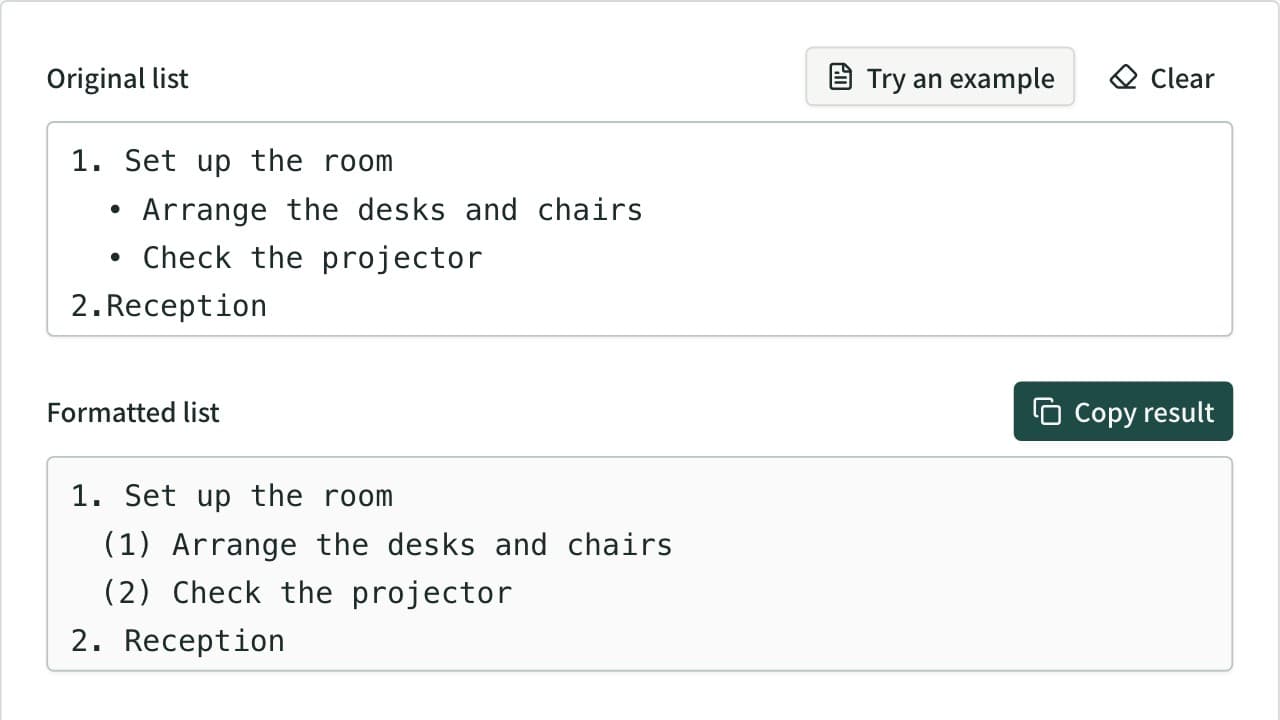
Unify mixed list markers into -, •, 1., (1), a) and more, and renumber the items. Levels are read from the indentation and each level gets its own marker. Also converts to Markdown or HTML lists, removes markers, and joins wrapped lines.
Random Team Generator
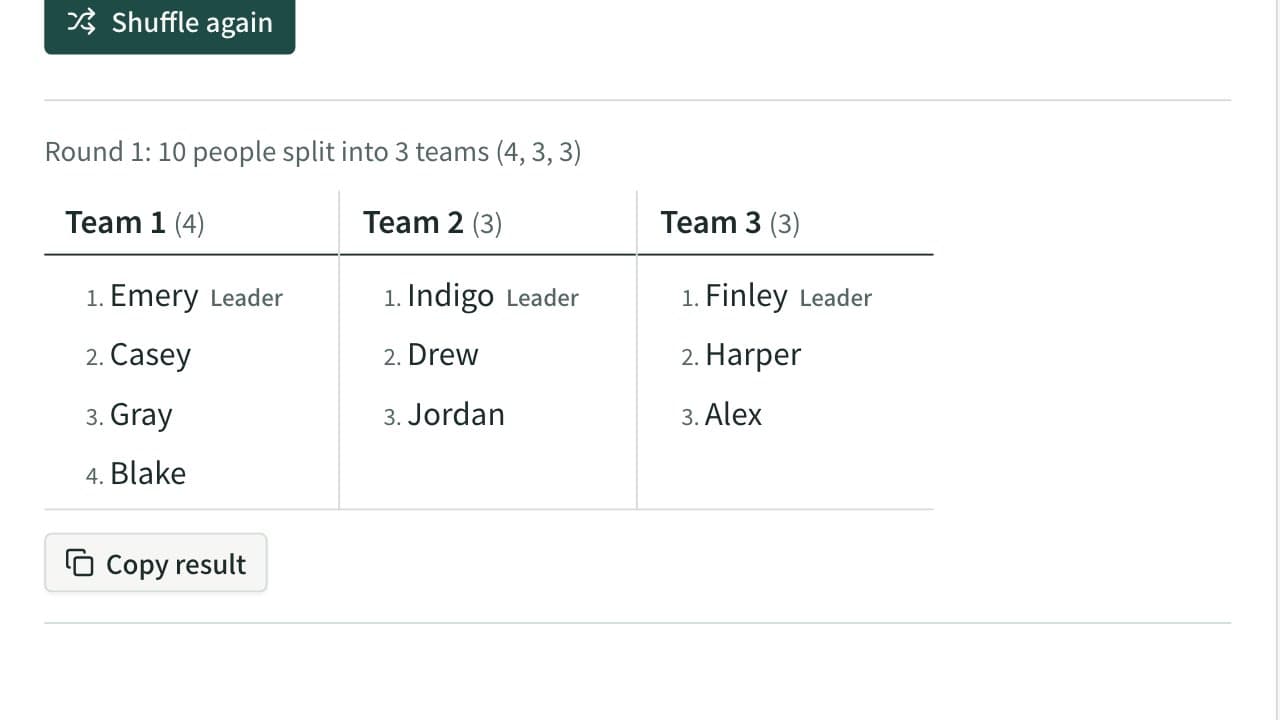
Split a list of names into random teams by the number of teams or the people per team. Team sizes differ by at most one, groups such as experienced and new members can be spread evenly, and a leader can be picked for each team.
Character Counter
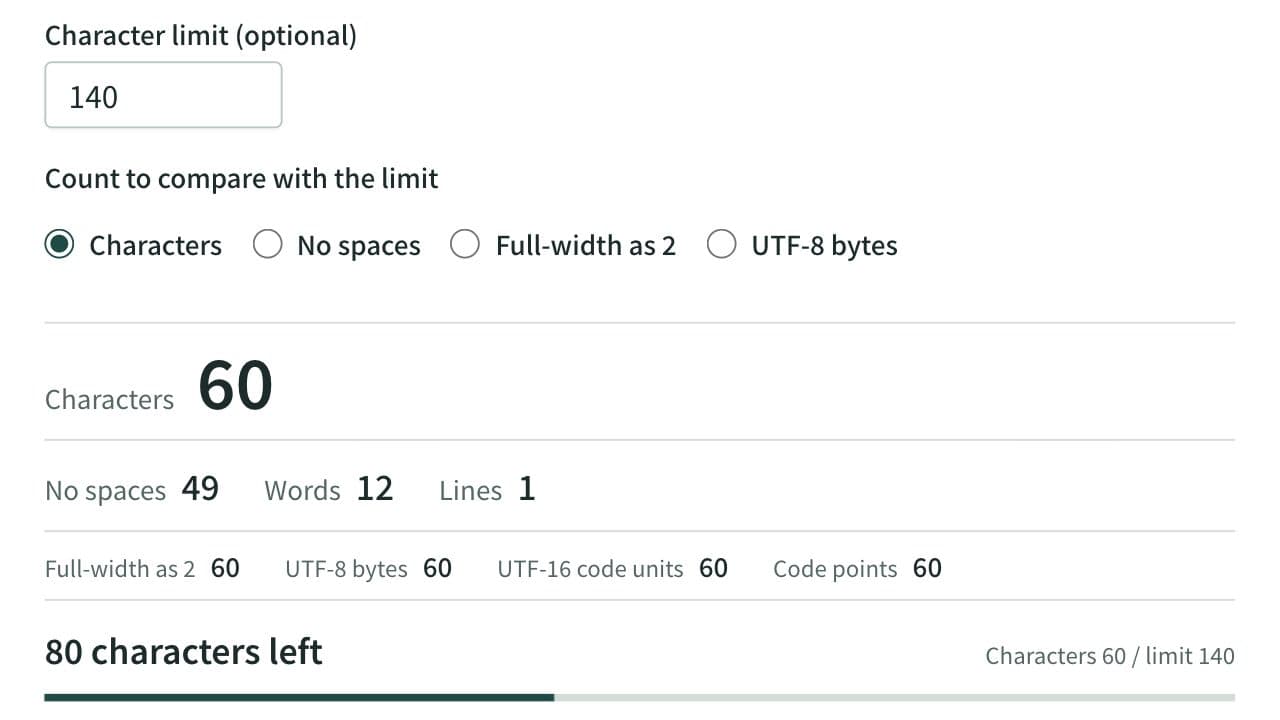
Count characters, words and lines in real time. Also shows the count with full-width characters as 2, UTF-8 bytes, and UTF-16 code units, with the amount left before a limit and where the text goes over it. For social posts, manuscripts, and form fields.