Tally Counter
A tally counter that runs in your browser. Line up to 20 named counters and set how much each press adds. It shows the total and each share, can undo, counts with the number keys, and can split the counts into time slots such as every 15 minutes, for traffic counts, visitor counts, or tallying votes. Tables copy in a form you can paste into a spreadsheet.
Counters
Counter 1
10
Total 0
Counts by time slot
A slot starts when you press “Start recording” or at your first count. Press “Cut here” to add a row with how much each counter went up in that slot.
How to use
- Press the large “+1” button to add one. The “−1” button takes one away. After each press, the line right below the counters shows the new count, such as “Counter 1: 12”
- To count several things, pick “Traffic count”, “Adults and children”, or “A, B, C, D” under “Templates” below the counters, or press “Add counter” (up to 20). With two or more, they sit two to a row even on a narrow screen
- Press “Edit names and steps” to change each counter’s name and “step” (how much one press adds or takes away, from 1 to 1000). Moving counters and deleting them are also here
- When you are done, press “Copy counts”. The names, counts, and shares go to the clipboard as a table you can paste straight into Excel or Google Sheets
If you press the wrong button, “Undo” goes back one step. Deleting a counter, “Reset to 0”, and switching templates can be undone too.
Counting with the keyboard
On a computer, the number keys “1” to “9” and “0” add to the first to tenth counters. Hold Shift to take away instead. The matching key is shown at the right, just below each counter’s name. The numeric keypad works too (taking away with the keypad does not work on Windows because of NumLock, so use the number row for that).
- Holding a key down counts only once
- While you type in a name or step field, the number keys do not count
- Ctrl+Z (⌘+Z on a Mac) does the same as “Undo”
- Clear “Count with number keys” under “Settings” to stop the number keys from counting
Splitting the counts into time slots
- Press “Start recording” when you start. If you just start counting, the slot starts at your first count
- At each cut-off time (for example every 15 minutes), press “Cut here”. A row with how much each counter went up in that slot is added to the table
- The “In progress” row in italics is what has been counted so far in the current slot
- “Copy table” copies the start and end times, each counter, the total column, and a final “Sum” row
“Clear slots” removes the table but keeps the counts. “Reset all to 0” clears both.
Examples
Counting traffic at a crossing every 15 minutes
“Traffic count” sets up five counters: “Pedestrians”, “Bicycles”, “Motorcycles”, “Light vehicles”, and “Heavy vehicles”. Rename them in “Edit names and steps” to match your survey’s categories.
Press “Start recording” at 10:00 and press a button for each one that passes. Pressing “Cut here” at 10:15 adds a row like this:
- Start 10:00:00 — End 10:15:00 — Pedestrians 32, Bicycles 11, Motorcycles 3, Light vehicles 58, Heavy vehicles 7, Total 111
Cut again at 10:30 and 10:45, and “Copy table” pastes all the rows plus the “Sum” row into a spreadsheet. On a phone, turn on “Keep the screen on while counting” under “Settings” so the screen does not dim partway through.
Counting adults and children at an event
Pick “Adults and children” and press for each person who comes in. With 120 adults and 45 children, the total shows 165, and the shares show 72.7% and 27.3%. Shares have one decimal place, and the rounding is spread so they add up to exactly 100.0%.
Counting a show of hands or votes
Pick “A, B, C, D” and rename the counters to the choices. On a computer, pressing 1 to 4 on the keyboard is all it takes.
Counting in twos or tens
For things that come in pairs, such as socks, or boxes of ten, set the step to 2 or 10 in “Edit names and steps”. The buttons change to “+10” and “−10”, and one press adds 10.
Counting rules
- Counts stop at 0. Pressing “−” at 0 changes nothing. To count below 0, turn on “Count below 0 (negative numbers)” under “Settings”
- When the step is larger than what is left, the count stops exactly at 0 (or at the maximum). For example, taking a step of 5 away from 3 gives 0
- Counts go up to 999,999,999 (down to −999,999,999 with negative numbers on)
- Shares are not shown when a count is negative or the total is 0
- A slot’s count is “the count at this cut minus the count when the slot started”. If you press “Reset to 0” in the middle of a slot, that slot’s count can be negative. A counter added in the middle of a slot counts from 0
- A deleted counter also disappears from the table’s columns. Bringing it back with “Undo” brings its column back
- “Undo” goes back through counts, added and deleted counters, and recorded slots. Changes to names, steps, and order are not undone
- Times use this device’s clock. Up to 200 slots can be recorded
FAQ
Are my counts saved?
No. The counts and the table exist only on this page and are lost when you reload or close it. Nothing is sent to a server or stored on the device. Once you have counted something, the browser asks before you reload or close the tab. Following a link to another page on this site (such as the suggested apps below) does not ask, and the counts are lost, so take care. Use “Copy counts” or “Copy table” to keep the results in a note or a spreadsheet.
The screen dims while I count on my phone
Turn on “Keep the screen on while counting” under “Settings”, and the screen stays on while this page is showing. Switching to another app releases it, and it comes back on by itself when you return to this page. The option appears only in browsers that can keep the screen on. It may not turn on in power saving mode, for example.
Can it vibrate on each press?
Turn on “Vibrate on each press” under “Settings” for a short vibration each time a count changes. It appears only in browsers that can vibrate, such as Chrome on Android. Safari on iPhone has no way to vibrate, so the option does not appear there.
The number keys do not count
Check that “Count with number keys” under “Settings” is on. When the cursor is in a name or step field, digits are typed into it; click outside the field first. Only the first to tenth counters have number keys.
Can several people count on one phone?
All counters are on one screen, so two people can share a phone and each press a different button. Counts from separate devices are not combined automatically. Use “Copy counts” on each and add them up in a spreadsheet.
- Type
- Utility
- Category
- Calculators
- Tags
- counter
- tally
- clicker
- traffic-count
- survey
- count
Related apps
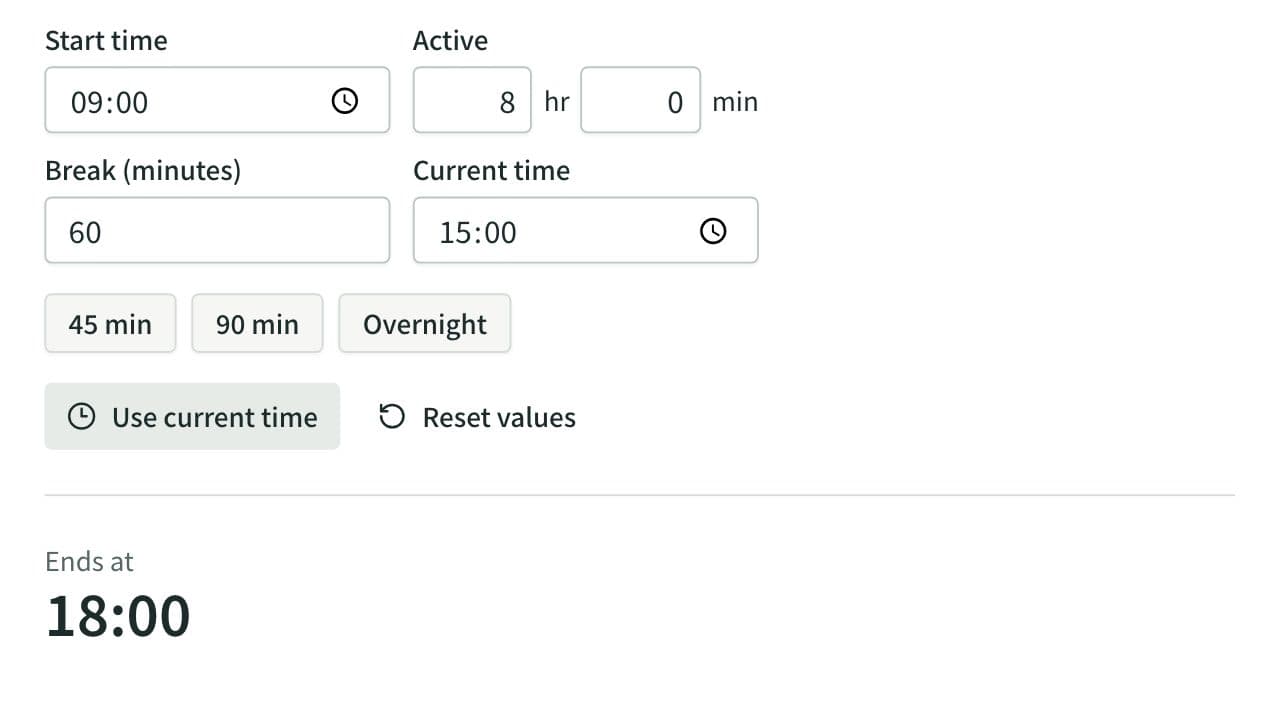
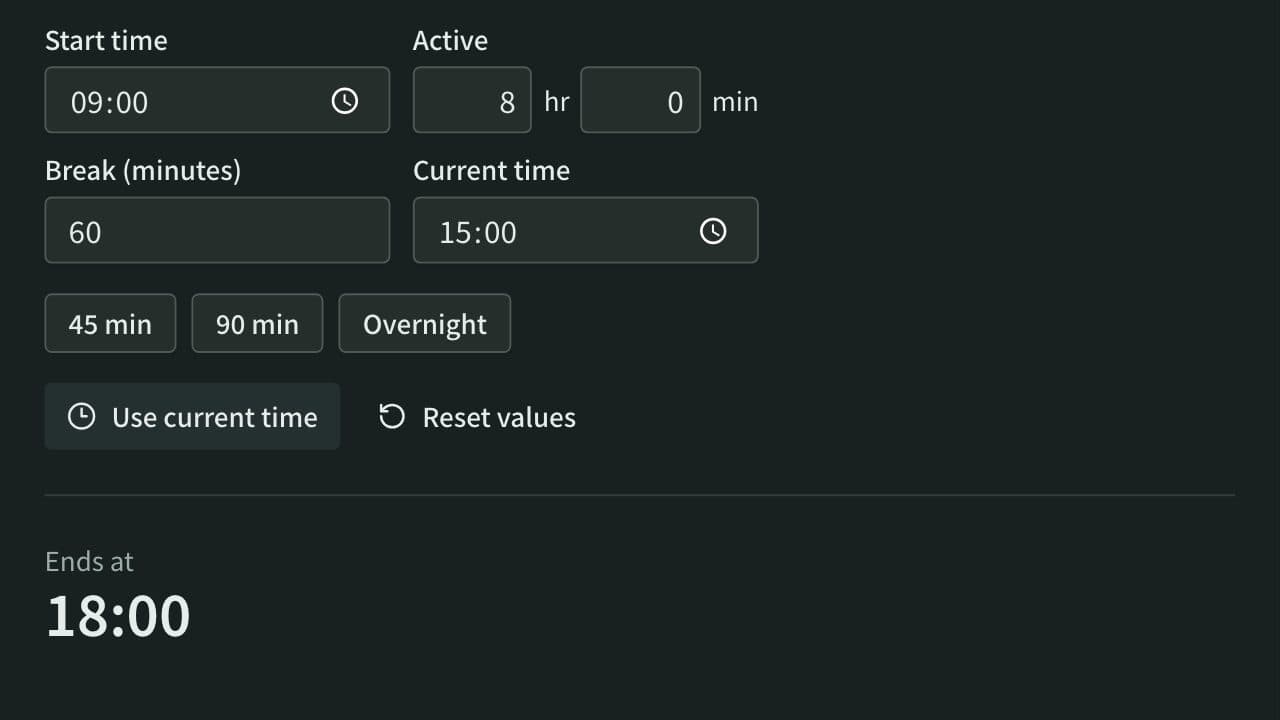
Elapsed Time Calculator
Calculate elapsed, remaining, and active time from start, end, current time, and breaks, or work out the end time from the active time. Also adds and subtracts durations such as 1:30 or 2h 15m and converts them to decimal hours.
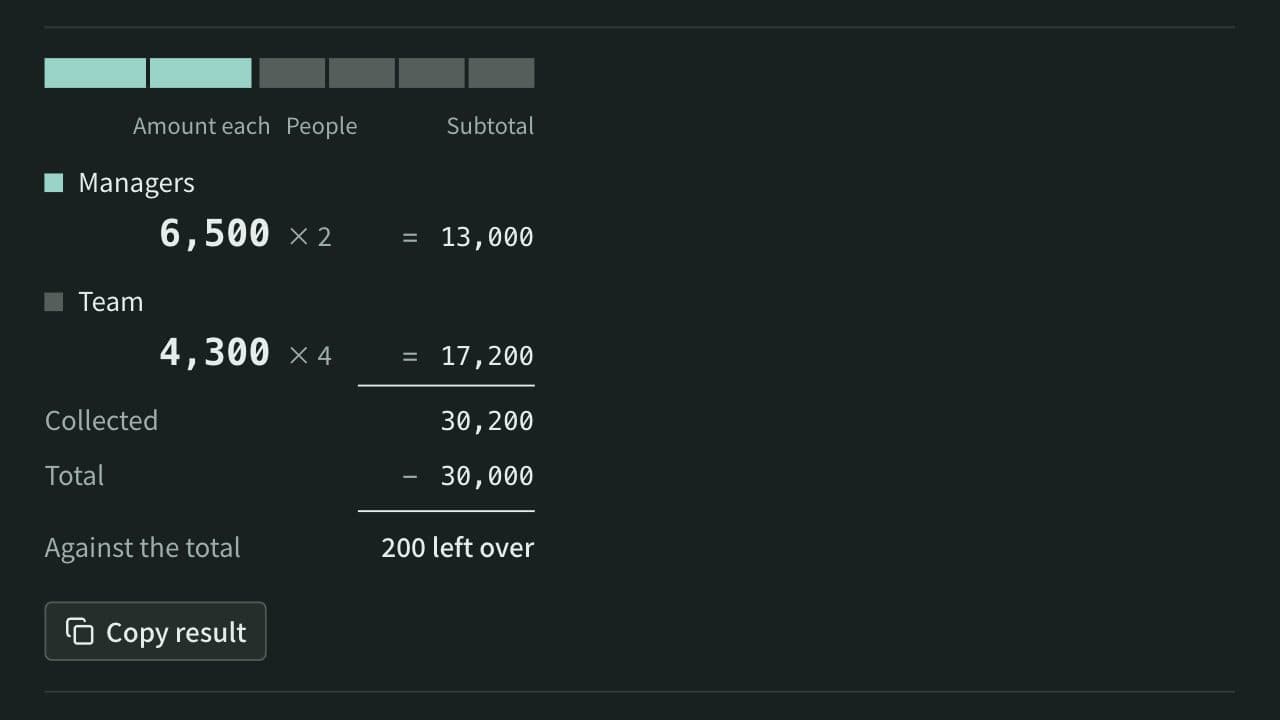
Split Bill Calculator
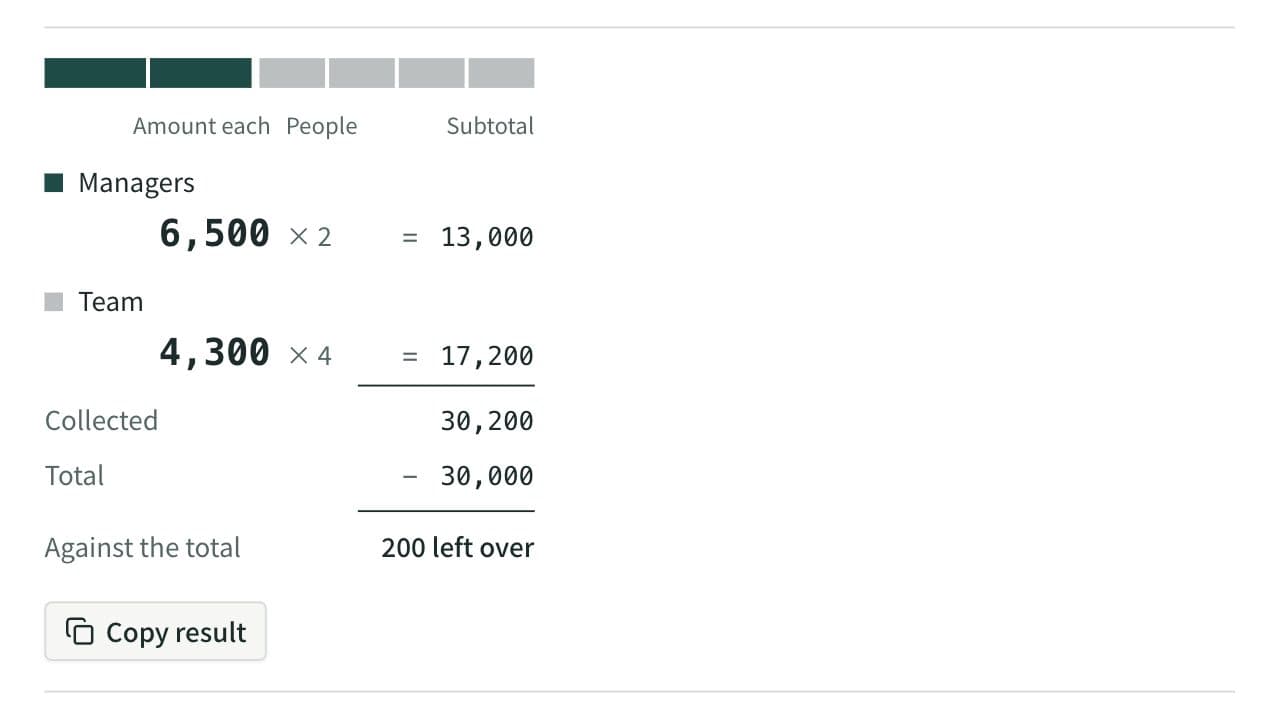
Work out what each person pays from the total and the head count. Round payments to 10, 100, 500, or 1,000, let some groups pay a larger share or a set amount, and see how much is collected and left over. When several people paid, it also works out who pays whom to settle up.
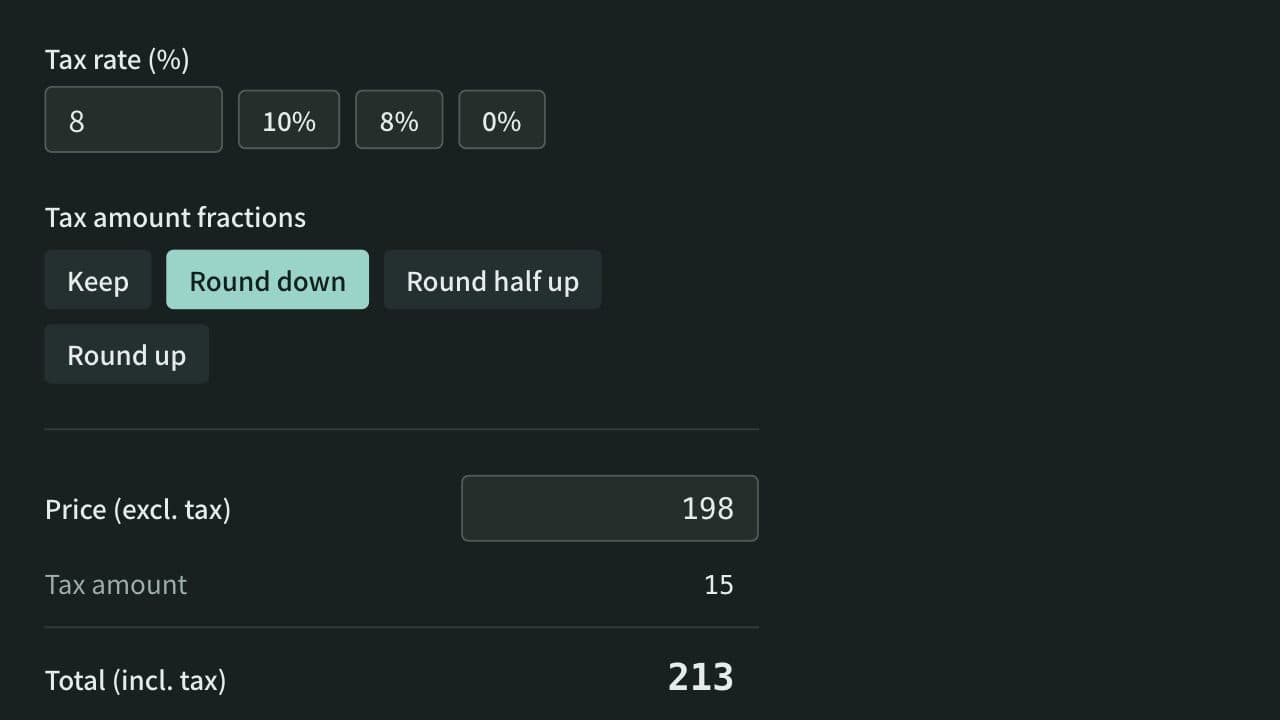
Sales Tax Calculator
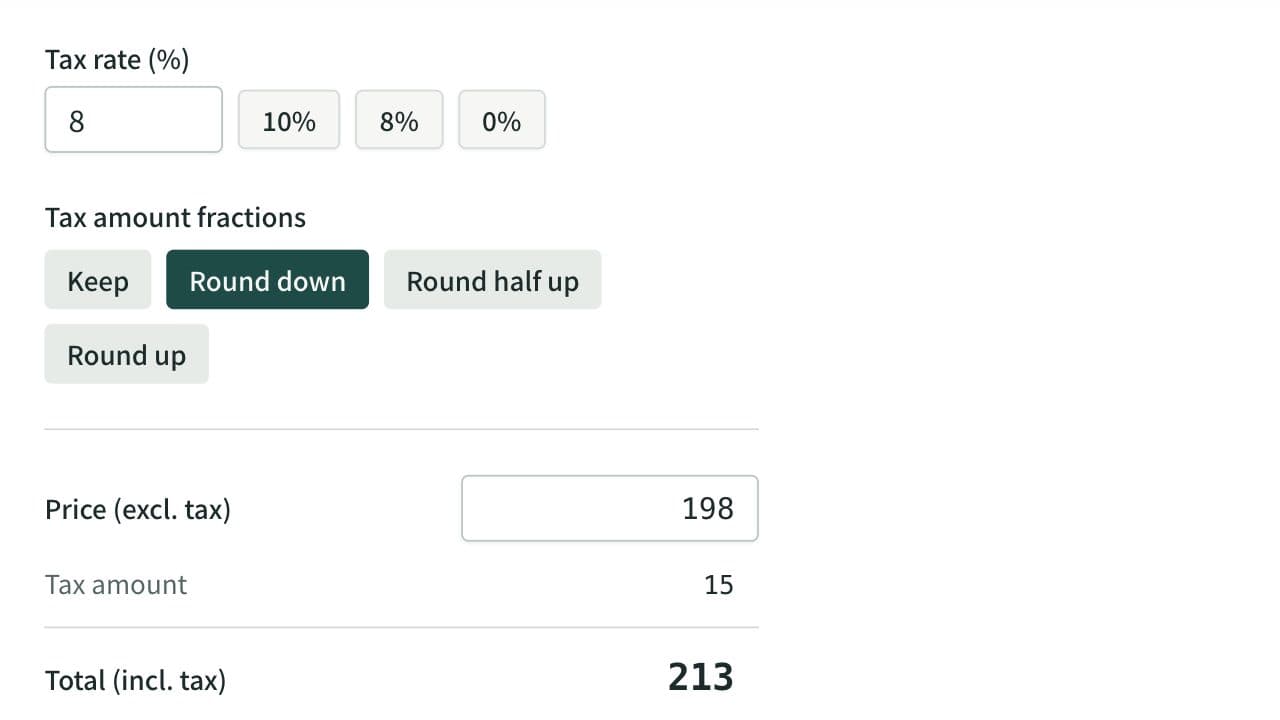
Calculate tax-inclusive and tax-exclusive prices for a given tax rate, with the tax amount rounded down, half up, or up if you choose. For a total with both 10% and 8% items, it works out the tax for each rate from either the sum at each rate or each item's price and quantity.