Timer and Stopwatch
A countdown timer you set in hours, minutes, and seconds, and a stopwatch that records laps. The timer plays a sound when the time is up and counts the time since. It can be extended a minute at a time while running or after it rings, and shows the time left in the tab title. The stopwatch measures to a hundredth of a second, and the lap list can be copied. Runs entirely in your browser.
3:00
00:00.00
How to use
Use "Mode" to switch between the timer and the stopwatch. You can leave one running and switch to the other.
Timer
- Enter the length you want in "Hours", "Minutes", and "Seconds". The "Common times" buttons (1, 3, 5, 10, 15, and 30 minutes) fill it in for you
- Press "Start" to begin the countdown. Pressing Enter in one of the fields starts it too. Beside the time left, the time of day it will end appears, as in "Ends at 3:07:00 PM"
- When the time left reaches 0, "Time's up" appears and a sound plays. Below it, the time since it reached 0 counts up a second at a time, as in "Over by +0:12". Press "Stop" to silence it and go back to where you can start the same length again
Press "Pause" along the way to hold the time left, and "Resume" to carry on from there. "Reset" returns to the length you set.
Once the timer has started, a "+1 min" button appears.
- While it is running — One minute is added to the time left, and the sound plays that much later
- While it is paused — One minute is added to the time left, and it stays paused
- After the time is up — The ringing stops, and it carries on as a one-minute timer
Adding a minute does not change the length in the fields. "Reset" or "Stop" takes you back to the length you first set.
Untick "Play a sound when the time is up" for a silent timer. "Test the sound" plays one second of the same sound, so you can check the volume before you start.
Stopwatch
- Press "Start" to begin timing
- Press "Lap" to add the time at that moment to the list below. Timing does not stop
- "Pause" stops it and "Resume" carries on from there. "Reset" clears the time and every lap
"Copy laps" puts the lap list on the clipboard.
Example
Timing three minutes for instant noodles
The page opens with the timer set to 3 minutes, so you only need to press "Start". The display counts down from "3:00" one second at a time, and the sound plays when it reaches "0:00".
While you work in another tab, the browser tab's title shows the time left, such as "2:15 - Timer and Stopwatch…". It changes to "Time's up" at the end.
Alternating 25 minutes of work and 5 minutes of rest (Pomodoro)
Enter 25 in "Minutes" and start. When the sound plays, press "Stop". Press the "5 min" button and start again for the 5-minute break.
Giving pasta a little longer
Start a 7-minute timer, and if the pasta needs more time when you check it, press "+1 min". The time left grows by a minute, and the sound plays that much later. If you want more time after it has already rung, "+1 min" silences the sound and starts a one-minute timer.
Timing a 90-minute exam
Enter 90 in "Minutes" and start. The fields are rewritten as 1 hour, 30 minutes, 0 seconds, and the display counts down from "1:30:00". Minutes or seconds of 60 or more are carried over like this.
Running three laps of a 400 m track and seeing each lap
Start the stopwatch and press "Lap" each time you complete a lap. After three presses the list looks like this, with the newest lap on top.
- Lap 3 — lap time 01:31.20, behind fastest —, split 04:39.85 (Fastest)
- Lap 2 — lap time 01:35.40, behind fastest +4.20, split 03:08.65 (Slowest)
- Lap 1 — lap time 01:33.25, behind fastest +2.05, split 01:33.25
"Lap time" is how long that one lap took, and "Split" is the total since the start. With two or more laps, the shortest is marked "Fastest" and the longest "Slowest". When laps tie, the earlier one is marked, and when every lap took the same time, neither mark appears.
"Behind fastest" is how much longer a lap took than the fastest one. The hatched bar beside it runs the full width for the lap furthest behind, so you can compare the gaps at a glance. The fastest lap has no bar. With only one lap, or when every lap took the same time, the column does not appear. On a narrow screen, the gap appears in small type under the lap time instead of in a column of its own.
Display and timing
- Timer display — Under an hour it reads minutes:seconds (such as
3:00); from an hour up, hours:minutes:seconds (such as1:30:00). The time left is rounded up to the second, so "0:00" appears at the moment the time is up - Time line — The line under the time left is the length you set, drawn like a ruler: 0:00 at the left end and the full length at the right, with marks every 10 seconds, every minute, every 10 minutes and so on to suit the length. The time gone is the thicker part of the line, and the short upright stroke is where you are now. "+1 min" redraws the line to the longer length. On a narrow screen, only the two ends are labelled
- End time — While running it shows "Ends at 3:07:00 PM", and after the time is up "Ended at 3:07:00 PM", by the clock on your device. While paused the end is not fixed, so it does not appear
- Overtime — The time since the moment the time was up, shown as "Over by +minutes:seconds" ("Over by +hours:minutes:seconds" from an hour up). Anything under a second is dropped, so "+0:01" appears once a full second has passed. It keeps counting after the sound stops at 30 seconds, until you press "Stop". If you were in another tab, it shows the right value, counted from the moment the time was up, as soon as you come back
- +1 min — Each press adds one minute. It cannot be pressed when the time left would go past 99 hours 59 minutes 59 seconds
- Stopwatch display — Minutes:seconds.hundredths (such as
01:33.25). Past an hour, the hours come first, as in1:00:00.00. Anything finer than a hundredth of a second is dropped - Lengths you can set — From 1 second to 99 hours 59 minutes 59 seconds. An empty field counts as 0
- Laps — Up to 99 are recorded. Each split is cut to the hundredth before lap times are taken from it, so the lap times in the list always add up to the split
- Behind fastest — Seconds and hundredths, such as "+2.05"; from a minute, "+1:02.90", and from an hour, "+1:00:02.90"
- What is copied — A header line, then one line per lap with the number, lap time, and split separated by tabs. The gap to the fastest lap is not included. Pasted into a spreadsheet, it lands in three columns
- Sound — Three short beeps a second, for 30 seconds. "Stop" silences it at once
- How time is measured — The tool does not subtract one each second. It works from the difference between the moment you pressed Start and now, so the time is right whenever you look, even if the tab was in the background and the screen was updated late
When you are in another tab, or the screen is off
Browsers slow down tabs that are in the background. The tool limits the effect in these ways.
- When you press Start, the closing sound is booked with the browser's audio system to play that many seconds later. On a computer's browser it normally plays on time even when the tab is in the background
- When you bring the tab back to the front, the time left is corrected at once
- If the booked sound was held up, for example because the computer slept, it plays as soon as the tool notices
Even so, the sound will not be on time in these cases.
- On a phone, the screen is off or you switched to another app — The whole browser is suspended, and the sound either does not play or plays when you return to the page. On a phone, keep the screen on, or use the timer in the clock app that comes with the device
- The computer went to sleep — Nothing plays during sleep. On waking, the sound plays at once if the time has already passed
- The tab was closed or the page reloaded — The timer and the stopwatch are both gone
- The device or the tab is muted — No sound plays. The display and the tab title still change
For anything you cannot afford to miss, such as waking up or taking medicine, use the alarm or timer on your device.
FAQ
I pressed Start, but no sound played at the end
Check the following.
- Whether "Play a sound when the time is up" is ticked
- Whether the device volume is at 0 or muted, and whether the site has been muted from the browser tab's right-click menu
- Whether you can hear anything when you press "Test the sound"
If the test is audible but the timer ended silently, the phone's screen may have been off or the computer may have been asleep.
Does the timer keep going while I look at another tab?
Yes. It works from the difference from the moment you started, so it does not fall behind in a background tab. You can also read the time left in the tab title (in a background tab, the title may be updated less often than once a second).
Can I use the timer and the stopwatch at the same time?
Yes. Switching "Mode" does not stop whichever one is running. If the timer finishes while you are looking at the stopwatch, the page switches to the timer.
What is the difference between a lap time and a split time?
A lap time is the time for one section only: from the previous press of "Lap" to this one. A split time is the total from the start to that moment. Look at lap times to compare your pace from lap to lap, and at splits to know when you passed a given point.
How accurate is it?
Time is read from the device's clock, so errors do not build up over a long run. The delay between pressing a button and timing beginning is normally a few hundredths of a second or less. It is not timing equipment for official records in athletics or swimming, though. Also, if you change the device's clock by hand while it is running, the time is off by that much.
If I notice only after the time is up, can I tell how late I am?
Yes. "Over by +minutes:seconds" below "Time's up" is the time since the moment the time was up. The sound stops after 30 seconds, but the overtime keeps counting until you press "Stop".
Can I set a timer shorter than a second, or of 100 hours or more?
No. The timer works in whole seconds, from 1 second to 99 hours 59 minutes 59 seconds. For lengths that cross days, the Elapsed Time Calculator works out the time remaining from a start and an end.
Can I run several timers side by side?
This page has one timer. To run several at once, open this page again in another browser tab. Each tab runs on its own.
Do the time and the laps stay after I close the page?
No. The timer setting, the time being measured, and the laps are not saved or sent anywhere. They disappear when you close or reload the page. Copy any laps you want to keep with "Copy laps" before closing.
- Type
- Utility
- Category
- Calculators
- Tags
- timer
- stopwatch
- countdown
- lap
- time
- alarm
Related apps
Hourly Pay Calculator
Calculate worked hours and a day's pay from an hourly wage, clock-in, clock-out, and breaks, with overtime past 8 hours, late-night work (22:00–05:00), and work on the statutory day off shown separately at premium rates.
Split Bill Calculator
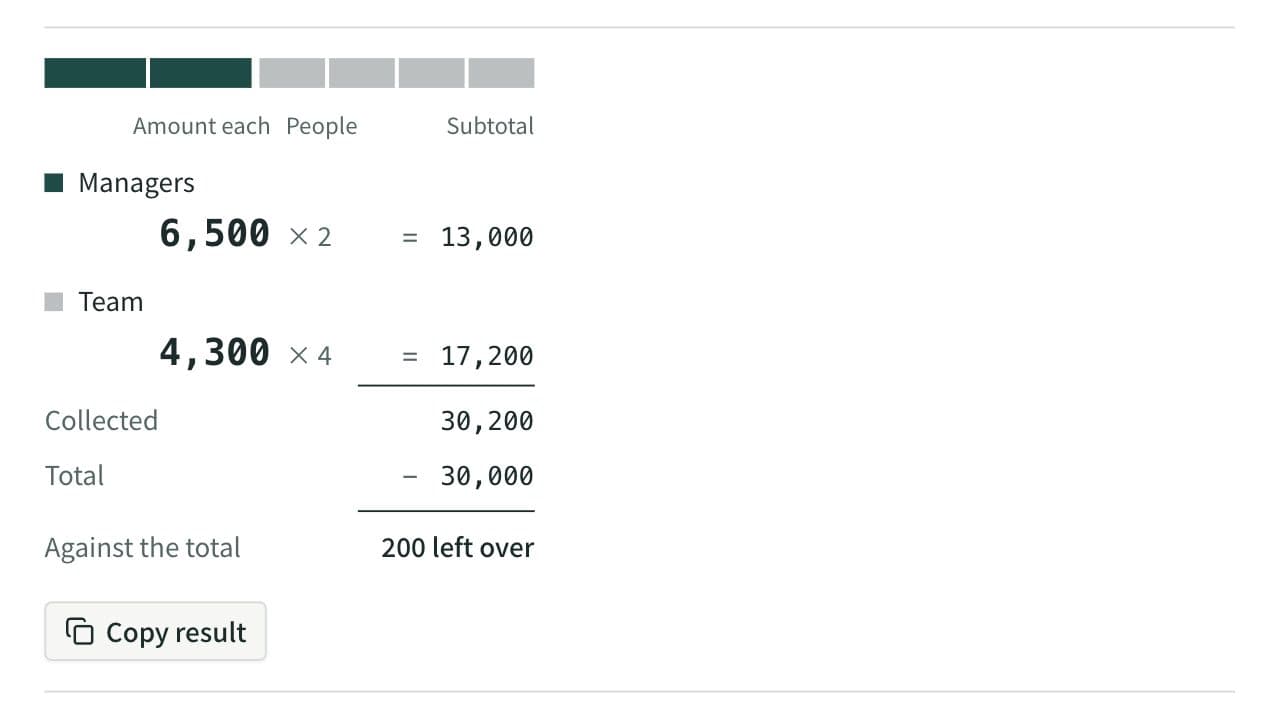
Work out what each person pays from the total and the head count. Round payments to 10, 100, 500, or 1,000, let some groups pay a larger share or a set amount, and see how much is collected and left over. When several people paid, it also works out who pays whom to settle up.
Sales Tax Calculator
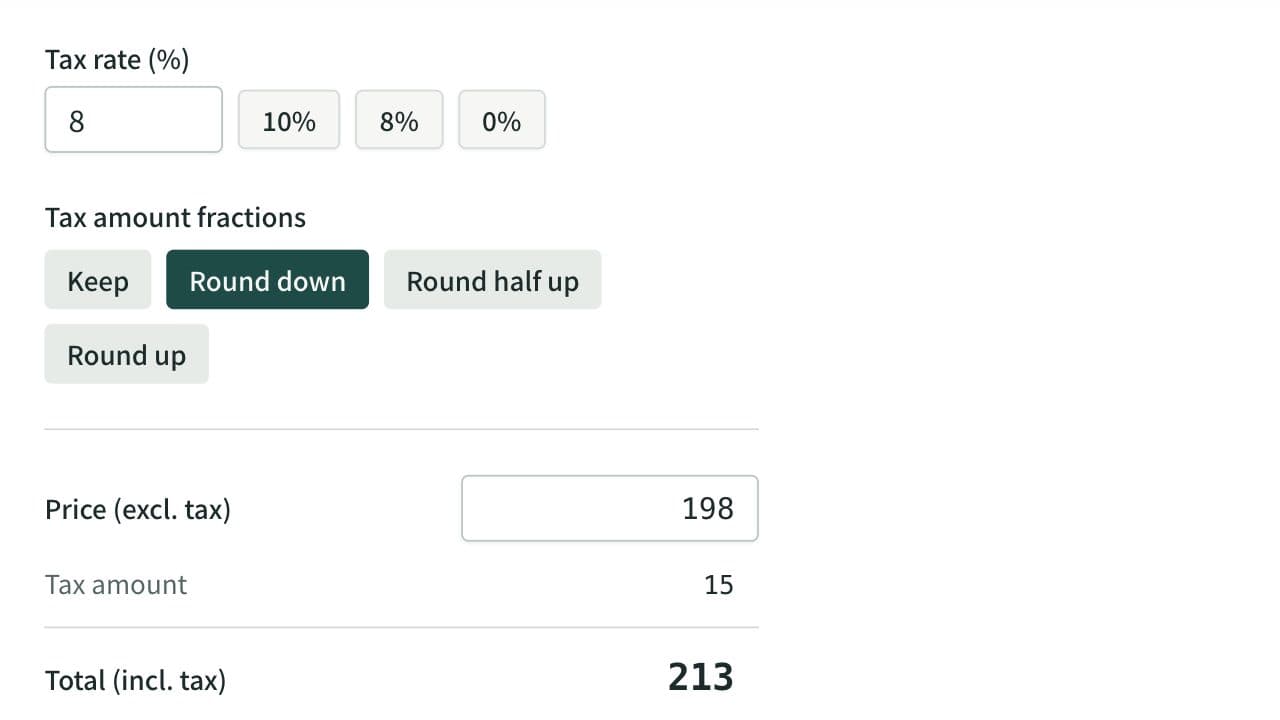
Calculate tax-inclusive and tax-exclusive prices for a given tax rate, with the tax amount rounded down, half up, or up if you choose. For a total with both 10% and 8% items, it works out the tax for each rate from either the sum at each rate or each item's price and quantity.